00197622-02_IM_OIS_SIS_12.1_DE_EN.pdf - 第9页
SIPLACE OIS V12.1 / Insta llation Manual Ausgabe 05/2015 Edition 9 3.2 I nstallation of the SI PLACE OIS software As of the SIPLACE OIS 10.0 version the setup has be en re - designed in orde r to support new er technolog…
SIPLACE OIS V12.1 / Installation Manual Ausgabe 05/2015 Edition
8
If you have to upgrade from SIPLACE OIS with a version < 10.0, you have to uninstall this version
manually before installing the new version. With newer versions of SIPLACE OIS, upgrade will be
performed automatically when executing the new setup.
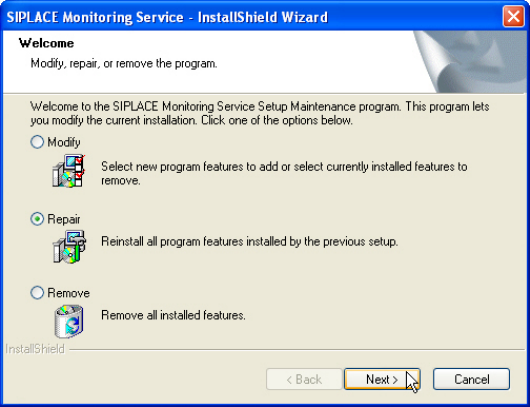
If the same version of SIPLACE OIS is already installed, you will see the welcome page of the
maintenance mode as displayed in the following picture.
Figure 3-2: Maintenance mode dialog
► Select one of the following options, to determine what you want to do with the existing
installation.
Further information about these options can be found in the appropriate sections of this
document.
● Modify (see section 3.3)
● Repair (see section 3.4)
● Remove (see section 3.5)
During the SIPLACE OIS installation, the installer checks whether the installed operating system is
supported. If not, an error message is displayed and the installation canceled.
SIPLACE OIS V12.1 / Installation Manual Ausgabe 05/2015 Edition
9
3.2 Installation of the SIPLACE OIS software
As of the SIPLACE OIS 10.0 version the setup has been re-designed in order to support newer
technologies, such as Windows Installer and Windows 7. The new setup also contains the OIS
Client installation that was delivered as a separate setup package in former versions.
3.2.1 Starting the installation of the SIPLACE OIS software
NOTICE
Sample installation
In the following sample installation Monitoring Service as well as OIS Client will be
installed. If only one of the programs shall be installed, some of the described dialog
boxes do not appear.
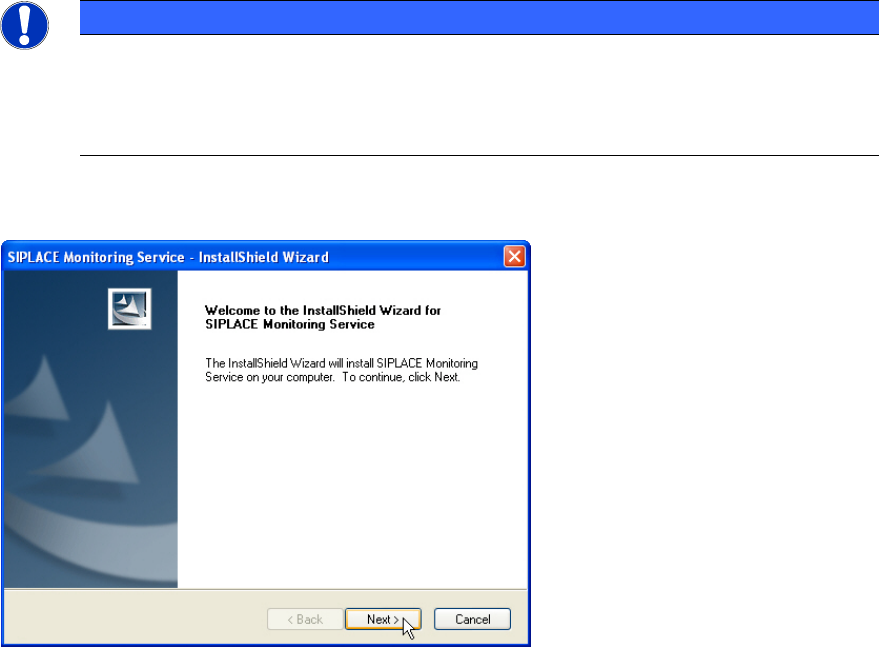
The following dialog box is opened.
Figure 3-3: Welcome SIPLACE Monitoring Service
► Close all open applications.
► Continue by clicking Next>.
SIPLACE OIS V12.1 / Installation Manual Ausgabe 05/2015 Edition
10
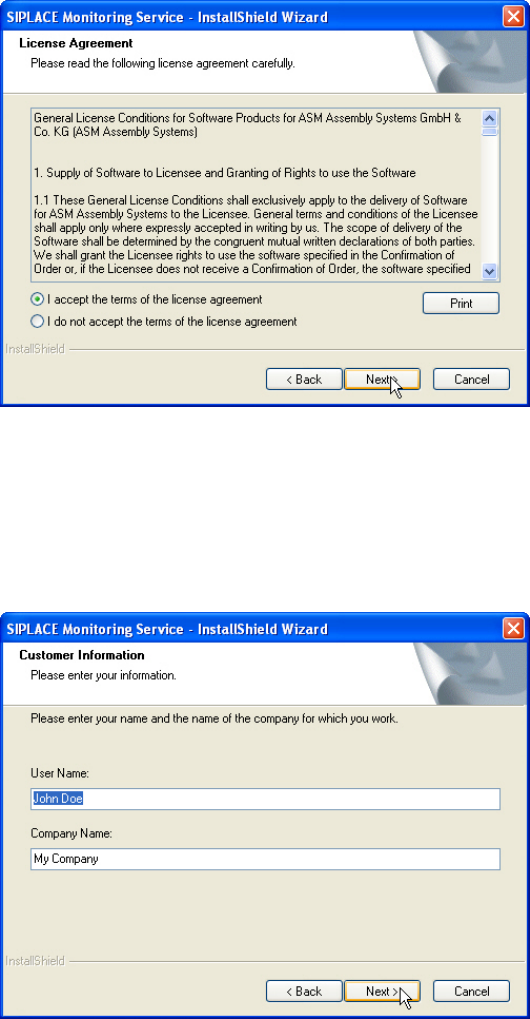
The software licensing contract is opened.
Figure 3-4: License agreement
If you do not accept the licensing contract, the setup process is terminated.
► Select I accept the terms of the license agreement to accept the licensing conditions.
► Click Next >.
The following dialog box is opened.
Figure 3-5: Customer information
► Enter your name and company name.
► Click Next >.