00197622-02_IM_OIS_SIS_12.1_DE_EN.pdf - 第26页
SIPLACE OIS V12.1 / Insta llation Manual Ausgabe 05/2015 Edition 26 Thereafter the following dialog box is o pened. Figure 3-31: Reviewing setti ngs This s hows a summary of the sett ings and entries y ou have made so f …
SIPLACE OIS V12.1 / Installation Manual Ausgabe 05/2015 Edition
25
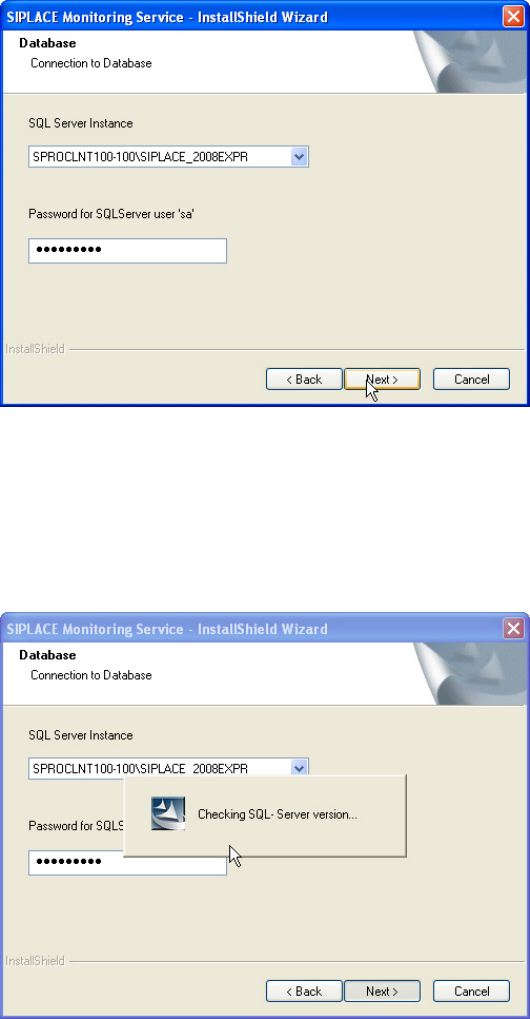
The following dialog box is opened.
Figure 3-29: Connection to database
► Select the database instance.
► Enter the system administrator password.
► Click Next >.
The following dialog is opened.
Figure 3-30: Checking database instance
Information on the selected database instance is gathered.
SIPLACE OIS V12.1 / Installation Manual Ausgabe 05/2015 Edition
26
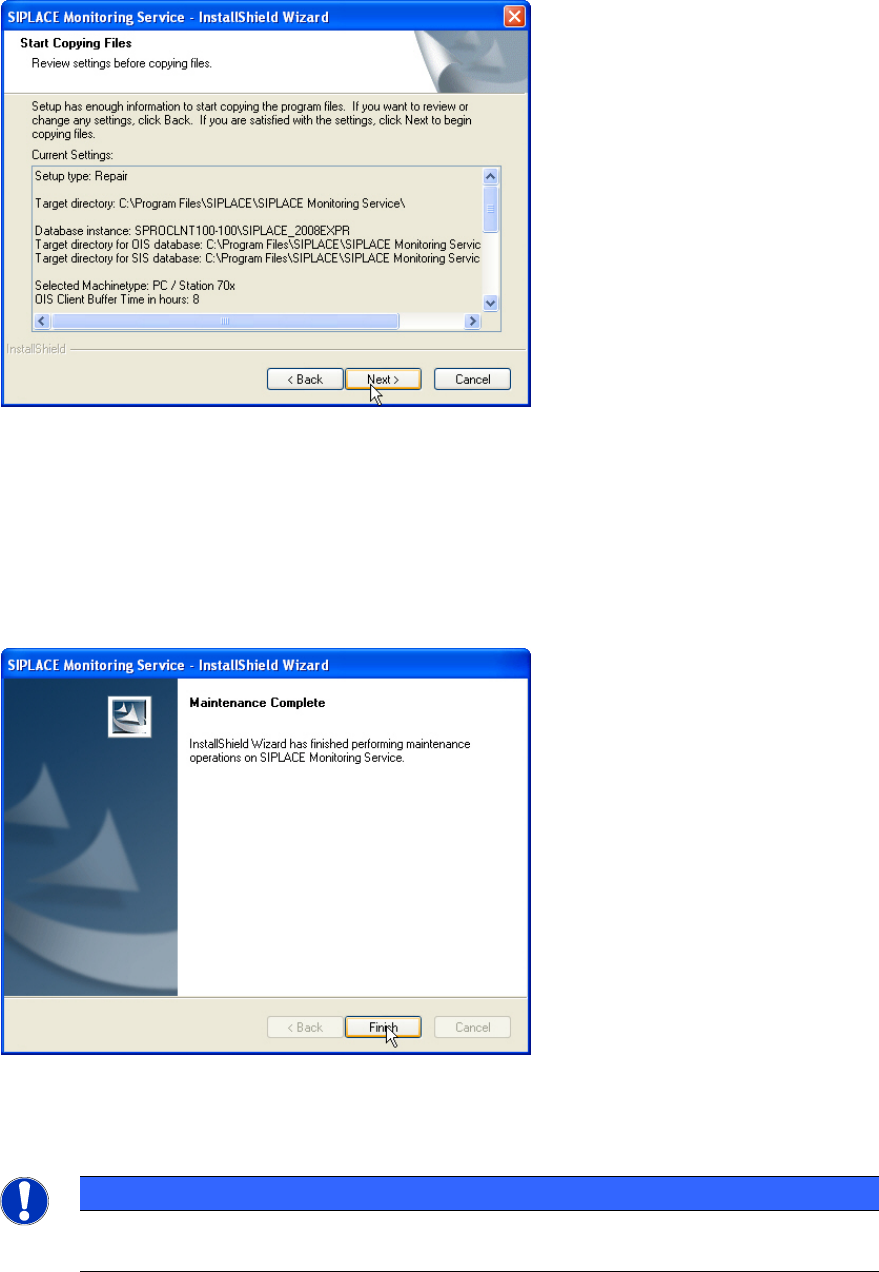
Thereafter the following dialog box is opened.
Figure 3-31: Reviewing settings
This shows a summary of the settings and entries you have made so far.
► Check the settings.
► If you wish to change your entries, click < Back to return to the appropriate dialog.
► Click Next > to start the repairing process.
Once the repairing process has been completed, the following dialog box appears.
Figure 3-32: Finishing repairing
► Click Finish to complete the repairing process.
NOTICE
If this dialog box suggests rebooting the computer, you should do so, as the repairing is
only completed after a reboot.
SIPLACE OIS V12.1 / Installation Manual Ausgabe 05/2015 Edition
27
3.5 Removing the program (Uninstalling)
The Remove option removes all the installed components, including all the corresponding entries
in the Registry.
You have the option to keep or remove the database.
► Click the Windows Start button and select Settings and then Control Panel.
► Start the Add/Remove Programs dialog, by double-clicking on Add/Remove Programs.
► Select the program from the list (SIPLACE OIS / SIPLACE Monitoring Service) and click on
Change/Remove.
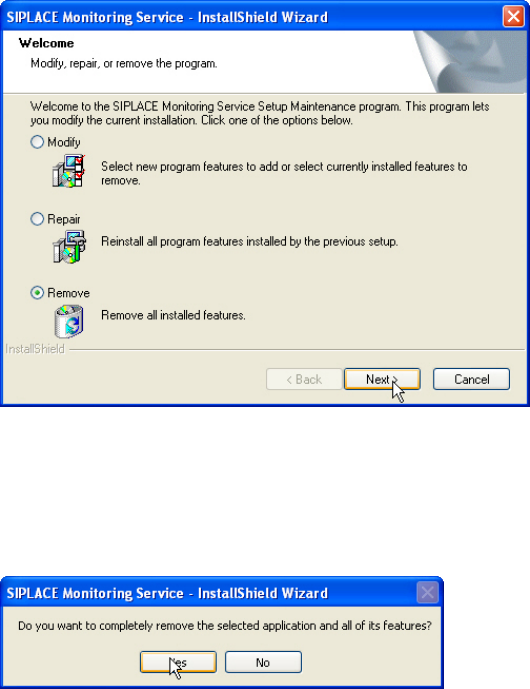
The setup program will start and display the following dialog box.
Figure 3-33: Removing program
► Select Remove.
► Click Next >.
The following request appears.
Figure 3-34: Request
► Respond to the request with Yes.