00197622-02_IM_OIS_SIS_12.1_DE_EN.pdf - 第30页
SIPLACE OIS V12.1 / Insta llation Manual Ausgabe 05/2015 Edition 30 3.6 System time (on ly OIS client) The OIS operat ing data is stored usi ng the appropriat e station's syst em time. The SIS operat ing data are st…
SIPLACE OIS V12.1 / Installation Manual Ausgabe 05/2015 Edition
29
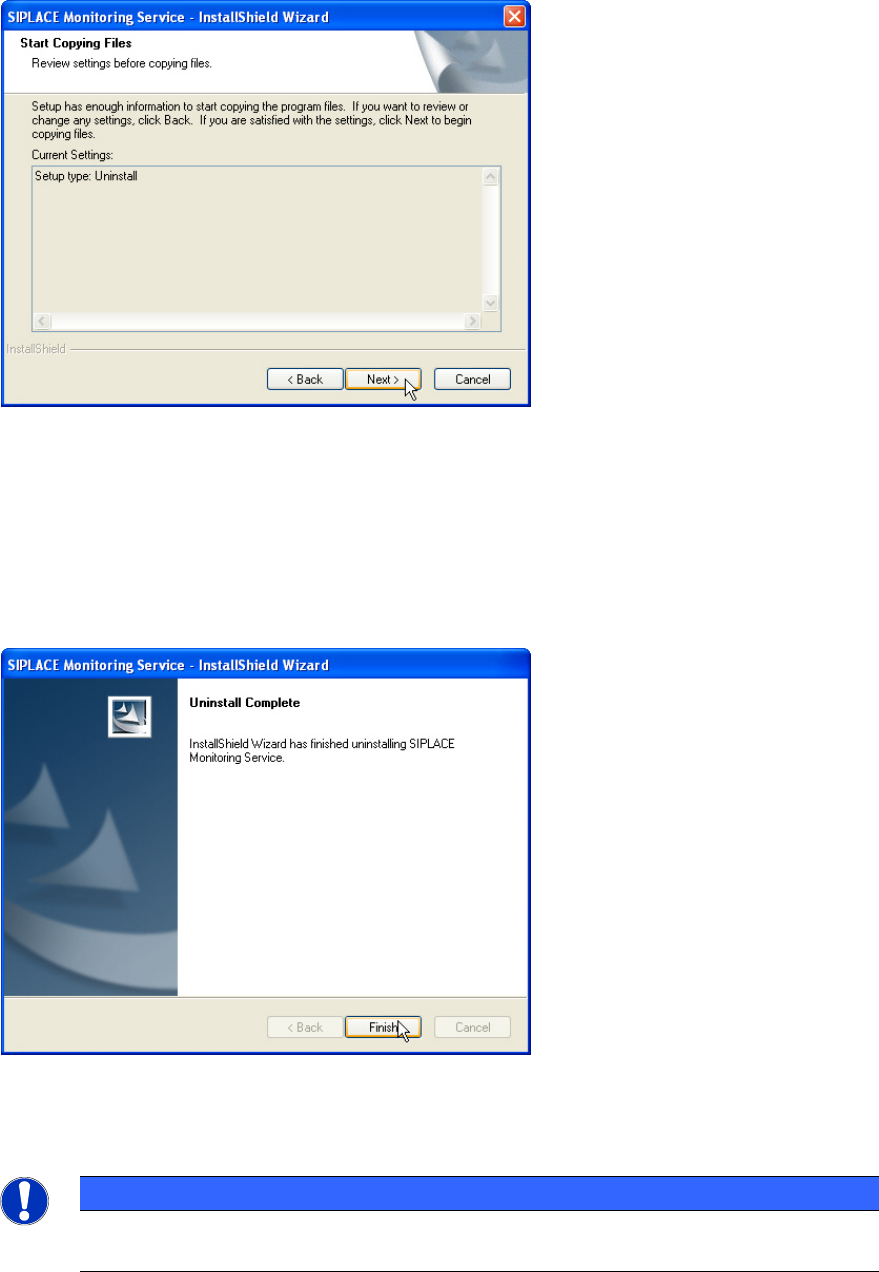
The following dialog box is opened.
Figure 3-36: Reviewing settings
This shows a summary of the settings and entries you have made so far.
► Check the settings.
► If you wish to change your entries, click < Back to return to the appropriate dialog.
► Click Next > to start the uninstalling process.
Once the uninstalling process has been completed, the following dialog box appears.
Figure 3-37: Finishing uninstallation
► Click Finish to complete the uninstalling process.
NOTICE
If this dialog box suggests rebooting the computer, you should do so, as the uninstalling
is only completed after a reboot.

SIPLACE OIS V12.1 / Installation Manual Ausgabe 05/2015 Edition
30
3.6 System time (only OIS client)
The OIS operating data is stored using the appropriate station's system time. The SIS operating
data are stored with the server system time. Therefore, it is important that the system time on all
station computers is synchronized to allow the operating data to be evaluated correctly. To do this,
you must install a time server client on each machine.
SIPLACE Explorer also requires the system time of the OIS and SIS operating data to be
synchronized.
NOTICE
► Install the current version of TimeSync to synchronize the system time.
TimeSync is not included in the SIPLACE OIS software package.
TimeSync is provided on the Support Media DVD. In the software guide, item no.
[00194669-xx] you find detailed information for the installation of TimeSync.
Additionally, TimeSync is also provided on the station software DVD.
SIPLACE OIS V12.1 / Installation Manual Ausgabe 05/2015 Edition
31
3.7 Identify Station (only OIS client)
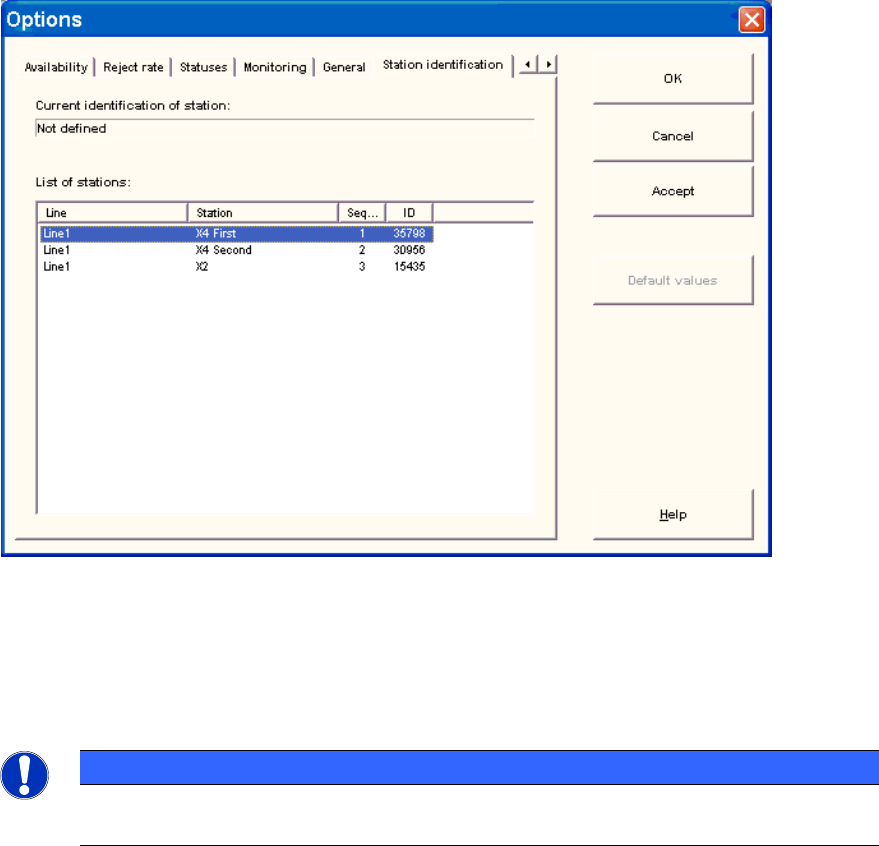
For a station to be monitored, it must be identified.
For a station with station software version 70x, the station identification is not necessary.
► Select the Station identification item from the Options menu.
Figure 3-38: Identifying station
► Select the appropriate station in the OIS Client from the list.
► Double-click the station to identify it.
► Close the dialog by clicking OK.
NOTICE
To select the station, the line configuration must be created first on the OIS Server using
OIS LineConfig, see the Administration Guide, item no. [00197620-xx].