00197622-02_IM_OIS_SIS_12.1_DE_EN.pdf - 第19页
SIPLACE OIS V12.1 / Insta llation Manual Ausgabe 05/2015 Edition 19 The following dial og box is opened. Figure 3-21: Entering number of days for storing production data The production dat a is only saved in t he databas…
SIPLACE OIS V12.1 / Installation Manual Ausgabe 05/2015 Edition
18
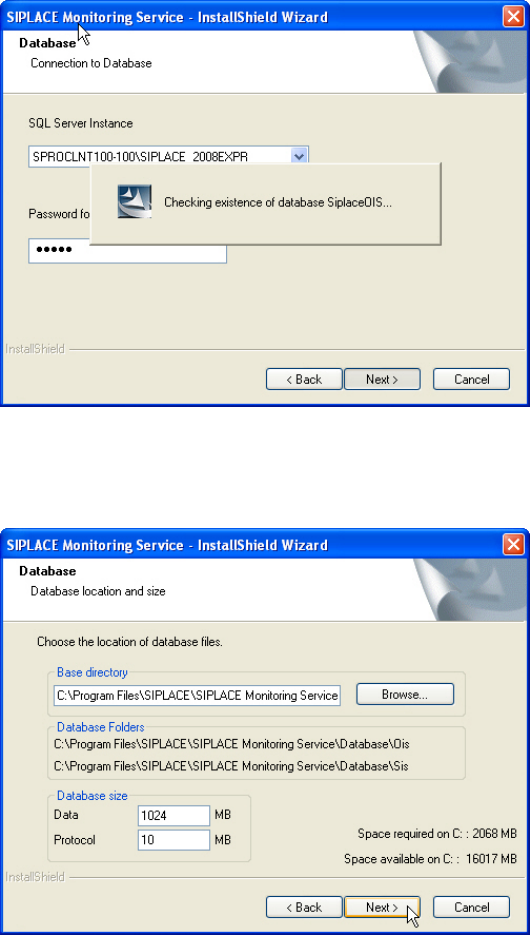
The following dialog box is opened.
Figure 3-19: Checking database instance
Information is gathered on the selected database instance (takes appr. 15-30 seconds). Thereafter
the following dialog box is opened.
Figure 3-20: Entering database size
► Click Browse... if you want to select another installation directory for the database.
The Database\OIS and Database\SIS sub directories are created.
► Enter the starting file size for the database files.
The default values are generally acceptable, and the files are allowed to grow as your database
expands.
► Click Next >.
SIPLACE OIS V12.1 / Installation Manual Ausgabe 05/2015 Edition
19
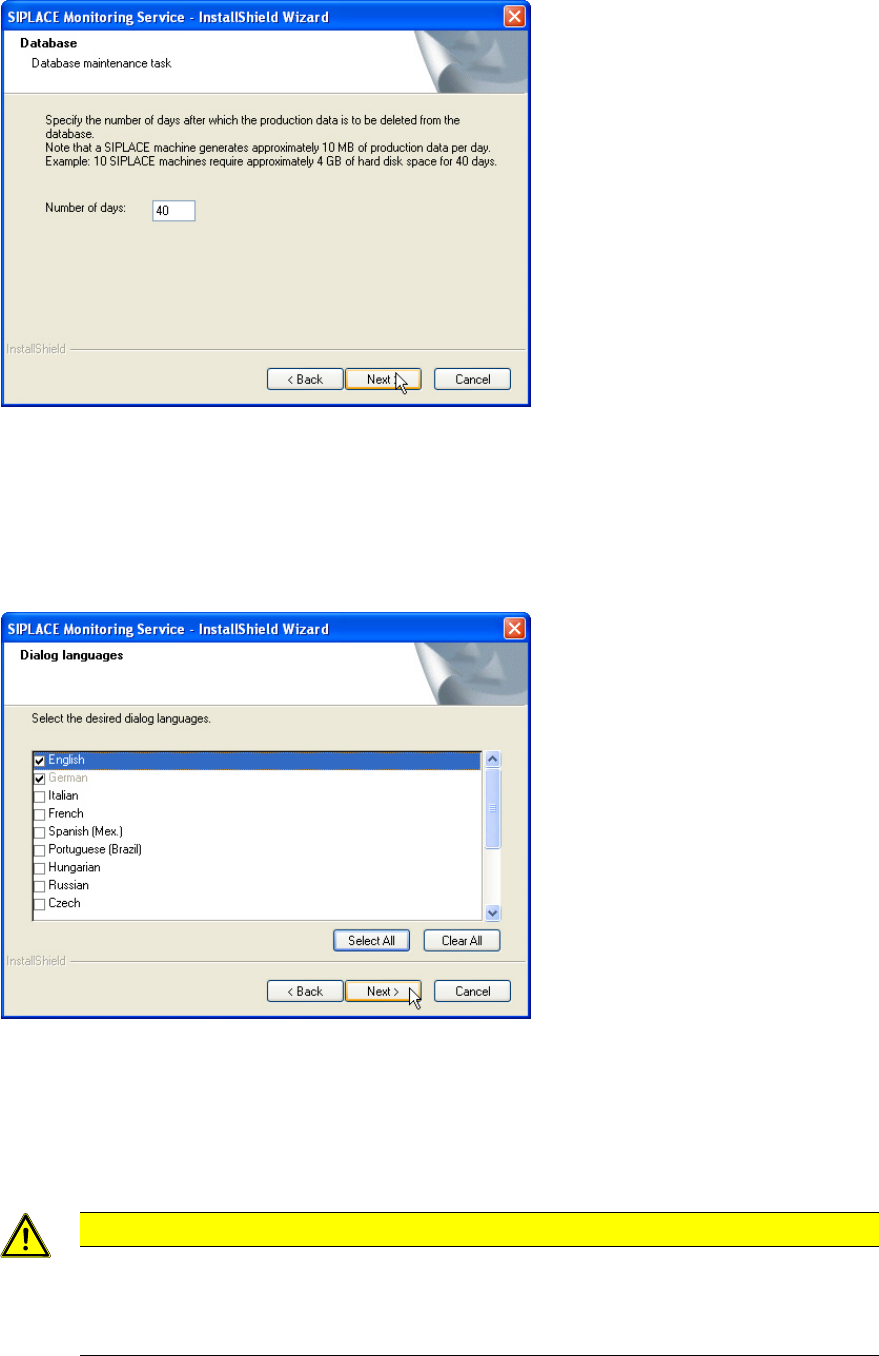
The following dialog box is opened.
Figure 3-21: Entering number of days for storing production data
The production data is only saved in the database for a certain period.
► Specify the time for which the production data is to be retained in the database.
Values between 40 and 400 days are permitted.
The following dialog box is opened.
Figure 3-22: Selecting dialog languages
► Select the desired languages.
German and English are always installed.
► Click Next >.
CAUTION
When installing some languages a warning is displayed that a reboot is required to install
the language. In this case you will have to reboot the computer after installation, logging
in under the same account you are currently using in order to finish the installation
successfully.
SIPLACE OIS V12.1 / Installation Manual Ausgabe 05/2015 Edition
20
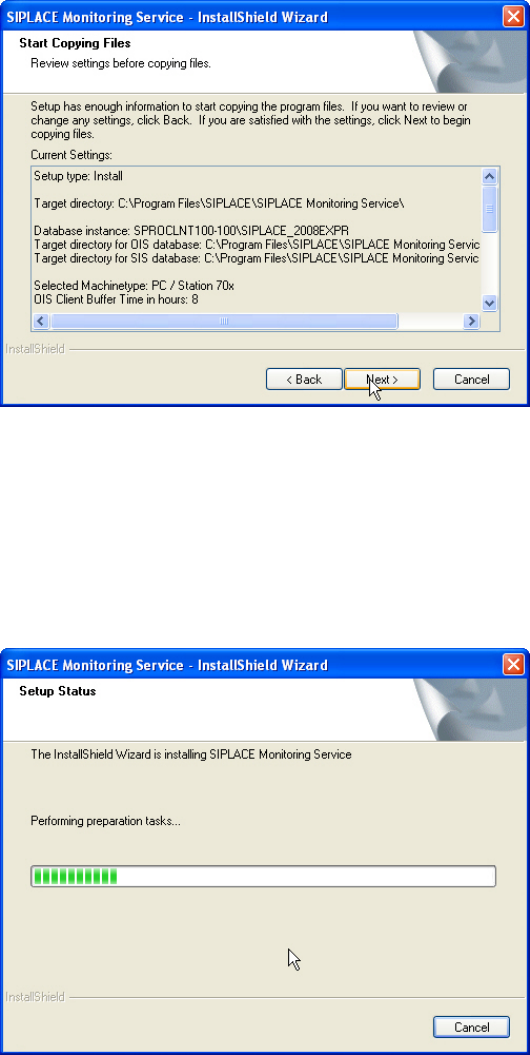
The following dialog box is opened.
Figure 3-23: Reviewing settings
This shows a summary of the settings and entries you have made so far.
► Check the settings.
► If you wish to change your entries, click < Back to return to the appropriate dialog.
► Click Next> to start the actual installation process.
The software is then installed.
Figure 3-24: Installation