00195488_Install_SQLExpress2005_manual.pdf - 第21页
Installation of SQL 2005 Express Edition 02/2011 US Fig. 3-20: Feature Selection: Selecting all Client Components → Select “Entire feature will be inst alled on local hard drive” → Click the Next > button. 21 / 54 The…
Installation of SQL 2005 Express Edition 02/2011 US
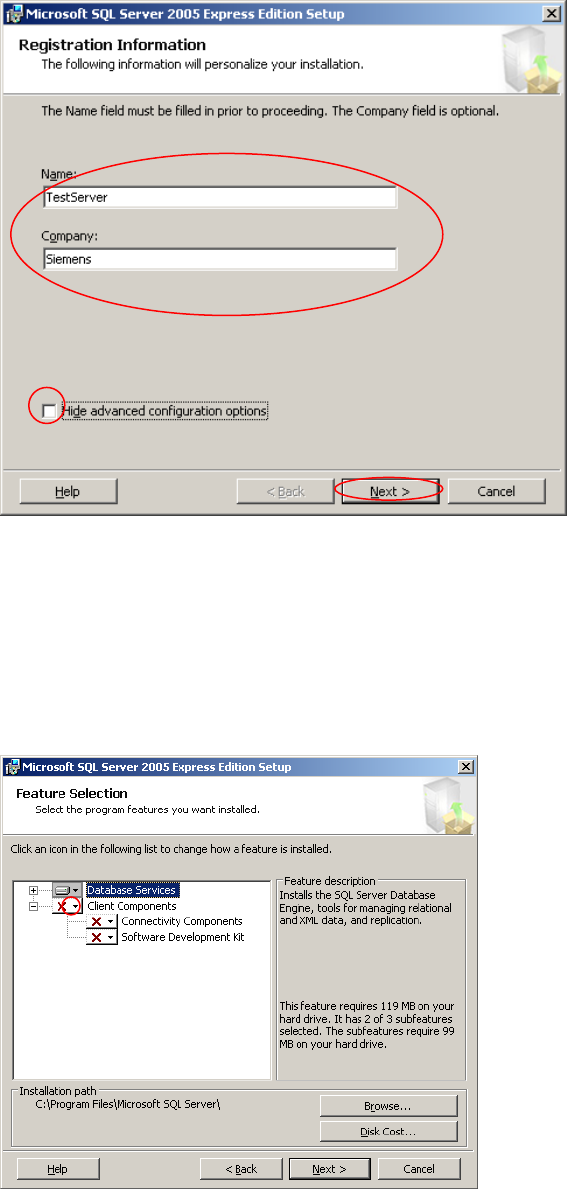
After a few seconds, the following dialog appears:
Fig. 3-18: Registration Information
→ Enter your name and company.
→ Uncheck the option “Hide advanced configuration options” .
→ Click the button Next >.
20 / 54
The following dialog appears:
Fig. 3-19: Feature Selection
→ Click the down- arrow besides “Client Components”
Installation of SQL 2005 Express Edition 02/2011 US
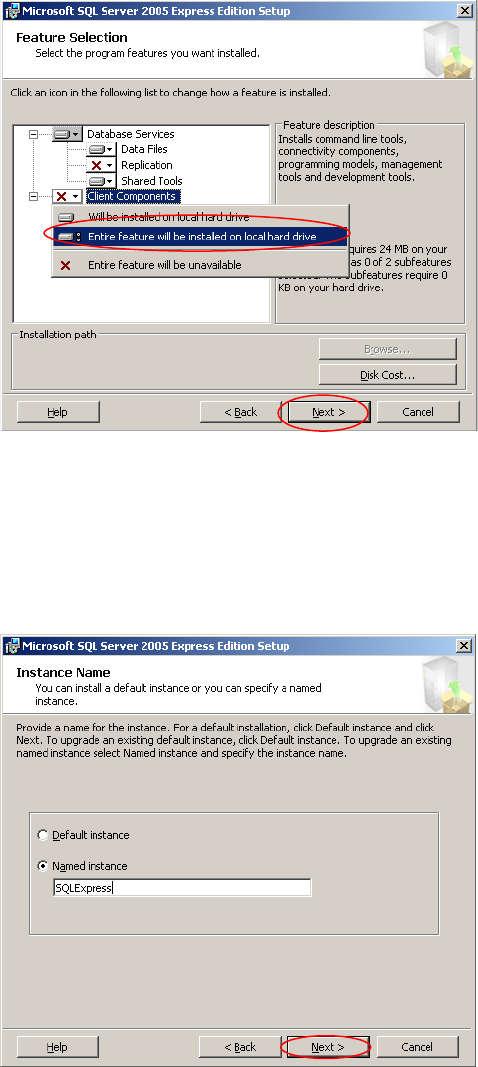
Fig. 3-20: Feature Selection: Selecting all Client Components
→ Select “Entire feature will be installed on local hard drive”
→ Click the Next > button.
21 / 54
The following dialog appears:
Fig. 3-21: Instance Name
→ Leave the radio button “Named instance” selected.
→ Click the button Next >.
Installation of SQL 2005 Express Edition 02/2011 US
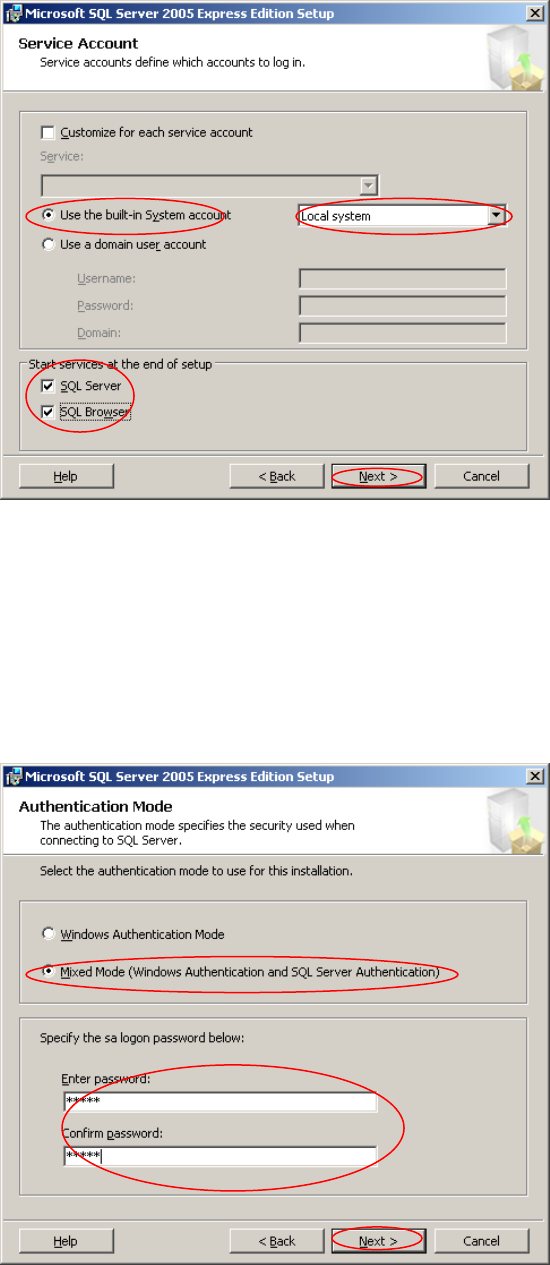
The following dialog appears:
Fig. 3-22: Service Account
→ Select the option “Use the build-in System account”
→ Select “Local system” from the dropdown menu.
→ Select the both options “SQL Server” and “SQL Browser”
→ Click the button Next >.
22 / 54
The following dialog appears:
Fig. 3-23: Authentication Mode