00195488_Install_SQLExpress2005_manual.pdf - 第5页
Installation of SQL 2005 Express Edition 02/2011 US 5 / 54 1 Introduction SIPLACE software systems make use of a database to store data on disc. Fo r scalable solutions SIPLACE recommends the SQL 2005 Express Editio n SP…
Installation of SQL 2005 Express Edition 02/2011 US
4 / 54
Installation of SQL 2005 Express Edition 02/2011 US
5 / 54
1 Introduction
SIPLACE software systems make use of a database to store data on disc. For scalable solutions
SIPLACE recommends the SQL 2005 Express Edition SP 2 which operates on Windows XP SP2 or
Windows Server 2003 SP 1. Both used components – database and operating system – are 32 Bit
(x86) versions.
2 Scope of delivery
This document describes the manual procedure to install the SQL 2005 Express Edition including SP1
and SP2 with default settings for usage of SIPLACE software products for SIPLACE computer systems.
Further customization settings (e.g. modification of database settings) will be done by the specific
product installation setups. Subject of this document is a first- time installation on fresh systems (no
upgrade).
In this documentation the Setup packages on the SIPLACE Net Support Media are used, but you may
also use the Setup packages provided by Microsoft directly – the basic setup steps are the same.
Installation of SQL 2005 Express Edition 02/2011 US
3 Installation
3.1 SQL 2005 Express Prerequisites
SQL 2005 Express SP1 and SP2 setup requires one of the following operating systems:
- Microsoft Windows XP Professional Service Pack 2, 32 Bit Version
- Microsoft Windows Server 2003 Service Pack 1, 32 Bit Version
SQL 2005 Express SP1 and SP2 setup requires the following components to be installed:
- Microsoft Windows Installer 3.1 or later
- Microsoft .Net Framework 2.0 or later
In this chapter the installation of these components is described.
3.1.1 Installation of .Net Framework 2.0
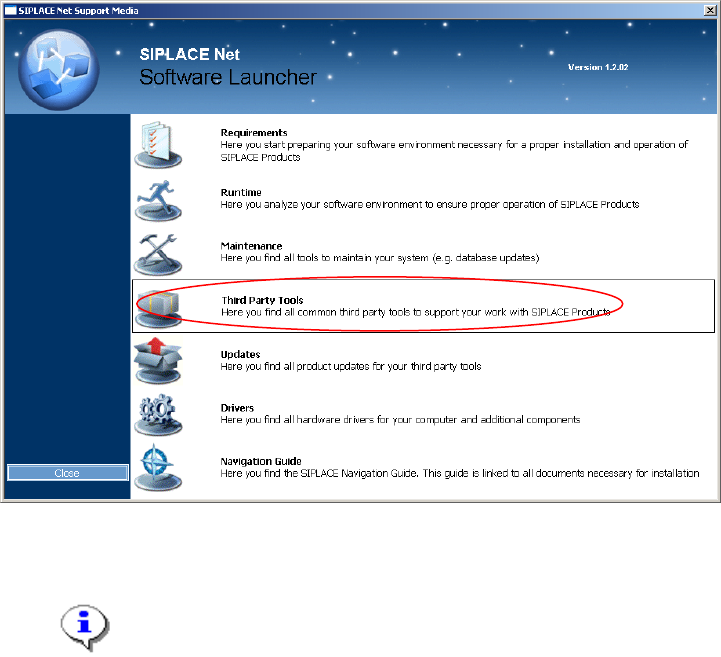
→ Insert the SIPLACE Net Support Media into your drive.
The following dialog appears:
Fig. 3-1: Support Media Software Launcher
Note:
If the dialog doesn’t appear start your Windows Explorer, browse to the file
autorun.cmd on the DVD and doubleclick it.
6 / 54