00195488_Install_SQLExpress2005_manual.pdf - 第42页
Installation of SQL 2005 Express Edition 02/2011 US An Explorer Window appears. → Navigate to the folder <DRIVE>:\TOOLS\SQL 2005\SQL SERVER 2005 MANAGEMENT STUDIO EXPRESS : Fig. 3-46: SQL Server 2005 Management Stu…
Installation of SQL 2005 Express Edition 02/2011 US
3.4 After the installation
3.4.1 Optional SQL Server Management Studio Installation
After the installation of SQL 2005 Express, you may install the Management Studio for further
administration.
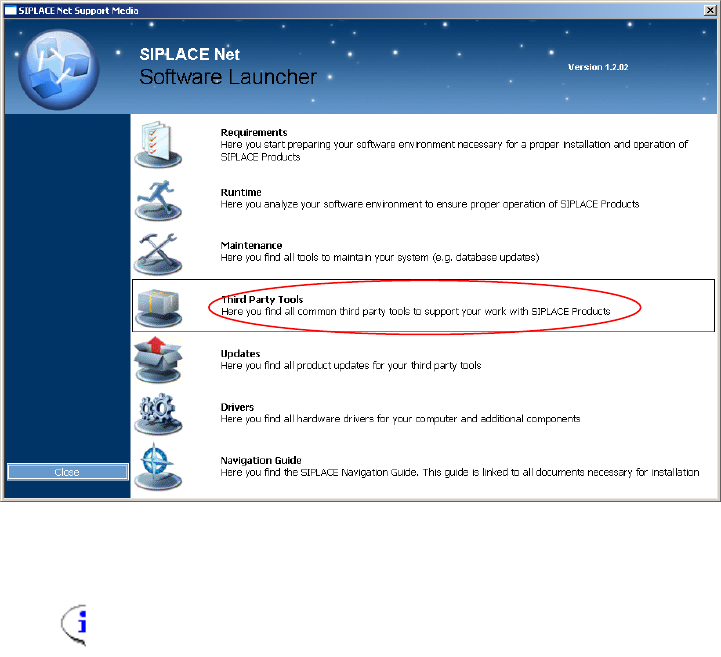
→ Insert the SIPLACE Net Support Media into your drive.
The following dialog appears:
Fig. 3-45: Support Media Software Launcher
Note:
If the dialog does not appear start your Windows Explorer, browse to the file
autorun.cmd on the DVD and doubleclick it.
→ Select “Third Party Tools”
41 / 54
Installation of SQL 2005 Express Edition 02/2011 US
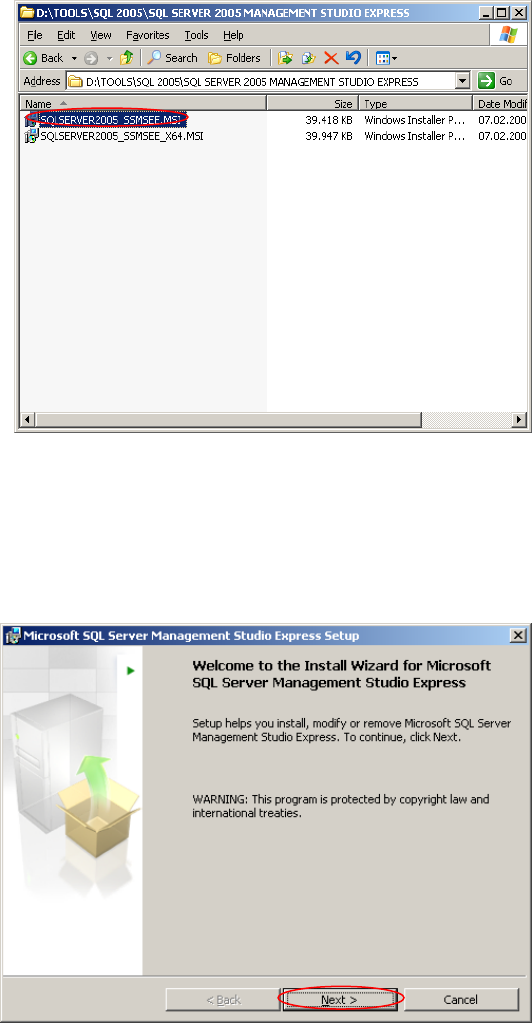
An Explorer Window appears.
→ Navigate to the folder
<DRIVE>:\TOOLS\SQL 2005\SQL SERVER 2005 MANAGEMENT STUDIO EXPRESS :
Fig. 3-46: SQL Server 2005 Management Studio Express on Support Media
42 / 54
→ Double-click “SQLSERVER2005_SSMSEE.MSI”
Wait until the following dialog appears:
Fig. 3-47: Management Studio Welcome Page
→ Click the Next > button
Installation of SQL 2005 Express Edition 02/2011 US
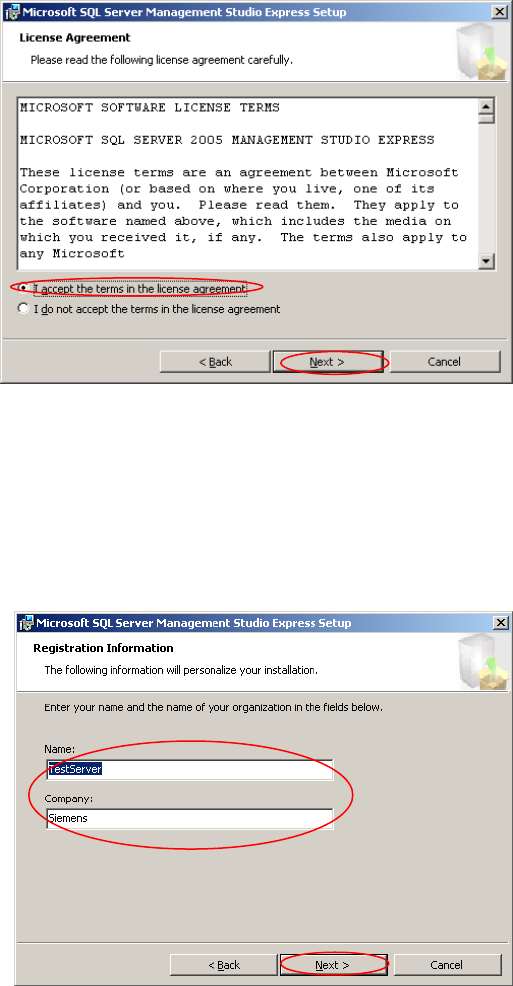
The following dialog appears:
Fig. 3-48: Management Studio License Agreement Page
→ Read the EULA.
→ Click the radio button “I accept the terms in the license agreement”
→ Click the Next > button.
43 / 54
The following dialog appears:
Fig. 3-49: Management Studio Registration Information Page
→ Enter your name and company.
→ Click the button Next >