00195488_Install_SQLExpress2005_manual.pdf - 第46页
Installation of SQL 2005 Express Edition 02/2011 US Fig. 3-28: The "Connect to Server" dialog box of Manage ment Studio → Select your Server- and Instance name and specify the Windo ws Authentication. → Click t…
Installation of SQL 2005 Express Edition 02/2011 US
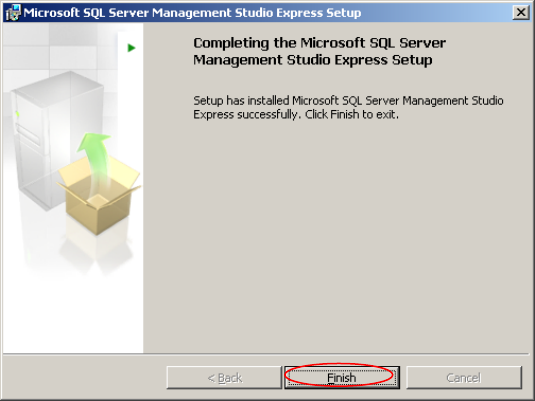
Wait until setup completes. The following dialog appears:
Fig. 3-52: Management Studio Ready to Install the Program Page
→ Click the button Finish
3.4.2 Needed Settings
After installation you have to ensure, that the option “Windows fibers” is not set:
→ Click Start – Programs – Microsoft SQL Server 2005– SQL Server Management Studio
Express
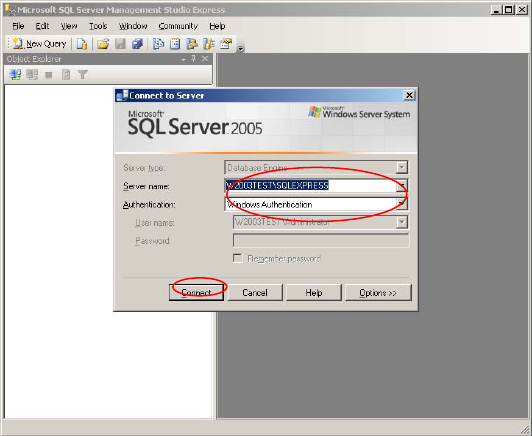
The following dialog appears:
45 / 54
Installation of SQL 2005 Express Edition 02/2011 US
Fig. 3-28: The "Connect to Server" dialog box of Management Studio
→ Select your Server- and Instance name and specify the Windows Authentication.
→ Click the Connect button
46 / 54
Installation of SQL 2005 Express Edition 02/2011 US
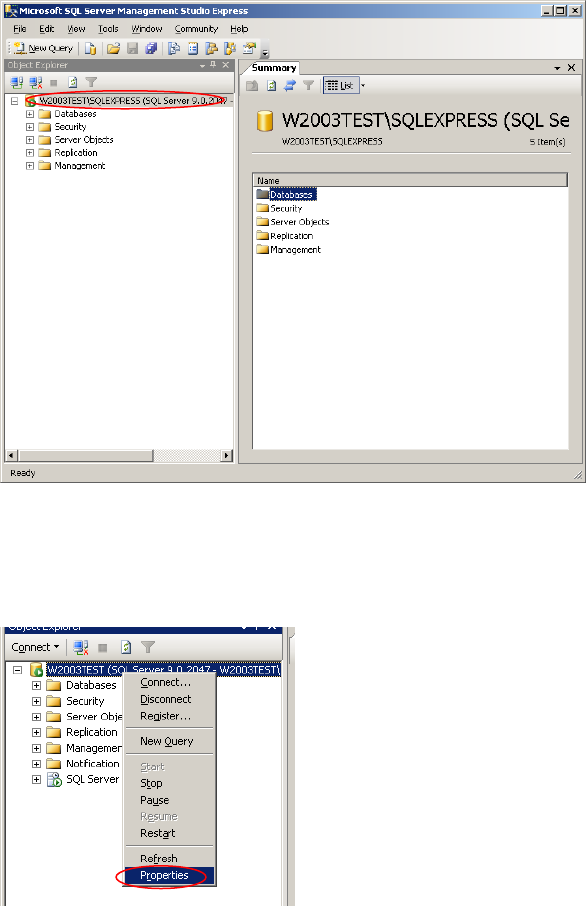
After connecting successfully, the following dialog appears:
47 / 54
Fig. 3-29: SQL Server Management Console
→ Right- click on your server connection on the left side and select Properties
2
Fig. 3-30: select Server connection properties