00197193-01_IM_SIPLACE_EDM_2_0_EN.pdf - 第28页
EDM V2.0 / Installation Manual Ausgabe 04/2012 Edition ► Click on the location item of the configuration item that should be different from the standard settings, duplicate the file (“Wi ndows-Copy”) an d choose the copy…
EDM V2.0 / Installation Manual Ausgabe 04/2012 Edition
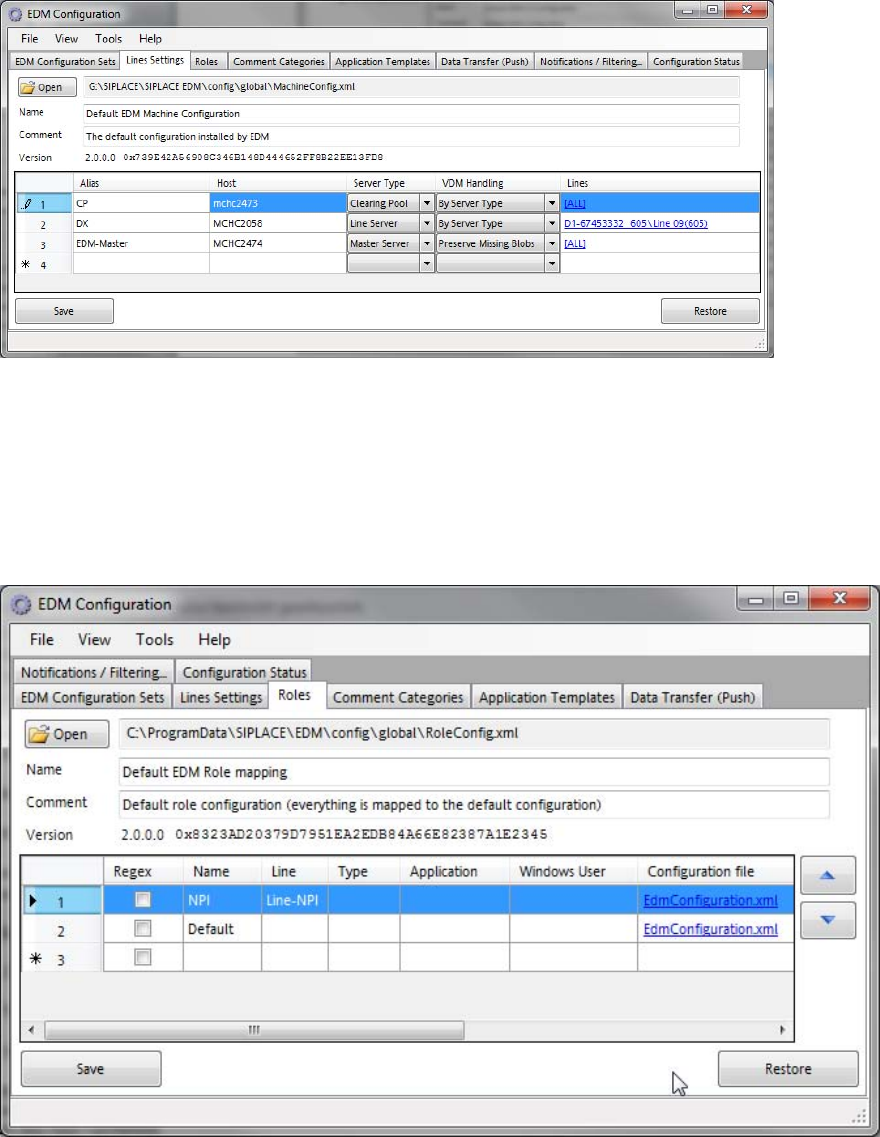
5.3.2 Lines Settings
The Lines Settings tab provides an overview over the EDM network and shows each registered
computer, together with its associated role.
This dialog is an editor to the basic line data given during the setup (cf. section 0). In addition, the
behavior of the EDM VisionDataManager may be changed in the VDM Handling column.
5.3.3 Roles
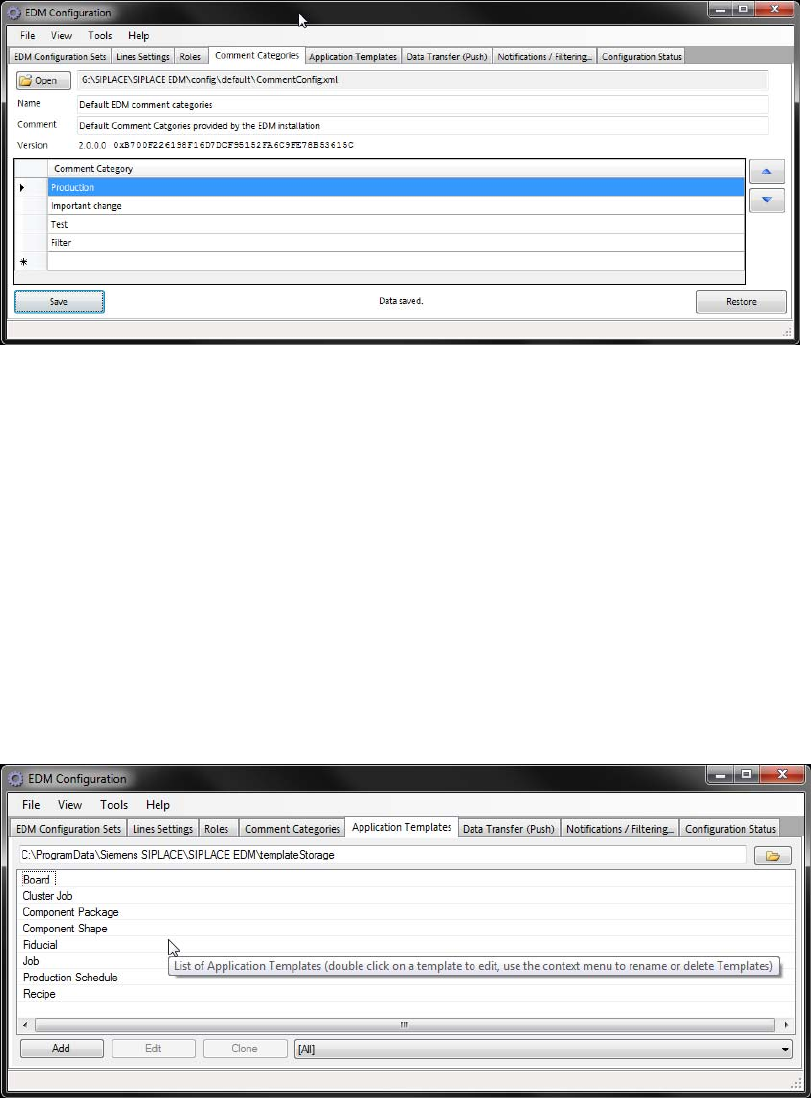
Figure 5-1: Configuration of EDM roles
The Roles tab defines which configuration set shall be sent to the EDM Clients.
This dialog may be useful if e.g. one of the EDM Line computers (“NPI-Line”) has a special role
(NPI) which requires different filter settings. In this case:
► Create a new configuration set in the EDM Configuration Sets tab.
27
EDM V2.0 / Installation Manual Ausgabe 04/2012 Edition
► Click on the location item of the configuration item that should be different from the standard
settings, duplicate the file (“Windows-Copy”) and choose the copy as new location for that
configuration item.
► In the Roles tab, create an entry that points to the newly created configuration set and give the
Line (alias)name or Windows User to which the setting shall refer.
The first entry that matches the conditions (Line name or current Windows user) determines the
configuration set, which is sent to this EDM Client.
The “Default” role entry as the last entry in the Roles grid applies to all EDM Clients that do not
match the conditions of any previous entry.
5.3.4 Comment Categories
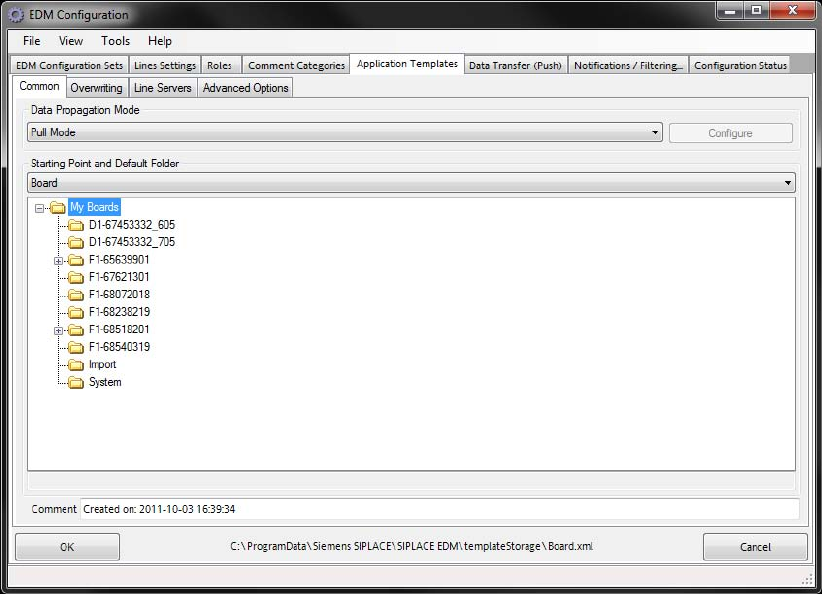
These comment categories are presented to a user on the EDM Clients in the comment dialog that
appears due to changes of SIPLACE Pro data.
► Double-click on an existing entry to change the category name.
► Double-click on the last line of the grid to add a new category.
► Select a line and press <DEL> to remove the selected entry.
► Change the order of the categories with the help of the arrow buttons next to the grid.
5.3.5 Application templates
The application templates depict the static part of the customer process that is related to the data.
They primarily define the object types to be transferred and whether or not they will be overwritten
on the EDM line during push or pull operation.
28
EDM V2.0 / Installation Manual Ausgabe 04/2012 Edition
5.3.5.1 General settings
Figure 5-1: General settings for application templates
The general settings include:
● Type of data transfer. Currently, you can only select Pull Mode or Forced Pull Mode.
● Starting Point specifies the object type for which this template can be valid. A template can
only be valid for one object type at a time. However, it is possible to define more than one
template for an object type.
● Objects found in the Default folder and all its subfolders can be subsequently specified by the
line engineer for pulling and pushing from the master.
● An optional comment.
Pull mode
No additional settings can be specified for this type of data transfer between the Master Server and
Line Servers.
29