00197628-02_VD_SIPLACE_Pro_12.1_DE_EN.pdf - 第14页
SIPLACE Pro V12.1 / Softw are Version Descriptio n Ausgabe 05/2015 Edition 14 The barcode fiducial data can also be tra nsferred from the component shape or component to the setup by using the Upda te Setup Feeder Data f…
SIPLACE Pro V12.1 / Software Version Description Ausgabe 05/2015 Edition
13
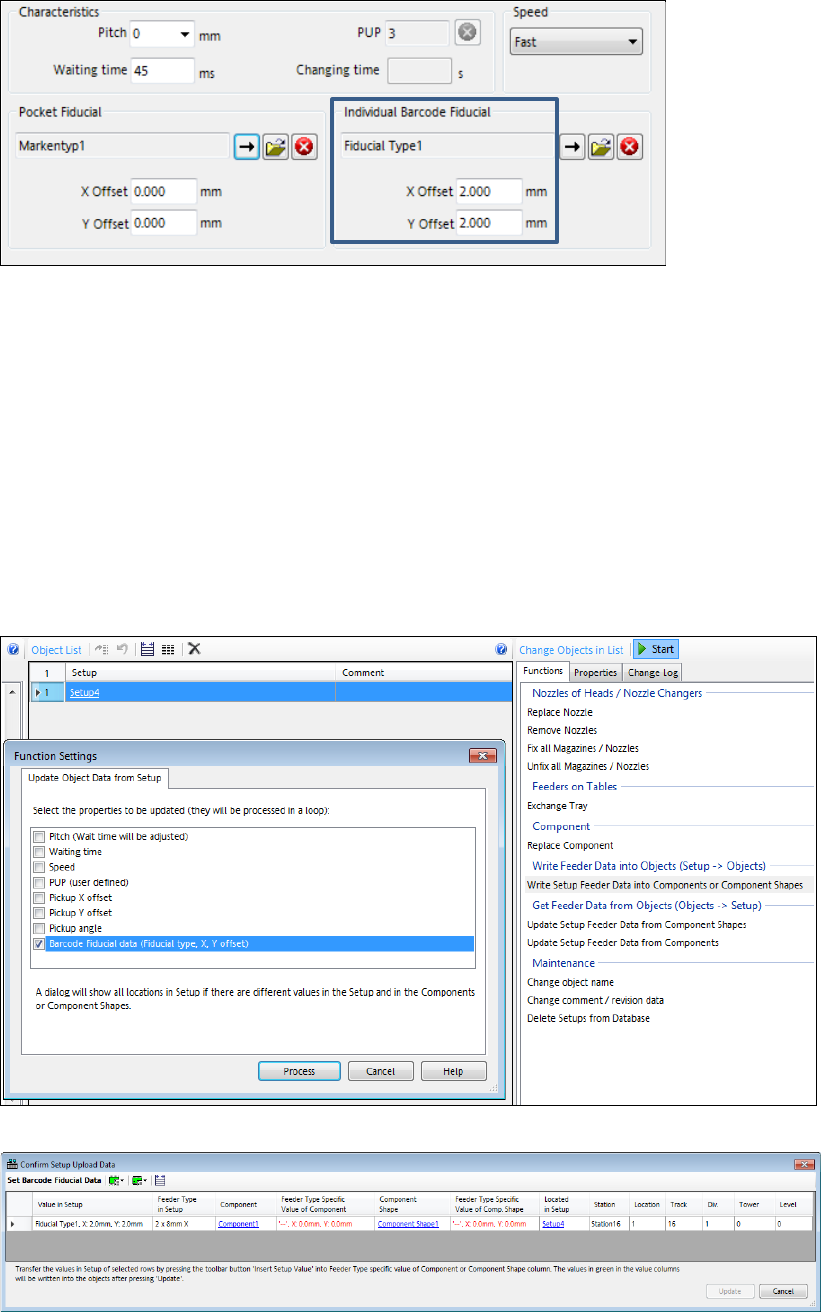
The barcode fiducial and its offset have to be defined in the Component Shape Editor or
Component Editor. These settings are defined per feeder type.
Figure 4-2: Defining individual barcode fiducial
The Component Package Editor has been extended accordingly.
When a component is set up on a table, these settings will be copied to the pickup location and can
be modified there too. In the drawing the individual barcode fiducial will be displayed in the pocket
with its real size and offset.
The position of the individual barcode fiducial can be taught on the station and uploaded to
SIPLACE Pro, where it will be stored in the "Fiducial Offset X/Y" properties of the pickup position in
the setup.
The origin of the barcode position is the center of the feeder pocket.
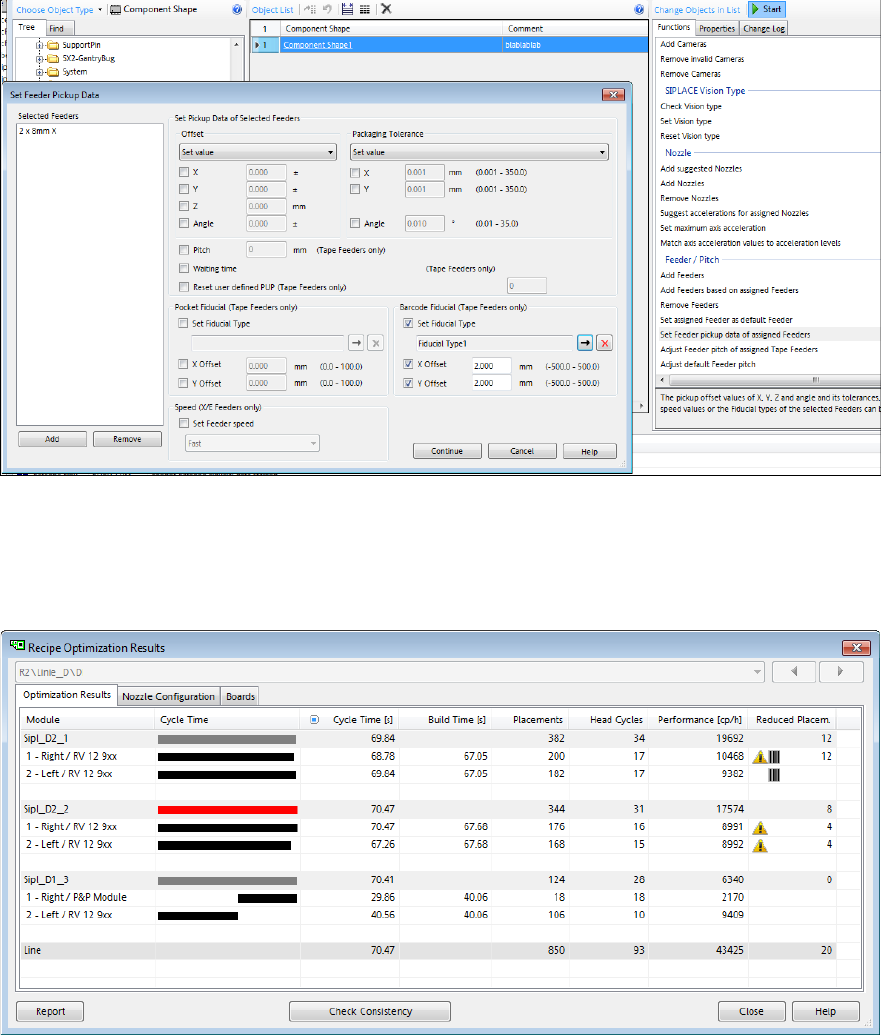
The Setup Functions in the Data Maintenance Tool have been extended so that the user can
transfer the uploaded individual barcode fiducial position from the setup to the component or
component shape. Different values will be displayed in a dialog:
Figure 4-3: Updating barcode fiducial from Setup
Figure 4-4: Confirming uploaded fiducial data
SIPLACE Pro V12.1 / Software Version Description Ausgabe 05/2015 Edition
14
The barcode fiducial data can also be transferred from the component shape or component to the
setup by using the Update Setup Feeder Data from Component Shapes or Update Setup
Feeder Data from Components functions.
The Data Maintenance Tool has further been extended to define the individual barcode fiducial and
its offset to a set of component shapes or components in the Set Feeder Pickup Data dialog:
Figure 4-5: Setting feeder pickup data
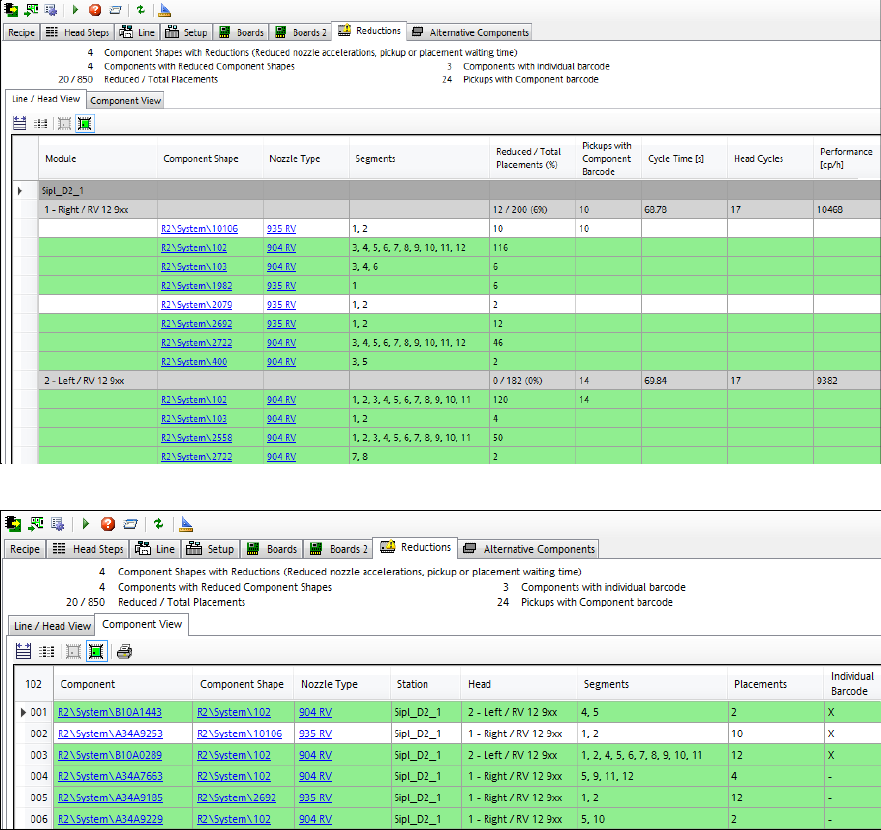
The Recipe Optimization Results displays the yellow warning icon if a component with the
"Individual Barcode Fiducial" property is enabled. Additionally, a barcode icon is displayed if
components with individual barcode fiducials have been picked up. These pickups are not
contained in the Reduced Placements!
Figure 4-6: Recipe Optimization Results – Individual barcode enabled and component picked up
SIPLACE Pro V12.1 / Software Version Description Ausgabe 05/2015 Edition
15
The exact number of pickups and components with individual barcode fiducials is displayed in the
Reductions tab views of the Recipe Analyzer.
Figure 4-7: Reductions – Line / Head View
Figure 4-8: Reductions – Component View