00198271-02_UM_ShuttleExtensionTX_EN.pdf - 第64页
5 Operate the Shuttle Extension Assembly and User Manual 5.2 Shuttle Extension TX on Stat ion GUI Shuttle Extension Edition 06/2017 62 Fig. 5.2 - 2 Station Software - "Shuttle Extension TX setup view 5 Key Descripti…
Assembly and User Manual 5 Operate the Shuttle Extension
Shuttle Extension Edition 06/2017 5.2 Shuttle Extension TX on Station GUI
61
5.2 Shuttle Extension TX on Station GUI
Each Shuttle Extension is controlled via the user interface of a machine. The machine on which
the Shuttle Extension is fitted will be shown as "this machine" in the various views.
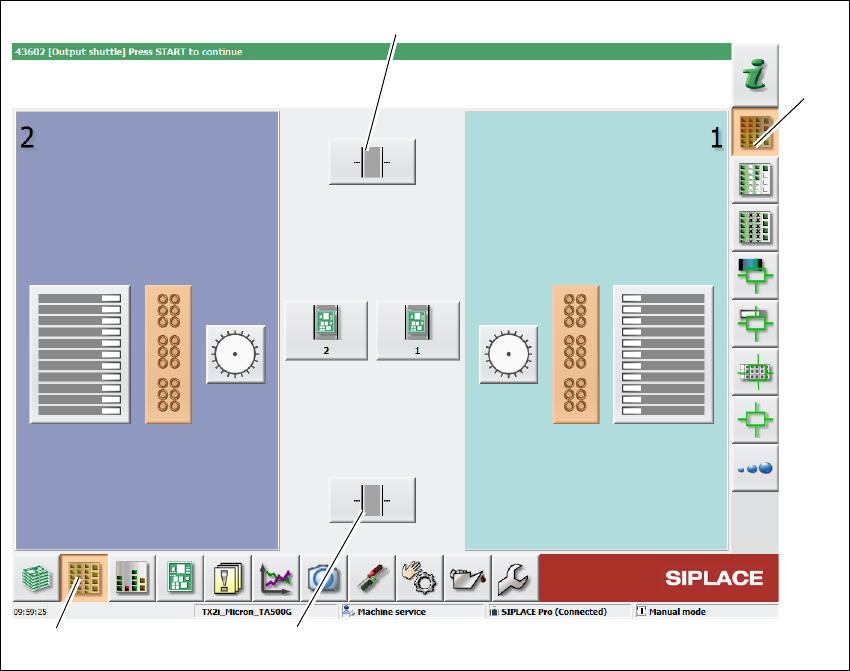
Click Setup (1) icon from the station GUI tool bar.
Click Locations icon (3).
Fig. 5.2 - 1 Station Software - "Setup" view
Click icon (2) to select the Shuttle Extension TX on output conveyor.
Click icon (4) to select the Shuttle Extension TX on input conveyor.
(1)
(2)
(4)
(3)
5 Operate the Shuttle Extension Assembly and User Manual
5.2 Shuttle Extension TX on Station GUI Shuttle Extension Edition 06/2017
62
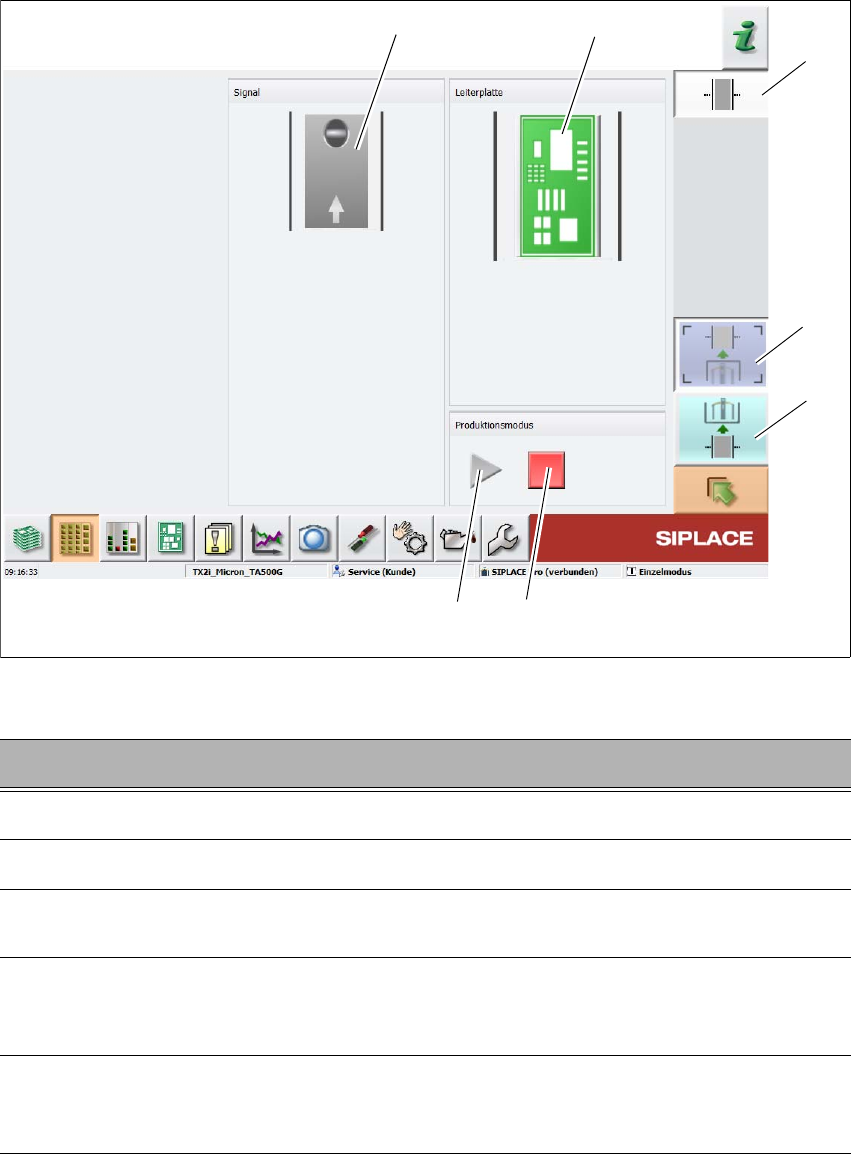
Fig. 5.2 - 2 Station Software - "Shuttle Extension TX setup view
5
Key Description
1
Select the Shuttle Extension TX on output conveyor.
2
Select the Shuttle Extension TX on input conveyor.
3
Stops the automatic operation of the Shuttle Extension, single functions can be
executed.
4
Starts the automatic operation of the Shuttle Extension i.e. meaning that the boards
which arrive at the Shuttle Extension are transported through and then passed on
to the next machine, according to the configuration.
5
This shows the current state of the signal transmitter (laser light barrier). The LED
symbol shows whether there is a board in the Shuttle Extension or, in other words,
whether the signal transmitter (laser light barrier) has triggered.
(2)
(5)
(1)
(3)
(4)
(6)
(7)
Assembly and User Manual 5 Operate the Shuttle Extension
Shuttle Extension Edition 06/2017 5.2 Shuttle Extension TX on Station GUI
63
5
6
If there is a board in the Shuttle Extension, a board symbol will be shown as a button.
Click the board symbol and the dialog box Board options appears.
Cancelling the board
The selected board will no longer be processed.
Once you have cancelled the placement of a board, the board will be marked red in
the display
7
Shuttle Extension TX setup view is selected.
Key Description