JO-116-001_w.pdf - 第51页
3-2 JO-1 16 1 105-001 (2) The "Password" window appears. Enter the password through keyboard navigation. After you have entered the password, press the [OK] button. Fig. C2 Note Enter only alphanumeric characte…
3-1
JO-116
1. Administrative Authority Change
"Administrative Authority" is required to change the system data and the
settings of type data, etc., excluding some of the items.
Authority Level
Three authority levels are available in this program.
•
Administrator
: System Administrator
•
Power User
: Component Type Manager
•
User
: Operator (Default)
Note
The authorities as "Administrator" and "Power User" are managed by
passwords.
Restrictions by Authority
•
Administrator
Authority is given to change all settings.
•
Power User
Authority is given to change the user and type data.
•
User (Default)
Authority is given to select component types and change the items related
only to "Master Settings".
1.1 Authority Change
Procedure
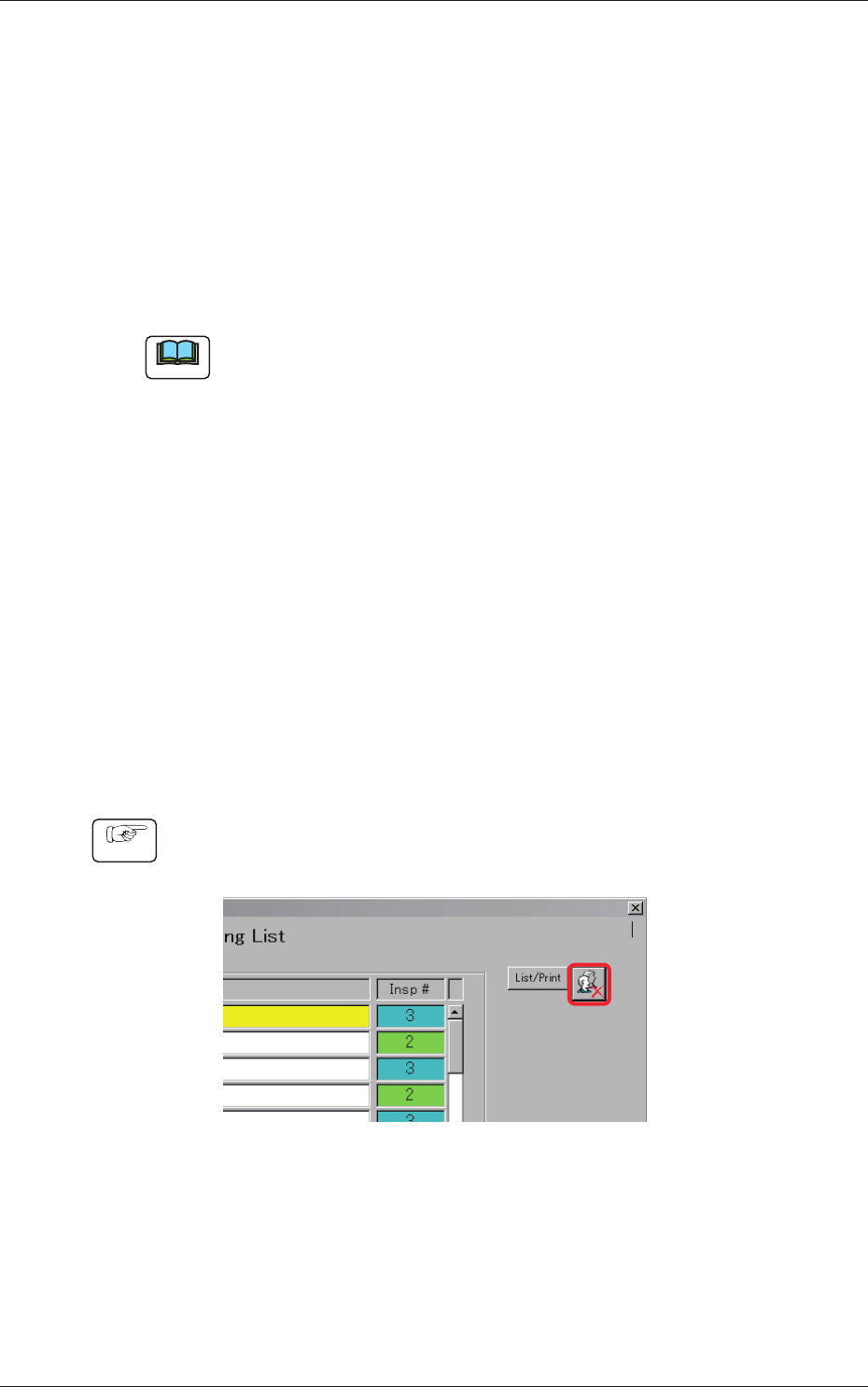
(1) Press the [Authority Setting] button located on the upper right
corner of the "Type Listup" window.
Fig. C1
1. Administrative Authority Change
1105-001
3-2
JO-116
1105-001
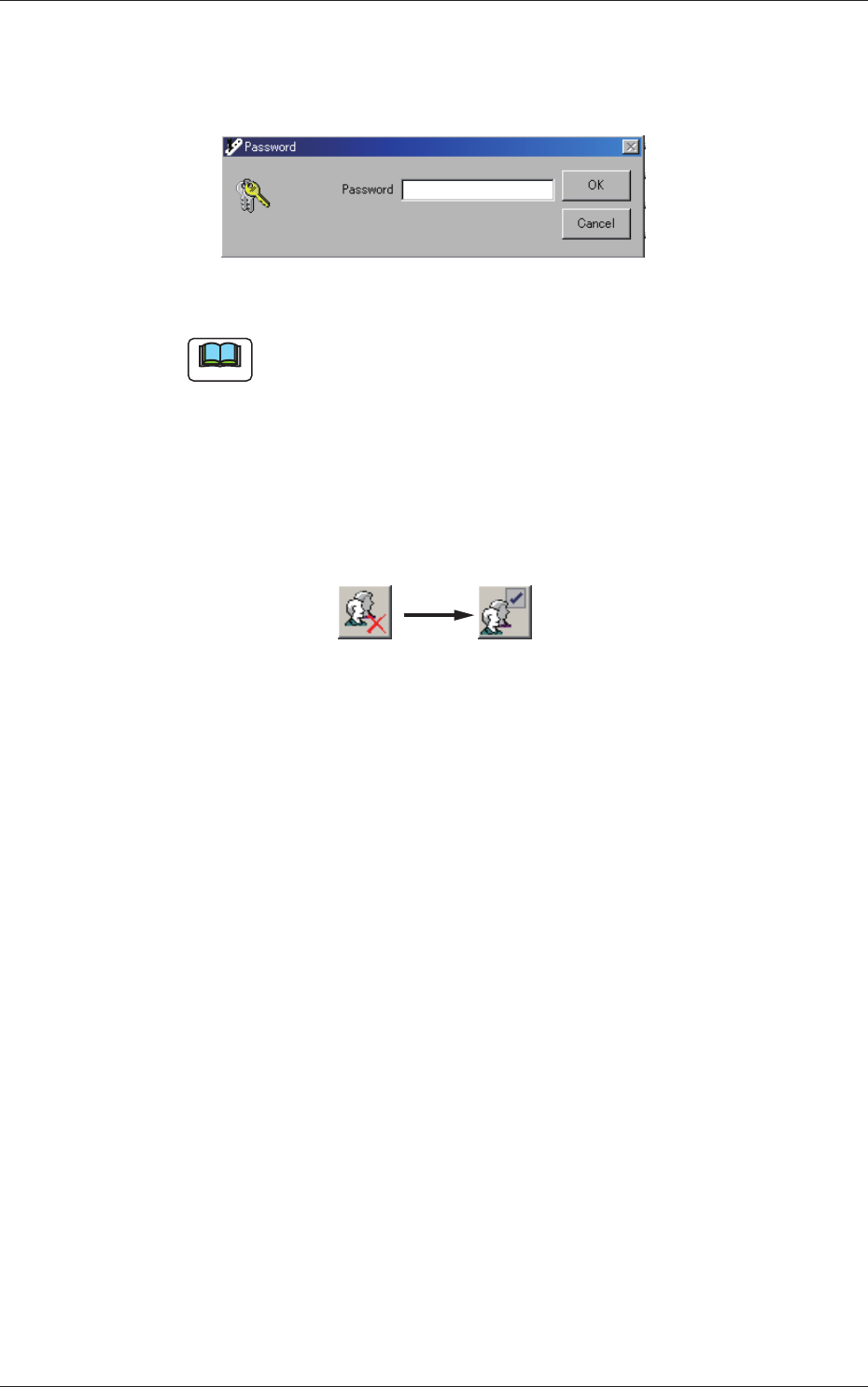
(2) The "Password" window appears. Enter the password through
keyboard navigation.
After you have entered the password, press the [OK] button.
Fig. C2
Note
Enter only alphanumeric characters.
Note that passwords are always case sensitive (sensitive to uppercase
and lowercase letters).
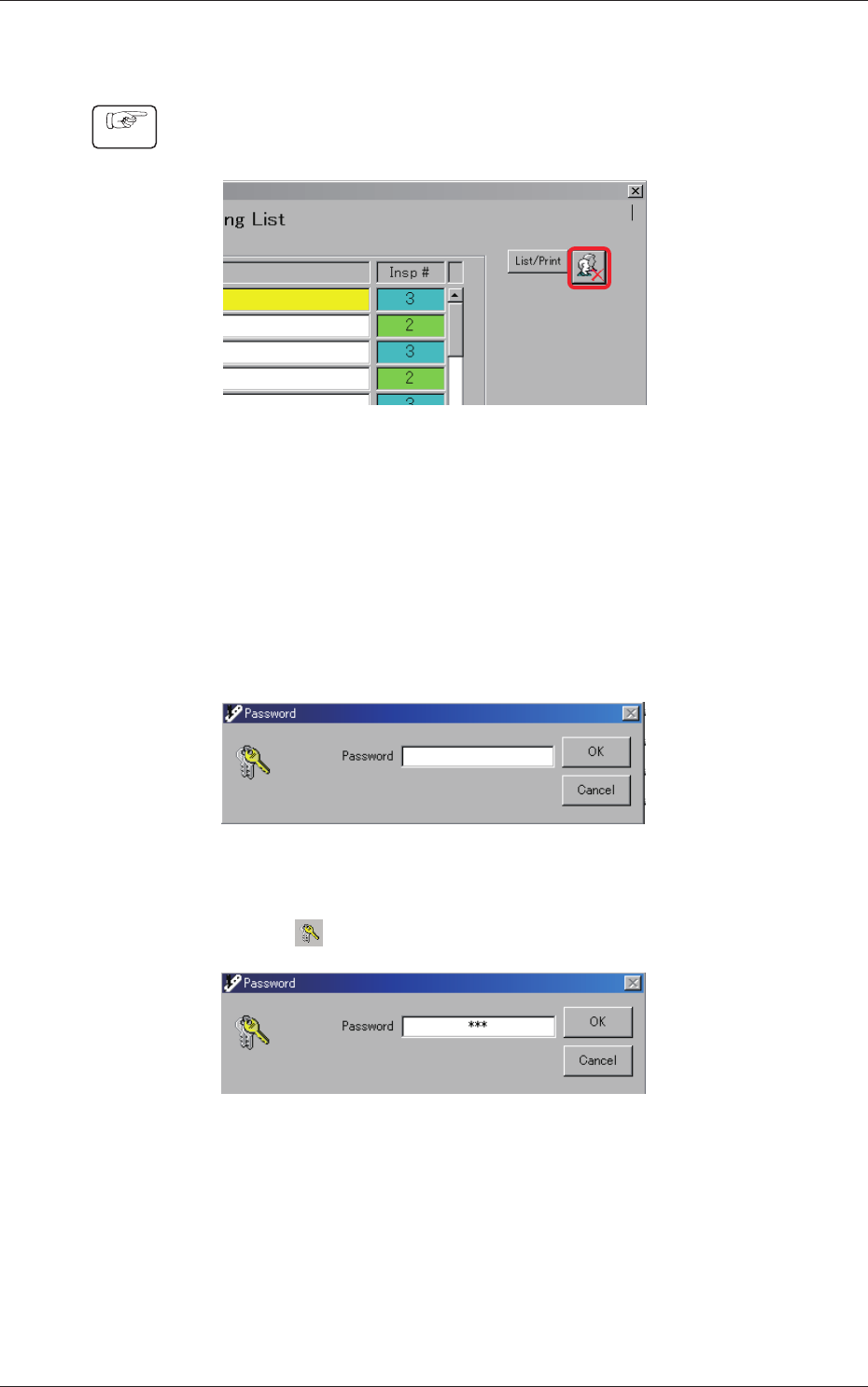
(3) When the entered password matches the previously stored
password, the [Authority Setting] button changes as follows.
When the [Authority Setting] button is pressed with the icon
shown below on the button, the authority returns to "User".
1.1 Authority Change
3-3
JO-116
1.2 Password Change
1105-001
1.2 Password Change
Procedure
(1) Press the [Authority Setting] button located on the upper right
corner of the "Type Listup" window.
Fig. C3
(2) The "Password" window appears. Enter the password (for
"Administrator") through keyboard navigation. After the entry is
completed, press the [OK] button.
Factory-Specied Passwords
Administrator
: bbb
Power User
: aaa
Fig. C4
(3) Press "
". Be sure not to select the [OK] button.
Fig. C5