JO-116-001_w.pdf - 第56页
3-7 JO-1 16 1 105-001 "Character Entry" Window When a set value is alphanumerical, this window appears. Selection of Uppercase or Lowercase Letters Interrupts the change process. Lot # for Set V alue Change Ent…
3-6
JO-116
2. Set Data Change
1105-001
2. Set Data Change
"Administrative Authority" is required to change the set values, except for
type selection and master setting.
Reference
Refer to "1. Administrative Authority Change" in "Section 3" for details.
A different window for data entry appears according to the data type of the
set value.
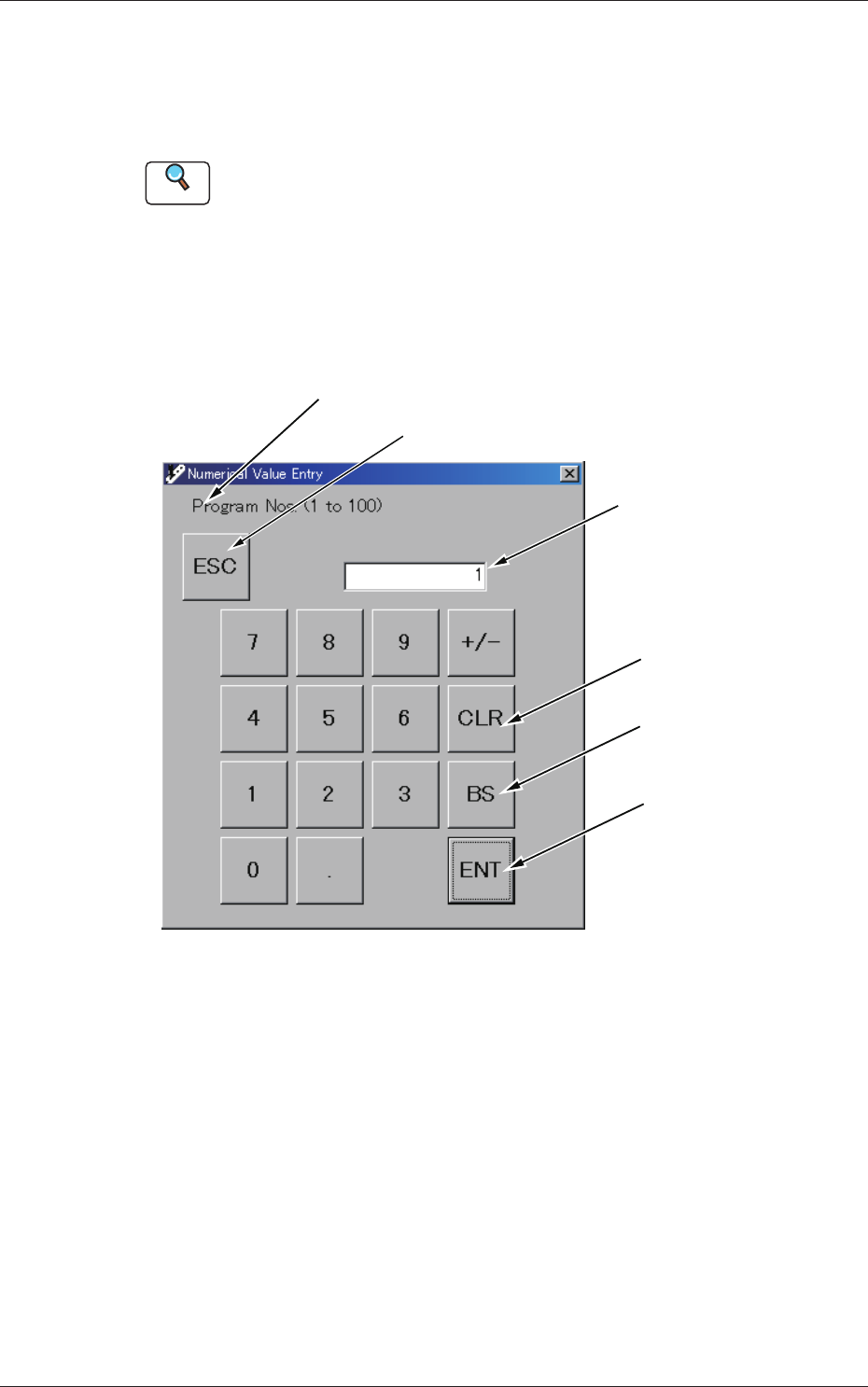
"Numerical Value Entry" Window
When a set value is numerical, this window appears.
Interrupts the change process.
Name of Program for Set Value Change
Entered Value
Deletes the entered value.
Deletes a character to the
left of the cursor.
Applies the entered value.
Fig. C9 "Numerical Value Entry" Window
3-7
JO-116
1105-001
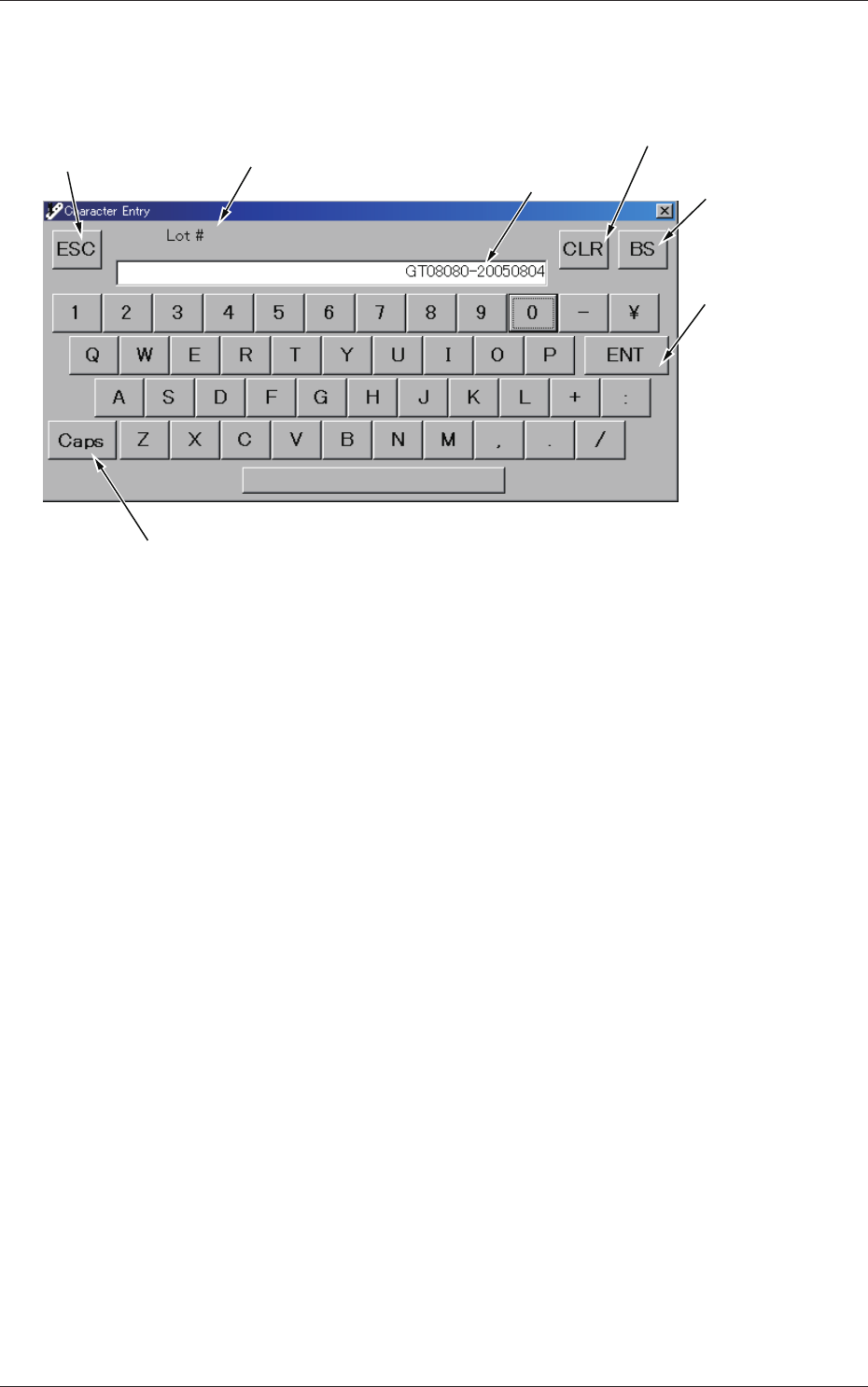
"Character Entry" Window
When a set value is alphanumerical, this window appears.
Selection of Uppercase or Lowercase Letters
Interrupts the
change process.
Lot # for Set
Value Change
Entered Value
Deletes the
entered value.
Deletes a character to the
left of the cursor.
Applies the
entered value.
Fig. C10 "Character Entry" Window
2. Set Data Change
3-8
JO-116
1105-001
3. "Type Listup" Window
3. "Type Listup" Window
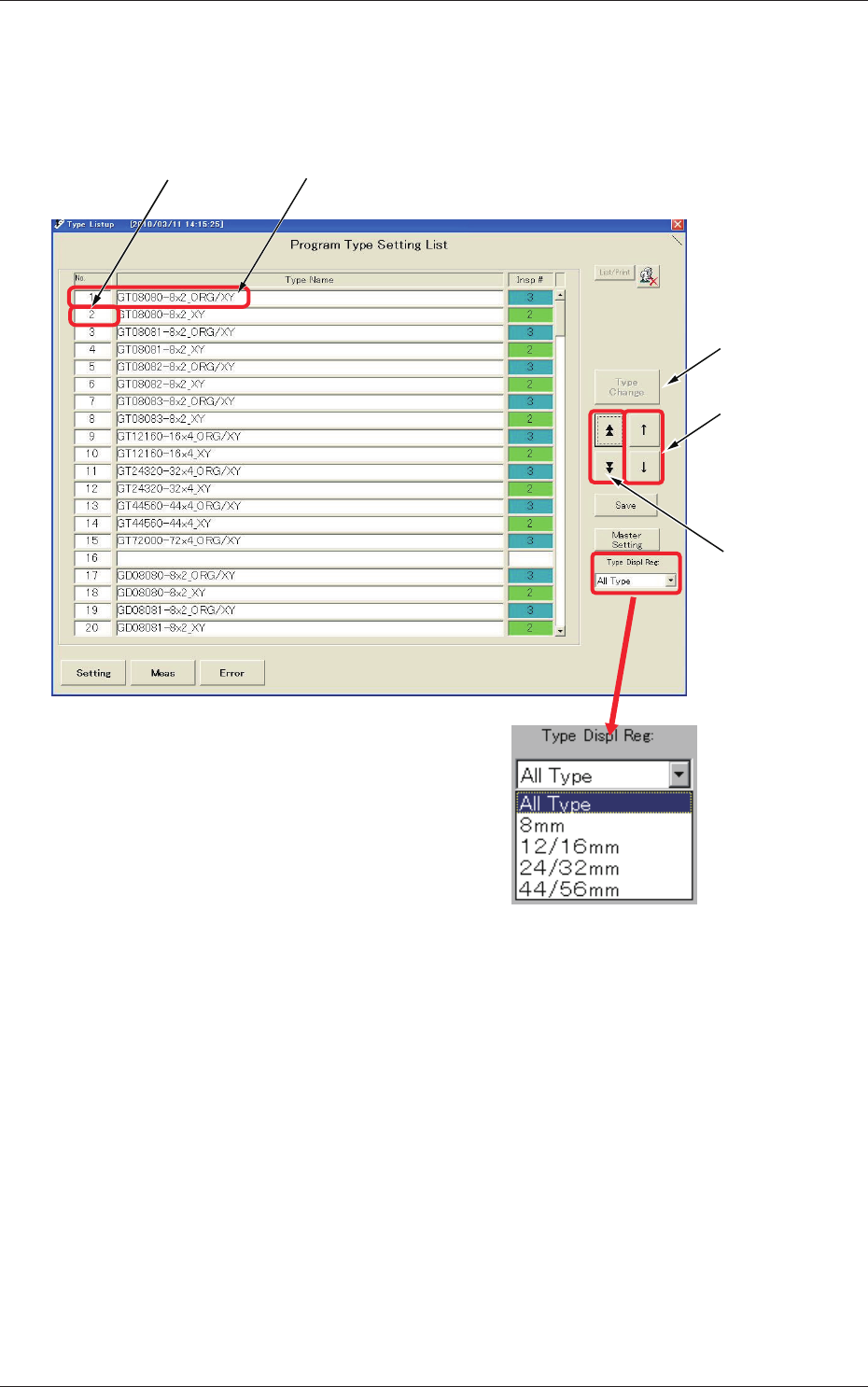
When you press the [Setting] button again while the "Type Setting" window
is active, the "Type Listup" window appears.
Subcursor Currently Selected Type
Used to change
the type.
Used to move
the cursor.
Used to open
another page.
Fig. C11 "Type Listup" Window
Type Display Regulation
It is possible to regulate the types to be displayed according to the option
selected in the "Type Displ Reg" combo box.
As a result, your objective type can quickly be selected from the type list.
Type Sorting
When you press the "No.", the "Type Name" or the "Insp #" area, the data in
the corresponding column is sorted and displayed.
When you press the title area again, the data is rearranged in the ascending or
descending order.