00198268-02_GS_SIPLACE-Pro-14.1-R17-1_EN.pdf - 第12页
2 Program Overview Getting S tarted SIPLACE Pro 14.1 (R17-1) 2.2 The User Interface 05/2017 Edition 12 2.2.2.1 Zoom Functions 2 Fig. 2 - 5 Zoom function Key 2 2.2.2.2 Setting the Measurement Unit Set the required measure…
Getting Started SIPLACE Pro 14.1 (R17-1) 2 Program Overview
05/2017 Edition 2.2 The User Interface
11
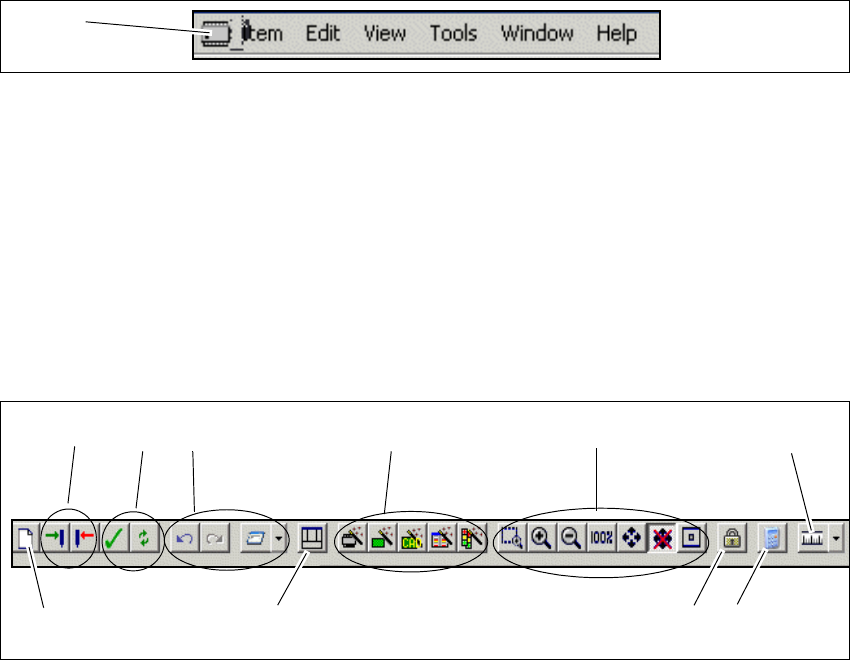
2.2.1 Menu Bar
The menu bar contains the functions. Select the required menu item to display the corresponding
functions. Frequently used functions can also be accessed from the toolbar or with key combina-
tions (shortcuts). 2
2
Fig. 2 - 3 Menu bar
Key
2.2.2 Toolbar
The toolbar contains the functions most frequently used. 2
These functions can be directly accessed with the individual icons. 2
2
Fig. 2 - 4 Toolbar
Key
(1) Icon for the active editor (e.g. component shape)
1
(1) Create new object (2) Save state, reset state
(3) Perform integrity check, refresh all editors (4) General functions (undo/redo, Report
Manager)
(5) Reset default layout for user interface (6) Wizards
(7) Zoom functions (8) Lock workplace
(9) Calculator (10) Set measurement unit
1
24
5
6
73
9
8
10
2 Program Overview Getting Started SIPLACE Pro 14.1 (R17-1)
2.2 The User Interface 05/2017 Edition
12
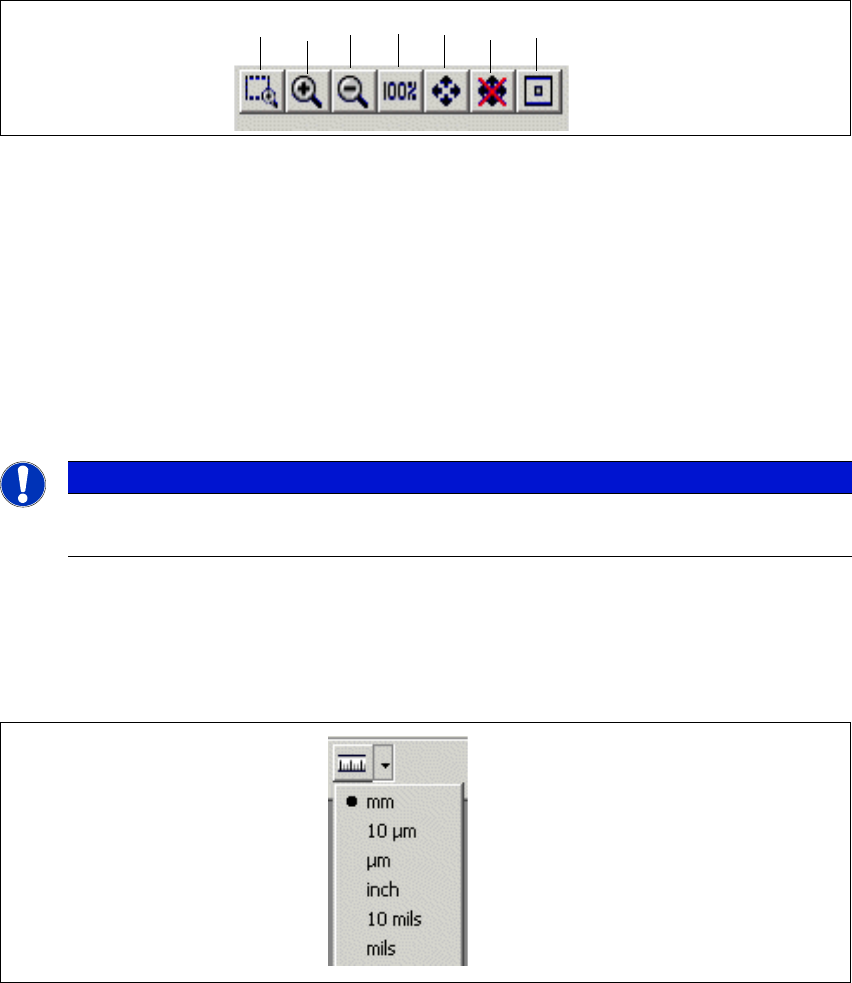
2.2.2.1 Zoom Functions
2
Fig. 2 - 5 Zoom function
Key
2
2.2.2.2 Setting the Measurement Unit
Set the required measurement unit. All measurements for the opened object will be adjusted to
this unit. 2
2
Fig. 2 - 6 Setting the measurement unit
(1) Box Zoom (2) Zoom In
(3) Zoom Out (4) One to One
(5) Zoom To Fit (switch on/off by drag & drop) (6) Switch on/off automatic zoom to fit option
when using Drag and Drop
(7) Center 2
Note
The zoom functions are only active when an object has been selected.
12 5364 7
Getting Started SIPLACE Pro 14.1 (R17-1) 2 Program Overview
05/2017 Edition 2.2 The User Interface
13
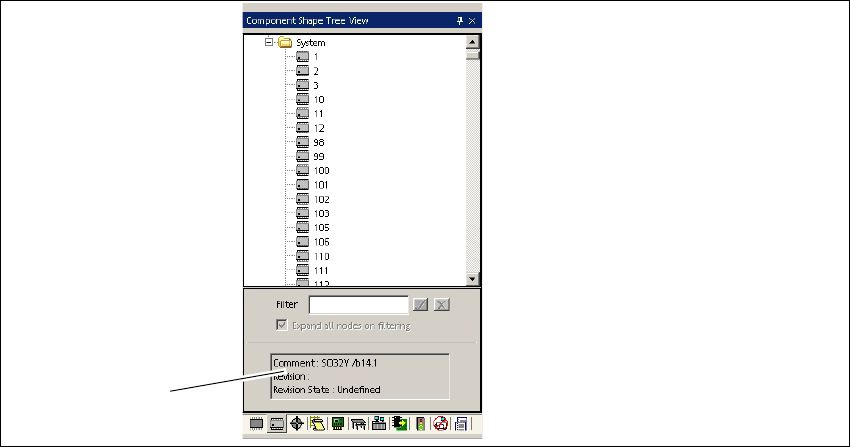
2.2.3 The Tree Views
The tree views show the directories and directory structures for all objects present on the server.
SIPLACE Pro has tree views for product objects and equipment. If Comments have been entered
for individual objects and if the Revision State has been assigned, this information will be dis-
played. 2
Each object type has its own tree view. These can be displayed or hidden as required. 2
2.2.3.1 Product Objects
2
Fig. 2 - 7 Product objects - example: Tree view - Component Shapes
Key
2
Click on the icons to reach the required product type. 2
(1) Display area for comments and revision
state.
2
1