00198268-02_GS_SIPLACE-Pro-14.1-R17-1_EN.pdf - 第6页
1 Introduction Getting St arted SIPLACE Pro 14.1 (R17-1) 1.3 Symbols 05/2017 Edition 6 1.3 Symbols For ease of understand ing, this docu ment uses various symbols and notes. Words in bold/ital- ic letteri ng These are pa…
Getting Started SIPLACE Pro 14.1 (R17-1) 1 Introduction
05/2017 Edition 1.1 Document Purpose / Target Group
5
1 Introduction
1.1 Document Purpose / Target Group
This document introduces new users to SIPLACE Pro, giving them a general understanding of the
program. Practical examples guide you "step-by-step" through the basic SIPLACE Pro functions.
After reading this manual, you should be able to perform key tasks with SIPLACE Pro. We then
recommend that you attend further training to extend your knowledge of the program and its more
advanced functions.
1.2 Outlook - Following Chapters
Chapter 1 1
– Introduction
– Detailed information in the Online Help
Chapter 2 1
– Starting SIPLACE Pro
– Getting to know the user interface
– Getting to know the editing options (context menus, tabs etc.)
– An overview of all product and equipment objects
– An overview of object relations
Chapter 3 1
– Tutorials: From ASCII data to an optimized job and download
– Printing setup information (reports)

1 Introduction Getting Started SIPLACE Pro 14.1 (R17-1)
1.3 Symbols 05/2017 Edition
6
1.3 Symbols
For ease of understanding, this document uses various symbols and notes.
Words in bold/ital-
ic lettering
These are part of a dialog, dialog box, menu item or command.
Step...
Covers all actions applying to a certain dialog. A dialog can
have multiple actions.
Indicates an action to be performed (e.g. click with the mouse,
open a file)
Caution
Indicates a warning. Observe this notification message to
ensure that work with SIPLACE Pro is successful.
Note
Indicates explanatory information or a hint.
Getting Started SIPLACE Pro 14.1 (R17-1) 1 Introduction
05/2017 Edition 1.4 Online Help
7
1.4 Online Help
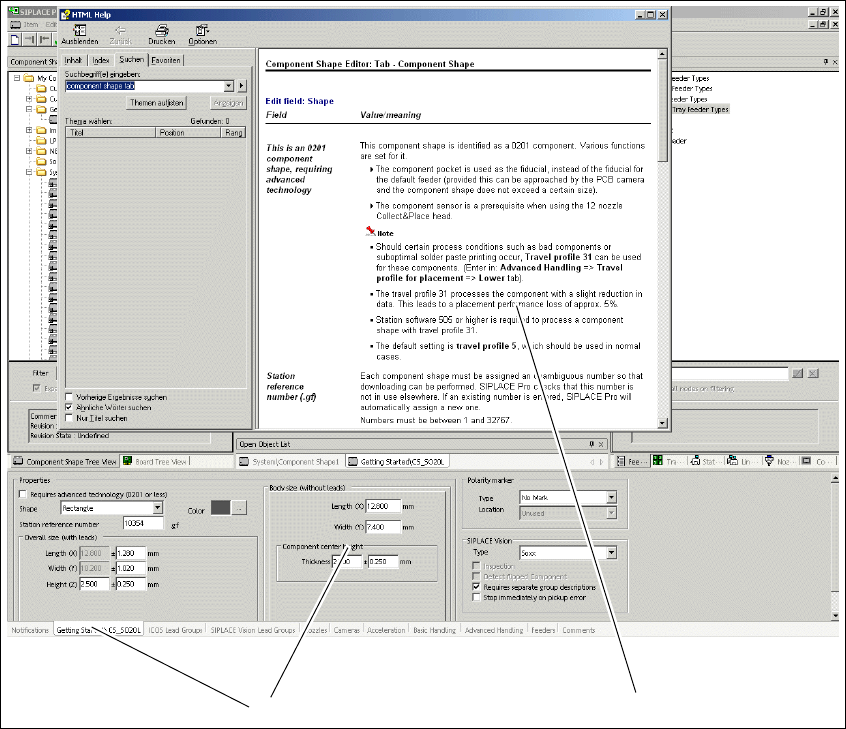
Make use of the extensive information in the Online Help! It contains a wealth of additional details
about all program functions. The following descriptions explain how to access the SIPLACE Pro
Online Help.
1.4.1 Accessing Online Help from Tabs via the F1 Key
Access the Online Help function for the current tab with the F1 key.
Abb. 1 - 1 Accessing Online Help via F1 - Component Shape Editor as example
Key
(1) Tab (2) Online Help about this subject
1
2