00198268-02_GS_SIPLACE-Pro-14.1-R17-1_EN.pdf - 第21页
Getting S tarted SIPLACE Pro 14.1 (R17-1) 2 Program Overview 05/2017 Edition 2.3 Presettings and Configurations 21 2.3.3 Printing with the Report Manager Images, brief descriptions and even whole eval uations can be prin…
2 Program Overview Getting Started SIPLACE Pro 14.1 (R17-1)
2.3 Presettings and Configurations 05/2017 Edition
20
2.2.7 Reset Default Layout for User Interface
If you have changed the arrangement of controls or disabled items in the user interface, the default
state can be restored by clicking on the icon in the toolbar. 2
2
2.3 Presettings and Configurations
2.3.1 Settings
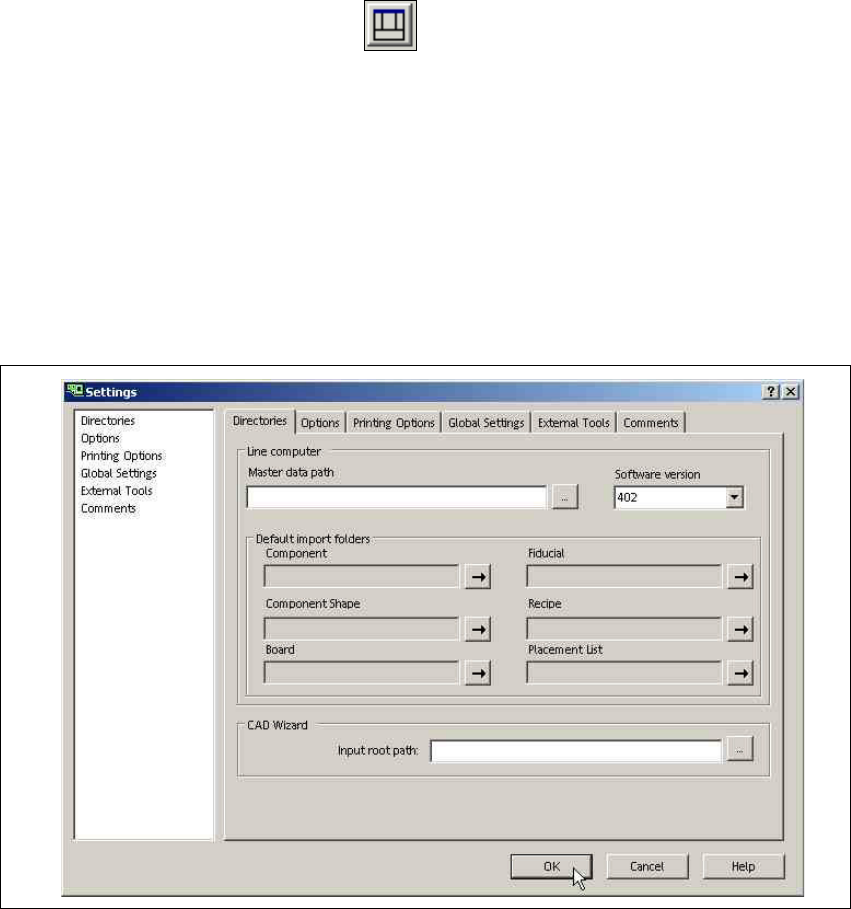
Global settings and function-related presettings can be defined in the Tools menu, at => Settings.
Please refer to the Online Help for details about the individual tabs. 2
Fig. 2 - 12 Dialog box - Settings
2.3.2 Changing the Language
The language for user interface texts can be changed in the Tools menu, at => Change Lan-
guage.... 2
Getting Started SIPLACE Pro 14.1 (R17-1) 2 Program Overview
05/2017 Edition 2.3 Presettings and Configurations
21
2.3.3 Printing with the Report Manager
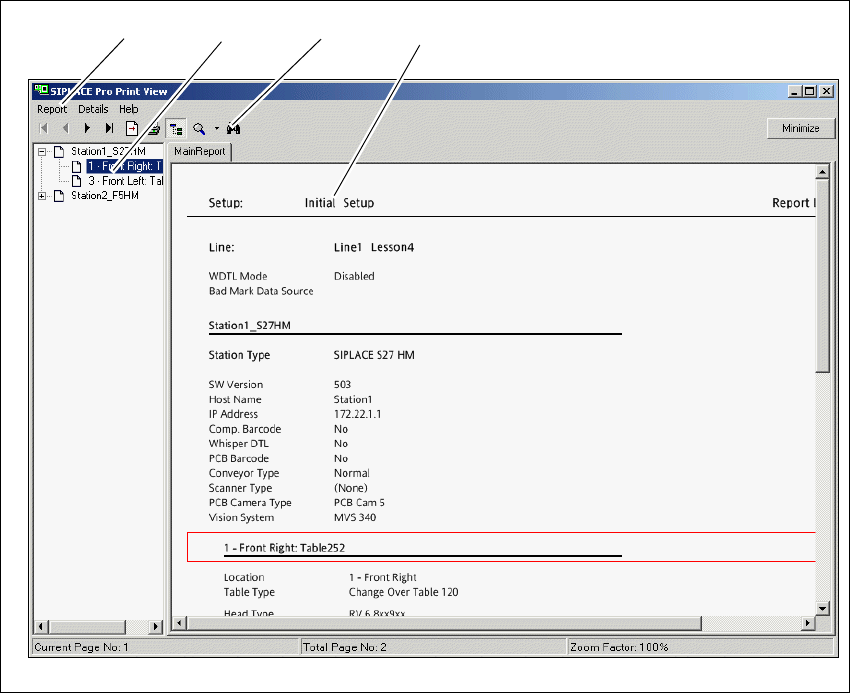
Images, brief descriptions and even whole evaluations can be printed via the Report Manager.
The Report Manager can be opened from the context menu for the active or selected object. 2
You can start the report by: 2
– selecting the Item => Launch Report menu
– right clicking the object on the tree view
– right clicking the object on the opened editor
2
Fig. 2 - 13 Report manager - line report
Key
(1) Menu Bar (2) Structure view (if available)
(3) Toolbar (4) Report Window
321
4
2 Program Overview Getting Started SIPLACE Pro 14.1 (R17-1)
2.3 Presettings and Configurations 05/2017 Edition
22
2.3.4 Import Standard Shape Library
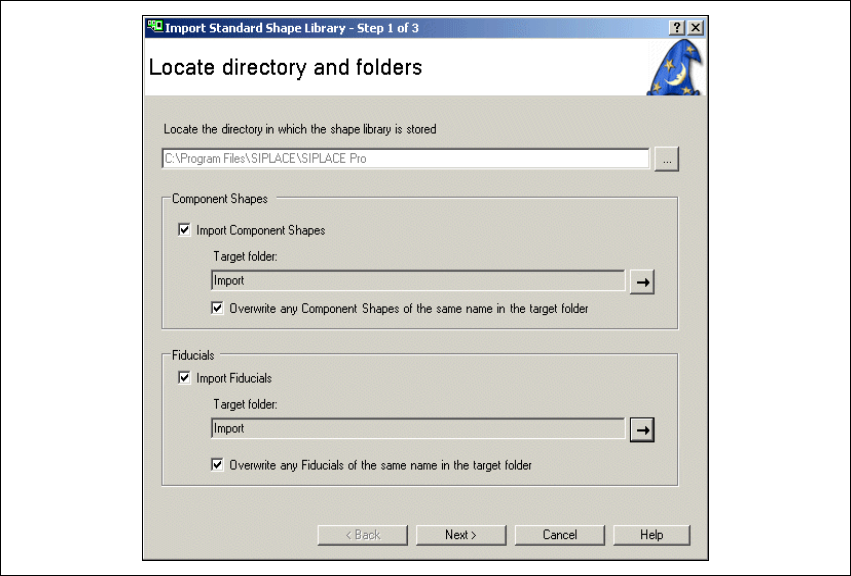
This Wizard helps you to import the standard library with shape and fiducial data. This data is
made available in XML format. 2
After standard installation (without changing the target directory), these data will be in the SI-
PLACE Pro target directory on your computer (C:\Program Files\SIPLACE\SIPLACE
Pro\Standard Library).
Select the menu Tools => Import => Standard Shape Library... to import this data.
Fig. 2 - 14 Import Standard Shape Library