00196351-06_UM_ACT_DE_EN.pdf - 第142页
ACT - Accurac y Check Tool / User Manual 09/2015 Edition 52 Figure 4-28: Dialog box: Acc ess level (example S IPLACE D 1) ► Enable the Serv icetechniker ( Service ) access level and confirm your entry wit h OK . If a pas…
ACT - Accuracy Check Tool / User Manual 09/2015 Edition
51
4.2.5 Working with the ACT Function under Station Software 605.xx
NOTICE
On SIPLACE X and D machines running station software 605.xx (platform 2+), it is
necessary to install additional software on the station computer to be able to use the
ACT.
The installation is described in chapter 6.
► Switch on the machine.
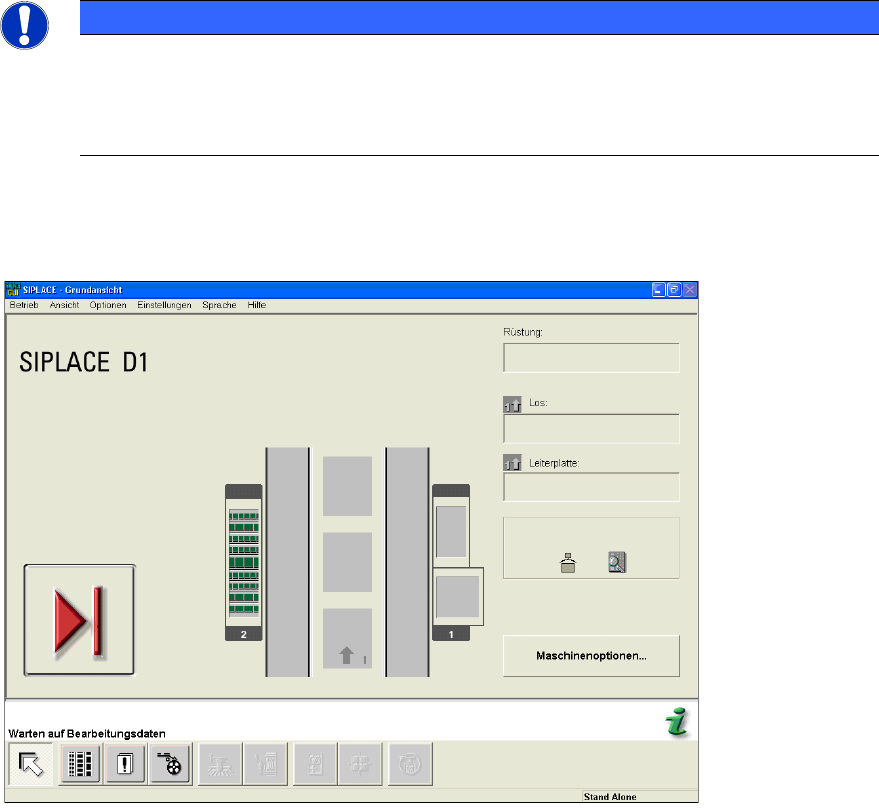
The station computer will boot. The user interface basic view for the SC program will soon appear.
Figure 4-27: Basic view of user interface GUI at the station
► From the Optionen (Options) menu, select Bedienebene… (Access level...) (Figure 4-25).
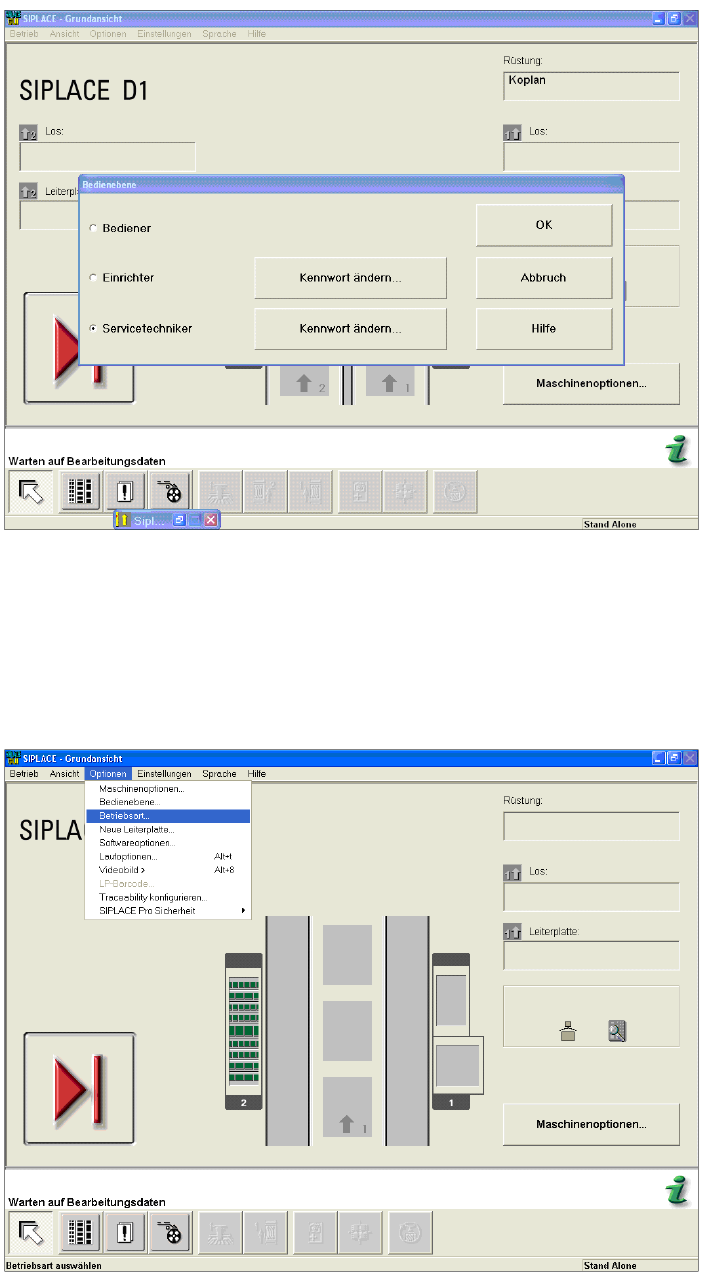
The Bedienebene (Access level) dialog box opens.
ACT - Accuracy Check Tool / User Manual 09/2015 Edition
52
Figure 4-28: Dialog box: Access level (example SIPLACE D1)
► Enable the Servicetechniker (Service) access level and confirm your entry with OK.
If a password has been defined, a dialog box will open for you to enter this password.
► Enter the password and confirm with OK.
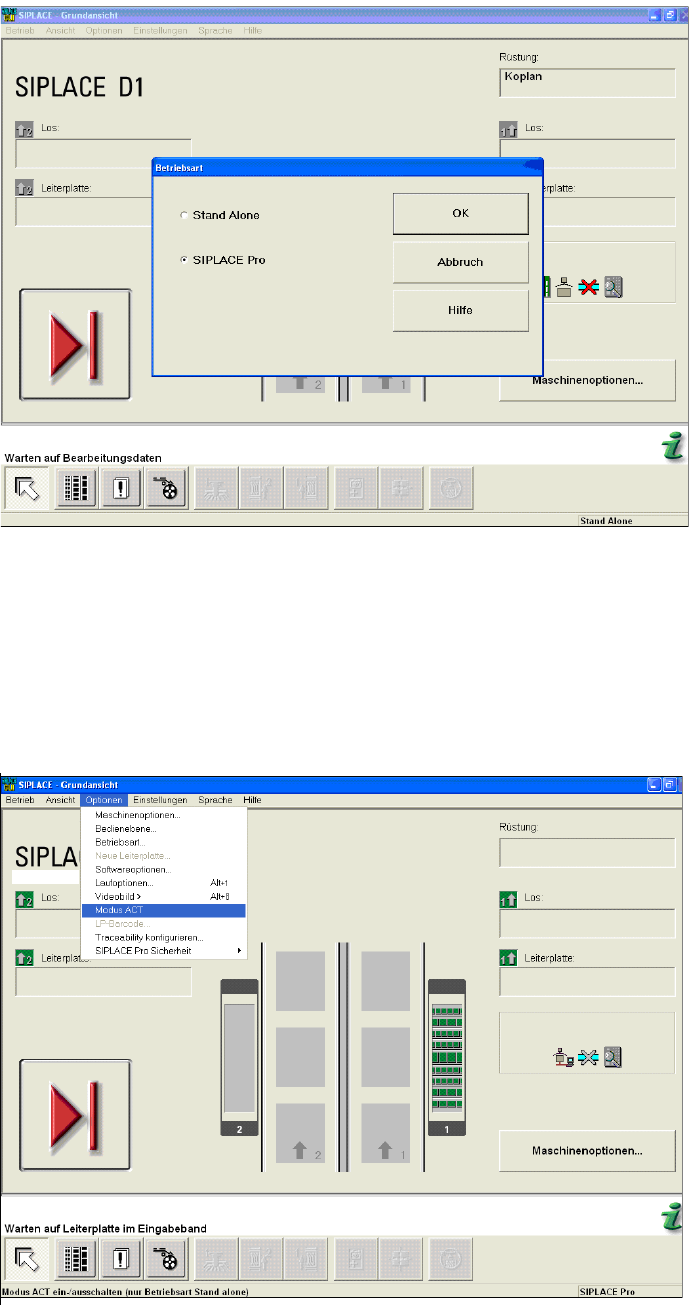
► Select the Optionen − Betriebsart... (Options − Control mode...) menu items.
Figure 4-29: Basic view of user interface for SC program (example SIPLACE D1)
This opens the Betriebsart (Control mode) dialog box.
► Select SIPLACE Pro and confirm the setting with OK.
ACT - Accuracy Check Tool / User Manual 09/2015 Edition
53
Figure 4-30: Dialog box operating mode switchover to SIPLACE Pro at the station (example SIPLACE D1)
► Press the START button on the machine.
The reference run is carried out.
► Send the recipe / job to the station with the relevant setup and the ACT placement program.
► From the Optionen (Options) menu, select Modus ACT (ACT mode).
The ACT dialog box opens and the machine will automatically switch to Stand Alone mode.
Figure 4-31: Basic view of user interface for SC program (example SIPLACE D1)
After setting ACT mode, an icon will be displayed for ACT.