3OM-1208-011_w.pdf - 第76页
2-1 AIVEDT -ID 0606-009 1. Window Composition and Icons 1. Window Composition and Icons 1.1 Window Composition The following describes how the data edit windows are composed. [1] T oolbar [2] T ab Sheet [3] Drop-Down Lis…

2-B
AIVEDT-ID
0606-009
2-1
AIVEDT-ID
0606-009
1. Window Composition and Icons
1. Window Composition and Icons
1.1 Window Composition
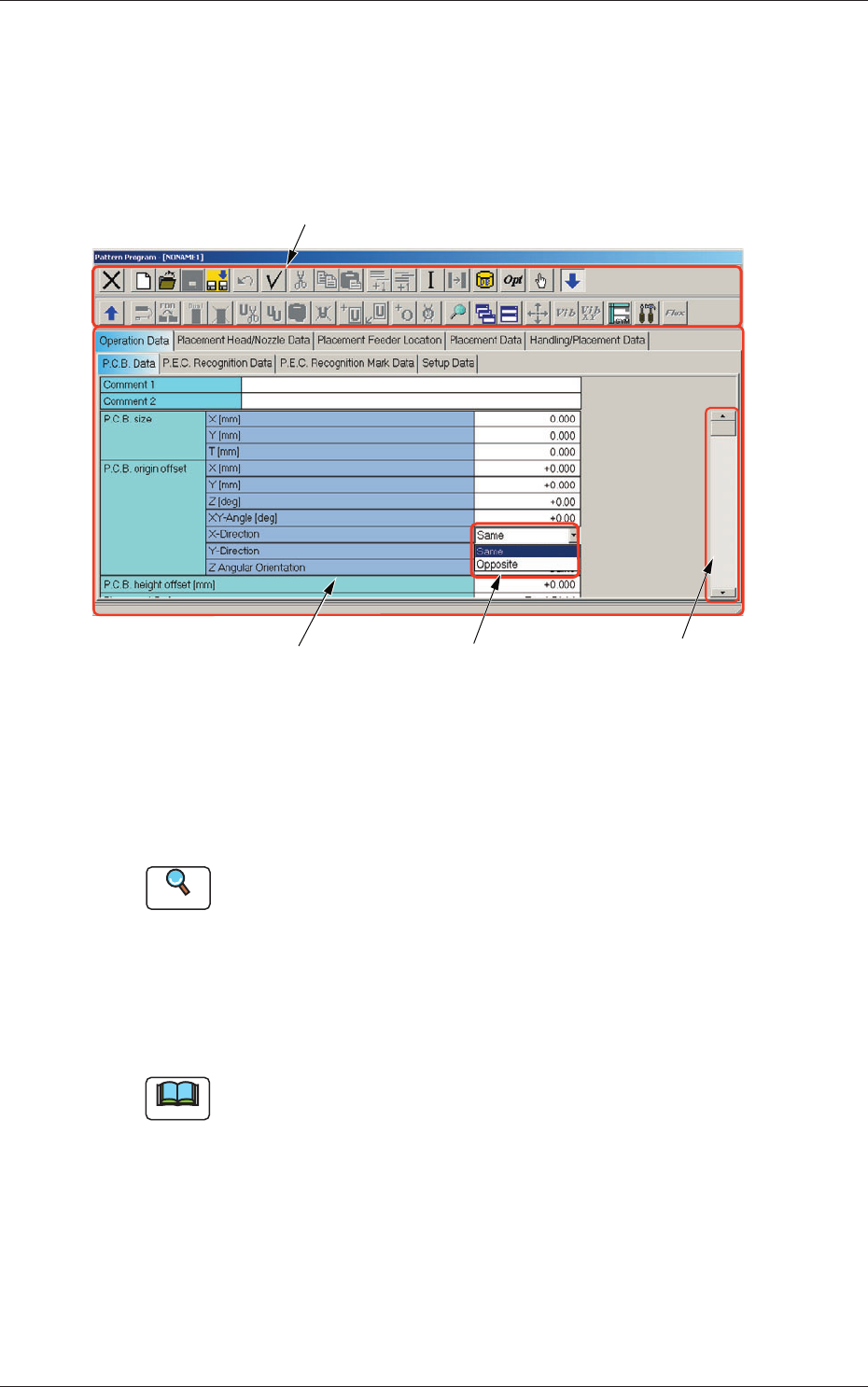
The following describes how the data edit windows are composed.
[1] Toolbar
[2] Tab Sheet [3] Drop-Down List
[4] Scrollbar
Fig. 3B1
"
Pattern Program
"
Edit Window (Example)
[1] Toolbar
The
"
Pattern Program
"
edit window is provided with the operation
commands (the icons on the toolbars) that can be executed.
Reference
Refer to "1.2 Basic Icons" for details.
[2] Tab Sheets
The provided tab sheets enable the operator to edit the data.
When
the size and/or the position of an edit window is changed, the size
and/or the position of each tab sheet also changes.
Note
When an item is selected and the right button of the track ball is pressed,
a menu opens and it contains a collection of commands that will be
frequently used.
2-2
AIVEDT-ID
[3] Drop-Down List
When a text box is pressed quickly twice, the text box is changed to a
combo box that has a down arrow on the right side. When you press
the down arrow, a drop-down list box opens, showing the rows of data
(options) to be selected.
When a selection is made, the selected option appears in the text box.
Note
A scrollbar might appear on the right side of a drop-down list when there
are many options.
[4] Scrollbar
When the up arrow (
) is pressed, the window scrolls up.
When the down arrow (
) is pressed, the window scrolls down.
When the left arrow (
) is pressed, the window scrolls left.
When the right arrow (
) is pressed, the window scrolls right.
0606-009
1.1 Window Composition