ASM_Guide To Adhesive Dot Dispensing_Stinger_en_0321_online.pdf - 第17页
2 STINGER, A GUIDE TO ADHESIVE DOT DISPENSING 2.3 SOFTWARE INTERFACE GUIDE TO ADHESIVE DOT DISPENSING STINGER 03/2021 17 9. Select Maintenance . 10. Select Machine Setup . 11. Select Options . 12. Ensure that Stinger Har…
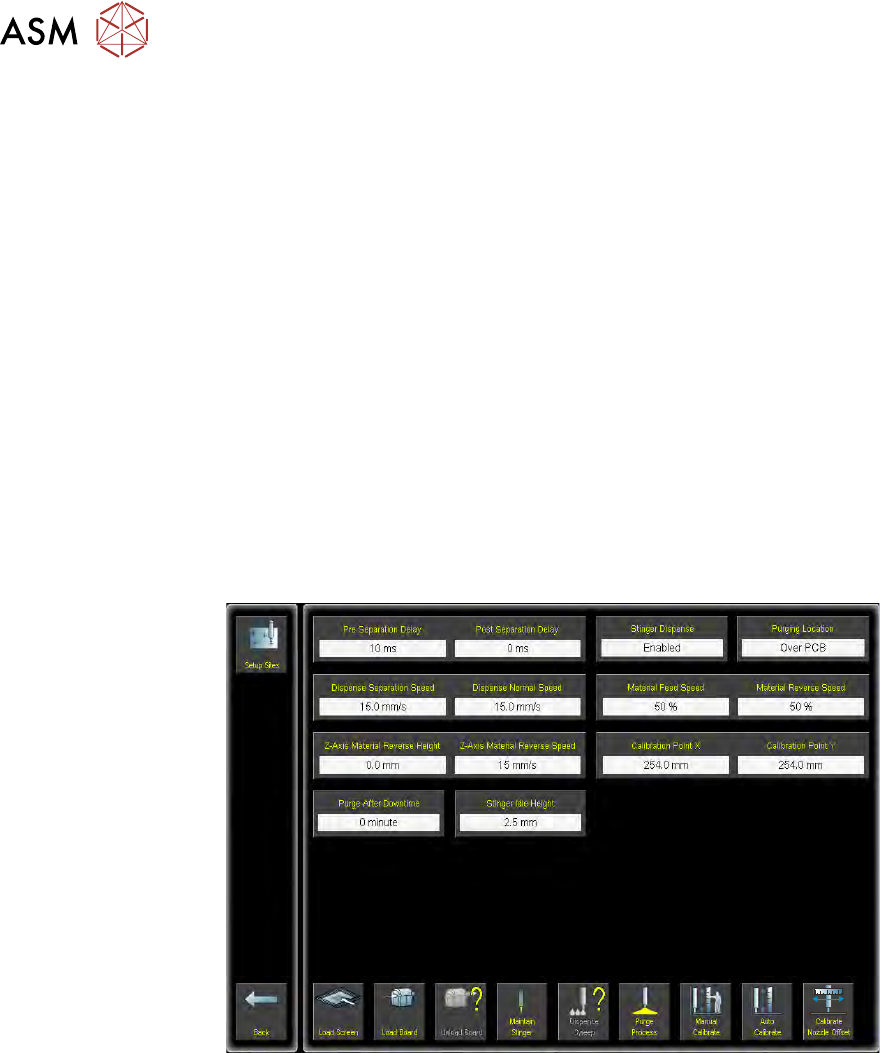
2 STINGER, A GUIDE TO ADHESIVE DOT DISPENSING
2.3 SOFTWARE INTERFACE
16 GUIDE TO ADHESIVE DOT DISPENSING STINGER 03/2021
2.3 SOFTWARE INTERFACE
The software is configured into two sections; the machine parameters are set in Maintenance and
the product parameters are set up in Setup Product.
2.3.1 Parameters
Before proceeding:
1. Camera reference point calibration must be carried out.
2. The product board, if loaded, must be unloaded.
3. The tooling must be set up initially as follows:
– Stinger Home
– Camera to Reference Dot Position
– Rising Table from Home to Vision Height
To set product parameters:
1. Select Setup Product.
2. Select Options.
3. Select Stinger Dispenser.
A parameters page is displayed for editing the parameters that apply to all sites.
4. Ensure that Stinger Dispense is set to Enabled.
5. Select Accept.
6. Select Back.
7. Select Back.
8. Select Back.
2 STINGER, A GUIDE TO ADHESIVE DOT DISPENSING
2.3 SOFTWARE INTERFACE
GUIDE TO ADHESIVE DOT DISPENSING STINGER 03/2021 17
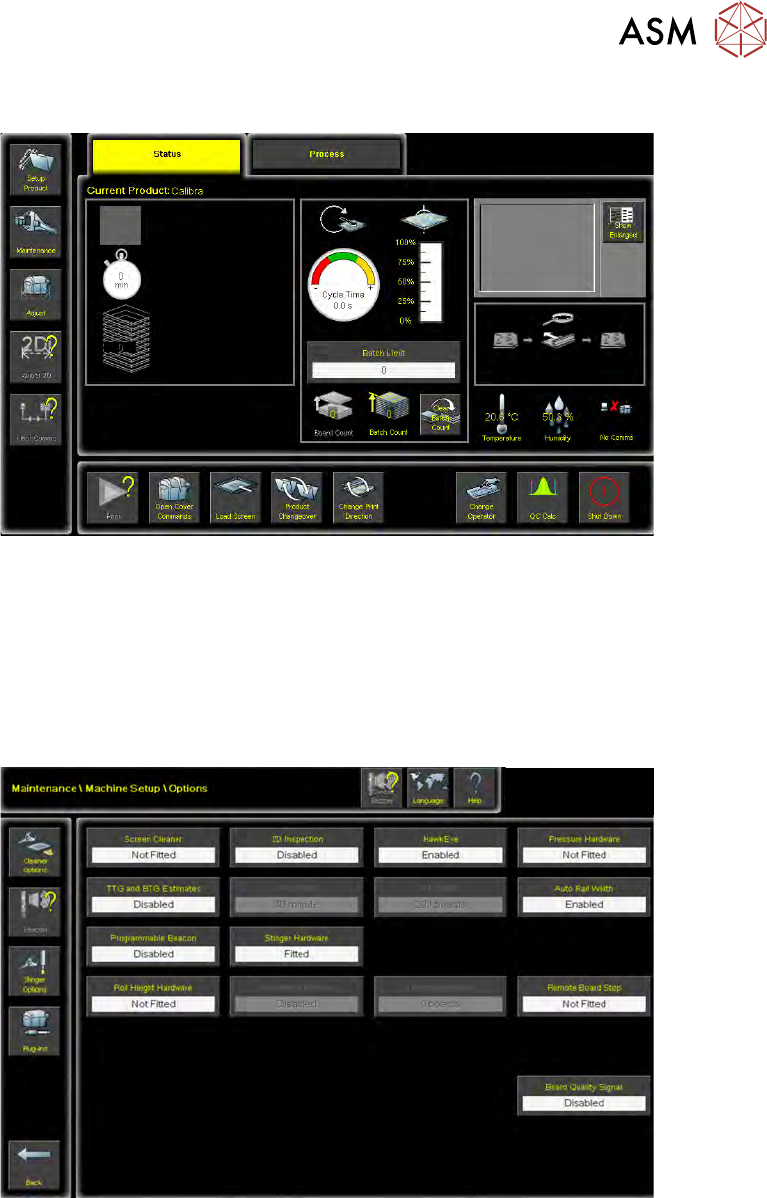
9. Select Maintenance.
10. Select Machine Setup.
11. Select Options.
12. Ensure that Stinger Hardware is set to Fitted.
NOTE
Stinger uses a laser to automatically calibrate product height; this data is used for surface
measurements and height adjustments. There is also functionality available to manually set
the contact height (see Product Setup Functionality for details).
2 STINGER, A GUIDE TO ADHESIVE DOT DISPENSING
2.3 SOFTWARE INTERFACE
18 GUIDE TO ADHESIVE DOT DISPENSING STINGER 03/2021
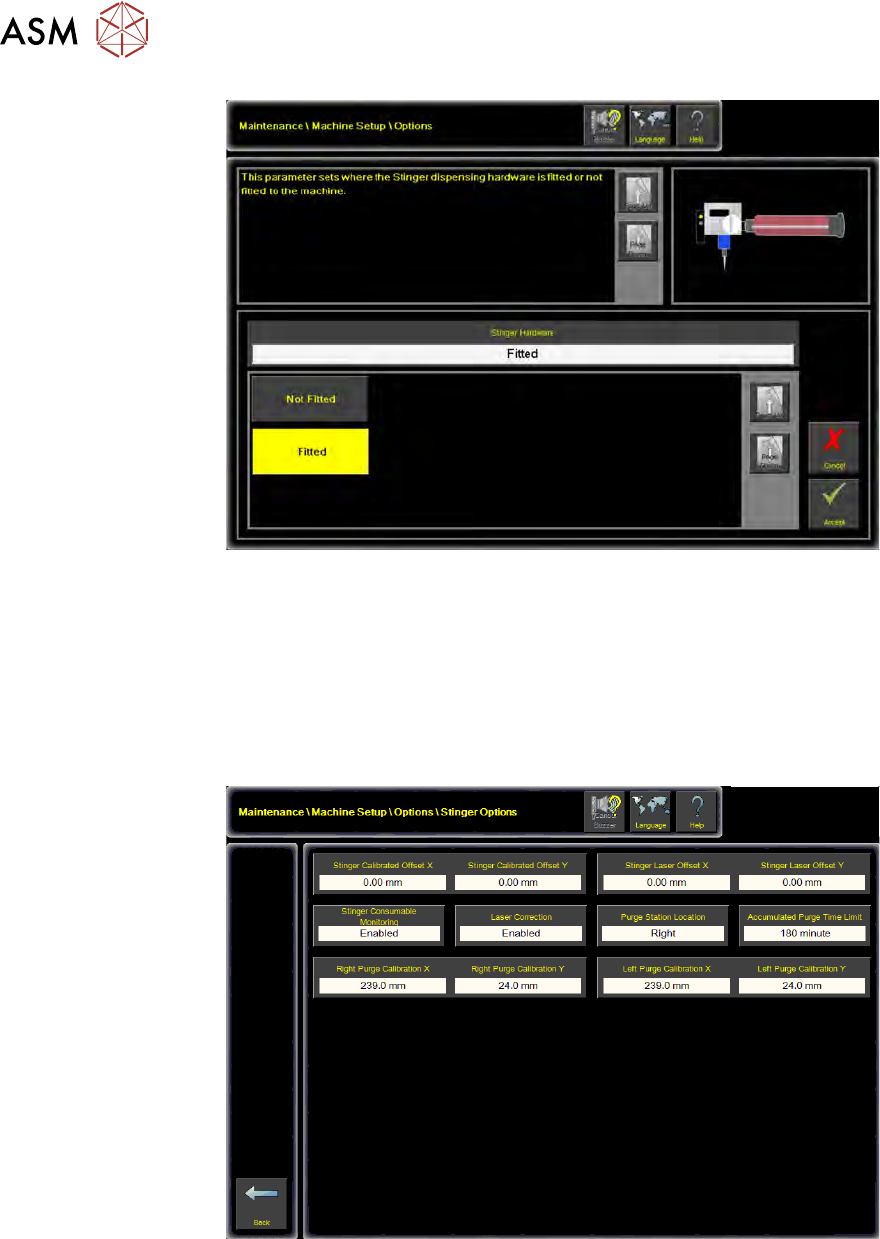
13. Select Accept.
2.3.2 Machine Setup Options
1. Select Maintenance.
2. Select Machine Setup.
3. Select Options.
4. Select Stinger Options.