ASM_Guide To Adhesive Dot Dispensing_Stinger_en_0321_online.pdf - 第37页
2 STINGER, A GUIDE TO ADHESIVE DOT DISPENSING 2.3 SOFTWARE INTERFACE GUIDE TO ADHESIVE DOT DISPENSING STINGER 03/2021 37 The Dispense and Measure options are: None (grey) - site measurement is disabled; Measure Only (yel…
2 STINGER, A GUIDE TO ADHESIVE DOT DISPENSING
2.3 SOFTWARE INTERFACE
36 GUIDE TO ADHESIVE DOT DISPENSING STINGER 03/2021
mm
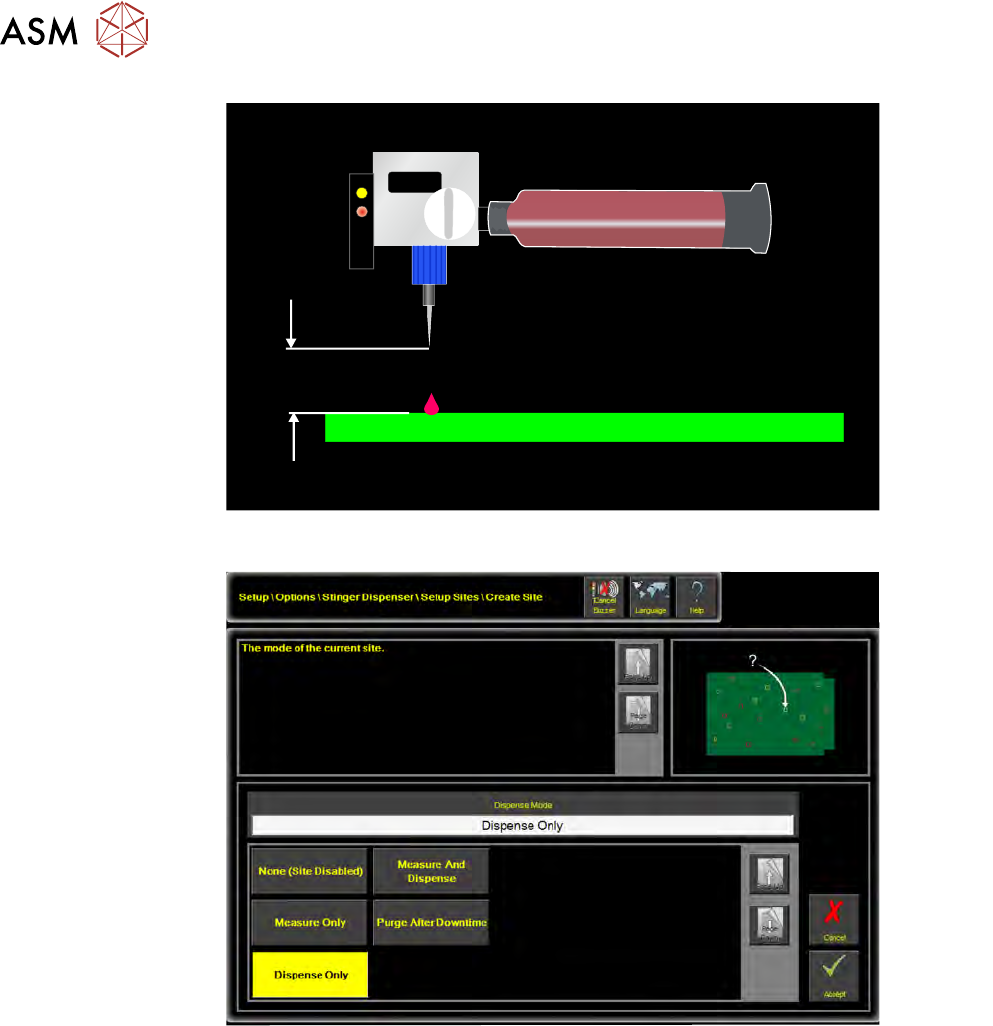
5. Assign a Dispense Mode to the site
Options are: None, Measure Only, Dispense Only, Measure and Dispense, Purge After Down-
time
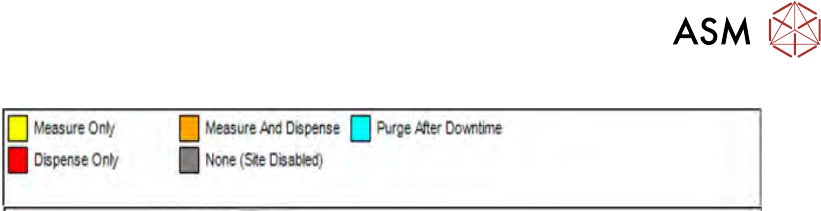
A key at the bottom of the product image view shows the colour code for dispense, measure and
purge settings.
2 STINGER, A GUIDE TO ADHESIVE DOT DISPENSING
2.3 SOFTWARE INTERFACE
GUIDE TO ADHESIVE DOT DISPENSING STINGER 03/2021 37
The Dispense and Measure options are: None (grey) - site measurement is disabled; Measure
Only (yellow) - the laser measures the site at the given co-ordinates to output height corrections;
Dispense Only (red) - adhesive is dispensed at the programmed dispense gap; and Measure and
Dispense (amber) - the site is measured by laser to give height corrections before dispensing
takes place. There is also an option to place sites where a purge operation can take place. Purge
After Downtime sites are programmed as sacrificial sites, and are used to clear the nozzle of any
adhesive, which may have hardened after a downtime period; the sites are denoted by a blue
rectangle; they are the first sites to be added.
Navigation controls are available on the create site page these include:
●
Zoom In - Control zooms in to selected site one step at a time
●
Zoom Out - Reverses the zoom in levels in single steps
●
Full Zoom Out - Zooms out to top level in a single step
●
Load Image - Loads a Bitmap (.bmp) or extended Gerber Image (.gbx)
●
Hide Image / Show Image - Hiding the image leaves the programmed sites displayed
without the product data image. A useful feature to quickly assess how many sites are set
to: dispense only; measure only; or dispense and measure.
6. Select Accept.
7. When a site has been placed and adjusted select Confirm to save settings and exit the create
sites page. Or, select Cancel
to exit the page without saving.
2 STINGER, A GUIDE TO ADHESIVE DOT DISPENSING
2.3 SOFTWARE INTERFACE
38 GUIDE TO ADHESIVE DOT DISPENSING STINGER 03/2021
2.3.7 Setup Sites
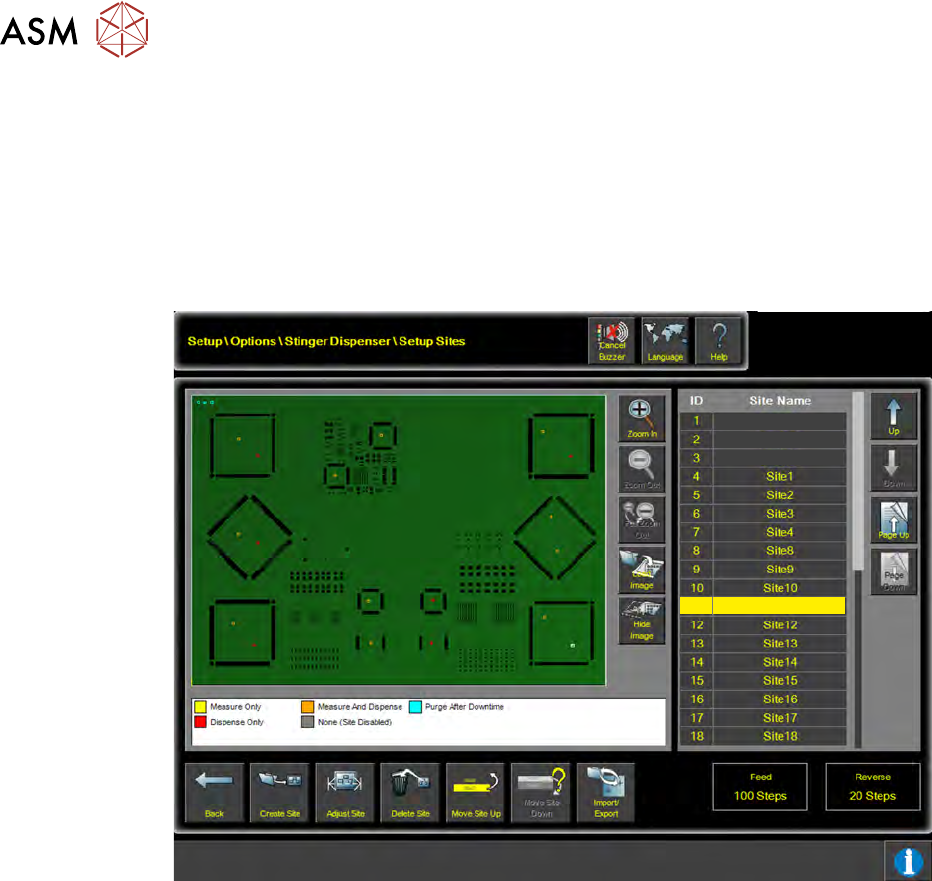
Exiting the create page displays the Setup Sites page. Sites are created until all sites, which re-
quire either adhesive dots, measurement, or both have been programmed. In the setup sites page
each site can be edited by selecting the site, either from the image data or from the site ID/Site
Name table.
In the example below, site 11 has been selected. In the product image view it is shown highlighted,
the white rectangle toward the bottom right of the board image; the table confirms the selection of
the site as it is highlighted yellow in the table.
Purge 2
Purge 3
Purge 1
Site 11
11
These controls allow the user to scroll up and down through lengthy lists of programmed sites;
zoom into and out of areas of the product image and show or hide the product image, a useful fea-
ture when looking at the dispense mode for individual sites.
Using the site edit functionality, sites that have been created can be adjusted, deleted, and moved
up or down in the ID/Site Name table.