ASM_Guide To Adhesive Dot Dispensing_Stinger_en_0321_online.pdf - 第40页
2 STINGER, A GUIDE TO ADHESIVE DOT DISPENSING 2.3 SOFTWARE INTERFACE 40 GUIDE TO ADHESIVE DOT DISPENSING STINGER 03/2021 Figure 1 Figure 2 Figure 3 Figure 4 0.15 Dispense Gap Save 0.25 Dispense Gap Selecting Back twice r…
2 STINGER, A GUIDE TO ADHESIVE DOT DISPENSING
2.3 SOFTWARE INTERFACE
GUIDE TO ADHESIVE DOT DISPENSING STINGER 03/2021 39
1. Selecting Adjust Site allows adjustment to individual sites. The editable parameters which
were available in the create page are reproduced.
2. The site, or all sites, can be deleted if the Delete Site functionality is selected. The user can
opt to delete the current site or all sites.
3. Selecting Move Site Up/Move Site Down buttons allows the order in which measurements
are taken or where the adhesive is laid down to be altered. This can be useful when sites
have been added after the initial site creation; for example, it may be necessary to add more
sites to give a larger area for adhesion. To speed the deposition process up the sites can be
grouped together.
Further navigation controls are available where several sites have been programmed. Up/
Down and Page Up/Page Down; Zoom Controls; and Show/Hide Image options are available.
4. The Import/Export functionality allows the user to import and export data in a format that al-
lows the data to be manipulated in an external editing application or database.
5. Export data can be exported out of the application into a suitable editing program; once ed-
ited, it can be re-imported back into the site list using the Import functionality described above.
Import and Append data edited in the external application can be imported and added to the
list at the end of the current site list.
Import and Overwrite data in an external application can be imported and current sites are
overwritten.
The data is imported and exported to a path setup in the product directory; Maintenance\Ma-
chine Setup\Data Coms\Network\ Product Directory. The file is named the same name as
its current product file name and appended with.csv. The.csv stands for comma-separated
values a recognised spreadsheet format.
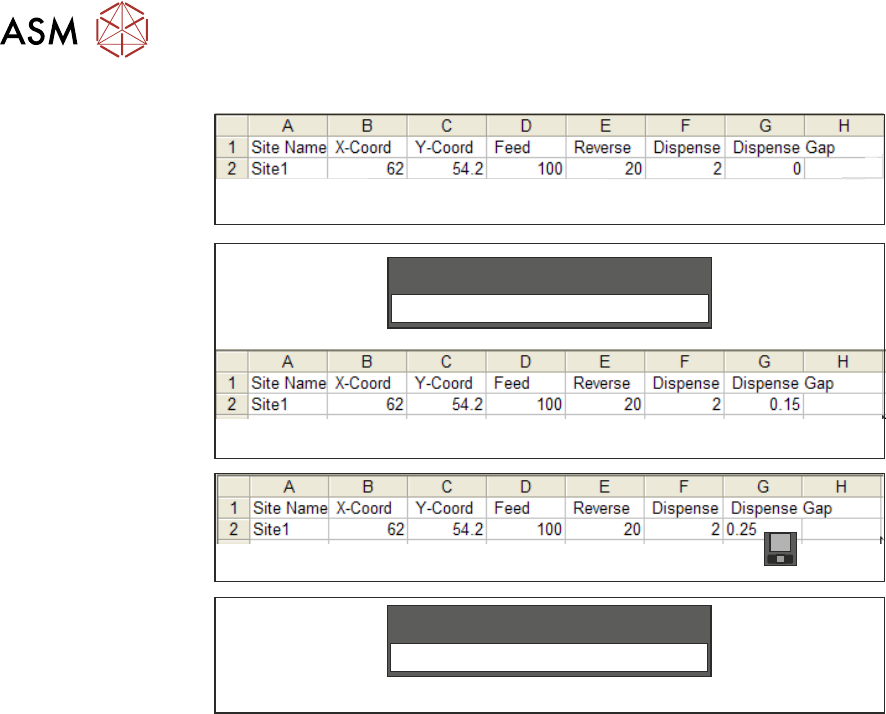
In the example shown, the dispense gap is zero (Figure 1. Row 2 Column G).
Where the data is edited in the Stinger software application and exported; the data in the.csv
file is as shown in Figure 2.
If the data is edited in the external application and saved, as shown in Figure 3, when impor-
ted back into the Stinger application, the data is automatically updated.
6. Select the site in the ID/Site Name table and confirm the change by selecting Adjust Site to
view the Dispense Gap (Figure 4).
The dispense modes as shown in column F in the table are defined as integers 0 to 4 as fol-
lows:
Dispense Mode Integer
None 0
Measure Only 1
Dispense Only 2
Measure and Dispense 3
Purge After Downtime 4
2 STINGER, A GUIDE TO ADHESIVE DOT DISPENSING
2.3 SOFTWARE INTERFACE
40 GUIDE TO ADHESIVE DOT DISPENSING STINGER 03/2021
Figure 1
Figure 2
Figure 3
Figure 4
0.15
Dispense Gap
Save
0.25
Dispense Gap
Selecting Back twice returns control to the Ready page; data is stored on exit from this page.
2 STINGER, A GUIDE TO ADHESIVE DOT DISPENSING
2.3 SOFTWARE INTERFACE
GUIDE TO ADHESIVE DOT DISPENSING STINGER 03/2021 41
2.3.8 Calibrating Stinger Heights
NOTE
If the product is changed, or if the equipment has been replaced, or it is being set up for the first
time, performing a manual height calibration first, improves system accuracy as the contact height
is set up accurately. See the appendix for details.
This procedure relates to units that have the automatic calibration option.
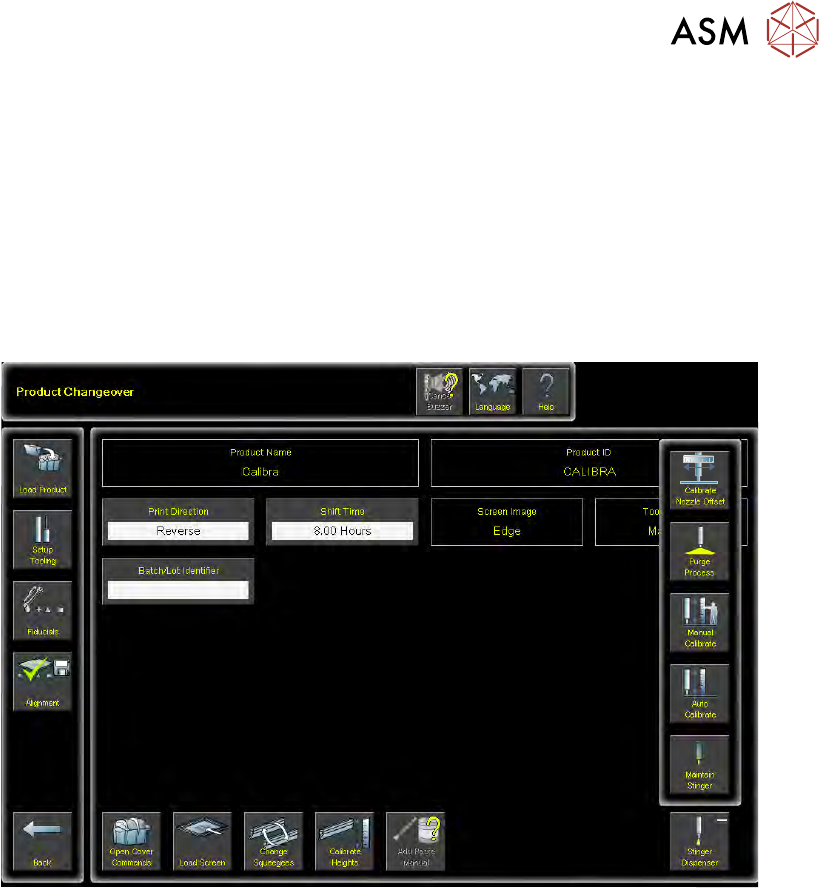
1. Select Product Changeover.
2. Select Stinger Dispenser.
3. Select Auto Calibrate.
The camera axis is driven to the calibration location and automatically jogs down until the nozzle
reaches the top surface of the product. At this point the laser does not register a change in reading
and the correct contact height is set. Because the idle height is set in a parameter Setup Product
\Options\Stinger Dispenser, there is no need to set the idle height as this difference (between
contact height and the set value for idle height) is maintained by the laser tracking the surface of
the product during printing.
NOTE
Laser range checks are only carried out after setting contact height in manual mode. If auto-cali-
bration fails, performing a manual calibration resets the laser range.
2.3.8.1 Siting The Calibration Point
Product is not always rectangular in shape and completely plane surfaced. There are often features
such as protruding edges and gaps in various places across the product. This means that users
must be aware of where to place the calibration point. The unit performs two distinct checks in one
action, they are:
●
Contact Height
●
Laser Range Checking
The unit defaults to the centre of the board or the purge over product point for its calibration co-
ordinates (shown in white outline). This may not be an appropriate location as the product may
have features that do not allow for both the nozzle, and the laser beam to be accommodated cor-
rectly.