00198521-01_UM_LDU_E_EN.pdf - 第33页
4 Operation 4.1 Settings in the line software User Manual SIPLACE Linear Dipping Unit E 12/2018 33 4 Operation 4.1 Settings in the line software In order to use the LDU in a placement order, the following settings have t…
3 Function description and structure
3.3 Basic process
32 User Manual SIPLACE Linear Dipping Unit E 12/2018
3.3.6 Dip process and dwell time
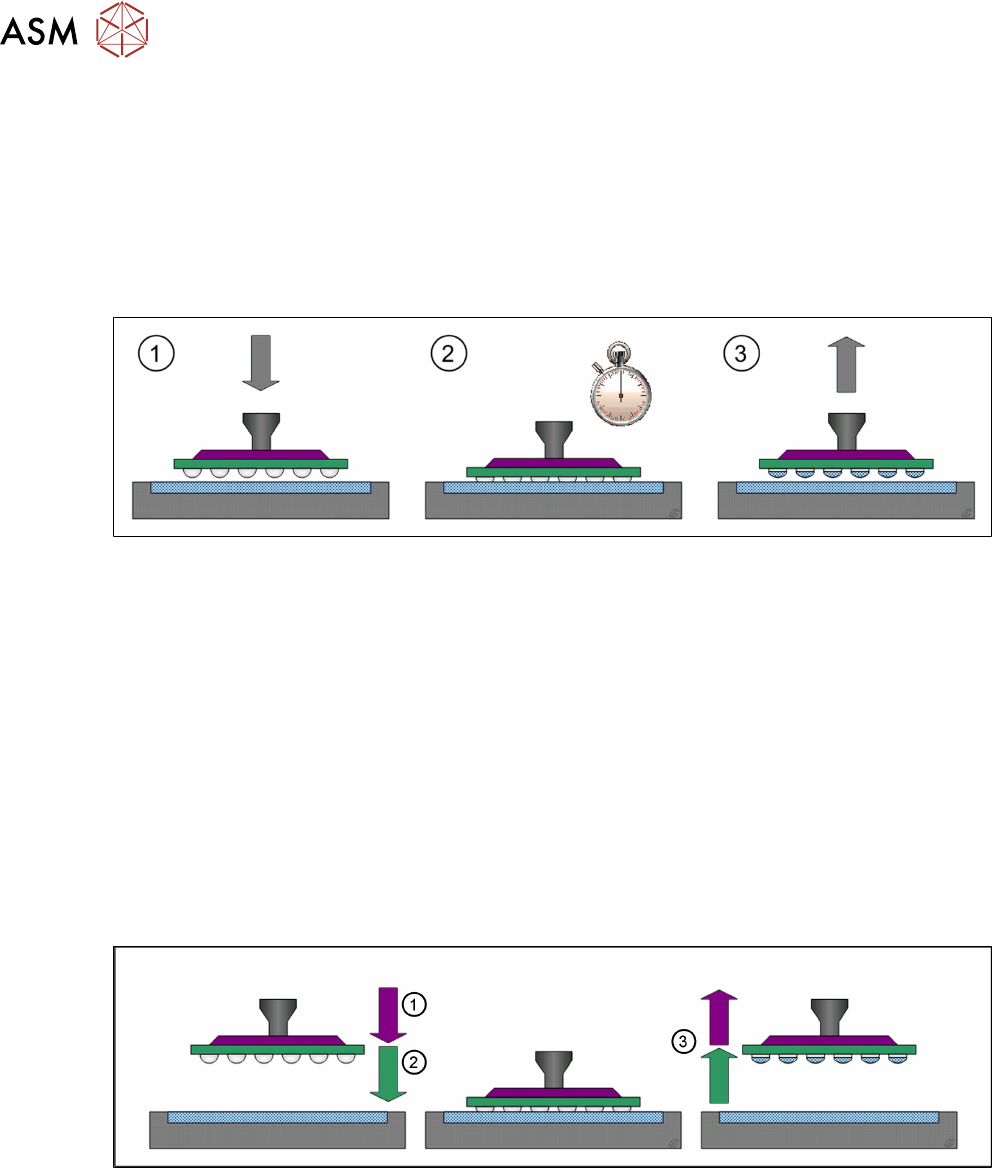
The dip process in placement machines roughly consists of the following steps:
1. Pick component up from the relevant feeder module
2. Dip component in the flux
3. Check and center component with the Vision system
4. Place component on the board
The detailed dipping procedure (step 2) consists of the following steps:
1. The placement head moves with the component over the LDU to an unused part of the dip-
ping area. The placement head moves down until the component reaches the bottom of the
cavity.
2. The down sensor for the placement head starts a dwell time.
3. After the end of the dwell time, the placement head moves up again.
During the dwell time, the flux can coat the component on the parts which have been dipped into it.
The dwell time can be set in the line software: 4.1.5 "Setting the dip sequence and the dwell
time" [}35]. The correct dwell time must be determined through tests.
3.3.7 Creep distance
Depending on the viscosity of the flux used, it can be necessary to adjust the speed down or speed
up when dipping into the cavity. Components which get stuck in the flux of the cavity when the
nozzle moves up indicate that the speed up is too high. A speed down that is too high can lead to
uneven wetting of the component balls/bumps.
The distance between the surface of the cavity depth and the creep point is the creep distance.
(1) The placement head moves down with normal speed until it reaches the adjustable creep point
where it slows down to the adjustable speed down value.
(2) The placement head moves down with the speed down until it reaches the surface of the cavity
depth.
(3) The placement head moves up with the adjustable speed up until it reaches the creep point
where it accelerates to normal speed.
Creep point, speed down and speed up for each component and flux are set in the line software:
4.1.7 "Setting the creep distance" [}37].
4 Operation
4.1 Settings in the line software
User Manual SIPLACE Linear Dipping Unit E 12/2018 33
4 Operation
4.1 Settings in the line software
In order to use the LDU in a placement order, the following settings have to be defined in the line
software before start-up:
●
Setting up
●
Flux used
●
Dip parameters for the components used:
– Flux used
– Dip sequence
– Cavity depth of the dip plate
– Pressing force when dipping
– Dwell time when dipping
– Travel profile when dipping
– Waiting time at placement
●
Processing Parameters for the flux used:
– Cicatrization time
– Curing time
– Squeegee speed
– Number of squeegee cycles during the warm-up cycle
4.1.1 Setting up the LDU
●
The LDU cannot be set up in the 6 outer tracks on the right- and left-hand side of the
changeover table.
●
The LDU can be set up directly next to any feeder modules.
●
The LDU should not be configured in direct vicinity to feeder modules for very small compon-
ents.
●
It is recommended not to set up any linear feeder and stick feeder modules together with the
LDU on the same changeover table.
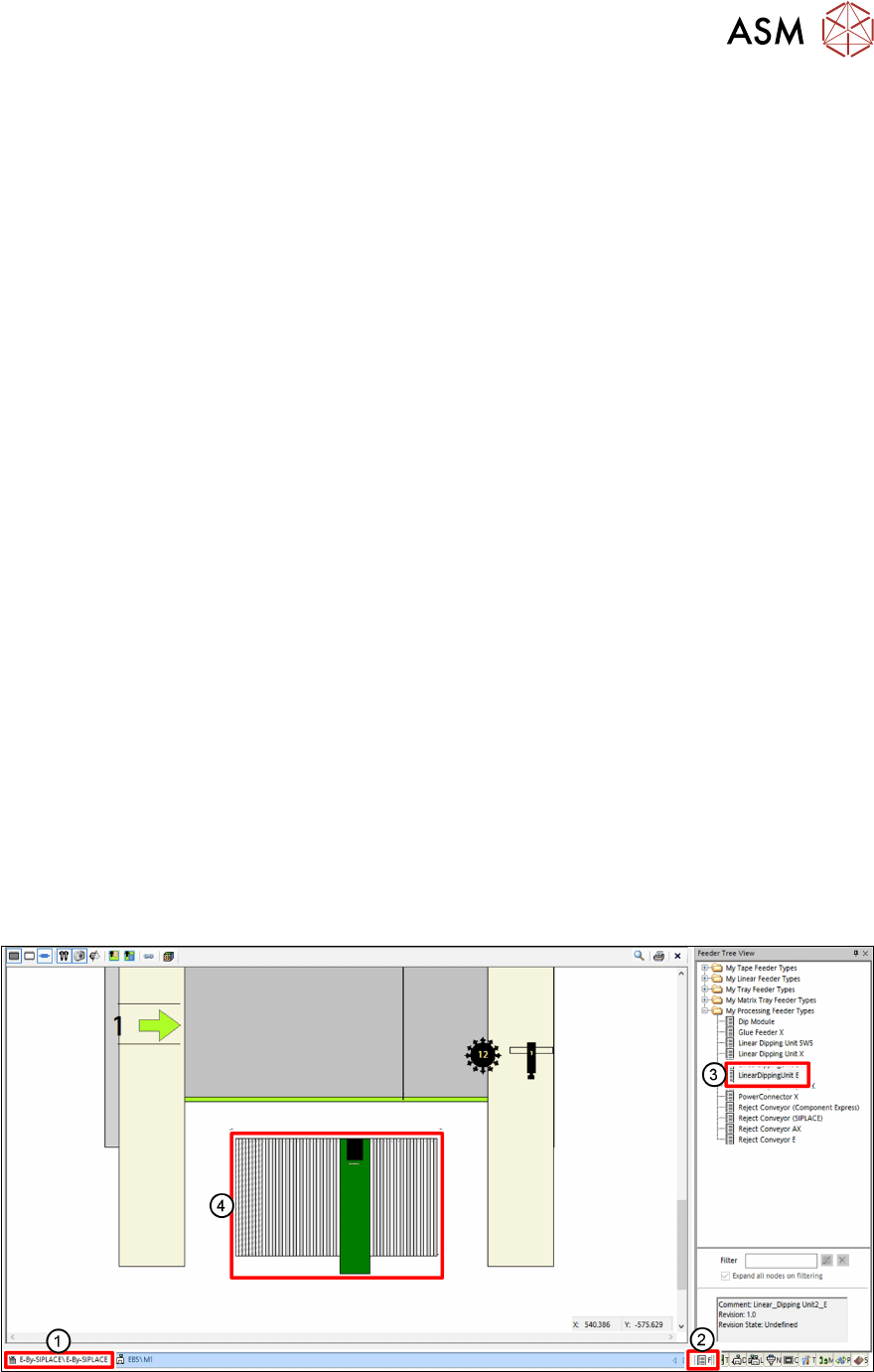
► In the line software, click on the Setup tab(1).
► Click on the Feeder Tree View tab(2).
► Drag the relevant LDU from the tree view(3) to the desired track of the changeover table(4).
4 Operation
4.1 Settings in the line software
34 User Manual SIPLACE Linear Dipping Unit E 12/2018
4.1.2 Assigning a flux to the LDU
On one placement machine, several LDU units can be used. Each LDU can be filled with another
flux. For this purpose, the user must assign the corresponding flux and the cavity depth of the dip
plate used to the LDU set up.
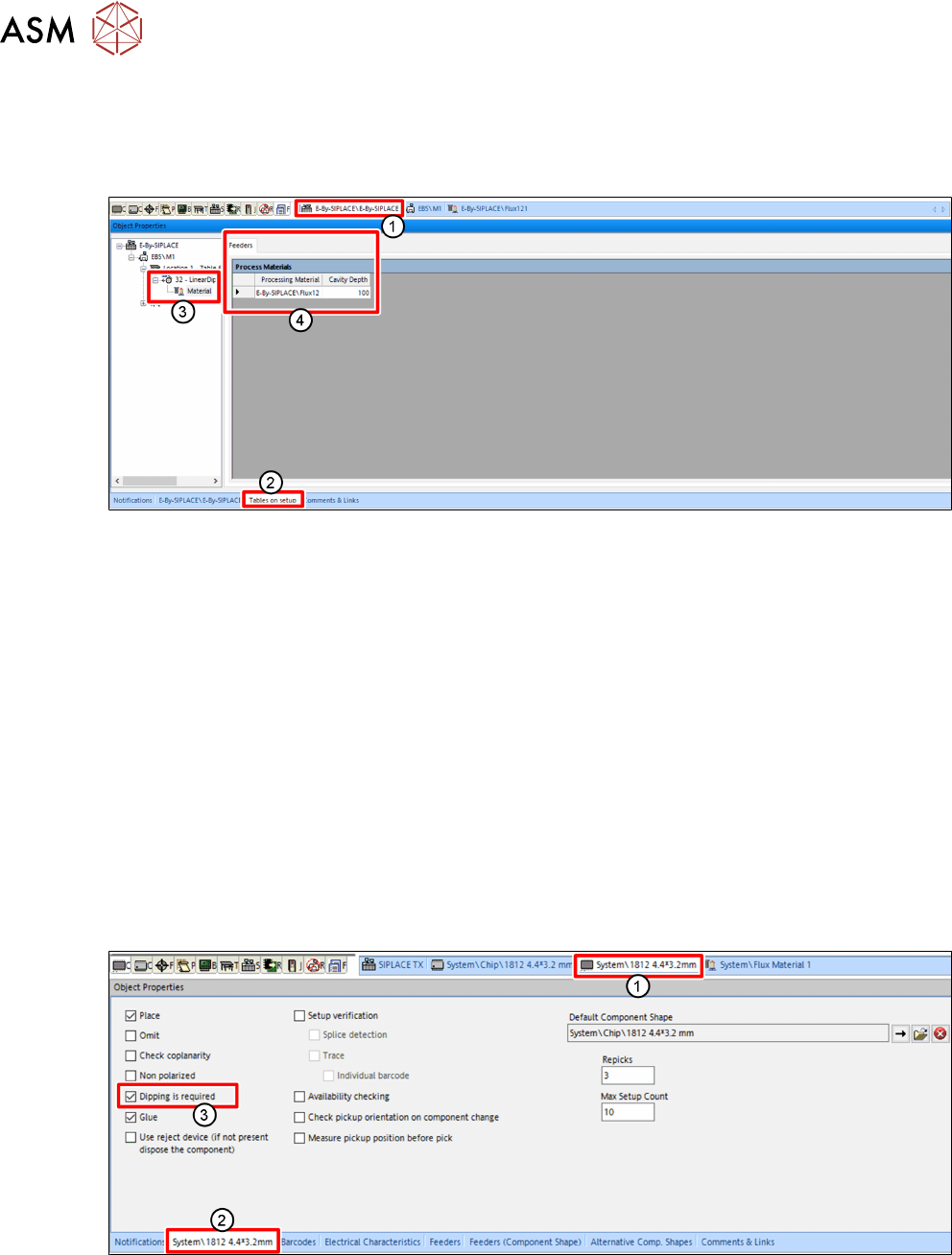
► In the line software, click on the Setup tab(1).
► Click on the Tables on setup tab(2) in the Object Properties view.
► Select the desired LDU in the tree view.
► Click on the Material entry(3).
► Click on the free field in the Process material column on the Feeder tab(4).
A button with three points is displayed.
► Click on the button with the three points.
A dialog window is displayed to select the flux.
► Click on the desired flux in the tree view.
► Click OK.
► On the Feeder tab(4), in the Cavity depth column, enter the cavity depth of the dip plate
used.
4.1.3 Selecting a component for dipping
For every component used, the user can set that dipping is required:
► In the line software, click on the tab of the desired component(1).
► Click on the tab of the component(2) in the Object Properties view.
► Enable the Dipping is required option(3).