ASM_Manual_TQSeries_VerificationAndTraceability_03233976_online.pdf - 第15页
1 VERIFICATION AND TRACEABILITY 1.3 VERIFICATION ITEMS STANDALONE MANUAL VERIFICATION AND TRACEABILITY TQ SERIES 07/2020 15 1.3.3 Add Item To A Program The program may contain one or more items that must be verified. Ite…
1 VERIFICATION AND TRACEABILITY
1.3 VERIFICATION ITEMS
14 STANDALONE MANUAL VERIFICATION AND TRACEABILITY TQ SERIES 07/2020
Item Item ID Item Type
Squeegee Holder Front SqueegeeHolderFront Tool
Squeegee Holder Rear SqueegeeHolderRear Tool
Squeegee Blade Front SqueegeeBladeFront Tool
Squeegee Blade Rear SqueegeeBladeRear Tool
Stencil Screen Tool
Tooling Tooling Tool
Board Clamp Front BoardClampFront Tool
Board Clamp Rear BoardClampRear Tool
Operator Name OperatorName Tool
Vacuum Tooling VacuumTooling Tool
Spatula Spatula Tool
Work Order WorkOrder Tool
Print Medium PrintMedium Material
Print Medium Cartridge PrintMediumCartridge Material
Cleaner Paper CleanerPaper Tool
Cleaner Solvent CleanerSolvent Tool
1.3.2 Delete Item
This section details deleting an item:
1. Select the Menu icon.
2. Select Programming.
3. Select Verification Item Definitions.
4. Select the item to be deleted from the list.
5. Select Delete.
6. Select Confirm.
7. Select Exit.
1 VERIFICATION AND TRACEABILITY
1.3 VERIFICATION ITEMS
STANDALONE MANUAL VERIFICATION AND TRACEABILITY TQ SERIES 07/2020 15
1.3.3 Add Item To A Program
The program may contain one or more items that must be verified. Items can be added or deleted,
some items cannot be deleted and are always present.
To add an item to an existing program, use the following procedure:
1. Select the Menu icon.
2. Select Programming.
3. Select the board that the item is going to be added to.
4. Select Edit.
5. Select Top Side or Bottom Side.
6. Select Edit.
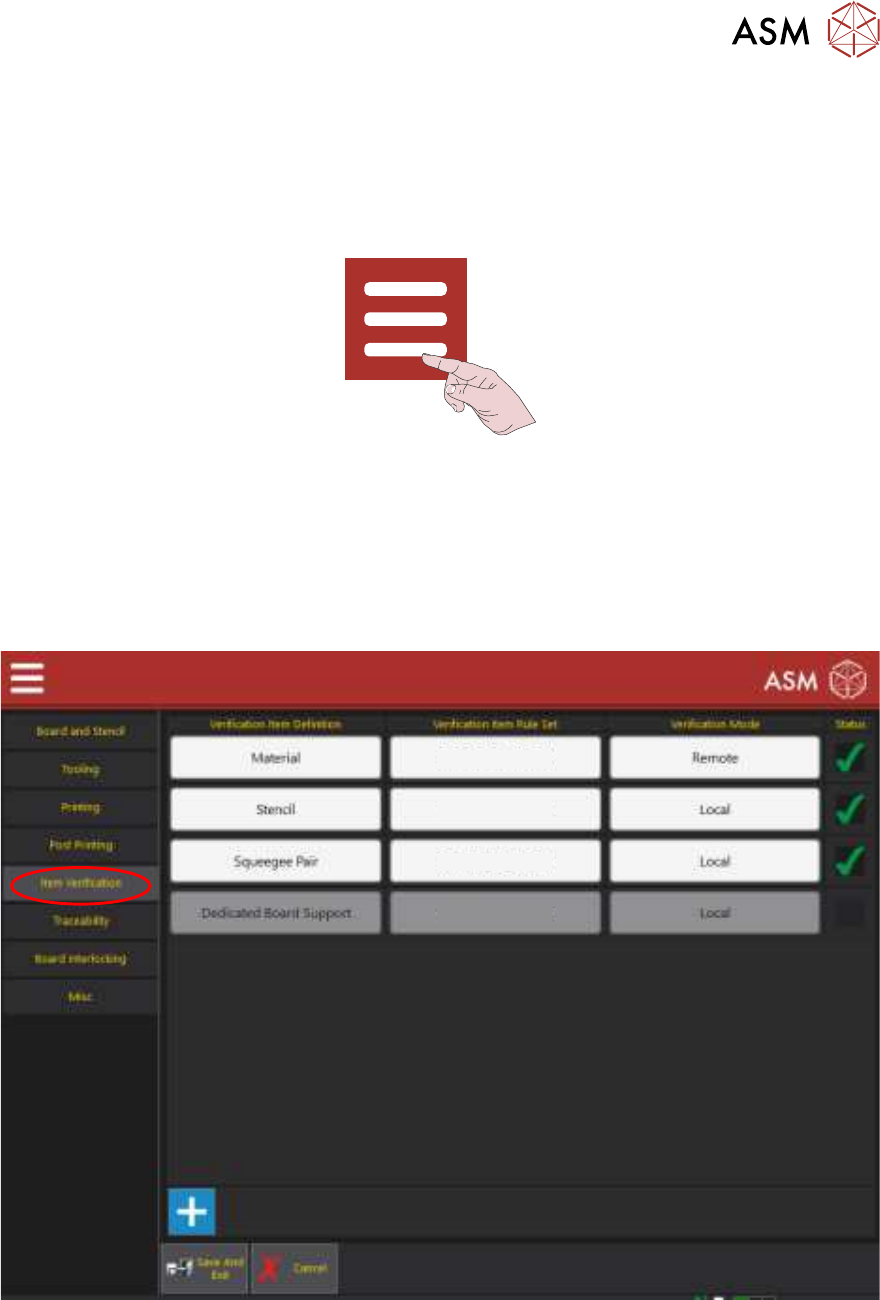
7. Select the Item Verification tab to display the following page:
Edit Rule Sets
Edit Rule Sets
Edit Rule Sets
Edit Rule Sets
8. Select the ‘+’ sign at the bottom of the table.
9. Select the empty box at the bottom of the table in the Verification Item Definition column.
10. Select the item to be added.
11. Select Accept.
12. Ensure that the Status is set to Enabled.
13. Select Save And Exit.
1 VERIFICATION AND TRACEABILITY
1.3 VERIFICATION ITEMS
16 STANDALONE MANUAL VERIFICATION AND TRACEABILITY TQ SERIES 07/2020
14. Select Save And Exit.
15. Select Exit.
1.3.4 Add Rule To An Item
All items used for verification have rules, this is the barcode or ID of the item that can be used dur-
ing the production run. Multiple rules can be applied to a single item for example, two identical
stencils from two different manufacturers would have different barcodes.
NOTE
Barcodes can contain wildcards allowing the software to ignore a group or single characters within
the barcode. See the Wild Cards section.
To add a new rule, use the following procedure:
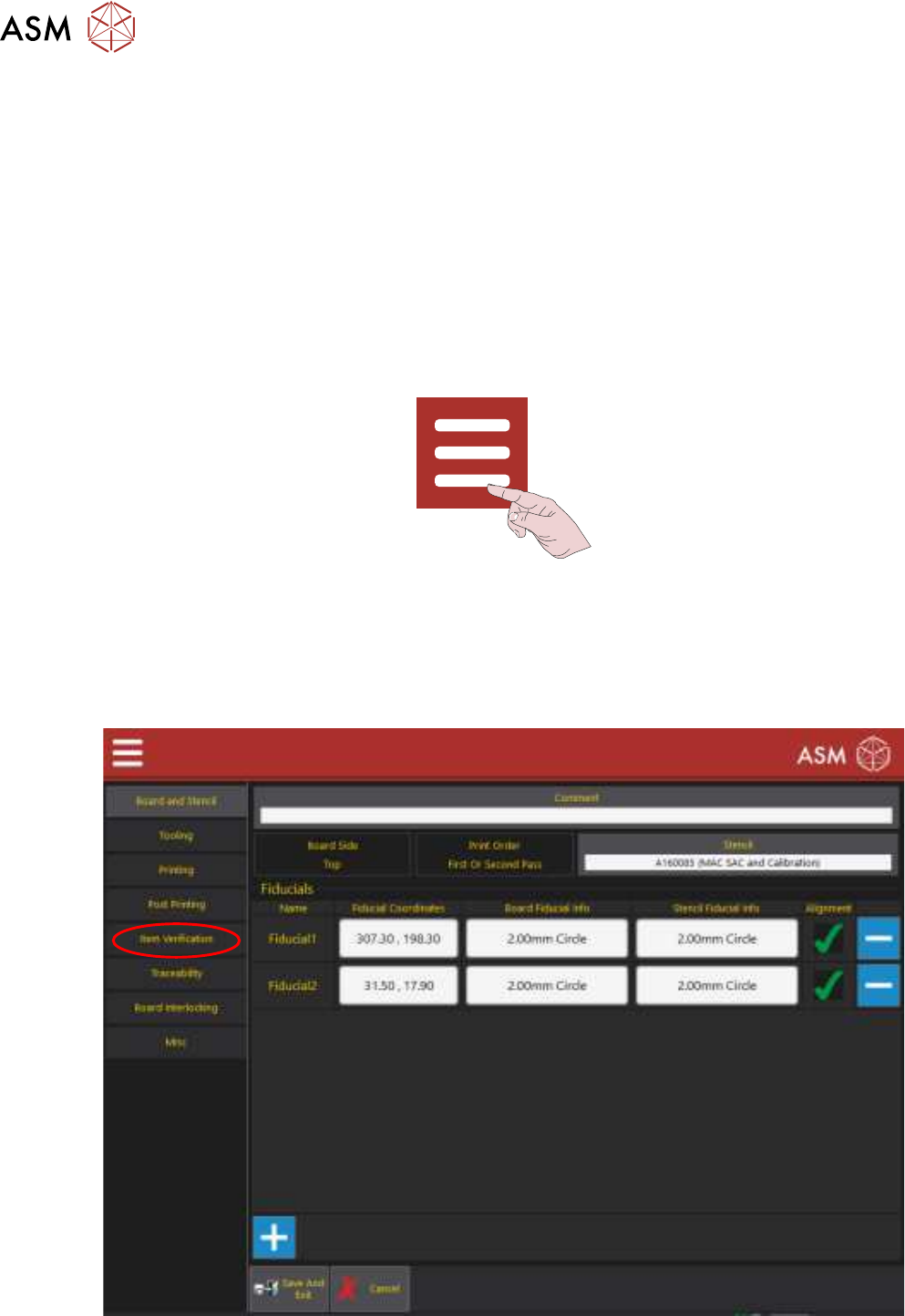
1. Select the Menu icon.
2. Select Programming.
3. Select Edit.
4. Select Top Side or Bottom Side.
5. Select Edit.
6. Select Item Verification.