ASM_Manual_TQSeries_VerificationAndTraceability_03233976_online.pdf - 第19页
1 VERIFICATION AND TRACEABILITY 1.3 VERIFICATION ITEMS STANDALONE MANUAL VERIFICATION AND TRACEABILITY TQ SERIES 07/2020 19 1.3.4.1 Wild Cards Some barcodes may contain a batch number or date that needs to be ignored whe…
1 VERIFICATION AND TRACEABILITY
1.3 VERIFICATION ITEMS
18 STANDALONE MANUAL VERIFICATION AND TRACEABILITY TQ SERIES 07/2020
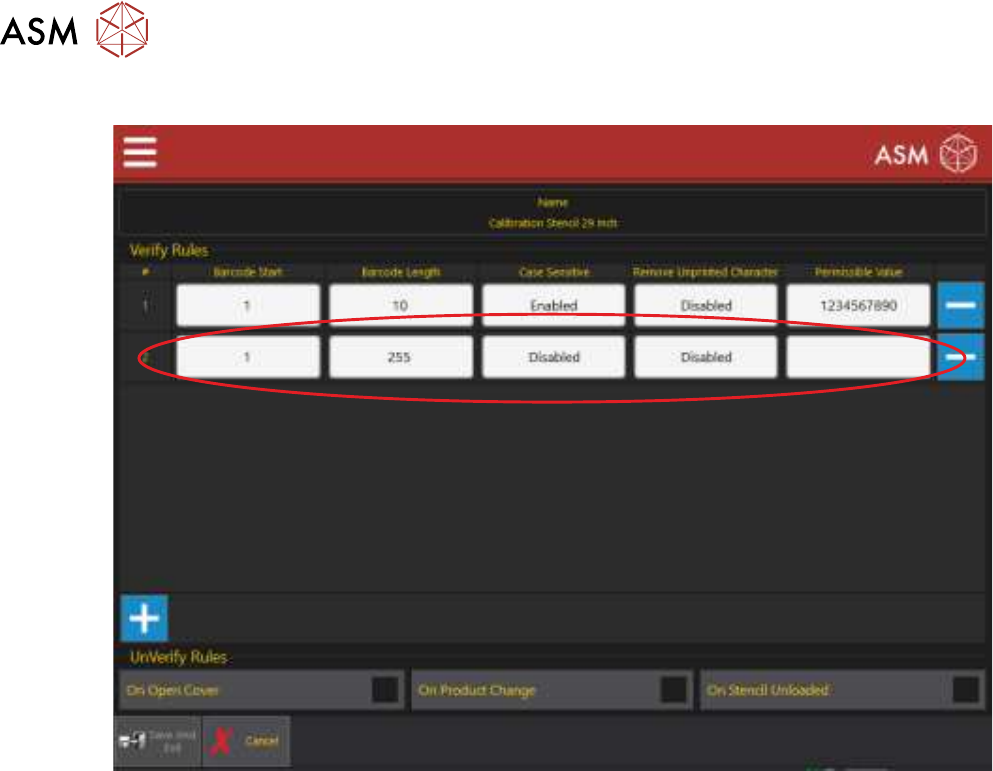
9. Select each of the parameters in the bottom row to edit their contents.
Barcode Start – Reading from left to right, the first character to be read by the barcode
reader, see Barcode Start Character and Name Length section
Barcode Length – The number of characters of the barcode to be read, see Barcode Start
Character and Name Length section
Case Sensitive – Enable/Disable whether the software considers the case of letters in the
barcode
Remove Unprinted Character – Enable/Disable removal of non-printable characters (ie
TAB)
Permissible Value – The barcode
10. Select each of the UnVerify Rules required:
On Open Cover – If enabled, this item must be verified again when the front cover is opened
On Product Change - If enabled, this item must be verified again when the program is
changed
On Stencil Unloaded - If enabled, this item must be verified again when the Unload Stencil
icon is selected
11. Select Save And Exit.
12. Select Save And Exit.
13. Select Save And Exit.
14. Select Exit.
1 VERIFICATION AND TRACEABILITY
1.3 VERIFICATION ITEMS
STANDALONE MANUAL VERIFICATION AND TRACEABILITY TQ SERIES 07/2020 19
1.3.4.1 Wild Cards
Some barcodes may contain a batch number or date that needs to be ignored
when scanned. Wild cards may be used in the product file to represent a group
of characters or a single character. The wild cards allowed are:
●
The asterisk (*) may be used to represent a group of characters from 0 to n.
●
The question mark (?) may be used to represent a single character. Multiple question marks
can be used to represent a fixed length of wild card.
The following table gives some examples of wild card usage:
Wild Card String Explanation
5026686* The first seven characters must match, any following characters are
accepted (including no characters).
5026686?123 The first seven characters and the last three characters must match,
any single character in the middle is accepted.
??26686 The first two characters may be any characters. The following five
characters must match.
??26686* The first two characters may be any characters. The following five
characters must match. Any following characters are accepted (in-
cluding no characters).
NOTE
When using a keyboard,wild cards cannot be used when requested to verify an item, the whole
barcode must be typed in.
1.3.4.2 Barcode Start Character and Name Length
A barcode may consist of many types of information, setting the start character
and the name length allows only part of the barcode to be considered whilst
ignoring the rest.
The start character is the numerical position in the barcode from which to start,
ignoring any previous characters.
The name length is the amount of characters to be considered, beginning with
the start character.
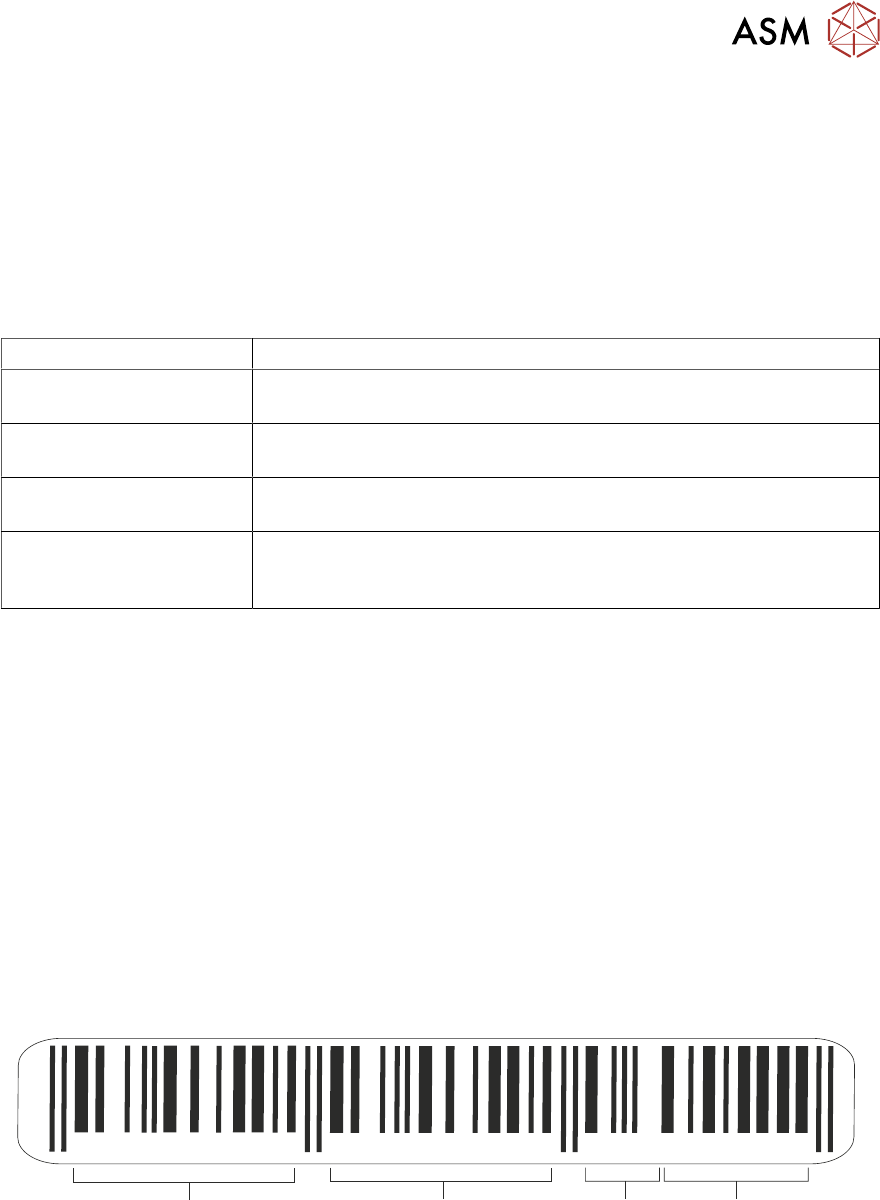
In the following example, the barcode is made up of the product type, batch
number and date code:
987654 21012 0703183
Product
Type
Supplier
Identification
Batch
Number
Date
Code
If the product type was the only part of the barcode that needed to be considered
for verification, the start character would be 7 and the name length would be 6.
1 VERIFICATION AND TRACEABILITY
1.4 TRACEABILITY
20 STANDALONE MANUAL VERIFICATION AND TRACEABILITY TQ SERIES 07/2020
1.4 TRACEABILITY
Traceability records the following groups of data:
●
SPC Data (QC Calc Output Data)
●
Process Data (Printing Process Parameter Settings)
●
Verification Data (Items that must be verified during production)
These groups can be selected/deselected for recording to the traceability file. To check or change
the status, use the following procedure:
1. Select the Menu icon.
2. Select Programing.
3. Select Edit.
4. Select Top Side or Bottom Side.
5. Select Edit.
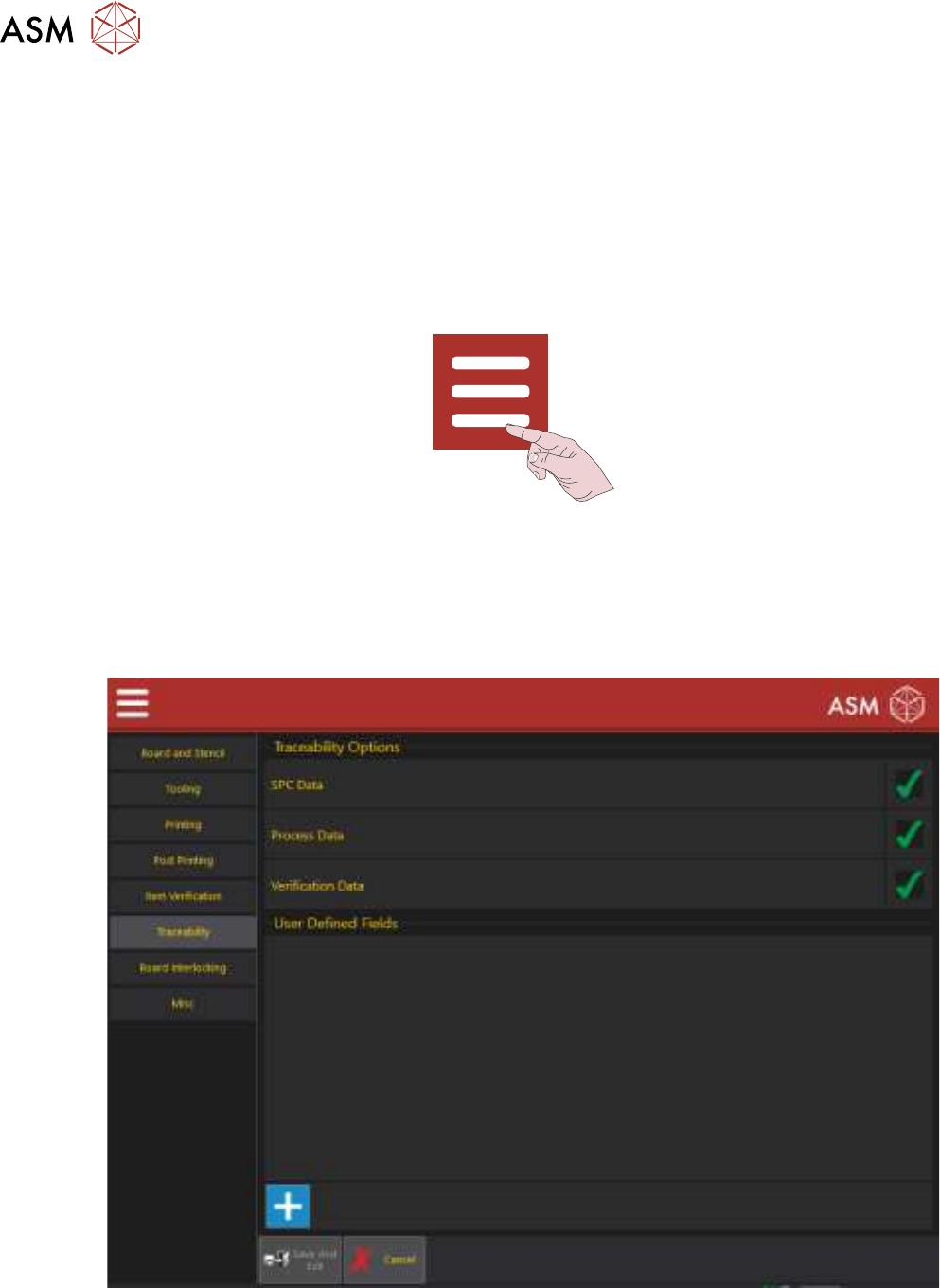
6. Select Traceability to display the following page:
7. Select the green tick to deselect a group or the blank space to select the group.
8. User Defined Fields are used to add information to the traceability file. To add a field, select
the ‘+’ sign otherwise go to Step 11.
9. Enter the additional information to be added.