ASM_Manual_TQSeries_VerificationAndTraceability_03233976_online.pdf - 第9页
1 VERIFICATION AND TRACEABILITY 1.2 ENABLE VERIFICATION STANDALONE MANUAL VERIFICATION AND TRACEABILITY TQ SERIES 07/2020 9 1.2.1 Enable ASM Line Software To use remote verification or traceability, check the ASM Line So…
1 VERIFICATION AND TRACEABILITY
1.2 ENABLE VERIFICATION
8 STANDALONE MANUAL VERIFICATION AND TRACEABILITY TQ SERIES 07/2020
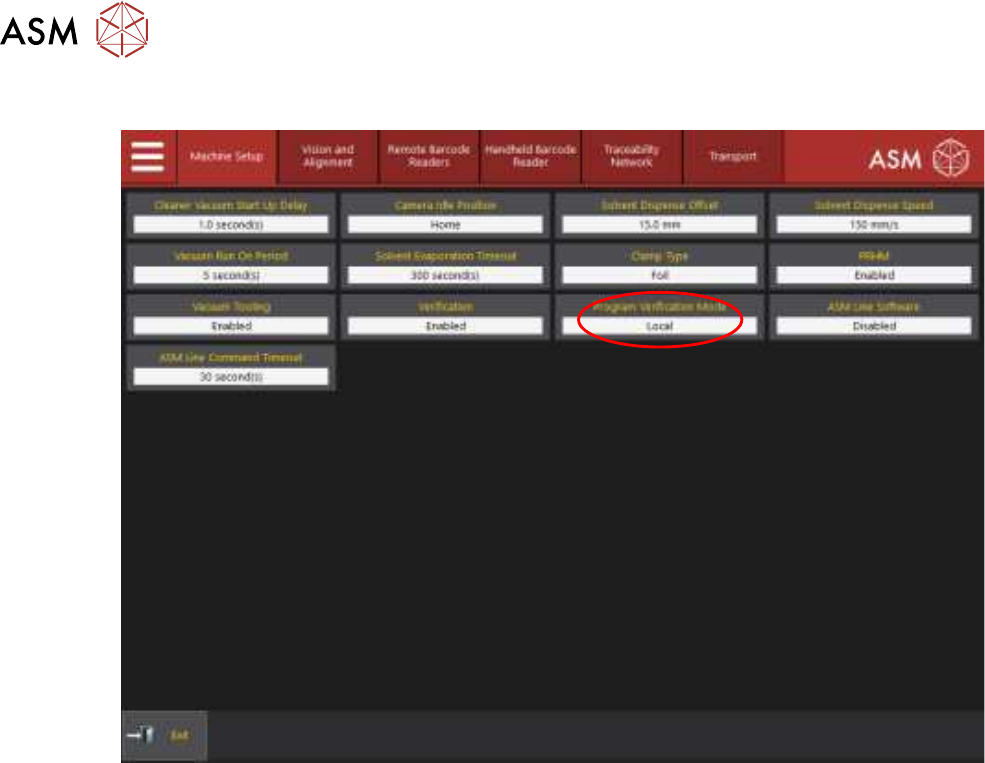
7. Select the Program Verification Mode parameter.
8. Select Remote Verification or Local.
NOTE
Selecting Local disables program verification.
9. Select Accept.
If remote verification or traceability is going to be used, ASM Line Software must be enabled. To
enable ASM Line Software, go to the next section Enable ASM Line Software otherwise select
Exit.
1 VERIFICATION AND TRACEABILITY
1.2 ENABLE VERIFICATION
STANDALONE MANUAL VERIFICATION AND TRACEABILITY TQ SERIES 07/2020 9
1.2.1 Enable ASM Line Software
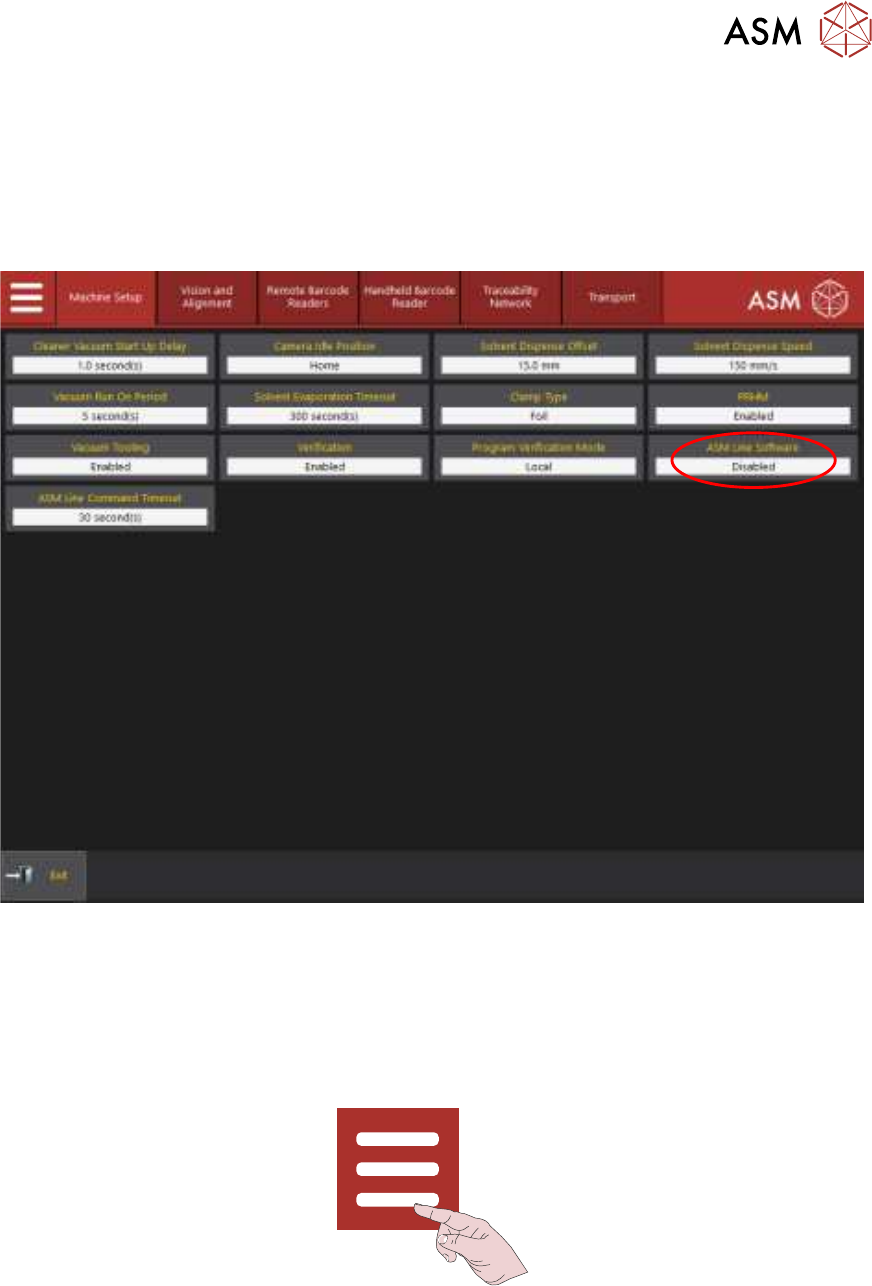
To use remote verification or traceability, check the ASM Line Software parameter is enabled. To
enable ASM Line Software, use the following procedure:
NOTE
This parameter may already be enabled and in use by another software application.
1. Select the ASM Line Software parameter.
2. Select Enabled.
3. Select Accept.
4. Select Exit.
1.2.2 Enable Board Verification
1. Select the Menu icon.
2. Select Programming.
3. Select Edit.
4. Select the side that needs to be verified (Top Side or Bottom Side).
5. Select Edit.
1 VERIFICATION AND TRACEABILITY
1.2 ENABLE VERIFICATION
10 STANDALONE MANUAL VERIFICATION AND TRACEABILITY TQ SERIES 07/2020
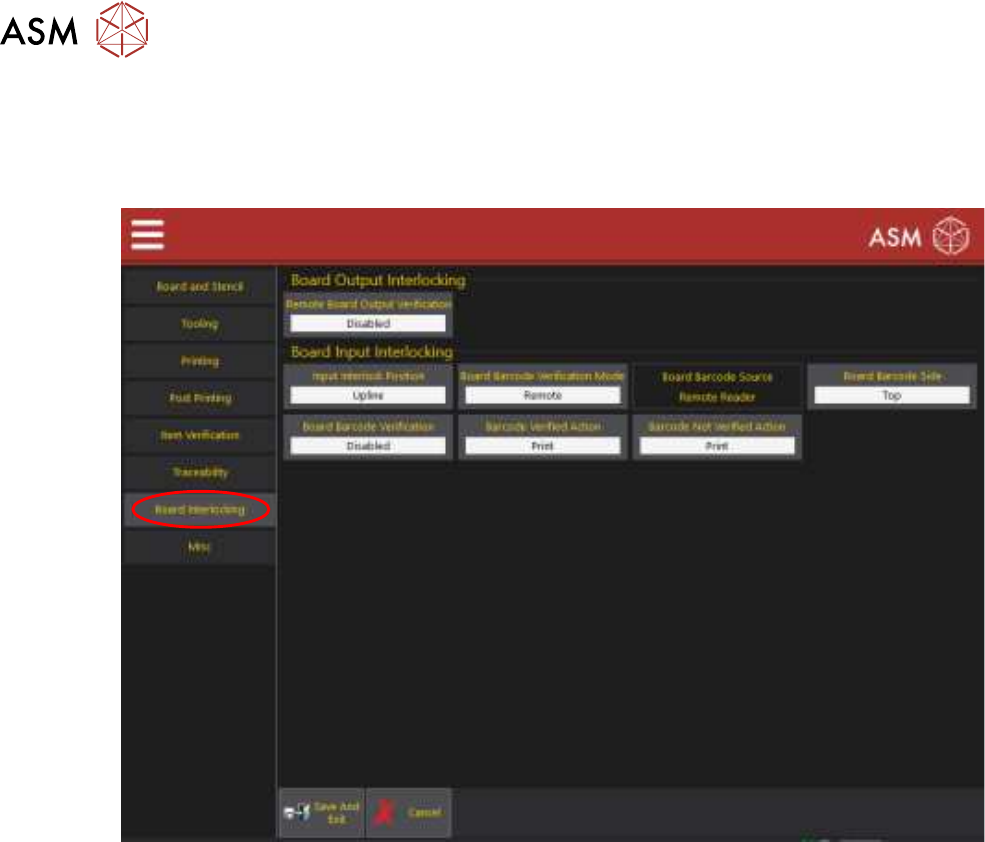
6. Select Board Interlocking to display the following page:
Board interlocking determines what happens to the board when it fails verification. The Board
Interlock Position parameter determines where the board is held if Barcode Verification Action
is set to Hold.
7. Select the Input Interlock Position parameter.
8. Select Upline or Inroad depending on where the board is to be held after failing verification, if
the Barcode Verification Action parameter is set to Hold.
9. Select Accept.
10. Select Board Barcode Side.
11. Select Top or Bottom depending on which side of the board the barcode is located.
12. Select Accept.
13. Select Board Barcode Verification.
14. Select Enabled.
15. Select Accept.
16. Select Save And Exit.
17. Select Save And Exit.
18. Select Exit.