ASM_Manual_TQSeries_VerificationAndTraceability_03233976_online.pdf - 第25页
1 VERIFICATION AND TRACEABILITY 1.6 ENABLE NETWORK TRACEABILITY STANDALONE MANUAL VERIFICATION AND TRACEABILITY TQ SERIES 07/2020 25 1.6 ENABLE NETWORK TRACEABILITY Information is written to the traceability file stored …

1 VERIFICATION AND TRACEABILITY
1.5 TRACEABILITY FILE CONFIGURATION
24 STANDALONE MANUAL VERIFICATION AND TRACEABILITY TQ SERIES 07/2020
The following code example shows the created template lines:
<xsl:template name=“CreateDateStamp”>
<xsl:param name=“DateTime”/>
<xsl:variable name=“Year” select=“substring($DateTime, 7, 4” />
<xsl:variable name=“Month” select=“substring($DateTime, 4, 2” />
<xsl:variable name=“Day” select=“substring($DateTime, 1, 2” />
</xsl:template>
The following table below details the CreateDateStamp template creation section of the tsv.xsl file:
xsl contents of xsl:template section Location of Information
<xsl:template name=”CreateDateStamp”> Defines the name of the
template being created -
must be unique in the tsv.xsl
file
<xsl:param name=”DateTime”/> Defines the parameter
name in LastBoard.xml
<xsl:variable name=”year” select=”substring($DateTime,7,4)”/> Defines a variable name -
must be unique in the tsv.xsl
file.
Looks at the value of Date-
Time in LastBoard.xml and
calls four characters starting
at character seven
<xsl:variable name=”Month” select substring ($DateTime,4,2,)”/> Defines the variable name -
must be unique in the tsv.xsl
file.
Looks for the value and
calls two characters starting
at character four
<xsl:variable name=”Day” select=”substring(DateTime,1,2)”/> Defines a variable name -
must be unique in the tsv.xsl
file.
Looks at the value of Date-
Time in the LastBoard.xml
and calls two characters
starting at character one
<xsl:value-of select”concat($Year, $Month, $Day)”/> Defines the end value of
CreateDateStamp by joining
the three variables together
<xsl:template> Closes the template
To use the template, it must be called in the <SaveAs> section, as shown below:
<xsl:call-template name=“CreateDateStamp”>
<xsl:with-param name=“DateTime” select=“DateTime\Value” />
</xsl:call-template>
1.5.3 Editing a tsv.xsl File
See below for advice for Editing tsv.xsl file:
●
The tsv.xsl file can be opened and edited using any text editing software (e.g. Notepad).
●
The tsv.xsl file should not be edited while the machine is in the middle of a print run.
●
Care should be taken when editing the tsv.xsl file, as basic text editing software does not
parse the xsl for correctness. The deletion of open/close tags will stop the XSLT process
working. The parameter name called from LastBoard.xml must match exactly (case, spacing
etc) as this will prevent the XSLT process from working as expected.
●
Removing all the content from between the <SaveAs> tags will stop the *.tsv traceability file
from being created.
1 VERIFICATION AND TRACEABILITY
1.6 ENABLE NETWORK TRACEABILITY
STANDALONE MANUAL VERIFICATION AND TRACEABILITY TQ SERIES 07/2020 25
1.6 ENABLE NETWORK TRACEABILITY
Information is written to the traceability file stored on the E Drive of the printer. The information can
also be replicated on the factory network (remote). To enable remote traceability, use the following
procedure:
1. Select the Menu icon.
2. Select Service.
3. Select Machine Setup.
4. Select the Traceability Network tab.
5. Select the Traceability Network parameter.
6. Select Enabled.
7. Select Accept.
8. Select the Network Path parameter.
9. Select the path where the traceability file is located.
10. Select Accept.
11. Select Exit.
1 VERIFICATION AND TRACEABILITY
1.7 VERIFYING ITEMS
26 STANDALONE MANUAL VERIFICATION AND TRACEABILITY TQ SERIES 07/2020
1.7 VERIFYING ITEMS
1.7.1 Program Changeover
When the program is changed on the printer, any items marked as unverify on program
changeover must be verified. The Print button is disabled until all items have been verified.
NOTE
The item information can be entered using the handheld barcode reader or the keyboard. In the fol-
lowing procedure, the barcode reader is used.
To verify the items during program changeover, use the following procedure:
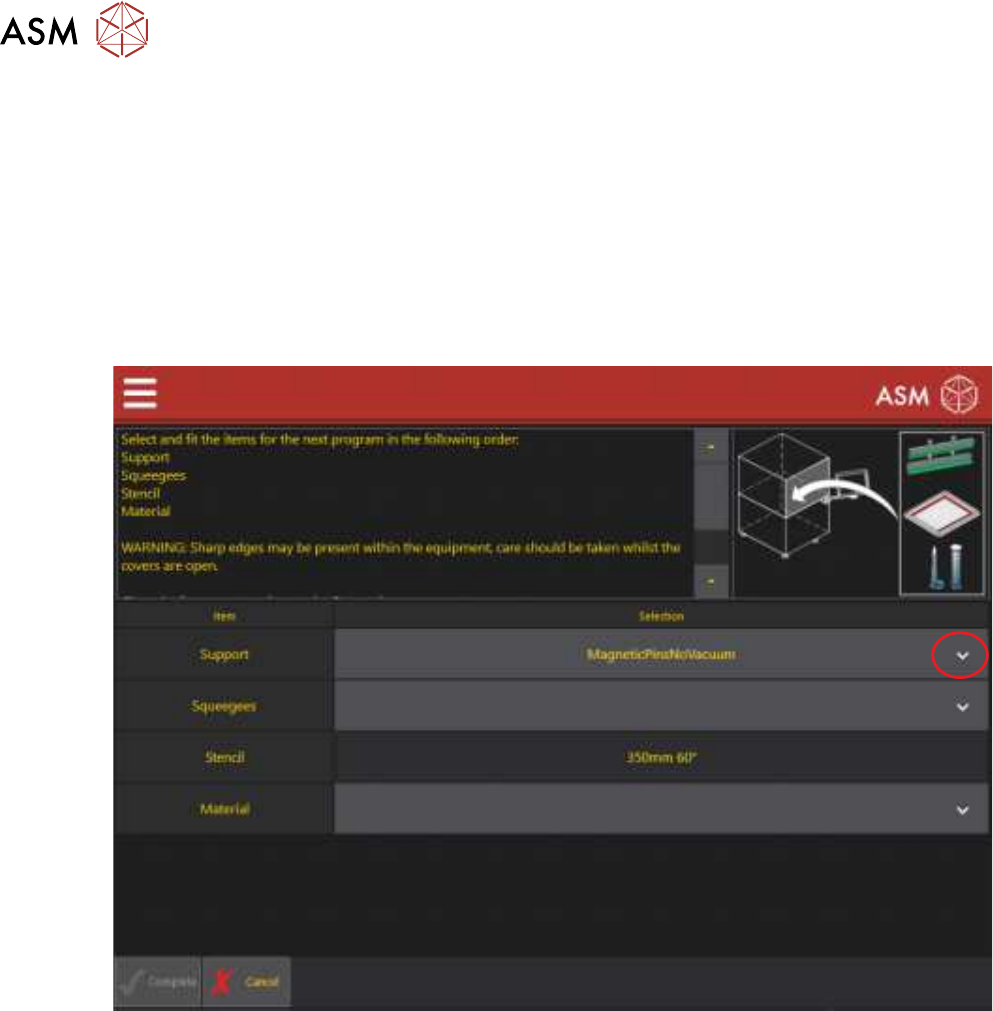
1. At the point of selecting the items for the next program, the following page is displayed:
2. Select the drop down arrow to display the list of items that can be used.