ASM_Manual_TQSeries_VerificationAndTraceability_03233976_online.pdf - 第17页
1 VERIFICATION AND TRACEABILITY 1.3 VERIFICATION ITEMS STANDALONE MANUAL VERIFICATION AND TRACEABILITY TQ SERIES 07/2020 17 7. Select the Edit Rule Sets box next to the Verification Item Definition that requires the new …
1 VERIFICATION AND TRACEABILITY
1.3 VERIFICATION ITEMS
16 STANDALONE MANUAL VERIFICATION AND TRACEABILITY TQ SERIES 07/2020
14. Select Save And Exit.
15. Select Exit.
1.3.4 Add Rule To An Item
All items used for verification have rules, this is the barcode or ID of the item that can be used dur-
ing the production run. Multiple rules can be applied to a single item for example, two identical
stencils from two different manufacturers would have different barcodes.
NOTE
Barcodes can contain wildcards allowing the software to ignore a group or single characters within
the barcode. See the Wild Cards section.
To add a new rule, use the following procedure:
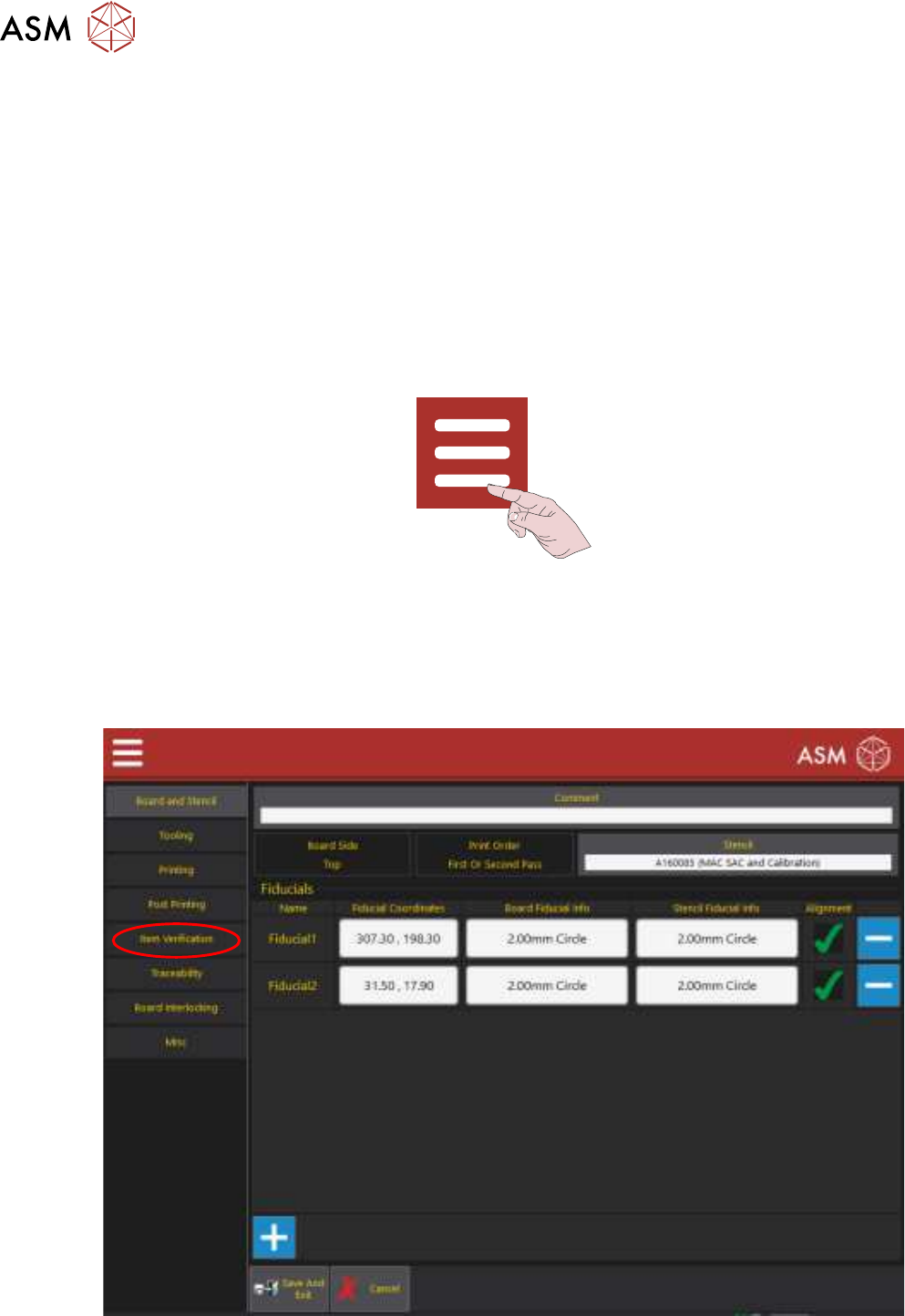
1. Select the Menu icon.
2. Select Programming.
3. Select Edit.
4. Select Top Side or Bottom Side.
5. Select Edit.
6. Select Item Verification.
1 VERIFICATION AND TRACEABILITY
1.3 VERIFICATION ITEMS
STANDALONE MANUAL VERIFICATION AND TRACEABILITY TQ SERIES 07/2020 17
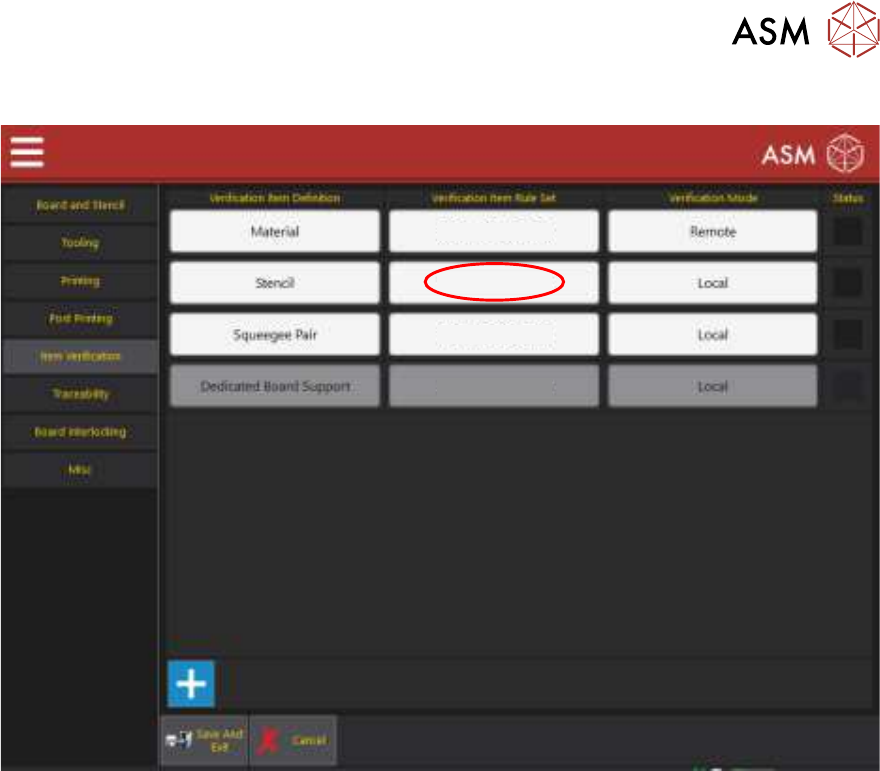
7. Select the Edit Rule Sets box next to the Verification Item Definition that requires the new rule.
Edit Rule Sets
Edit Rule Sets
Edit Rule Sets
Edit Rule Sets
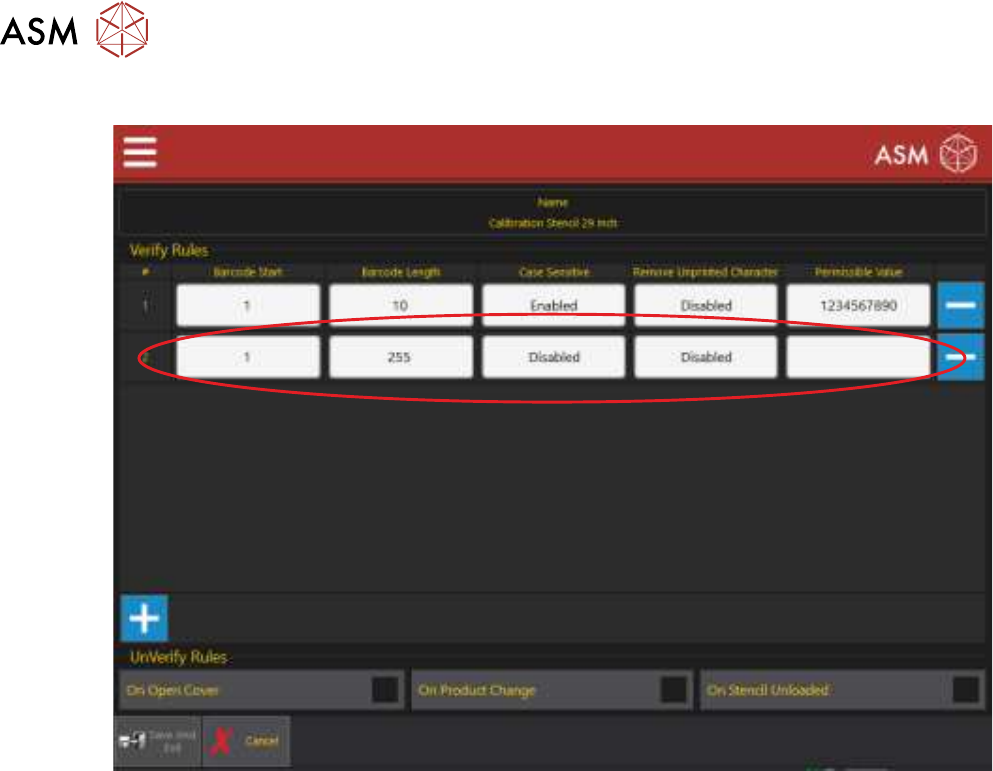
8. Select the ‘+’ symbol to add a new rule to the bottom of the table.
1 VERIFICATION AND TRACEABILITY
1.3 VERIFICATION ITEMS
18 STANDALONE MANUAL VERIFICATION AND TRACEABILITY TQ SERIES 07/2020
9. Select each of the parameters in the bottom row to edit their contents.
Barcode Start – Reading from left to right, the first character to be read by the barcode
reader, see Barcode Start Character and Name Length section
Barcode Length – The number of characters of the barcode to be read, see Barcode Start
Character and Name Length section
Case Sensitive – Enable/Disable whether the software considers the case of letters in the
barcode
Remove Unprinted Character – Enable/Disable removal of non-printable characters (ie
TAB)
Permissible Value – The barcode
10. Select each of the UnVerify Rules required:
On Open Cover – If enabled, this item must be verified again when the front cover is opened
On Product Change - If enabled, this item must be verified again when the program is
changed
On Stencil Unloaded - If enabled, this item must be verified again when the Unload Stencil
icon is selected
11. Select Save And Exit.
12. Select Save And Exit.
13. Select Save And Exit.
14. Select Exit.