ASM_Manual_TQSeries_VerificationAndTraceability_03233976_online.pdf - 第7页
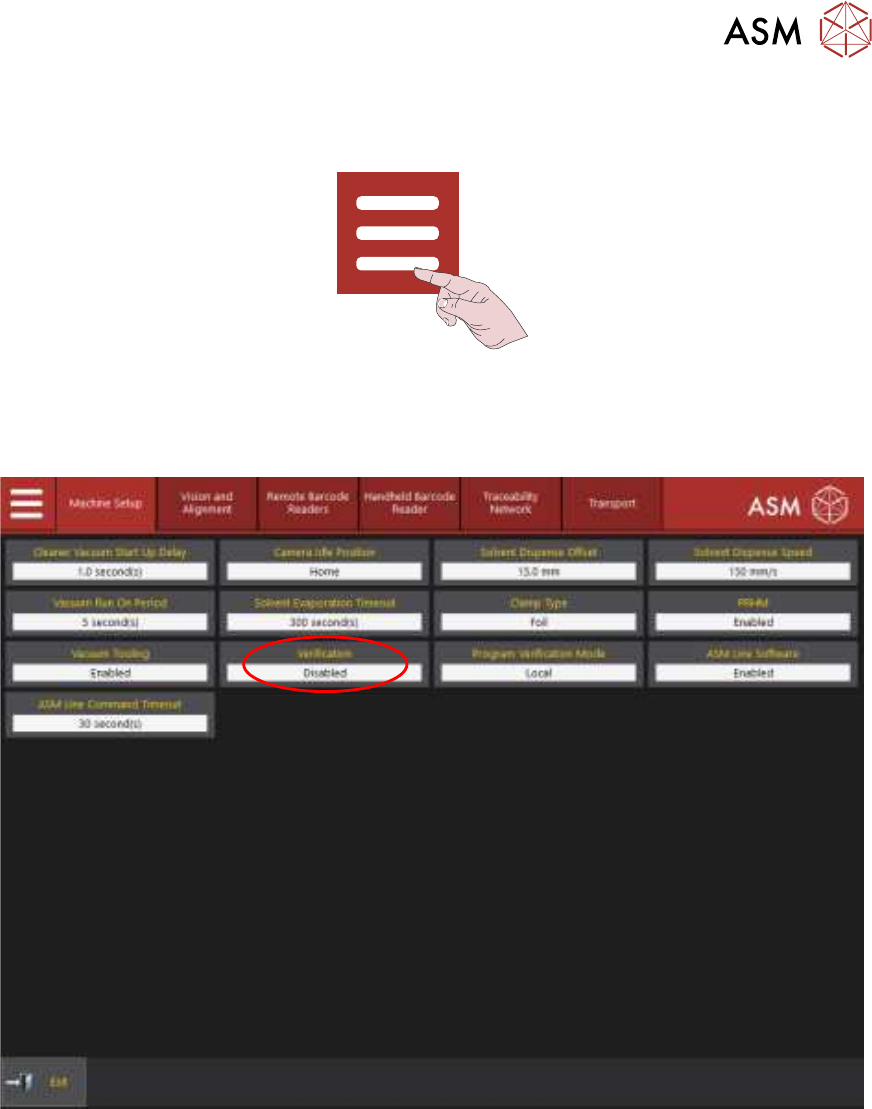
1 VERIFICATION AND TRACEABILITY 1.2 ENABLE VERIFICATION STANDALONE MANUAL VERIFICATION AND TRACEABILITY TQ SERIES 07/2020 7 1.2 ENABLE VERIFICATION 1. Select the Menu icon. 2. Select Service . 3. Select Machine Setup . 4…

1 VERIFICATION AND TRACEABILITY
1.1 OVERVIEW
6 STANDALONE MANUAL VERIFICATION AND TRACEABILITY TQ SERIES 07/2020
●
Operator ID
●
Line ID
●
Process Data
●
Item Identifications
●
Board Number
After each print stroke the LastBoard.xml file, saved on the hard drive of the machine controller is
updated with traceability information from the last printed board. Using a naming-convention
stylesheet file (tsv.xsl) and XSLT (Extensible Stylesheet Language Transformation) the information
from LastBoard.xml is converted to a tsv (tab separated value) file and stored in the E:\Config
\Traceability folder (the file can also be replicated to a network drive if required).
The default naming convention for the traceability file is based on the parameter values “Product
Name”-“DateTime”and“MachineSerialNo.”, found in the LastBoard.xml file, an example of a file-
name is shown in the following table:
LastBoard.xml Parameter Values Generated Filename
Product Name DateTime MachineSerialNo.
DEK08 20201005 321780 DEK08-20201005-312780.tsv
To prevent the traceability file becoming too large and unmanageable, the file is terminated and a
new one created under the following circumstance
●
A different program is loaded
●
The printer software detects a date change
NOTE
The naming convention (and therefore the circumstances on which a new .tsv is created) can
be changed by editing the tsv.xsl file found in the E:\Config\Traceability\TraceabilityViews
folder - see Traceability File Configuration section for details.
The .tsv file can be viewed in Notepad or Microsoft Excel.
1.1.4 Operation
At the beginning of a production run or when an item is replaced on the machine during the product
run, the operator is requested to verify the item by entering the identity of the item using the hand-
held barcode reader or keyboard.
During the product run, the board is automatically scanned by one of the remote barcode readers.
The reader(s) can be located inside the printer on the inroad auxiliary conveyor or upline of the
printer. Each board is checked against the stored list of valid barcodes.
There can be up to three barcode readers fitted to the machine:
●
One or two Remote Barcode Readers – One above the board and possibly a second below
the board
●
One Handheld Barcode Reader
NOTE
Details of the barcode readers and how to install and set them up are detailed in the Optical
Reader Setup manual (Part No.03233975-01) which is supplied with the reader(s).
1 VERIFICATION AND TRACEABILITY
1.2 ENABLE VERIFICATION
STANDALONE MANUAL VERIFICATION AND TRACEABILITY TQ SERIES 07/2020 7
1.2 ENABLE VERIFICATION
1. Select the Menu icon.
2. Select Service.
3. Select Machine Setup.
4. Select the Verification parameter.
5. Select Enabled.
6. Select Accept.
1 VERIFICATION AND TRACEABILITY
1.2 ENABLE VERIFICATION
8 STANDALONE MANUAL VERIFICATION AND TRACEABILITY TQ SERIES 07/2020
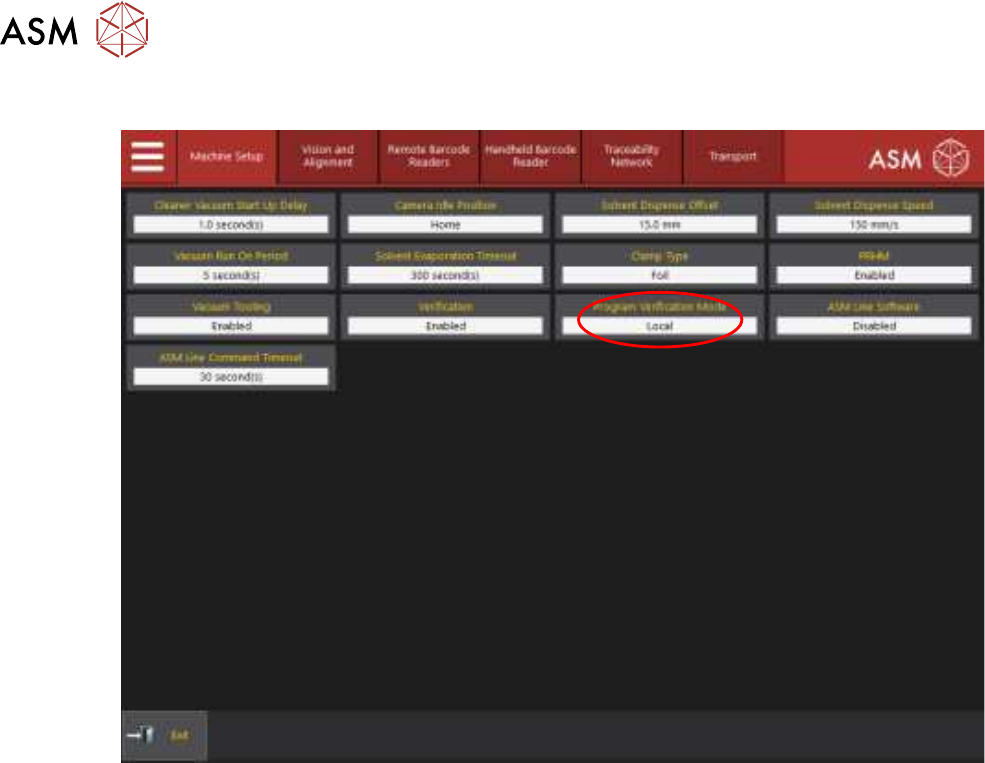
7. Select the Program Verification Mode parameter.
8. Select Remote Verification or Local.
NOTE
Selecting Local disables program verification.
9. Select Accept.
If remote verification or traceability is going to be used, ASM Line Software must be enabled. To
enable ASM Line Software, go to the next section Enable ASM Line Software otherwise select
Exit.