YAMAHA errer code-a.pdf - 第40页
Ea - 40 ERROR MESSAGES LIST Ea Ea12001 Ea12002 Ea12003 Ea12004 Ea12005 Ea12006 Ea13000 Ea13001 Ea13002 Ea13003 Ea13004 Ea13005 Ea13006 Ea13007 Ea13008 (E12001 Cause and Solution)There may be a mechanical problem with the…
Ea -39
ERROR MESSAGES LIST
Ea
Ea10000
Ea10001
Ea10002
Ea10003
Ea10004
Ea10005
Ea10006
Ea10007
Ea10008
Ea10009
Ea10100
Ea10101
Ea10102
Ea10103
Ea11000
Ea11001
Ea11002
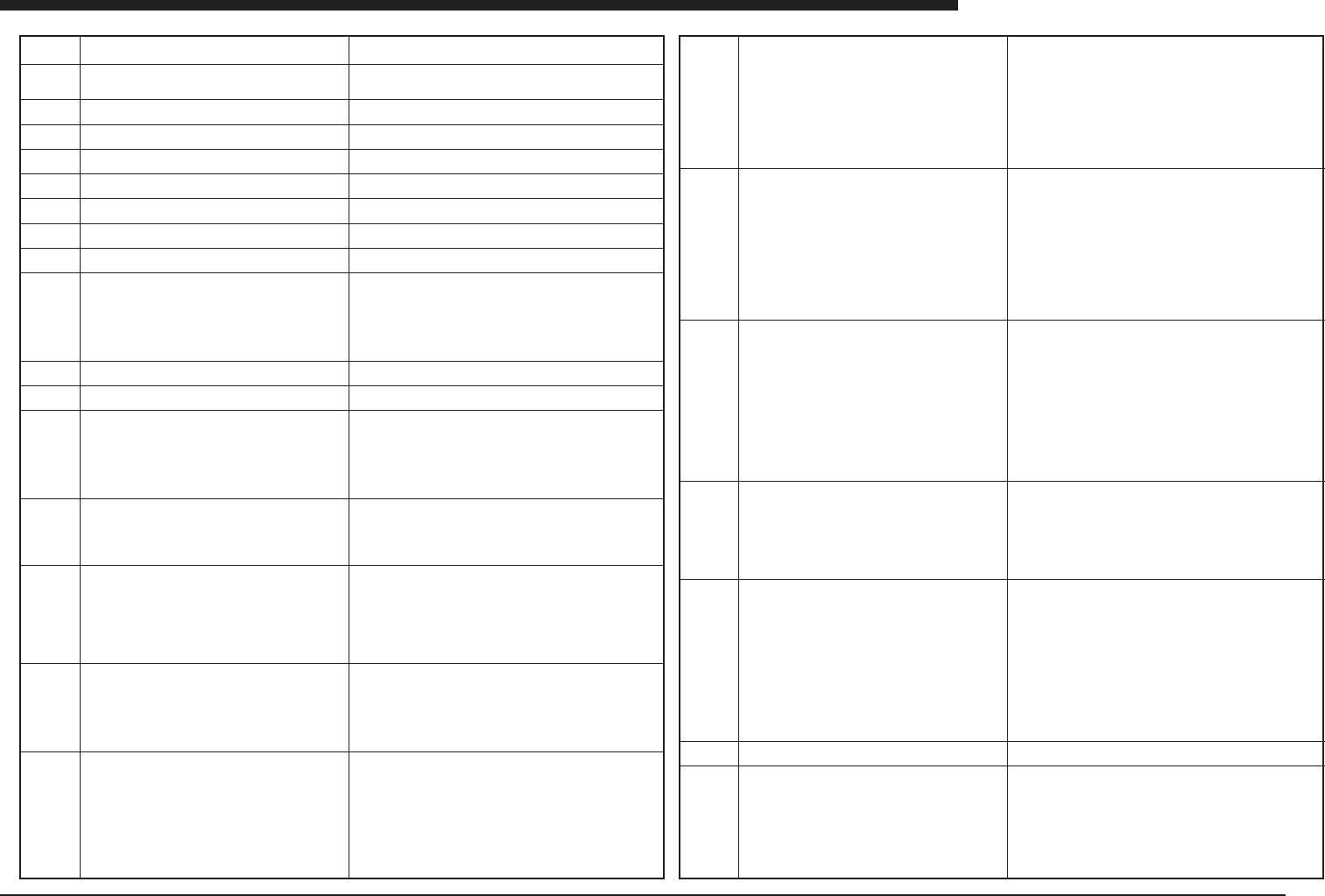
Z AXIS START TIMEOUT ERROR
Z axis start routine was interrupted by time out error.
X,Y,R AXIS START TIMEOUT ERROR
X,Y and Y axis start routine was interrupted by time out
error.
SY AXIS START TIMEOUT ERROR
SY axis start routine was interrupted by time out error.
AXIS START TIMEOUT ERROR
SOFTLIMIT OVER
INVALID TARGET COORDINATE
INVALID AXIS DATA
PTP TIMEOUT ERROR
PROCESSING PTPCOMMAND.
ENABLE TO RESET
It is enable to reset the machine.
Followings are possible as the reason.
(1) EMERGENCY STOP key is pushed.
(2) "UPPER DOOR" switch is turned to "OPEN".
(3) Origin return has not completed yet.
SY AND SZ SERVO ON
The servo of the SY ans SZ axes have been active.
PREPARATIN FOR OPENING COMPLETED
It is able to open the cover.
UPPER DOOR SWITCH IS STILL "CLOSE".
When "UPPER DOOR" switch is "CLOSE", upper cover
was opened
Please turn "UPPER DOOR" switch to "OPEN” then open
the upper cover.
UPPER DOOR IS STILL OPEN.
When upper door is open, "UPPER COVER" switch be-
come "CLOSE".
Plese turn "UPPER DOOR" switch to "OPEN", then close
the upper cover and trun "UPPER DOOR" switch to
"CLOSE".
FLAP UP INTERLOCK
The axis cannot moves when flap is in upper position.
BACKUP PIN INTERLOCK
The axis cannot moves because backup pin will attach to
the conveyor.
CLEANER UP INTERLOCK
The axis cannot moves when cleaner is in upper posi-
tion.
(E10009 Cause and Solution)This cannot be executed when the
status area in the machine status display reads “Emergency Stop”.
(1) Close the top cover, cancel the Emergency Stop button, and
press the Ready button to resume execution.
(2) Close the top cover and set the “UPPER DOOR” switch to
“CLOSE”. Then execute again.
(3) Press the “Origin Return” button on the “Setup” screen to return
to the home position. Then execute again.
(E10102 Cause and Solution)Always carry out this procedure when
opening the top cover.
(1) With the top cover closed, change the “UPPER DOOR” switch
from “CLOSE” to “OPEN”.
(2) Make sure the status machine display reads “Top Safe” and
then open the top cover.
If the display still reads “B340”, the top cover open/close sensor
may be malfunctioning or defective.
(E11000 Cause and Solution)When the flap is ascending, there
may be mechanical interference, so axis movement is inhibited.
Use the “Flap Front” and “Flap Back” buttons on the “Conveyor”
screen to lower both flaps. Then execute again.
If the error still occurs, there may be a mechanical problem with the
flap operation, or the “Flap Front Operate”, “Flap Front Cancel”,
“Flap Back Operate”, or “Flap Back Cancel” sensor may be mal-
functioning or defective. Check the sensor input status on the “Con-
veyor” screen.
(E11001 Cause and Solution)The “Pin Detect” sensor has detected
a backup pin or other object, so the conveyor width cannot be
changed.
Position the backup pin correctly, or remove the object detected by
the sensor, and try again.
If the error still occurs, the “Pin Detect” sensor may be malfunction-
ing or defective.
Check the sensor input status on the “Conveyor” screen.
(E11002 Cause and Solution)When the cleaner is ascending, there
may be mechanical interference, so axis movement is inhibited.
Use the “Up” button on the “Cleaner” screen to lower the cleaner,
and try again.
If the error still occurs, there may be a mechanical problem with the
vertical movement of the cleaner, or the “Cleaner Up Right”, “Cleaner
Up Left”, “Cleaner Down Right”, or “Cleaner Down Left” sensor may
be malfunctioning or defective. Check the sensor input status on
the “Cleaner” screen.
Ea11003
Ea11004
Ea11005
Ea11006
Ea11007
Ea11008
Ea12000
FAIL TO FIX CLEANER
Output for cleaner fixation is ON but input for it is OFF.
FAIL TO CONNECT CLEANER
Output for cleaner connection is ON but input for it is OFF.
CLEANER FREE INTERLOCK
Cleaner is not fixed and not connected.
MASK CAMERA LIGHT UP INTERLOCK
The axis cannot moves when mask camera light is in
upper position.
CLEANER FIXED AND CONNECTED INTERLOCK
Cleaner is fixed and connected.
CONVEYOR WIDTH INTERLOCK
To keep safty you cannot change conveyor width.
SQUEEGEE UP ERROR
Failed to move squeegee up.
(E11003 Cause and Solution)If the cleaner has not been properly
secured to the base, there may be mechanical interference, so axis
movement is inhibited. Use the Emergency Stop button to turn off
the servo, and then use the “Cancel” button on the “Cleaner” screen
to secure the cleaner properly to the base.
If the message “Cleaner is not stored. Store cleaner?” appears when
operating axes, always presses “OK” to automatically store the
cleaner.
If the error still occurs, there may be a mechanical problem with the
cleaner securing pin, or the “Cleaner Fixing Upper Limit” or “Cleaner
Fixing Lower Limit” sensor may be malfunctioning or defective.
Check the sensor input on the “Cleaner” screen.
(E11004 Cause and Solution)If the cleaner has not been properly
linked to the PCB table, mechanical interference may result, so the
axis cannot move.
Use the Emergency Stop button to turn off the servo, and then use
the “Cancel” and “Link” buttons on the “Cleaner” screen to secure
the cleaner to the base.
If the message “Cleaner is not stored. Store cleaner?” appears when
operating axes, always presses “OK” to automatically store the
cleaner.
If the error still occurs, there may be a mechanical problem with the
cleaner securing pin or coupling pin, or the “Cleaner Coupling Up-
per Limit” or “Cleaner Coupling Lower Limit” sensor may be mal-
functioning or defective.
Check the sensor input on the “Cleaner” screen.
(E11005 Cause and Solution)If the cleaner has not been properly
secured to the base or connected to the PCB table, mechanical
interference may result, so the axis cannot move.
Use the Emergency Stop button to turn off the servo, and then use
the “Cancel” and “Connect” buttons on the “Cleaner” screen to se-
cure the cleaner to the base.
If the message “Cleaner is not stored. Store cleaner?” appears when
operating axes, always presses “OK” to automatically store the
cleaner.
If the error still occurs, there may be a mechanical problem with the
cleaner securing pin or coupling pin, or the “Cleaner Fixing Upper
Limit”, “Cleaner Fixing Lower Limit”, “Cleaner Connect Upper Limit”
or “Cleaner Connect Lower Limit” sensor may be malfunctioning or
defective.
Check the sensor input on the “Cleaner” screen.
(E11006 Cause and Solution)If the mask camera light is in the “Up”
position, mechanical interference may result, so the axis cannot
move.Use the “Mask Camera Light Up” button to lower the mask
camera light, and then try again.
If the error still occurs, there may be a mechanical problem with the
vertical movement of the mask camera light, or the “Mask Camera
Light Upper Limit” or “Mask Camera Light Lower Limit” sensor may
be malfunctioning or defective.
Check the sensor input on the “Mask” screen.
(E11007 Cause and Solution)If the cleaner has been improperly
secured to the base or connected to the PCB table, mechanical
interference may result, so the axis cannot move.
Use the Emergency Stop button to turn off the servo, and then use
the “Cancel” and “Connect” buttons on the “Cleaner” screen to se-
cure the cleaner properly to the base.
If the message “Cleaner is not stored. Store cleaner?” appears when
operating axes, always presses “OK” to automatically store the
cleaner.
If the error still occurs, there may be a mechanical problem with the
cleaner securing pin or connecting pin, or the “Cleaner Fixing Up-
per Limit”, “Cleaner Fixing Lower Limit”, “Cleaner Connect Upper
Limit” or “Cleaner Connect Lower Limit” sensor may be malfunc-
tioning or defective.
Check the sensor input on the “Cleaner” screen.
(E12000 Cause and Solution)There may be a mechanical problem
with the vertical movement of the squeegee, or the “Squeegee Up-
per Limit” sensor may be malfunctioning or defective.
Check the sensor input on the “Squeegee” screen.
YV88Xabcabcabc
Ea -40
ERROR MESSAGES LIST
Ea
Ea12001
Ea12002
Ea12003
Ea12004
Ea12005
Ea12006
Ea13000
Ea13001
Ea13002
Ea13003
Ea13004
Ea13005
Ea13006
Ea13007
Ea13008
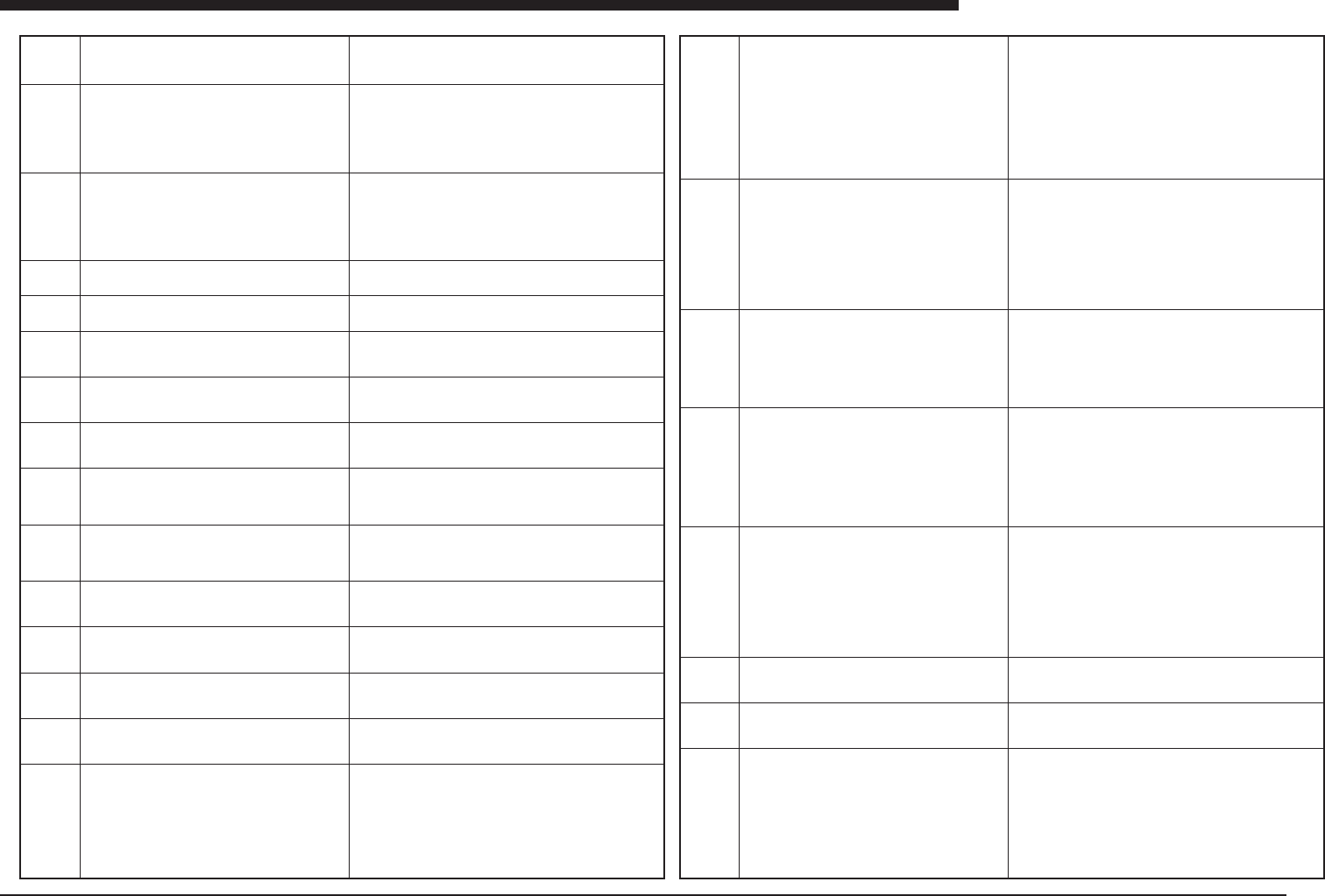
(E12001 Cause and Solution)There may be a mechanical problem
with the vertical movement of the squeegee, or the “Squeegee Lower
Limit” sensor may be malfunctioning or defective.
Check the sensor input on the “Squeegee” screen.
(E12002 Cause and Solution)The following are possible causes:
(1)No squeegee has been set.
(2)The mask has not been set properly.
(3)The approach distance in the PCB data has been set larger than
the conveyor plate width, so print force control is being carried out
away from the PCB plate.
If the error still occurs after correcting the above, there may be a
hardware problem with the I/O board or load cell.
(E13000 Cause and Solution)There may be a mechanical problem
with the vertical movement of the main stopper, or the “Main Stop-
per Upper Limit” sensor may be malfunctioning or defective.
Check the sensor input status on the “Conveyor” screen.
(E13001 Cause and Solution)There may be a mechanical problem
with the vertical movement of the main stopper, or the “Main Stop-
per Upper Limit” sensor may be malfunctioning or defective.
Check the sensor input status on the “Conveyor” screen.
(E13002 Cause and Solution)There may be a mechanical problem
with the vertical movement of the PCB flap, or the “Flap Front Oper-
ate”, “Flap Front Cancel”, “Flap Back Operate”, or “Flap Back Can-
cel” sensor may be malfunctioning or defective. Check the sensor
input status on the “Conveyor” screen.
(E13003 Cause and Solution)There may be a mechanical problem
with the vertical movement of the PCB flap, or the “Flap Front Oper-
ate”, “Flap Front Cancel”, “Flap Back Operate”, or “Flap Back Can-
cel” sensor may be malfunctioning or defective. Check the sensor
input status on the “Conveyor” screen.
(E13004 Cause and Solution)There may be a mechanical problem
with the movement of the edge clamp, or the “Edge Clamp” sensor
may be malfunctioning or defective. Check the sensor input status
on the “Conveyor” screen.
(E13005 Cause and Solution)There may be a mechanical problem
with the movement of the edge clamp, or the “Edge Clamp” sensor
may be malfunctioning or defective. Check the sensor input status
on the “Conveyor” screen.
(E13006 Cause and Solution)There may be a mechanical problem
with the vertical movement of the PCB press, or the “PCB Press
Upper Limit” sensor may be malfunctioning or defective. Check the
sensor input status on the “Conveyor” screen.
(E13007 Cause and Solution)There may be a mechanical problem
with the vertical movement of the PCB press, or the “PCB Press
Lower Limit” sensor may be malfunctioning or defective. Check the
sensor input status on the “Conveyor” screen.
(E13008 Cause and Solution)The PCB has not been picked up cor-
rectly, it is too warped, or the vacuum sensor has not been correctly
adjusted.
If the vacuum sensor cannot be adjusted correctly, air may be leak-
ing from the PCB pickup path, or the vacuum sensor may be mal-
functioning or defective.
SQUEEGEE DOWN ERROR
Failed to move squeegee down.
PRINT FORCE CONTROLL ERROR
Fail to control Print Force.
SOLDER AMOUNT ERROR
Enclosed head is lack of Solder.
Please suply solder.
Before supply, please press "PCB Stop" button on Select
PCB window to continue printing for the PCB already
carried in and carry it out.
If you want to supply solder immediately with reset,please
do not forget to remove the PCB already carried in.
SQUEEGEE TYPE ERROR
"Enclosed Head" is selected for "Squeegee Type" param-
eter in PCB data.
SQUEEGEE TYPE ERROR
"Double" is selected for "Squeegee Type" parameter in
PCB data. But Double Squeegee is not attached correctly.
SQUEEGEE TYPE ERROR
"Enclosed Head" is selected for "Squeegee Type" param-
eter in PCB data. But Enclosed head is not attached cor-
rectly.
MAIN STOPPER UP ERROR
Failed to move main stopper up.
MAIN STOPPER DOWN ERROR
Failed to move main stopper down.
PCB FLAP UP ERROR
Failed to move PCB flap up.
PCB FLAP DOWN ERROR
Failed to move PCB flap down.
EDGE CLAMP FIX ERROR
Failed to move edge clamp for fixation.
EDGE CLAMP RELEASE ERROR
Failed to move edge clamp for release.
PCB PRESS UP ERROR
Failed to move PCB press up.
PCB PRESS DOWN ERROR
Failed to move PCB press down.
PCB VACUUM CHECK ERROR
The result of PCB vacuum check was NG.
It is possible that PCB is not fixed on the conveyor or
PCB is warped too much or adjustment of the vacuum
sensor is not good.
Ea14000
Ea14001
Ea14002
Ea14003
Ea14004
Ea14005
Ea14006
Ea14007
(E14000 Cause and Solution)PCBs cannot be loaded under the
following conditions.
(1) The “Entrance” sensor has not been triggered.
(2) The “PCB Fixing Position” sensor has been triggered.
(3) The “Exit” sensor has been triggered.
Check to see if the PCB has been corrected loaded onto the con-
veyor, and check for PCBs at the work position and exit. Then try
again.
Check the sensor input status on the “Conveyor” screen.
If the error occurs even though the PCB has been correctly loaded
and there are no other PCBs on the conveyor, the “Entrance”, “PCB
Fixing Position”, or “Exit” sensor may be malfunctioning or defec-
tive.
(E14001 Cause and Solution)PCBs cannot be unloaded under the
following conditions.
(1) The “Entrance” sensor has been triggered.
(2) The “PCB Fixing Position” sensor has not been triggered.
(3) The “Exit” sensor has been triggered.
Check to see if the PCB is at the PCB fixing position, and check for
PCBs at the entrance and exit. Then try again.
Check the sensor input status on the “Conveyor” screen.
If the error occurs even though the PCB is at the fixing position and
there are no other PCBs on the conveyor, the “Entrance”, “PCB
Fixing Position”, or “Exit” sensor may be malfunctioning or defec-
tive.
(E14002 Cause and Solution)The PCB cannot be secured if the
“PCB Fixing Position” sensor has not been triggered.
Make sure the PCB to be secured is at the appropriate position,
and try again.
Check the sensor input status on the “Conveyor” screen.
If the error occurs even though the PCB is at the appropriate posi-
tion and there are no other PCBs on the conveyor, the “Entrance”,
“PCB Fixing Position”, or “Exit” sensor may be malfunctioning or
defective.
(E14003 Cause and Solution)The PCB was not transported from
the entrance to the fixing position in a given period of time.
The following are possible causes:
(1)The conveyor width is not correct.
(2)The conveyor speed has not been correctly adjusted.
(3)The conveyor belt is defective.
(4)The conveyor motor is defective.
(5)The “Entrance” or “PCB Fixing Position” sensor is malfunction-
ing or defective. If the conveyor width is not correct, see if the cor-
rect value has been entered for “PCB Size Y” on the “PCB” screen.
Check the sensor input value on the “Conveyor” screen.
(E14004 Cause and Solution)The PCB was not transported from
the fixing position to the entrance or exit in a given period of time.
The following are possible causes:
(1)The conveyor width is not correct.
(2)The conveyor speed has not been correctly adjusted.
(3)The conveyor belt is defective.
(4)The conveyor motor is defective.
(5)The “Entrance”, “PCB Fixing Position” or “Exit” sensor is mal-
functioning or defective. If the conveyor width is not correct, see if
the correct value has been entered for “PCB Size Y” on the “PCB”
screen.
Check the sensor input value on the “Conveyor” screen.
(E14005 Cause and Solution)If the conveyor width has not changed
correctly, automatic operation cannot be started.
Use the “Conveyor Width” button on the “Conveyor” screen to change
the width, and then try again.
ENABLE TO CARRY PCB IN
It is enable to carry PCB in.
Followings are possible as the reason.
(1)There is no PCB at entrance position of the conveyor.
(2)There is PCB at print position of the conveyor.
(3)There is PCB at exit position of the conveyor.
ENABLE TO CARRY PCB OUT
It is enable to carry PCB out.
Followings are possible as the reason.
(1)There is PCB at entrance position of the conveyor.
(2)There is no PCB at print position of the conveyor.
(3)There is PCB at exit position of the conveyor.
ENABLE TO FIX PCB
It is enable to fix PCB.
Followings are possible as the reason.
(1) There is no PCB at print position of the conveyor.
CARRY PCB IN ERROR
Failed to carry PCB in.
CARRY PCB OUT ERROR
Failed to carry PCB out.
CONVEYOR WIDTH ERROR
Conveyor width is different from PCB size Y.
ENABLE TO CARRY PCB OUT
It is enable to move PCB table with a PCB on the con-
veyor.
Please remove the PCB.
FAILED TO FIX PCB
There is no PCB on the fixation position of the conveyor.
Ea -41
ERROR MESSAGES LIST
Ea
Ea15000
Ea15001
Ea15002
Ea15003
Ea15004
Ea15005
Ea15006
Ea15007
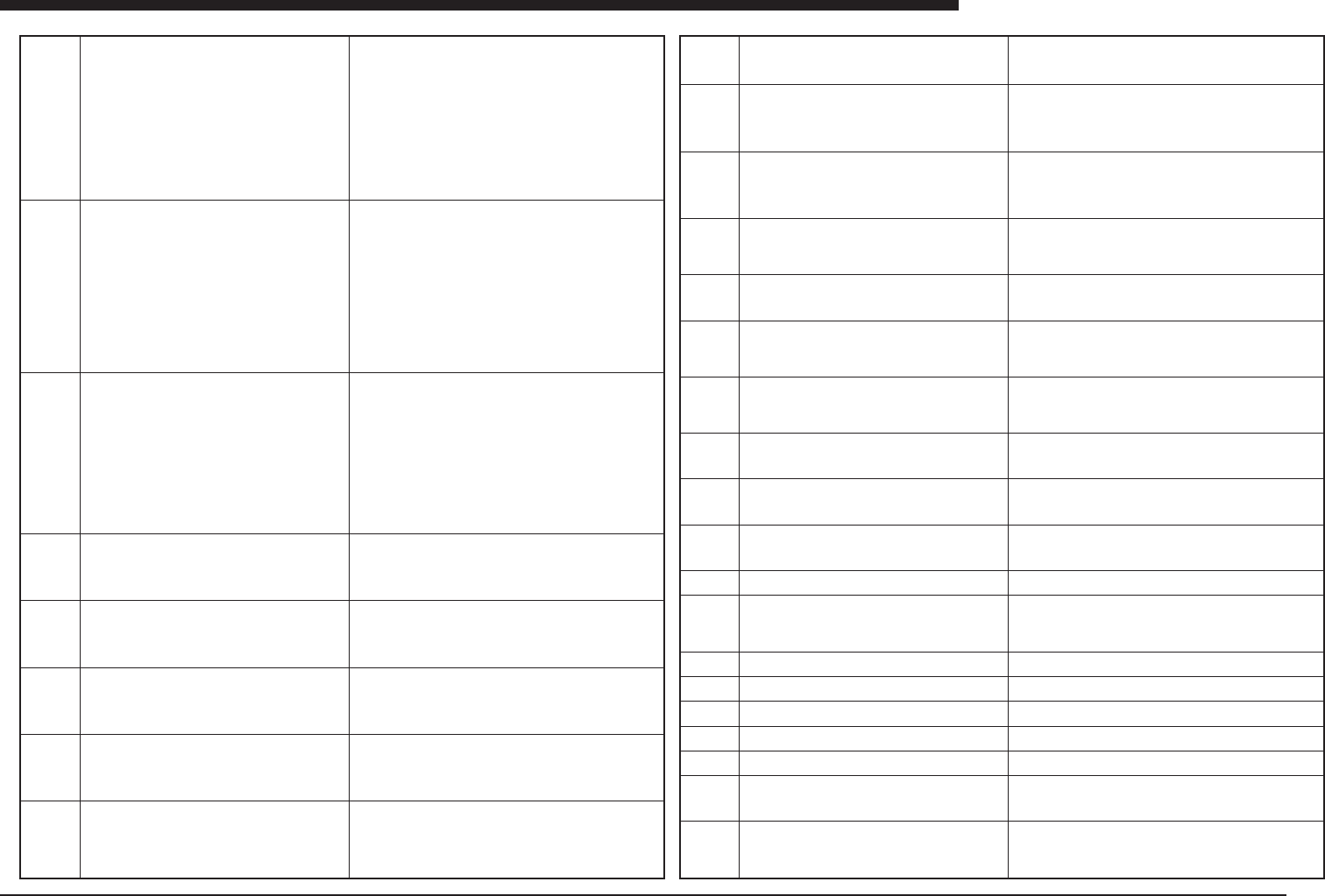
(E15000 Cause and Solution)The cleaner cannot be connected to
the PCB table under the following conditions.
(1)The cleaner and PCB table are already connected.
(2)The cleaner has not been secured to the base. Use the Emer-
gency Stop button to turn off the servo, and then use the “Cancel”
and “Connect” buttons on the “Cleaner” screen to secure the cleaner
properly to the base.
If the message “Cleaner is not stored. Store cleaner?” appears when
operating axes, always press “OK” to automatically store the cleaner.
If the error still occurs, there may be a mechanical problem with the
cleaner securing pin or connecting pin, or the “Cleaner Fixing Up-
per Limit”, “Cleaner Fixing Lower Limit”, “Cleaner Connect Upper
Limit” or “Cleaner Connect Lower Limit” sensor may be malfunc-
tioning or defective.
Check the sensor input on the “Cleaner” screen.
(E15001 Cause and Solution)Cleaning cannot be carried out under
the following conditions.
(1) The cleaner and PCB table are separated.
(2) The cleaner is secured to the base.
(3) The cleaner is not in the lowered position.
Use the Emergency Stop button to turn off the servo, and then use
the “Cancel” and “Connect” buttons on the “Cleaner” screen to se-
cure the cleaner properly to the base.
If the message “Cleaner is not stored. Store cleaner?” appears when
operating axes, always press “OK” to automatically store the cleaner.
If the error still occurs, there may be a mechanical problem with the
cleaner securing pin or connecting pin, or the “Cleaner Fixing Up-
per Limit”, “Cleaner Fixing Lower Limit”, “Cleaner Connect Upper
Limit” or “Cleaner Connect Lower Limit” sensor may be malfunc-
tioning or defective.
Check the sensor input on the “Cleaner” screen.
(E15002 Cause and Solution)The cleaner and PCB table cannot be
separated under the following conditions.
(1) The cleaner and PCB table are already separated.
(2) The cleaner is secured to the base.
Use the Emergency Stop button to turn off the servo, and then use
the “Cancel” and “Connect” buttons on the “Cleaner” screen to se-
cure the cleaner properly to the base.
If the message “Cleaner is not stored. Store cleaner?” appears when
operating axes, always press “OK” to automatically store the cleaner.
If the error still occurs, there may be a mechanical problem with the
cleaner securing pin or connecting pin, or the “Cleaner Fixing Up-
per Limit”, “Cleaner Fixing Lower Limit”, “Cleaner Connect Upper
Limit” or “Cleaner Connect Lower Limit” sensor may be malfunc-
tioning or defective.
Check the sensor input status on the “Cleaner” screen.
(E15003 Cause and Solution)A problem occurred when connecting
the cleaner and the PCB table.
There may be a mechanical problem with the cleaner connecting
pin, or the “Cleaner Connecting Upper Limit” or “Cleaner Connect-
ing Lower Limit” may be malfunctioning or defective.
Check the sensor input status on the “Cleaner” screen.
(E15004 Cause and Solution)A problem occurred when separating
the cleaner and the PCB table.
There may be a mechanical problem with the cleaner connecting
pin, or the “Cleaner Connecting Upper Limit” or “Cleaner Connect-
ing Lower Limit” may be malfunctioning or defective.
Check the sensor input status on the “Cleaner” screen.
(E15005 Cause and Solution)A problem occurred when securing
the cleaner to the base.
There may be a mechanical problem with the cleaner fixing pin, or
the “Cleaner Fixing Upper Limit” or “Cleaner Fixing Lower Limit”
may be malfunctioning or defective.
Check the sensor input status on the “Cleaner” screen.
(E15006 Cause and Solution)A problem occurred when separating
the cleaner from the base.
There may be a mechanical problem with the cleaner fixing pin, or
the “Cleaner Fixing Upper Limit” or “Cleaner Fixing Lower Limit”
may be malfunctioning or defective.
Check the sensor input status on the “Cleaner” screen.
(E15007 Cause and Solution)There may be a mechanical problem
with the vertical movement of the cleaner, or the “Cleaner Upper
Limit” sensor may be malfunctioning or defective.
Check the sensor input status on the “Cleaner” screen.
ENABLE TO CONNECT CLEANER
It is enable to connect cleaner with PCB table.
Followings are possible as the reason.
(1) Cleaner is already connected with PCB table.
(2) Cleaner is not fixed on the base.
ENABLE TO CLEANING MASK
It is enable to work cleaner.
Followings are possible as the reason.
(1) Cleaner is not connected with PCB table.
(2) Cleaner is fixed on the base.
(3) Cleaner is not in lower position.
ENABLE TO SEPERATE CLEANER
It is enable to separate cleaner with PCB table.
Followings are possible as the reason.
(1) Cleaner is already separated from PCB table.
(2) Cleaner is fixed on the base.
CLEANER CONNECT ERROR
Failed to connect cleaner with PCB table.
CLEANER SEPERATE ERROR
Failed to separate cleaner from PCB table.
CLEANER FIX ERROR
Failed to fix cleaner on the base.
CLEANER RELEASE ERROR
Failed to release cleaner from the base.
CLEANER UP ERROR
Failed to move cleaner up.
Ea15008
Ea15009
Ea15010
Ea15011
Ea15012
Ea16000
Ea16001
Ea16002
Ea16003
Ea16004
Ea16005
Ea16006
Ea17000
Ea17001
Ea17002
Ea17003
Ea17004
Ea17005
Ea17006
CLEANER UP ERROR
Failed to move cleaner down.
GAUZE ROLLING FINISHED
All gauze has been rolled up.
Please exchange gauze roll to new one.
GAUZE ROLLING FINISHED
All gauze has been rolled up.
Please exchange gauze roll to new one.
LACK OF SOLVENT
Cleaner solvent is lack.
Please supply it.
CLEANING INTERVAL END
Specified number of PCB for cleaning interval is finished.
Cleaning will start.
Please remove the PCB on the conveyor.
MASK CAMERA LIGHT UP ERROR
Failed to move mask camera light up.
MASK CAMERA LIGHT UP ERROR
Failed to move mask camera light down.
MASK CLAMP FIX ERROR
Failed to move mask clamp for fixation.
MASK CLAMP RELEASE ERROR
Failed to move mask clamp for release.
MASK CLAMP ERROR
Mask is not clamped.
Please clamp the mask.
ILLEGAL MASK OFFSET
Illegal Mask Offset is specified.
MASK INSPECTION INTERVAL END
Specified number of PCB for mask inspection interval is
finished.
Mask inspection will start.
Please remove the PCB on the conveyor.
IMAGE DATA SAVE ERROR
Failed to save the image data.
IMAGE DATA FILE OPEN ERROR
Failed to open the image data file.
IMAGE DATA FILE WRITE ERROR
Failed to write the image data file.
IMAGE DATA FILE READ ERROR
Failed to read the image data file.
ENABLE TO GET IMAGE DATA
Failed to get the image data.
PCB FIDUCIAL DETECTION ERROR
Failed to detect defined mark.
Mark %d
Mark No. %d
MASK FIDUCIAL DETECTION ERROR
Failed to detect defined mark.
Mark %d
Mark No. %d
(E15008 Cause and Solution)There may be a mechanical problem
with the vertical movement of the cleaner, or the “Cleaner Upper
Limit” sensor may be malfunctioning or defective.
Check the sensor input status on the “Cleaner” screen.
(E15009 Cause and Solution)The winding detection sensor does
not go on when the cleaner gauze roll is turned.
The gauze roll may have been completely wound, or has not been
set correctly, or the “Winding” sensor may be malfunctioning or de-
fective.
Check the sensor input status on the “Cleaner” screen.
(E15010 Cause and Solution)The winding detection sensor does
not go off when the cleaner gauze roll is turned.
The gauze roll may have been completely wound, or has not been
set correctly, or the “Winding” sensor may be malfunctioning or de-
fective.
Check the sensor input status on the “Cleaner” screen.
(E15011 Cause and Solution)Replenish the cleaner solvent.
If this error occurs even though there is sufficient solvent, or the
solvent has been replenished, the “Remaining Solvent” sensor may
be malfunctioning or defective.
Check the sensor input status on the “Cleaner” screen.
(E16000 Cause and Solution)There may be a mechanical problem
with the vertical movement of the mask camera light, or the “Mask
Camera Light Upper Limit” or “Mask Camera Light Lower Limit” sen-
sor may be malfunctioning or defective.
Check the sensor input on the “Mask” screen.
(E16001 Cause and Solution)There may be a mechanical problem
with the vertical movement of the mask camera light, or the “Mask
Camera Light Upper Limit” or “Mask Camera Light Lower Limit” sen-
sor may be malfunctioning or defective.
Check the sensor input on the “Mask” screen.
(E16002 Cause and Solution)There may be a mechanical problem
with the mask clamp, or the “Clamp Check” sensor may be malfunc-
tioning or defective.
Check the sensor input on the “Mask” screen.
(E16003 Cause and Solution)There may be a mechanical problem
with the mask clamp, or the “Clamp Check” sensor may be malfunc-
tioning or defective.
Check the sensor input on the “Mask” screen.
(E16004 Cause and Solution)If the mask has not been clamped,
automatic operation cannot be started.
Use the “Mask Clamp” button on the “Mask” screen to clamp the
mask, and then try again.
(E17000 Cause and Solution)Check the file name and then try again.
(E17001 Cause and Solution)Check the file name and then try again.
(E17002 Cause and Solution)Check the file name and then try again.
(E17003 Cause and Solution)Check the file name and then try again.
(E17004 Cause and Solution)There may be a hardware defect in
the vision board.