00197496-01_UM_SiClusterMultiline_DE_EN.pdf - 第174页
Overview of Optimization Parameters Optimization Parameters: Cluster Parameters 174 SIPLACE SiCluster Multiline SIPLACE SiCluster Multiline Mutually exclusiv e groups This option is enabled as a principle for the cluster…
Overview of Optimization Parameters
Optimization Parameters: Cluster Parameters
SIPLACE SiCluster Multiline SIPLACE SiCluster Multiline 173
7.2
7.2 Optimization Parameters: Cluster Parameters
Optimization Parameters: Cluster Parameters
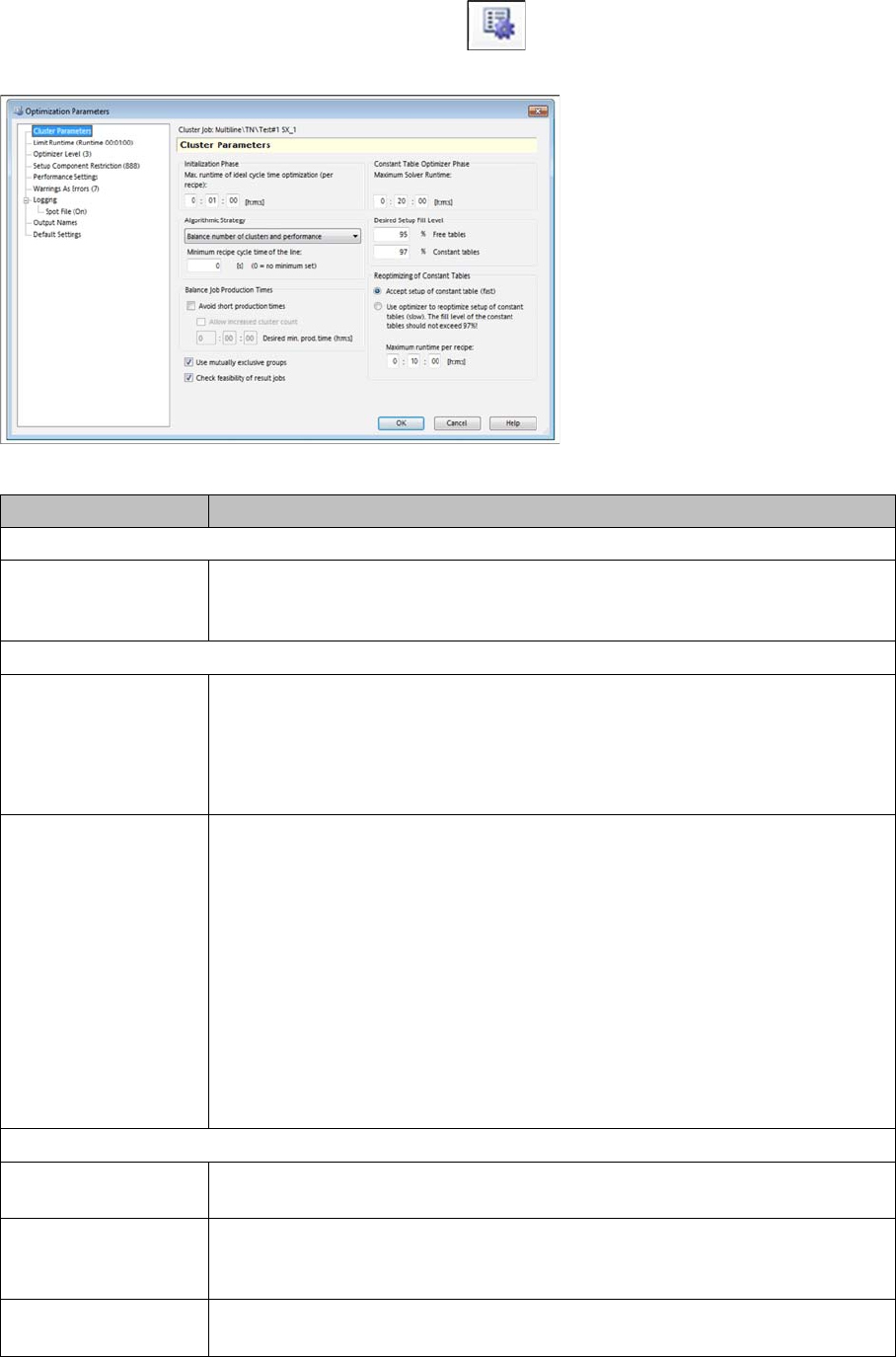
► Go to Run & Results and select the Line KPIs tab.
► Mark a cluster job in the table and select the icon from the toolbar.
⇨ The Optimization Parameters => Cluster Parameters dialog box will open.
Optimization parameters – dialog box: cluster parameter
Parameter Description
Initialization
Max. runtime of ideal
cycle time optimization
(per recipe)
Optimization time per recipe, used by SiCluster Optimization to determine the
ideal cycle times.
Algorithmic strategy
[Selection box] Select the required optimization weighting from the Algorithmic Strategy.
You either prefer the Minimum number of clusters or the Minimum production
time,
You could otherwise select a compromise between both criteria with the option
Balance number of clusters and performance.
Minimum recipe cycle
time of the line
Shows the minimum possible cycle time for all recipes on the line which are re-
stricted by cycle times from other systems (e.g. furnace, screen printer etc.).
The Minimum recipe cycle time of the line is the "bottleneck" in a completed
production line.
Example:
If you have a printer in your production line with a minimum cycle time of 18
seconds, for example, enter this figure here. This figure will be used to calcu-
late the effective production time. This time from the printer is the line minimum
and is used for calculating the production time.
This value is entered as a proposal in the Line Settings tab, at Minimum Recipe
Cycle Time [s] and can be adjusted there. See also "4.10 Defining Individual
Line Settings" [ ➙ 146].
Job production time
Avoid short production
times
Enabled: This option ensures that the allocation of recipes in the SiCluster op-
timization is adjusted to avoid clusters with short production times.
Allow increased clus-
ter count
Enabled: A balancing of the production time could lead to an increased number
of clusters, if achieving the required target production time for the setups is the
priority.
Desired min. Prod.
Time (h:m:s)
Enter the required target production time for the individual setups here.
Overview of Optimization Parameters
Optimization Parameters: Cluster Parameters
174 SIPLACE SiCluster Multiline SIPLACE SiCluster Multiline
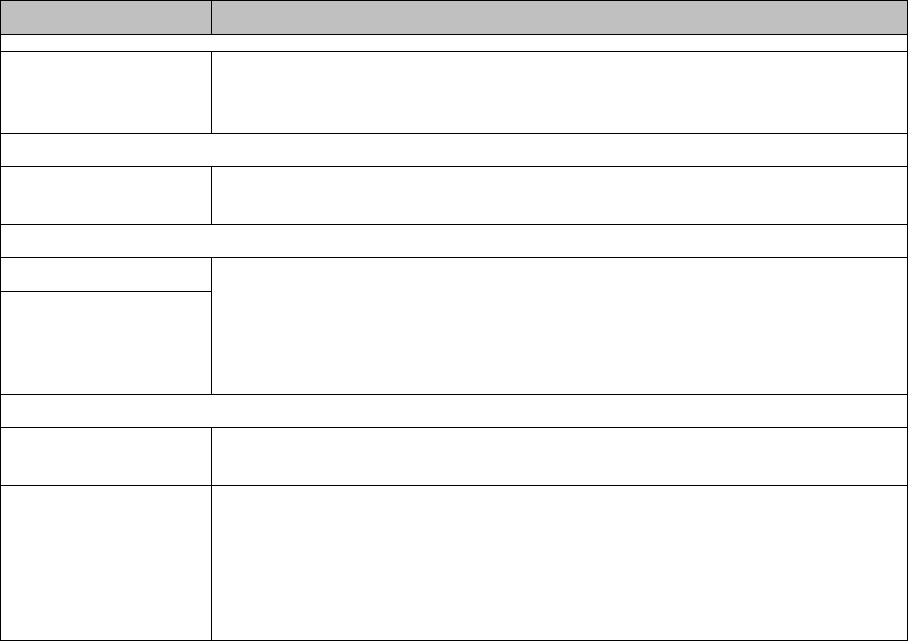
Mutually exclusive
groups
This option is enabled as a principle for the cluster jobs created by SiCluster
Multiline. This option leads to recipes from two different exclusive groups are
not assigned to the same job.
Constant table optimizer
Maximum Solver
Runtime [h:m:s]
Shows the maximum time used during SiCluster optimization to define con-
stant table configuration.
Desired setup fill level
% free tables To determine the desired (target) filling level, you can select how full the con-
stant and free tables may be configured.
This value is entered as a proposal in the Line Settings tab, at Cluster Fill Level
[%] and can be adjusted there. See also "4.10 Defining Individual Line Set-
tings" [ ➙ 146].
% constant tables
Reoptimization of the constant tables
Accept setup of con-
stant table (fast)
If you enable this option, no reoptimization will be performed.
Use optimizer to reop-
timize setup of con-
stant tables (slow).
The filling level of con-
stant tables should not
exceed 97%.
If, however, you want to use reoptimization, here is where you can define the
maximum time that the optimization may calculate per recipe, in order to find a
new minimum.
Maximum runtime per recipe: [h:m:s]
Parameter Description
Working with the Rule Editor
SIPLACE SiCluster Multiline SIPLACE SiCluster Multiline 175
8
8 Working with the Rule Editor
Working with the Rule Editor
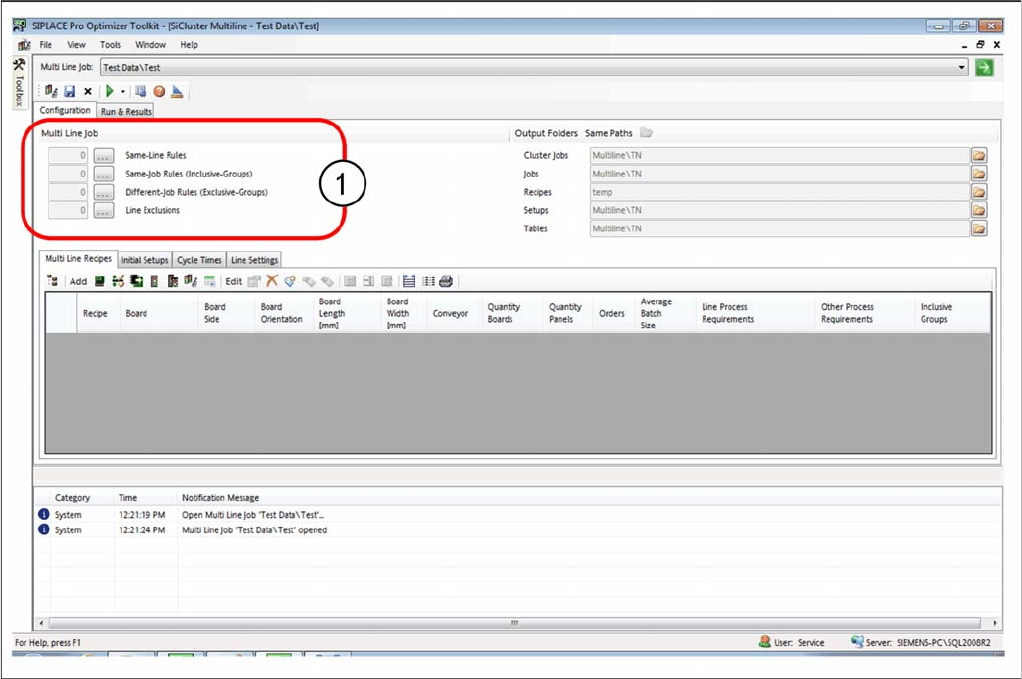
► Open the function (1), for which you want to create the required rule.
Tab: configuration - opening the Rule Editor
⇨ The Rule Editor shown varies, depending on the function you have selected in the Configuration tab.