00197496-01_UM_SiClusterMultiline_DE_EN.pdf - 第184页
Import Wizard for CSV Data CSV Import Column Mappings 9.2.1 Notes on Processing 184 SIPLACE SiCluster Multiline SIPLACE SiCluster Multiline 9.2.1 9 . 2 . 1 N o t e s o n P r o c e s s in g Notes on Processing Disable col…
Import Wizard for CSV Data
CSV Import Column Mappings
SIPLACE SiCluster Multiline SIPLACE SiCluster Multiline 183
9.2
9.2 CSV Import Column Mappings
CSV Import Column Mappings
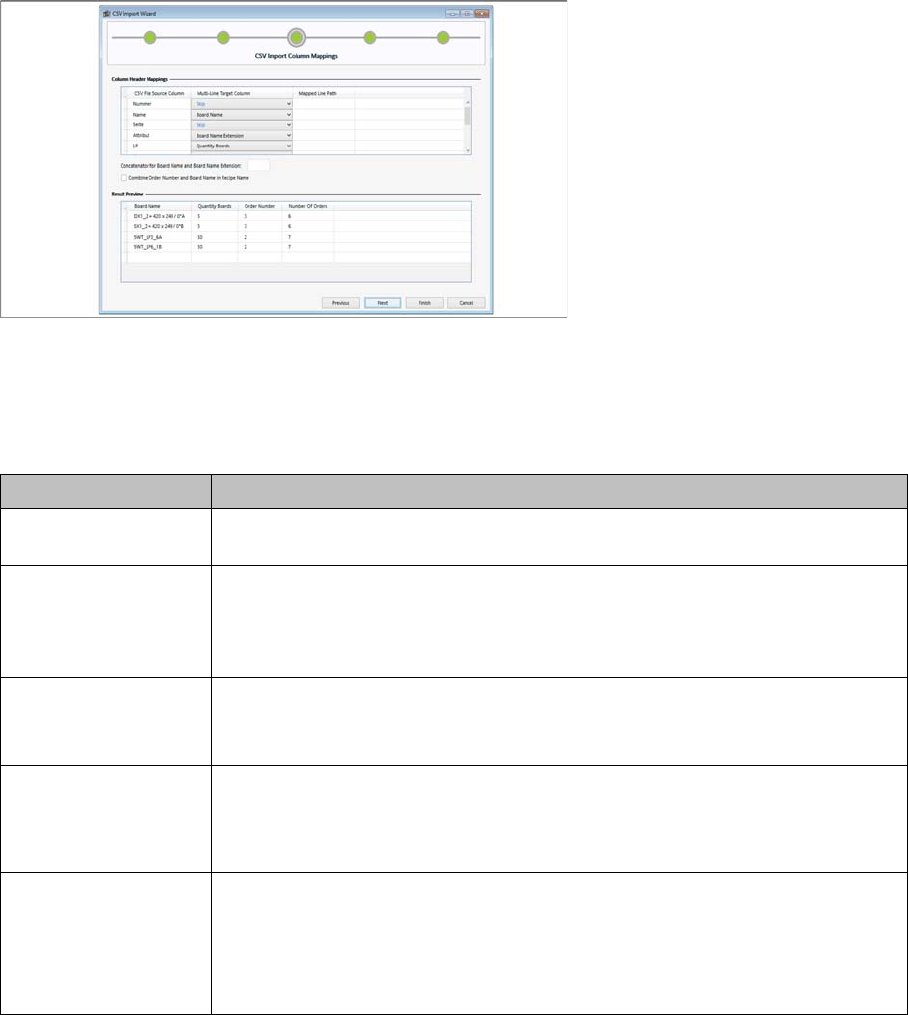
CSV import wizard for CSV data - CSV import column mappings
Edit field: Column header mappings
The assignment of column headers enables you to link the table columns of the CSV file with the relevant
target columns.
Edit field: Results preview
The CSV Import - Column mapping contains a results preview in which the column mapping is clearly
shown.
► Click Next to confirm.
⇨ The CSV Import – Search Pattern dialog box will open.
Parameter Description
CSV File Source Col-
umn
Shows the relevant columns for the selected CSV file.
Multi-Line Target Col-
umn
There are various selection boxes available for the allocation, which vary ac-
cording to the CSV Import Mode selected. Once an allocation has been de-
fined, it will be hidden in the following selection boxes.
For details, see "9.2.1 Notes on Processing" [ ➙ 184].
Line path Only enabled for CSV Import Mode =>Minimum Line Cycle Times.
Double-click on this cell to select the line to be linked to these Minimum Line
Cycle Times.
Concatenator for
Board Name and
Board Name Exten-
sion
Enter the connection character (concatenator) between the Board Name and
Board Name Extension here. This input area for defining a connection charac-
ter for the Board Name and Board Name Extension is only enabled when both
target columns have been assigned.
Combine Order Num-
ber and Board Name
in Recipe Name
This is only available in CSV Import Mode => PCB Data.
This option is enabled if the Job Name and the Board Name have been select-
ed.
The production job number and the board name are then combined and added
to the recipe name.
Import Wizard for CSV Data
CSV Import Column Mappings 9.2.1 Notes on Processing
184 SIPLACE SiCluster Multiline SIPLACE SiCluster Multiline
9.2.1
9.2.1 Notes on Processing
Notes on Processing
Disable columns can be recognized by their gray lettering.
There are various column dependencies:
▪ Board name - board name extension
▪ Number of boards - number of panels
▪ Number of orders – average batch size
For CSV import mode => PCB Data
The following selection fields are available for importing board data:
▪ Skip (ignore CSV table column)
▪ Board Name
▪ Board Name Extension
▪ Board Side Designators
▪ Number of Boards
▪ Number of Panels
▪ Order Number
▪ Number of Orders
▪ Average Batch Size
The target column Board Name Extension is an extension of the column Board Name and is combined
with this. The column Board Name Extension is only enabled if the column Board Name has already
been assigned.
The Board Side column is optional. If you do not make an entry here, all existing board sides will be im-
ported.
The Board Side column only accepts the values "top" and "bottom"; irrespective of your language setting.
Uppercase and lower case do not need to be observed.
For CSV Import Mode =>Minimum Line Cycle Times.
The following selection fields are available for importing minimum line cycle times.
▪ Board Name
▪ Board Name Extension
▪ Board Side Designators
▪ Minimum Line Cycle Times Column
The target column Minimum Line Cycle Times Column can be assigned multiple times.
In the CSV file, you can specify the line paths for which ideal cycle times apply in the header of the rel-
evant columns.
Import Wizard for CSV Data
9.2.1 Notes on Processing CSV Import – Search Pattern
SIPLACE SiCluster Multiline SIPLACE SiCluster Multiline 185
9.3
9.3 CSV Import – Search Pattern
CSV Import – Search Pattern
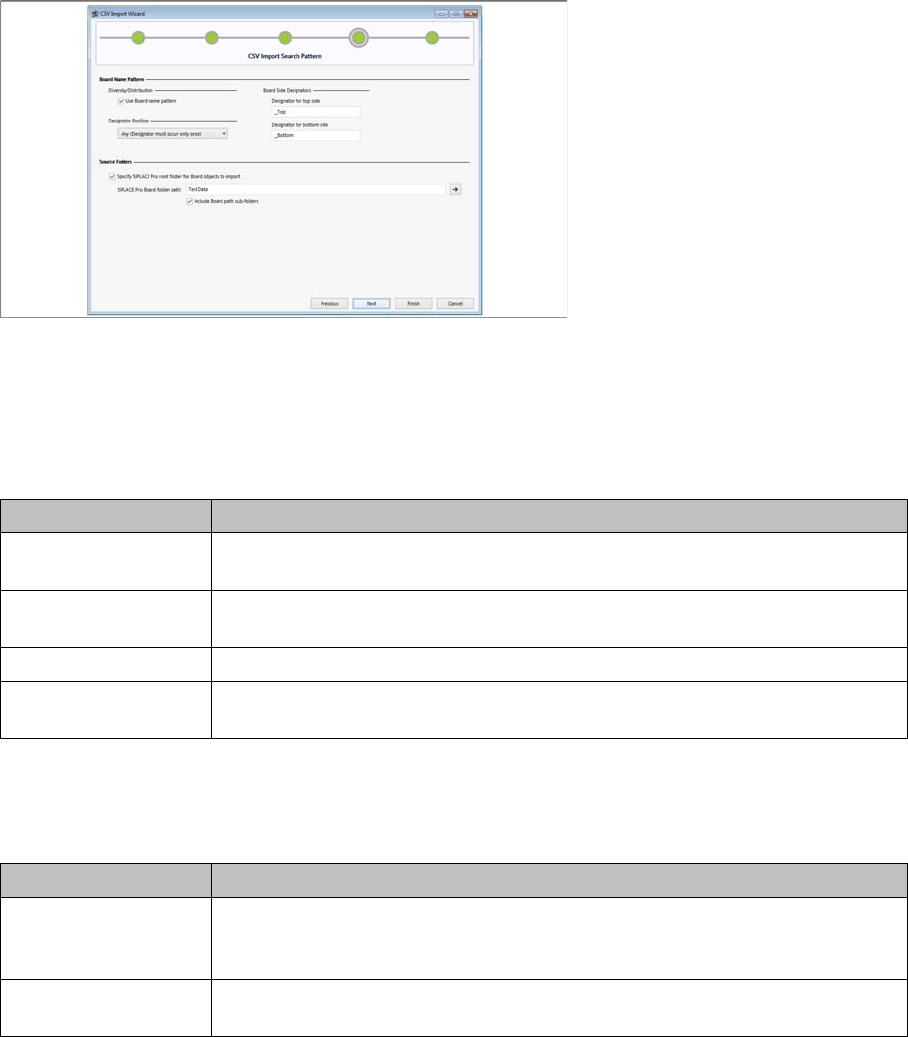
CSV import wizard for CSV data – CSV import search pattern
Edit field: Board name pattern
You can specify so-called name patterns as additional name components for the objects to be imported.
These name patterns are used to locate the specified objects in the CSV file and in the SIPLACE Pro
database.
Edit field: Source folders
Source folders in which the objects are located can be selected for the board and line objects specified
in the CSV file. This means that the CSV file does not need to contain the complete paths.
► Click Next to confirm.
⇨ The CSV Import – Result View dialog box will open.
Parameter Description
Use board name pat-
tern
Enable this option if you want to use the name patterns for boards. This will ac-
tivate the following fields:
Designator Position Specify whether the name pattern should be at the Begin or End of the board
name. If you select Any, the name pattern will be placed at any position.
Designator for top side Enter the name pattern for the top side of the board.
Designator for bottom
side
Enter the name pattern for the bottom side of the board.
Parameter Description
Specify SIPLACE Pro
root folder for board
objects to import
Select the path and the folder in which the boards are located from SIPLACE
Pro.
Include Line path sub-
folders
Enabling this option allows you to search the complete folder tree of the board
source folder for SIPLACE Pro objects.