00197496-01_UM_SiClusterMultiline_DE_EN.pdf - 第179页
Working with the Rule Editor Creating Rules for Line Exclusions SIPLACE SiCluster Multiline SIPLACE SiCluster Multiline 179 Dialog box: line exclusion - re cipe rule ► Create a rule to describe the excluded re cipes by m…
Working with the Rule Editor
Creating Rules for Line Exclusions
178 SIPLACE SiCluster Multiline SIPLACE SiCluster Multiline
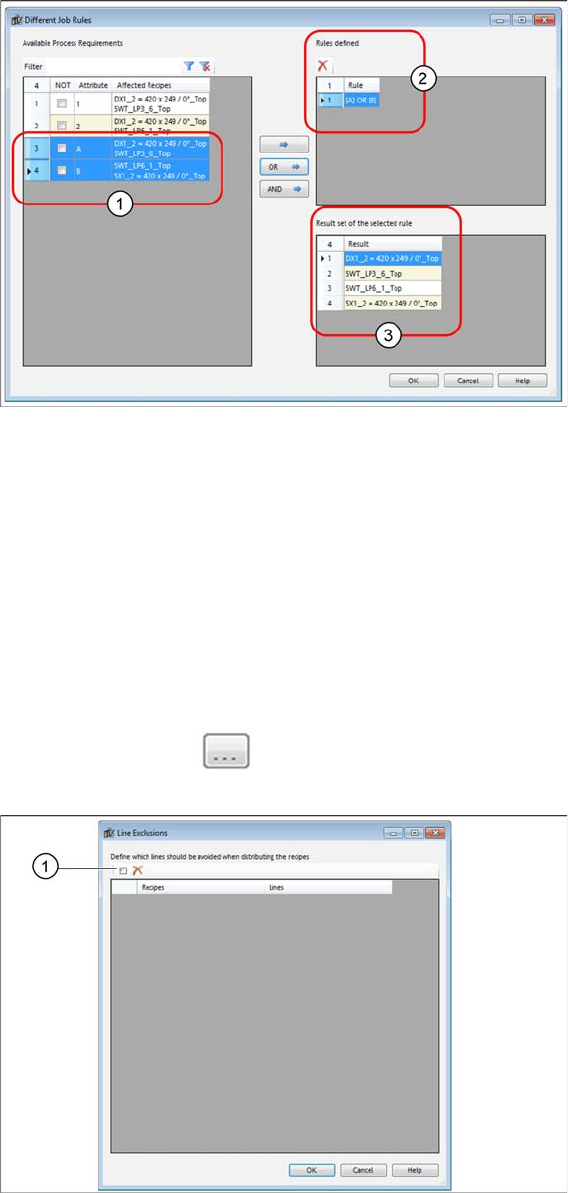
Result for different jobs as OR operation
Example: Rule Editor - different job rules with OR operation
▪ The process requirements A and B were marked (1) and linked with the OR button.
▪ The link will be shown in the Rules defined (2) list.
▪ The results of this link will be shown in the Result set of the selected rule (3).
8.2
8.2 Creating Rules for Line Exclusions
Creating Rules for Line Exclusions
The recipes defined by these rules may not be produced on a certain line. For this purpose, rules with
line exclusions can be created.
The recipes are first defined via the process attributes for each rule (see Same Line Rules). In a second
step, the line or lines are determined on which these recipes are not to be produced.
► Open the function Line Exclusions.
⇨ The Line Exclusions dialog box will open.
Dialog box – line exclusions
► Select the Add new line restriction (1) icon.
► The Line Exclusion - Recipe Rule dialog box will open.
Working with the Rule Editor
Creating Rules for Line Exclusions
SIPLACE SiCluster Multiline SIPLACE SiCluster Multiline 179
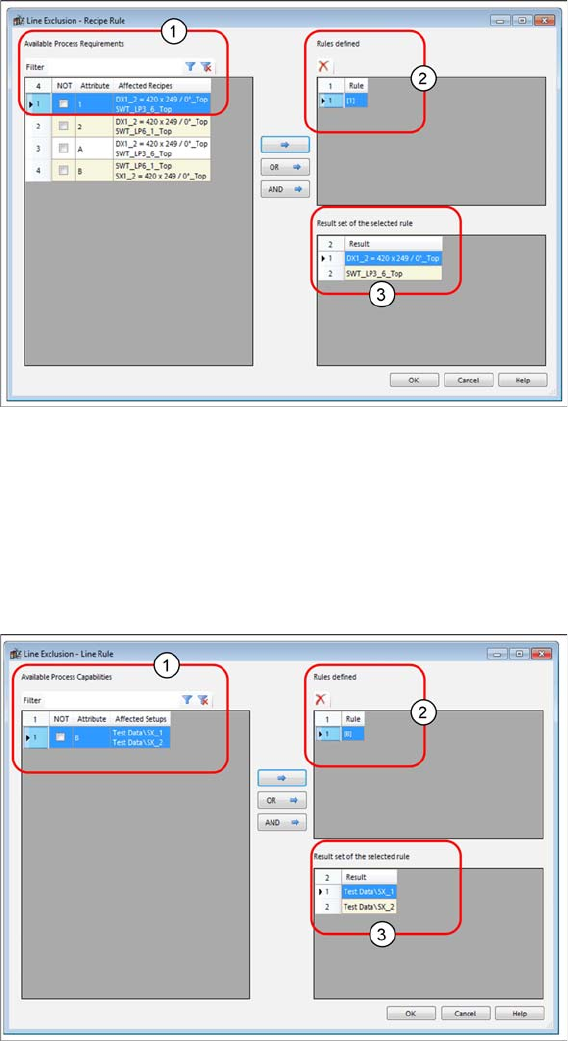
Dialog box: line exclusion - recipe rule
► Create a rule to describe the excluded recipes by marking the relevant process attributes (1) and
linking them via an action.
⇨ The link will be shown in the Rules defined (2) list.
⇨ ▪ The results of this link will be shown in the Result set of the selected rule (3) list.
► Confirm with OK.
⇨ The Line Exclusion - Line Rule dialog box will open.
Dialog box: line exclusion - line rule
► Create a rule to describe the lines on which the recipes defined in the first step may not be produced,
by marking the relevant process attributes (1) and linking them via an action.
⇨ The link will be shown in the Rules defined (2) list.
⇨ ▪ The results of this link will be shown in the Result set of the selected rule (3) list.
► Confirm with OK.
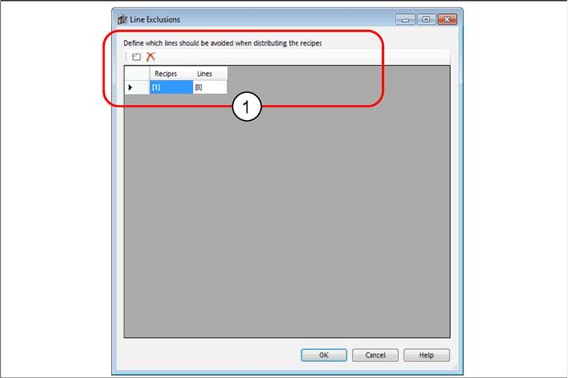
⇨ The Line Exclusions dialog box will open and the result (1) will be shown.
Working with the Rule Editor
Creating Rules for Line Exclusions
180 SIPLACE SiCluster Multiline SIPLACE SiCluster Multiline
Dialog box: line exclusions - result
Example of line exclusions
The process requirement "S-line" is entered for all lines with S tables.
The process requirement "Customer X" is entered for some recipes.
To prevent the recipes from customer X being produced on an S-line, a new line exclusion will be created
with the recipe rule "Customer X" and a line rule with "S-line".