00197496-01_UM_SiClusterMultiline_DE_EN.pdf - 第177页
Working with the Rule Editor Creating Rules with the Rule Editor SIPLACE SiCluster Multiline SIPLACE SiCluster Multiline 177 8.1 8 . 1 C r e a t in g R u le s w it h t h e R u le E d it o r Creating Rules with the Rule E…
Working with the Rule Editor
176 SIPLACE SiCluster Multiline SIPLACE SiCluster Multiline
Function Description
Same job rules The recipes bound by these rules should be produced on the same line in each
case.
Same job rules (in-
clusive groups)
The recipes bound by these rules should be produced in a common setup in
each case. Each rule forms an inclusive group for these recipes. The optimiza-
tion by SiCluster Professional uses an inclusive group to combine these recipes
in a common setup.
Example:
A typical application case for the inclusive group is the combining of board top
and bottom sides in the same setup. It is usually of benefit that the board top and
bottom sides are to be produced on the same line and in one setup.
Different-Job Rules
(Exclusive-Groups)
The recipes separated by this rule may be produced on the same line but not in
the same setup. This rule forms exclusive groups for these recipes. The optimi-
zation by SiCluster Professional uses exclusive groups, each of which ensures
that these recipes are NOT combined in a common setup with recipes from an-
other exclusive group.
Example:
There are boards with the process requirements customer A, customer B and
customer C. The exclusive groups 'Customer A' and 'Customer B OR Customer
C' are defined. In this case, a board with the requirement 'Customer A' may nei-
ther be produced in the same job as a board with the requirement 'Customer B'
nor with a board with the requirement 'Customer C'.
Line Exclusions The recipes defined by these rules may not be produced on a certain line. For
this purpose, rules with line exclusions can be created.
Process attributes for the recipes are defined for each rule (see Same Line
Rules). In a second step, the line or lines are determined on which these recipes
are not to be produced. See "8.2 Creating Rules for Line Exclusions" [ ➙ 178]
Example:
The process capability "S-line" is entered for all lines with S tables. The process
requirement "Customer X" is entered for some recipes. To prevent the recipes
from customer X being produced on an S-line, a new line exclusion is created
with the recipe rule "Customer X" and the line rule "S-line".
Working with the Rule Editor
Creating Rules with the Rule Editor
SIPLACE SiCluster Multiline SIPLACE SiCluster Multiline 177
8.1
8.1 Creating Rules with the Rule Editor
Creating Rules with the Rule Editor
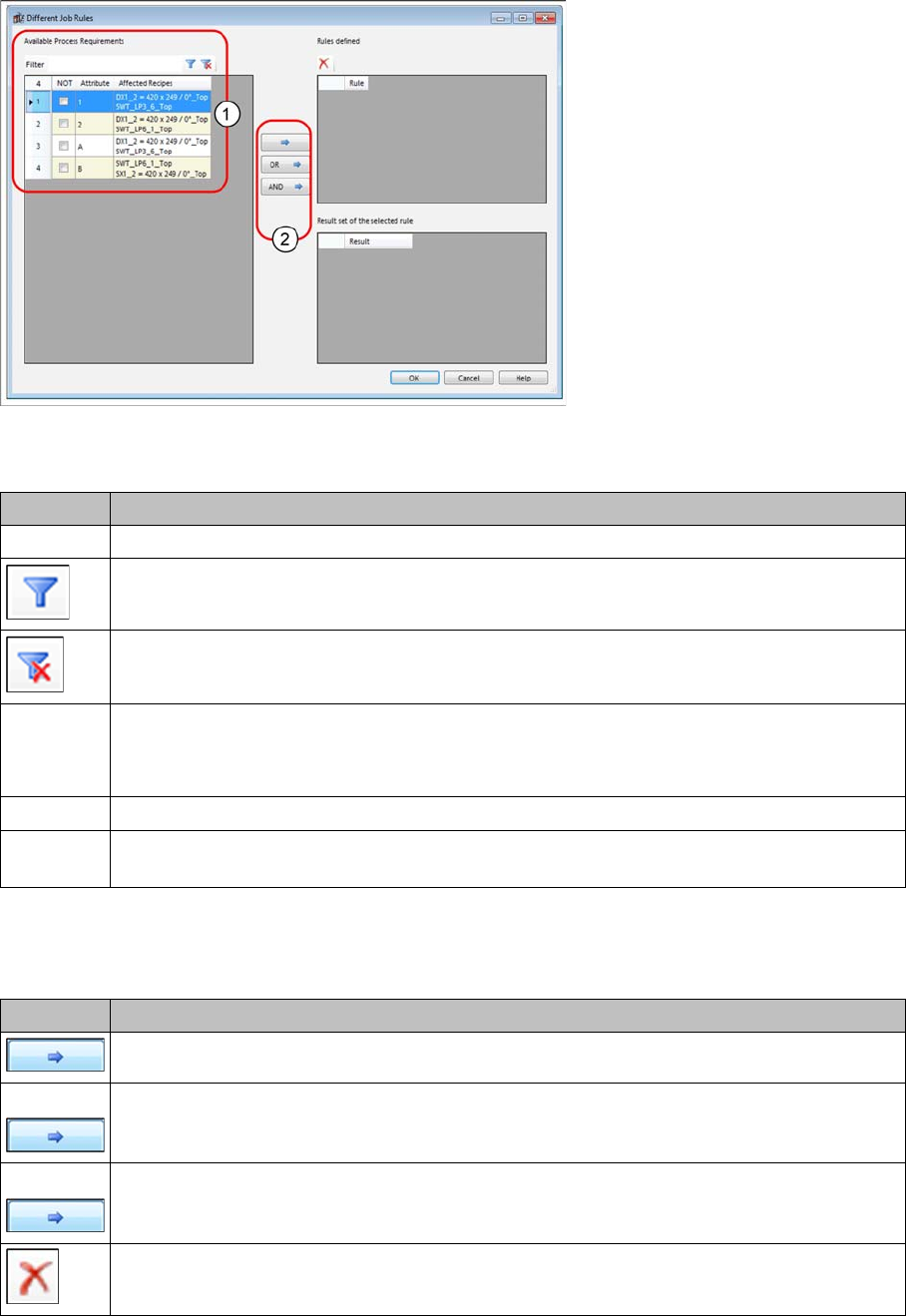
Rules are defined on the basis of existing process requirements. These rules can also be defined with
AND/OR relations from the various process requirements.
The following example creates a rule for various jobs.
Example: Rule Editor - different job rules
► Select one or more entries from the Available Process Requirements (1) list.
► Use the buttons (2) to add the selected process requirements as a rule.
The following actions are possible:
Function Description
Filter Enter the term which you want to use to filter the list of process requirements.
Apply the filter with the term you entered. The list of process requirements will be reduced
accordingly.
Reset the filter. All process requirements will be shown.
NOT Sets a logical operation as NOT operation.
Example:
NOT Customer A = All recipes without customer A
Attribute Shows the name of the process attribute.
Affected
Recipes
Shows the recipes for which the process attribute is entered.
Function Description
Creates a marked process requirement as rule.
OR Creates an OR relation from two or more marked process requirements.
AND Creates an AND relation from two or more marked process requirements.
Deletes a selected rule from the list of defined rules.
Working with the Rule Editor
Creating Rules for Line Exclusions
178 SIPLACE SiCluster Multiline SIPLACE SiCluster Multiline
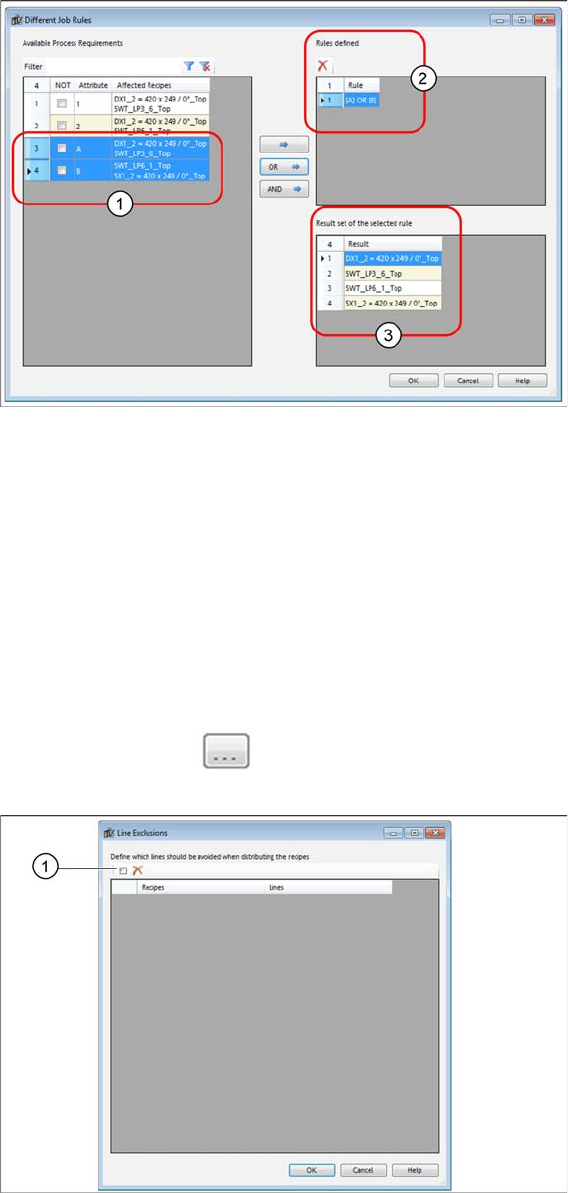
Result for different jobs as OR operation
Example: Rule Editor - different job rules with OR operation
▪ The process requirements A and B were marked (1) and linked with the OR button.
▪ The link will be shown in the Rules defined (2) list.
▪ The results of this link will be shown in the Result set of the selected rule (3).
8.2
8.2 Creating Rules for Line Exclusions
Creating Rules for Line Exclusions
The recipes defined by these rules may not be produced on a certain line. For this purpose, rules with
line exclusions can be created.
The recipes are first defined via the process attributes for each rule (see Same Line Rules). In a second
step, the line or lines are determined on which these recipes are not to be produced.
► Open the function Line Exclusions.
⇨ The Line Exclusions dialog box will open.
Dialog box – line exclusions
► Select the Add new line restriction (1) icon.
► The Line Exclusion - Recipe Rule dialog box will open.