7OM-1625-004_w.pdf - 第74页
7OM-1603 Chapter 2 : 2. Menus for Automatic Operation 2-5 2.2.1 "Pickup T ray Matrix" T ab sheet When the [Pickup Tray Matrix] tab is pressed in the "Comp.Reload" window, the "Pickup Tray Matrix&…
7OM-1603
2-4
Chapter 2 : 2. Menus for Automatic Operation
2.2 "Comp.Reload" Window
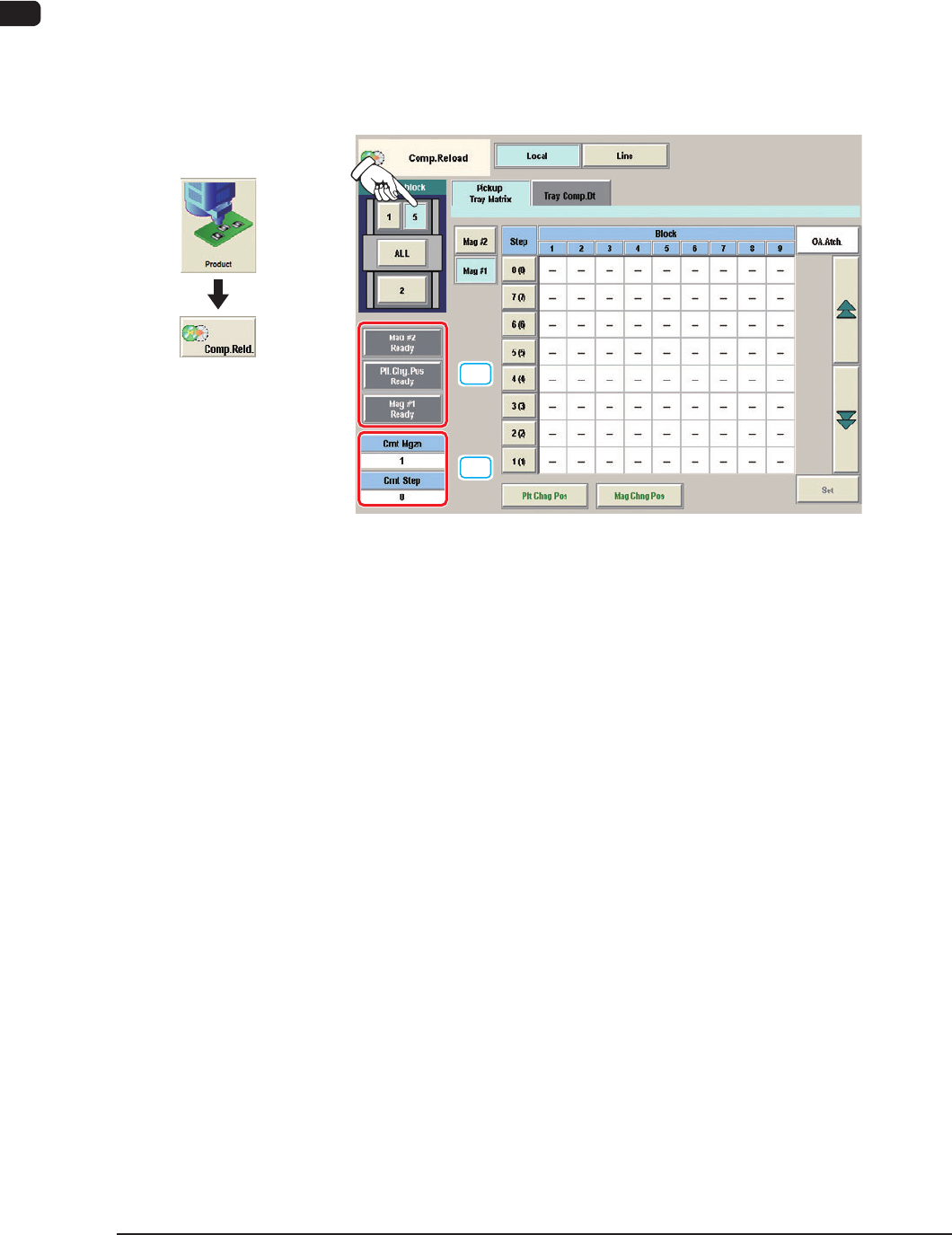
When the selection button for the feeder block No. in the [Select Block] button
section (5), where the multi-layer tray feeder has been installed, is pressed in the
"Comp.Reload" window, the multi-layer tray feeder's component reload window
appears.
The "Comp.Reload" window for the multi-layer tray feeder consists of the
"Pickup Tray Matrix" tab sheet and the "Tray Comp.Dt" tab sheet.
[1]
[2]
"Comp.Reload" window (Multi-Layer Tray Feeder #1 Used) F7B4
[1] [Mag #2 Ready], [Pll.Chg.Pos Ready], and [Mag #1 Ready] Buttons
When each button is pressed, the LED of the Ready switch on the
corresponding door illuminates, indicating that the door is locked.
[2] Crnt Mgzn and Crnt Step
Shown
in the text boxes are the numbers of the magazine and step being used
at present.
Graphic
Development
1102-003
7OM-1603
Chapter 2 : 2. Menus for Automatic Operation
2-5
2.2.1 "Pickup Tray Matrix" Tab sheet
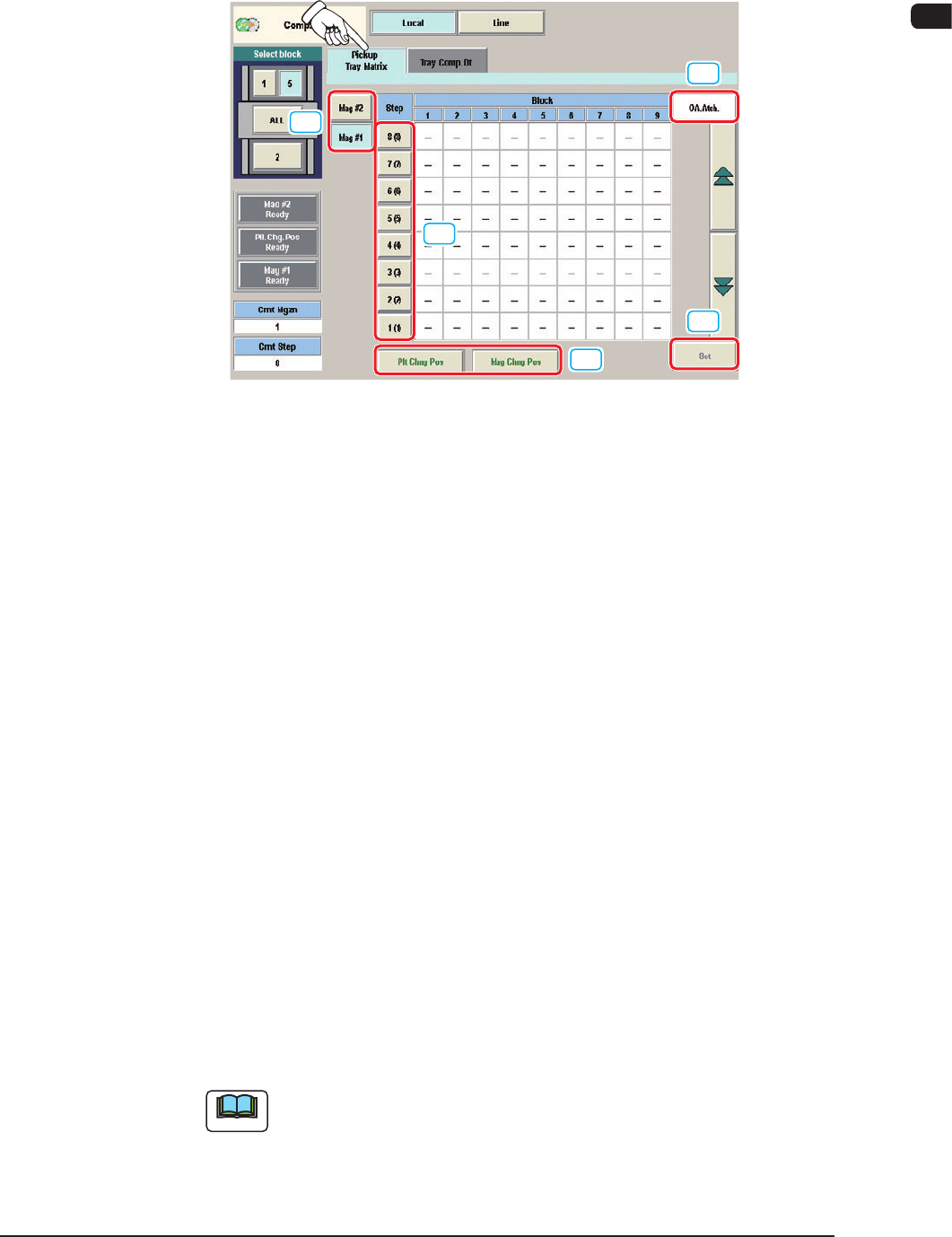
When the [Pickup Tray Matrix] tab is pressed in the "Comp.Reload" window, the
"Pickup Tray Matrix" tab sheet appears.
[1]
[2]
[3]
[3]
[4]
"Pickup Tray Matrix" tab sheet F7B5
[1] "Magazine" Selection Buttons
These buttons are used to select a magazine to be activated or reloaded with
components.
[2] Magazine Movement Buttons
[Plt Chng Pos] Button
: When pressed, this button moves the currently
selected magazine to the component supply
position.
[Mag Chng Pos] Button
: When pressed, this button moves the currently
selected magazine to the magazine change
position.
[3] Component Reload Buttons
When the component-reloaded step is selected and the [Set] button is
pressed, the tray pickup matrix of the selected step is set to "(1, 1)" and the
number of remaining components is updated.
Reloaded Step Selection
:
The component-reloaded step must be
selected.
[OA.Atch.] Button
: When pressed, this button selects all steps.
[Set] Button
: When pressed, this button sets the component
reloading condition with the specied value.
Note
As for the steps that are not used in the pattern program, no component
reload button is displayed.
1003-002
7OM-1603
2-6
Chapter 2 : 2. Menus for Automatic Operation
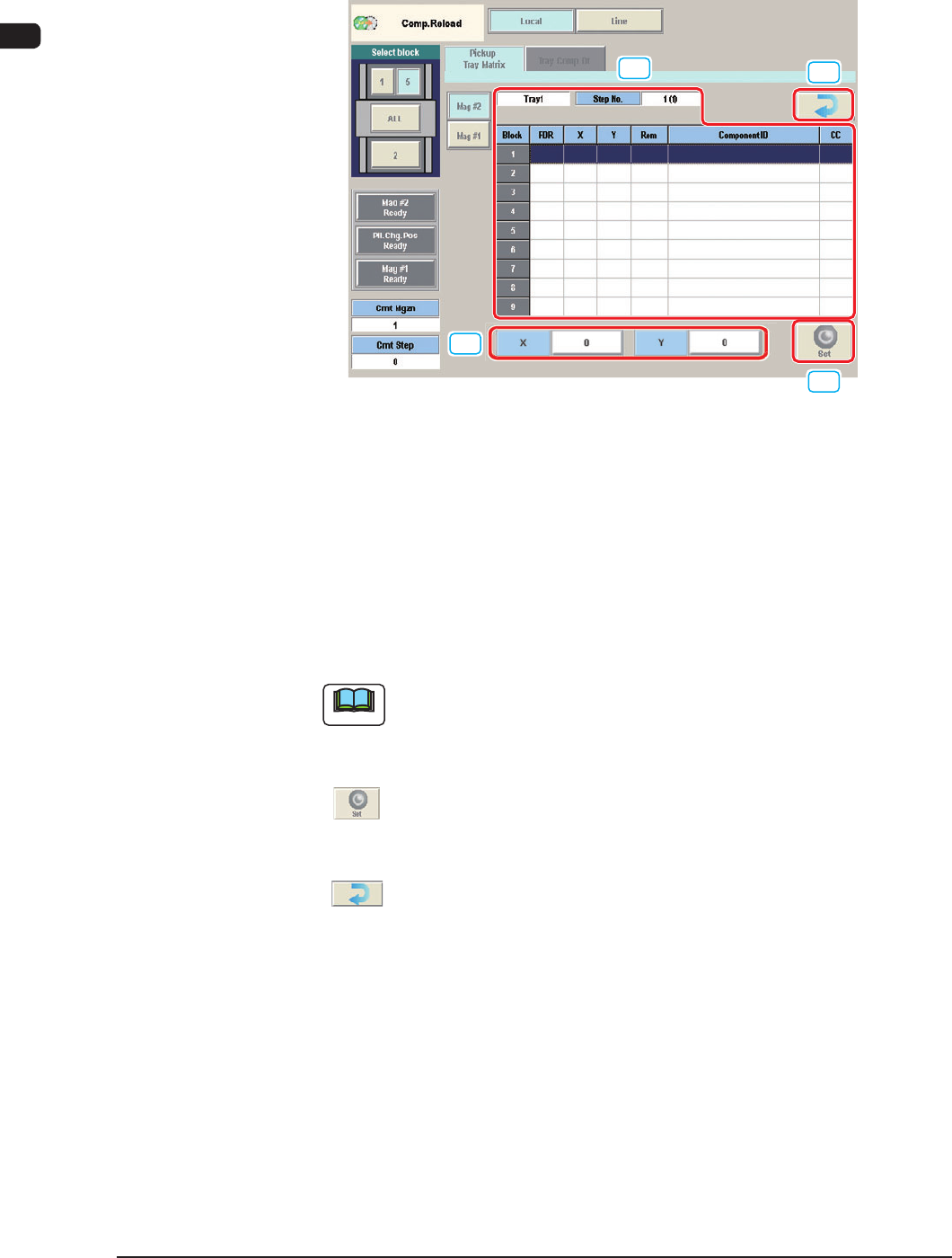
[4] Step Selection Buttons
When a magazine and a step are selected, the "Block Information" window
appears, making it possible to check and change the tray matrices.
[5]
[6]
[7]
[7]
"Block Information" window F7B6
[5] "Block Information" Sheet
Shown is the block information.
[6] Tray Pickup Matrix Setting Buttons
Shown is the tray pickup matrix data.
When the [Edit] button is pressed, an input window opens, making it possible
to set the tray pickup matrix data.
Note
As for the blocks that are not used in the pattern program, no tray pickup
matrix setting button is displayed.
[7] [Return] and [Set] Buttons
[ ] Button
: When pressed, this button sets the edited tray pickup
matrix data and opens the tray pickup matrix editing
window.
[
] Button
: When pressed, this button cancels the selection of the
tray pickup matrix data and opens the tray pickup matrix
editing window.
1003-002