00197283-02_IM_LED_Pairing_V2_1_EN.pdf - 第11页
LED Pair ing / Ins tallatio n Manua l 05/2014 Edit ion 11 The f ollowing dia log is d ispl ayed. Figure 5-4: Installi ng SIPLACE LED Pairing Controller Serv ice During i nstallat ion, the f ollo wing dial og is dis pla y…
LED Pairing / Installation Manual 05/2014 Edition
10
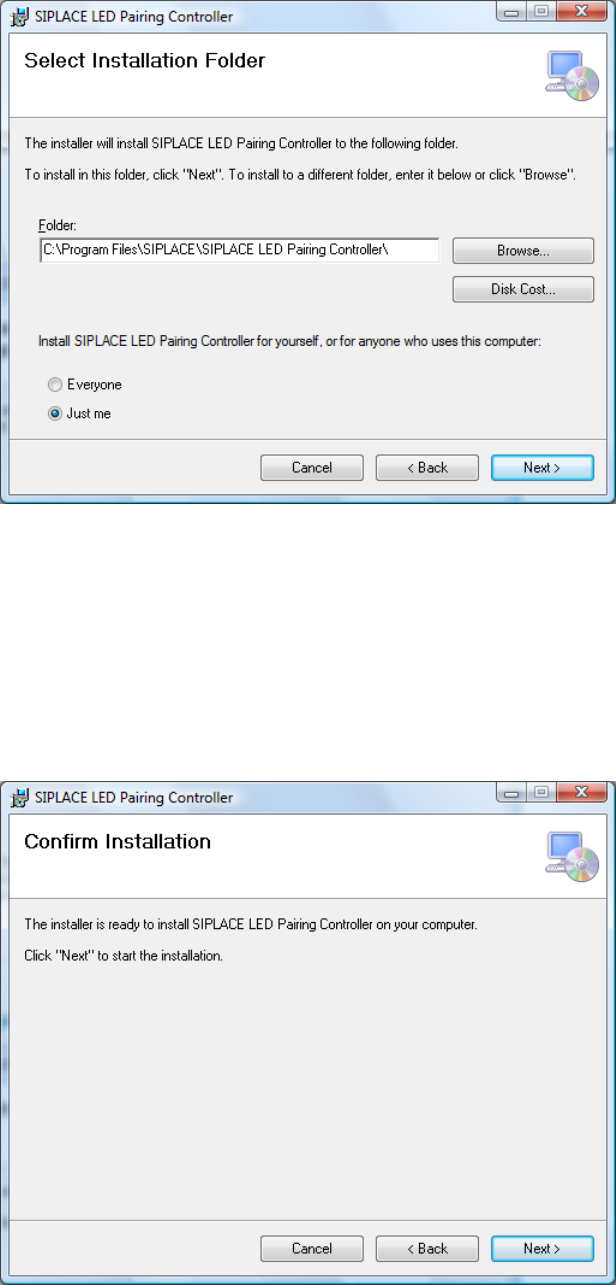
The following dialog is displayed.
Figure 5-2: Selecting installation folder
► If necessary, click the Browse… button to select another installation folder for the SIPLACE
LED Pairing Controller service.
► Activate the Everyone button if the SIPLACE LED Pairing Controller service shall be accessed
for anyone who uses the computer or the Just me button if the SIPLACE LED Pairing Controller
service shall only be accessed by yourself.
► Click the Next > button.
The following dialog is displayed.
Figure 5-3: Confirming installation
► Click the Next > button to start the installation.
LED Pairing / Installation Manual 05/2014 Edition
11
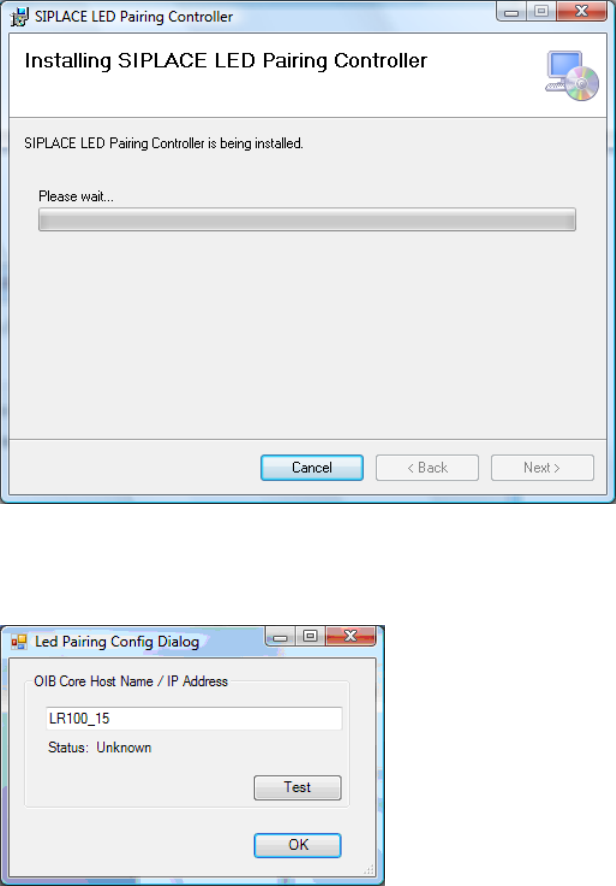
The following dialog is displayed.
Figure 5-4: Installing SIPLACE LED Pairing Controller Service
During installation, the following dialog is displayed, in which the install program prompts you to
enter the IP address or host name.
Figure 5-5: LED Pairing Config Dialog
► Enter the host name or the IP address of the computer on which OIB Core is installed.
LED Pairing / Installation Manual 05/2014 Edition
12
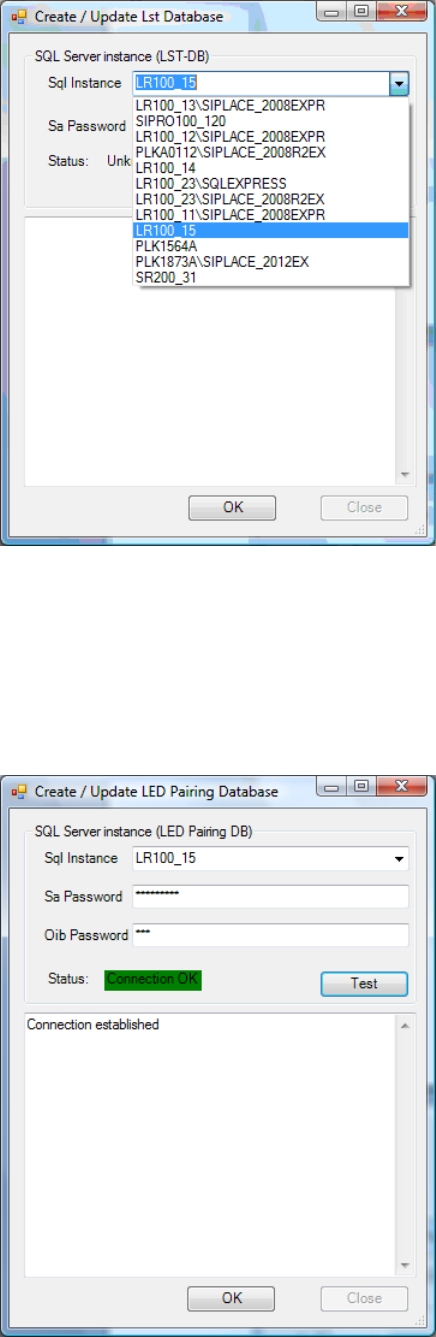
The following dialog is displayed.
Figure 5-6: Selecting SQL Server
► Select the SQL server on which the SIPLACE LED Pairing Controller database shall be created
from the Sql Instance list.
► Enter the administration password for the SQL server under Sa Password.
► Click the Test button to test the connection.
The following dialog is displayed.
Figure 5-7: Testing connection