00197283-02_IM_LED_Pairing_V2_1_EN.pdf - 第14页
LED Pair ing / Ins tallatio n Manua l 05/2014 Edit ion 14 In OIB : ► Start the O IB Oper ation M anager. The SI PLAC E LED Pair ing Contro ller appears as a n un - configured service in the OIB Opera tion Manager . ► Ass…
LED Pairing / Installation Manual 05/2014 Edition
13
The SIPLACE LED Pairing Controller service starts and tries to connect to OIB Core. If successful,
the SIPLACE LED Pairing Controller sends registration information to OIB Core.
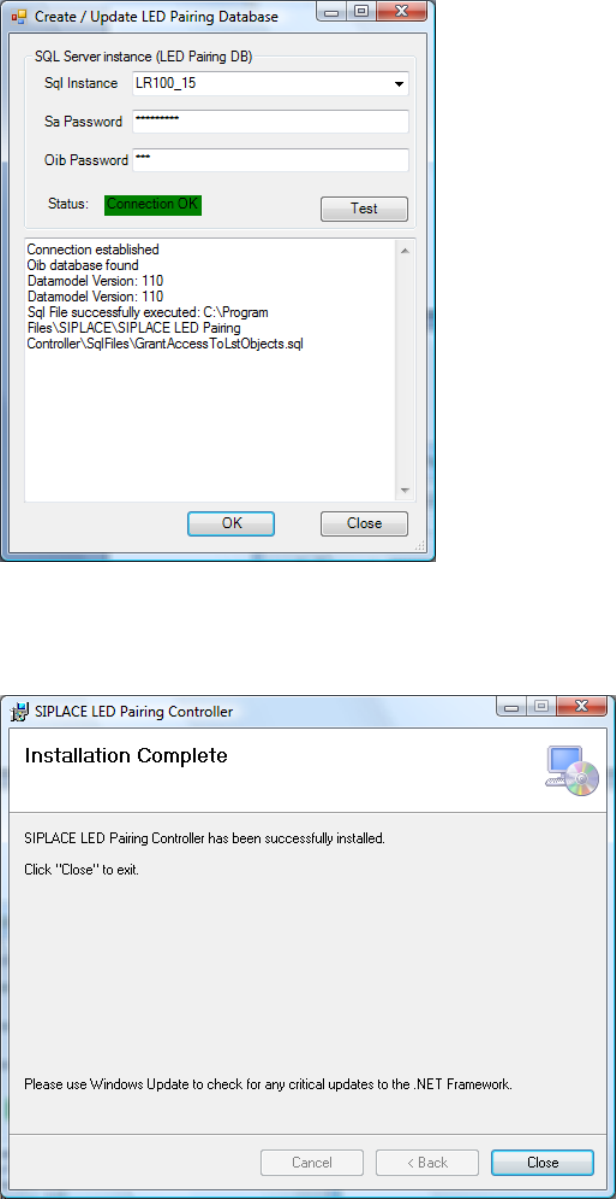
The following dialog is displayed.
Figure 5-8: Connecting to OIB Core
► Click the OK button.
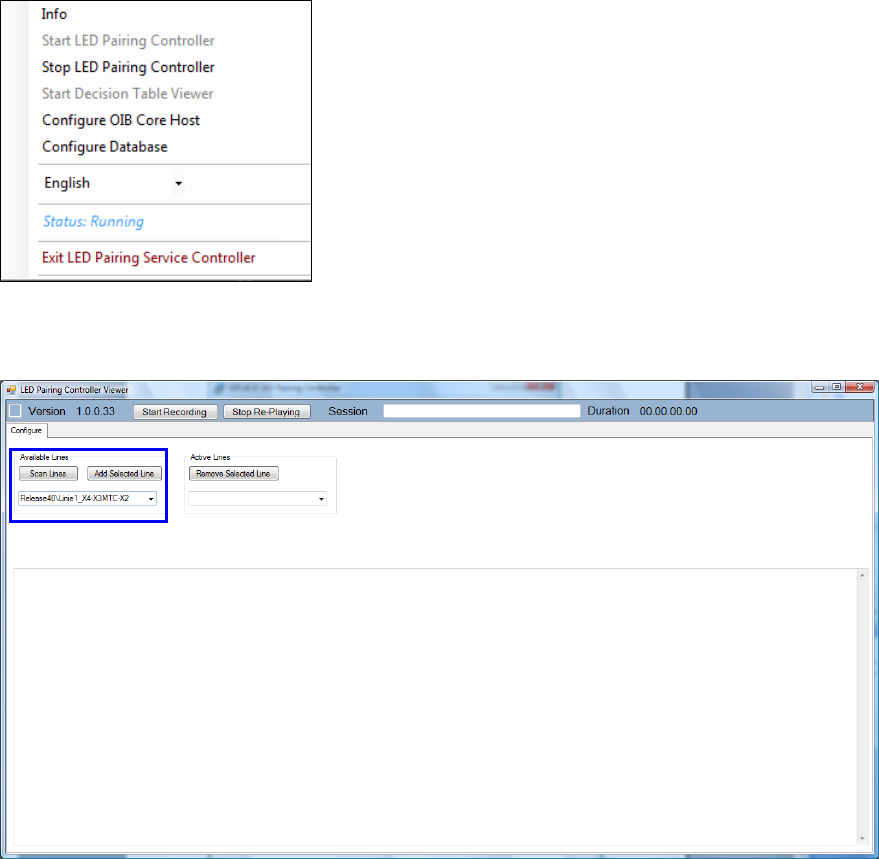
The following dialog is displayed.
Figure 5-9: Completing installation
► Click the Close button to finish the installation.
LED Pairing / Installation Manual 05/2014 Edition
14
In OIB:
► Start the OIB Operation Manager.
The SIPLACE LED Pairing Controller appears as an un-configured service in the OIB Operation
Manager.
► Assign the SIPLACE LED Pairing Controller service to a line or area node in the Factory Layout
by following the description in the OIB Installation Manual. A corresponding sample can also be
found in section 8.1.
After the SIPLACE LED Pairing Controller service has been successfully assigned to a line or area
node:
► Click on the SIPLACE LED Pairing icon in the Windows task bar.
► Select Start LED Pairing Controller to start the SIPLACE LED Pairing Controller Viewer.
Figure 5-10: SIPLACE LED Pairing Controller menu
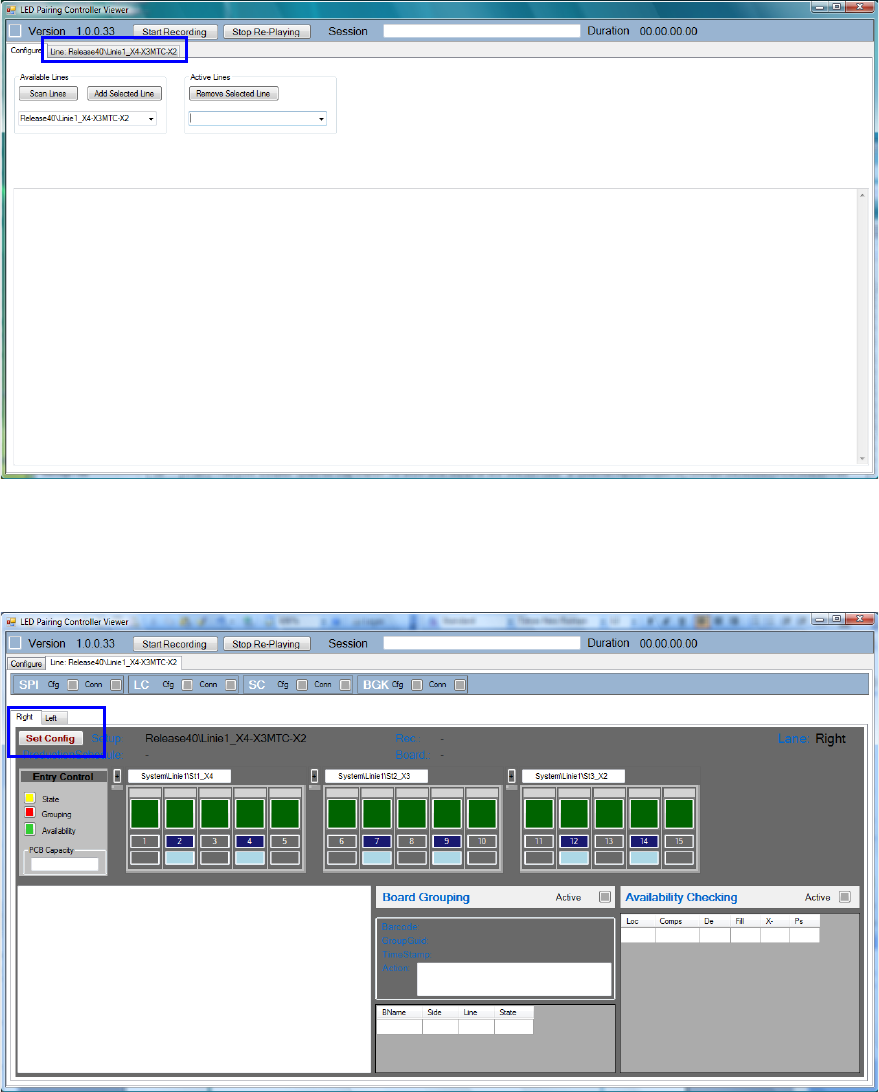
The SIPLACE LED Pairing Viewer starts.
Figure 5-11: SIPLACE LED Pairing Controller Viewer
► Scan for the available lines via the Scan Lines button.
► Select a line from the list and click the Add Selected Line button.
LED Pairing / Installation Manual 05/2014 Edition
15
After a while, the selected line appears as a tab.
Figure 5-12: Selected line
► Click the line tab.
The selected line and conveyor are displayed in the following window.
Figure 5-13:Line information
The SIPLACE LED Pairing Controller has not yet received any data from SIPLACE Pro and
SIPLACE Setup Center. For this, the configuration has to be saved.
► In the Right tab, click the Set Config button to save the configuration for the right line lane.
► Switch to the Left tab.
► Click the Set Config button to save the configuration for the left line lane.