00197283-02_IM_LED_Pairing_V2_1_EN.pdf - 第23页
LED Pair ing / Ins tallatio n Manua l 05/2014 Edit ion 23 8 A ppendix T his c hapter cont ains the f ollo wing infor m ation: – A sam ple that ill ustrates the inter action of OIB and the SIPLACE LED Pairi ng Con troller…
LED Pairing / Installation Manual 05/2014 Edition
22
7 Uninstalling SIPLACE LED Pairing Controller
NOTICE
You must be logged in as Administrator to uninstall the software.
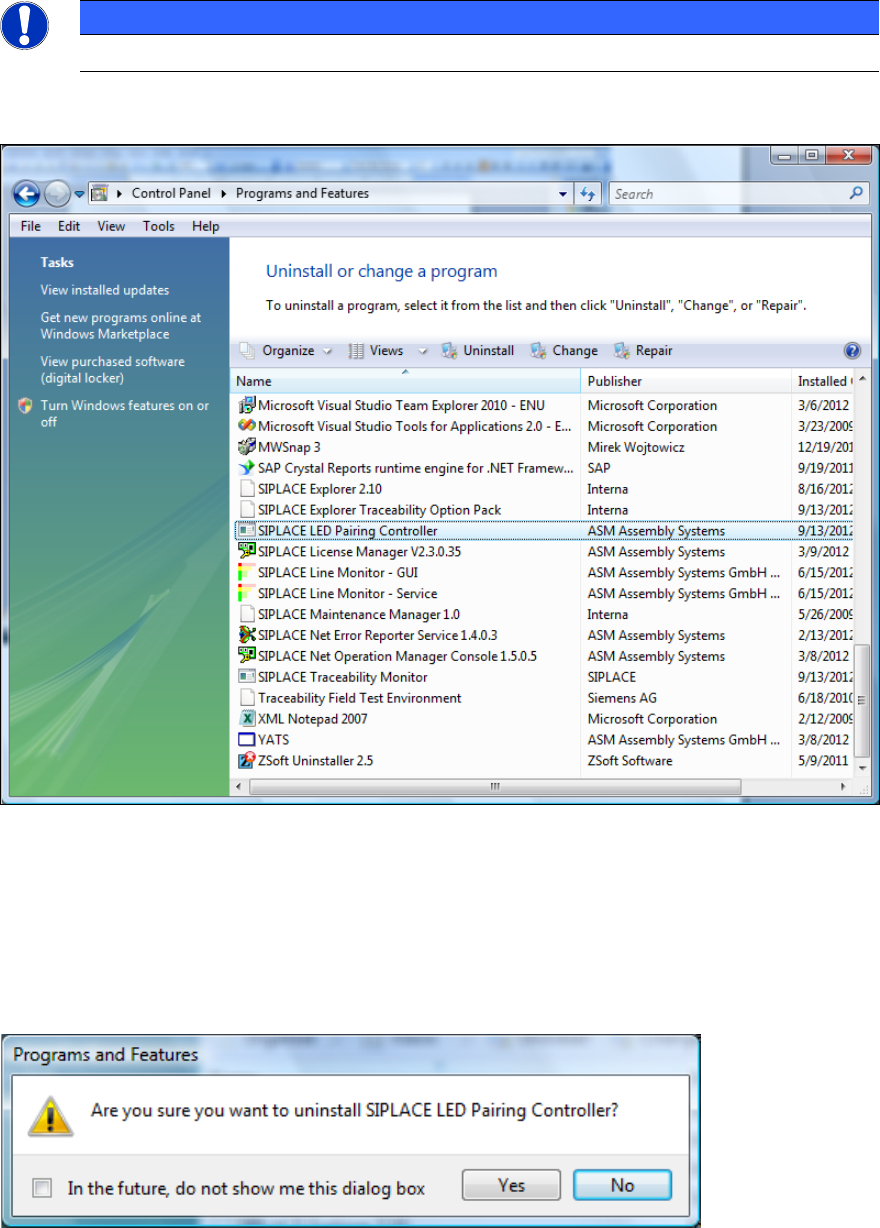
► Open the Start menu and select Control Panel – Programs – Programs and Features –
Uninstall a program.
Figure 7-1: Uninstalling SIPLACE LED Pairing Controller
► Click with the right mouse key on the SIPLACE LED Pairing Controller entry in the list of
installed programs.
► Select Uninstall from the context menu.
The following confirmation dialog is displayed.
Figure 7-2: Confirmation - Uninstalling
► Click on Yes to confirm uninstalling the SIPLACE LED Pairing Controller.
LED Pairing / Installation Manual 05/2014 Edition
23
8 Appendix
This chapter contains the following information:
– A sample that illustrates the interaction of OIB and the SIPLACE LED Pairing Controller
service.
– The structure of the BoardGrouping table in the SIPLACE LED Pairing Controller database.
8.1 Sample: OIB Operation Manager and SIPLACE LED Pairing
Controller
The following sample explains how to create a new area in the Factory Layout and how to assign
the SIPLACE LED Pairing Controller service and the other required services to this area by using
the OIB Operator Manager.
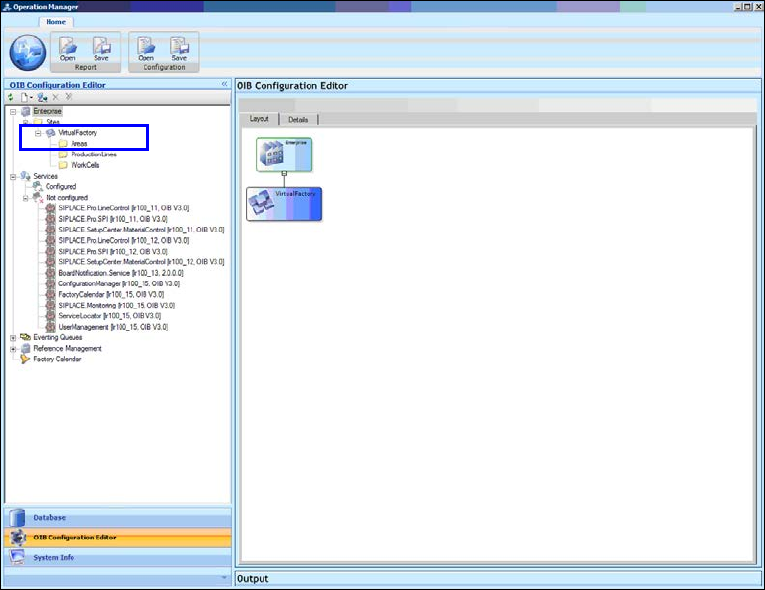
► Start the OIB Operation Manager.
► Select the OIB Configuration Editor.
The following window is displayed.
Figure 8-1: Creating new area
► Select Virtual Factory – New – Area in the OIB Configuration Editor to create a new area.
LED Pairing / Installation Manual 05/2014 Edition
24
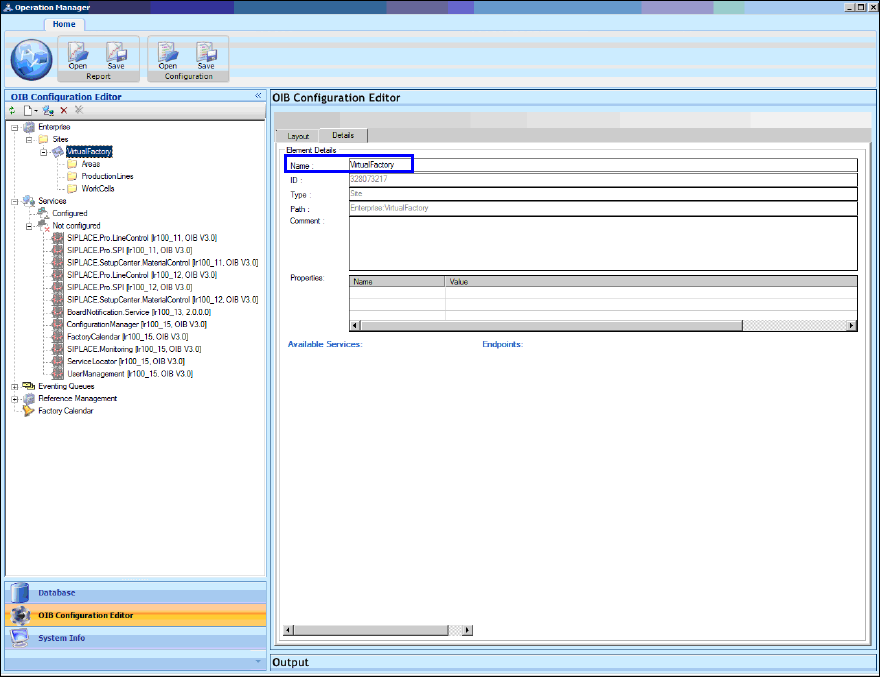
In the Details tab to the right you can define a name for the new area.
Figure 8-2: Defining area name
► Enter a name for the new area (in this sample: Area_LED_Pairing).