00197283-02_IM_LED_Pairing_V2_1_EN.pdf - 第9页
LED Pair ing / Ins tallatio n Manua l 05/2014 Edit ion 9 5 Installa tion of SIPL A CE LED Pairing Co ntroller The SIPL ACE L ED Pair ing Cont roll er is a line ser vice t hat uses OI B prox ies to re trieve pro duct ion …
LED Pairing / Installation Manual 05/2014 Edition
8
4 Installation and Configuration of SIPLACE LED
Pairing
4.1 Installing SIPLACE LED Pairing
SIPLACE LED Pairing will be installed together with SIPLACE Pro.
The installation can either be performed within the scope of Setup Type – SIPLACE Pro Complete
System or separately as Setup Type – SIPLACE Pro LED Pairing.
Further information can be found in the SIPLACE Pro Installation Manual, item no. [0197401-xx].
4.2 Configuring SIPLACE LED Pairing
Before you can start working in SIPLACE LED Pairing, some folder structure and import format
settings have to be made under Settings – Configuration... from the menu bar.
The configuration settings are described in the SIPLACE LED Pairing User Guide.
LED Pairing / Installation Manual 05/2014 Edition
9
5 Installation of SIPLACE LED Pairing Controller
The SIPLACE LED Pairing Controller is a line service that uses OIB proxies to retrieve production
related information. As OIB client it uses the configuration provided by OIB.
The SIPLACE LED Pairing Controller can be installed on any line computer that has access to OIB
Core and to the required OIB adapters (OIB service endpoints).
Prerequisites
– OIB Core is installed and runs on the line computer.
– The following OIB service endpoints are installed and configured correctly in the Operation
Manager of OIB:
– OIB Line Control Adapter
– OIB SPI Adapter
– OIB Setup Center Adapter
► Log in as administrator on the line computer.
► Insert the installation CD into the CD drive.
► Double-click the SIPLACE_LedPairingController.msi file in the installation directory to start
installing the SIPLACE LED Pairing Controller.
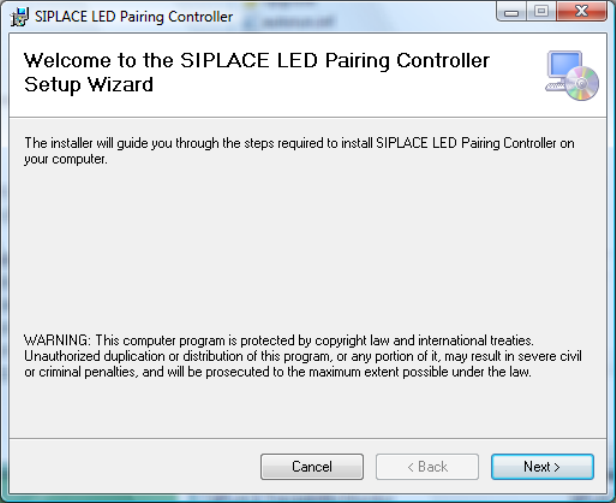
The Setup Wizard dialog of the SIPLACE LED Pairing Controller is displayed.
Figure 5-1: Setup Wizard
► Click the Next > button.
LED Pairing / Installation Manual 05/2014 Edition
10
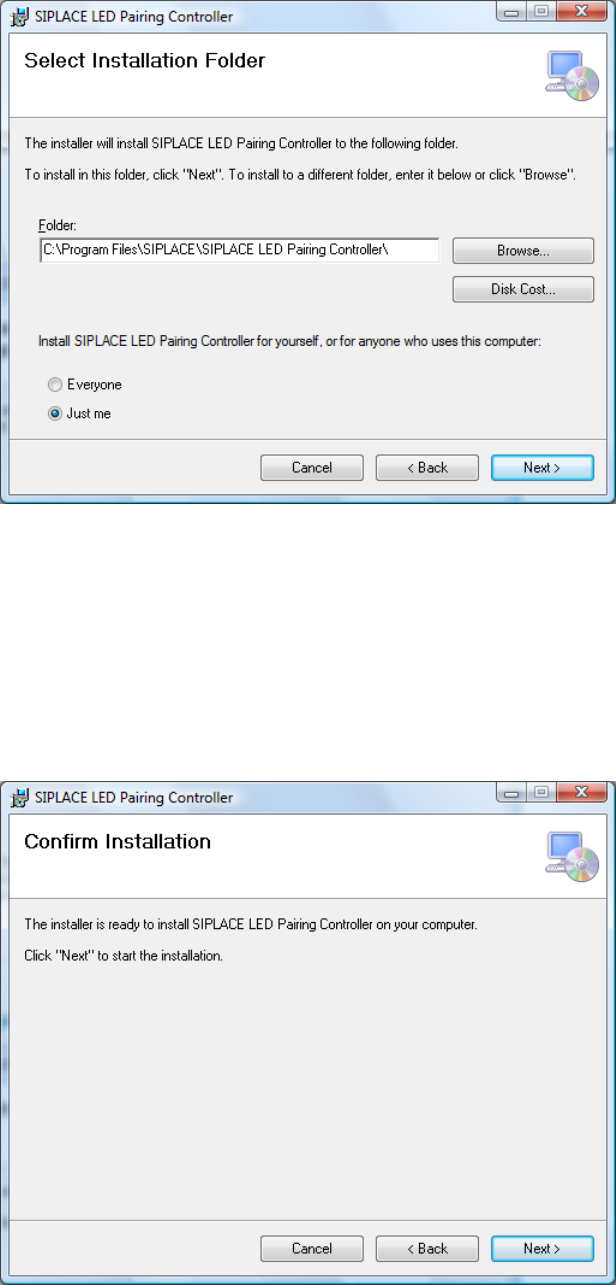
The following dialog is displayed.
Figure 5-2: Selecting installation folder
► If necessary, click the Browse… button to select another installation folder for the SIPLACE
LED Pairing Controller service.
► Activate the Everyone button if the SIPLACE LED Pairing Controller service shall be accessed
for anyone who uses the computer or the Just me button if the SIPLACE LED Pairing Controller
service shall only be accessed by yourself.
► Click the Next > button.
The following dialog is displayed.
Figure 5-3: Confirming installation
► Click the Next > button to start the installation.