00197283-02_IM_LED_Pairing_V2_1_EN.pdf - 第15页
LED Pair ing / Ins tallatio n Manua l 05/2014 Edit ion 15 After a while, th e select ed line a ppears as a tab. Figure 5- 12 : Selected line ► Click t he line tab . The selec ted line and co nveyor ar e disp lay ed in th…
LED Pairing / Installation Manual 05/2014 Edition
14
In OIB:
► Start the OIB Operation Manager.
The SIPLACE LED Pairing Controller appears as an un-configured service in the OIB Operation
Manager.
► Assign the SIPLACE LED Pairing Controller service to a line or area node in the Factory Layout
by following the description in the OIB Installation Manual. A corresponding sample can also be
found in section 8.1.
After the SIPLACE LED Pairing Controller service has been successfully assigned to a line or area
node:
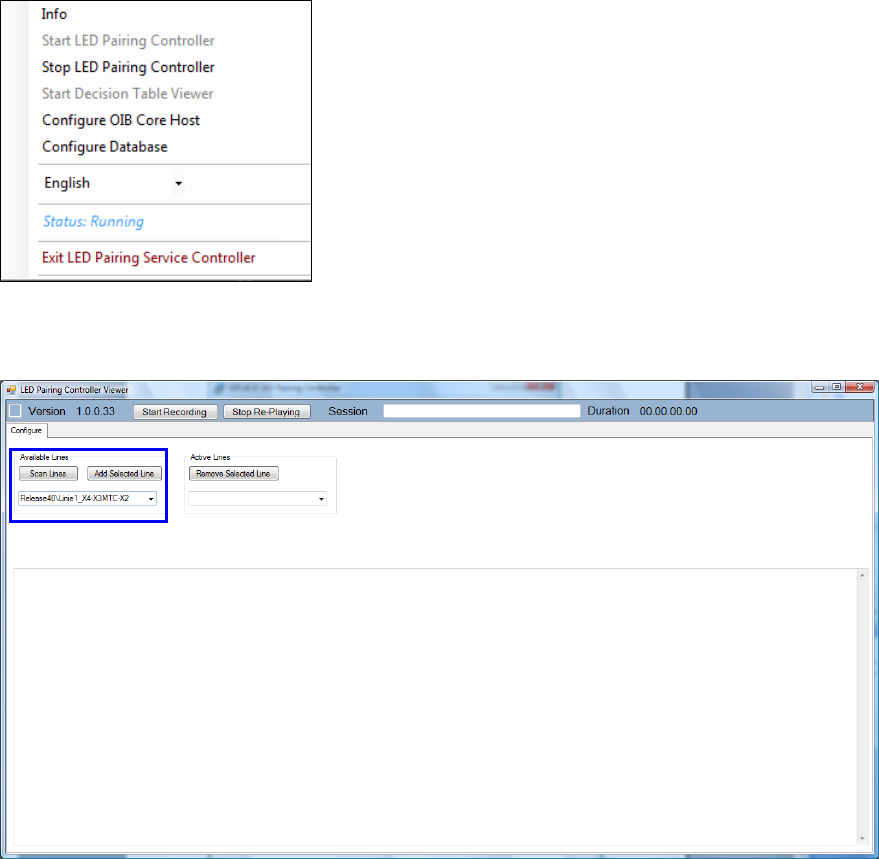
► Click on the SIPLACE LED Pairing icon in the Windows task bar.
► Select Start LED Pairing Controller to start the SIPLACE LED Pairing Controller Viewer.
Figure 5-10: SIPLACE LED Pairing Controller menu
The SIPLACE LED Pairing Viewer starts.
Figure 5-11: SIPLACE LED Pairing Controller Viewer
► Scan for the available lines via the Scan Lines button.
► Select a line from the list and click the Add Selected Line button.
LED Pairing / Installation Manual 05/2014 Edition
15
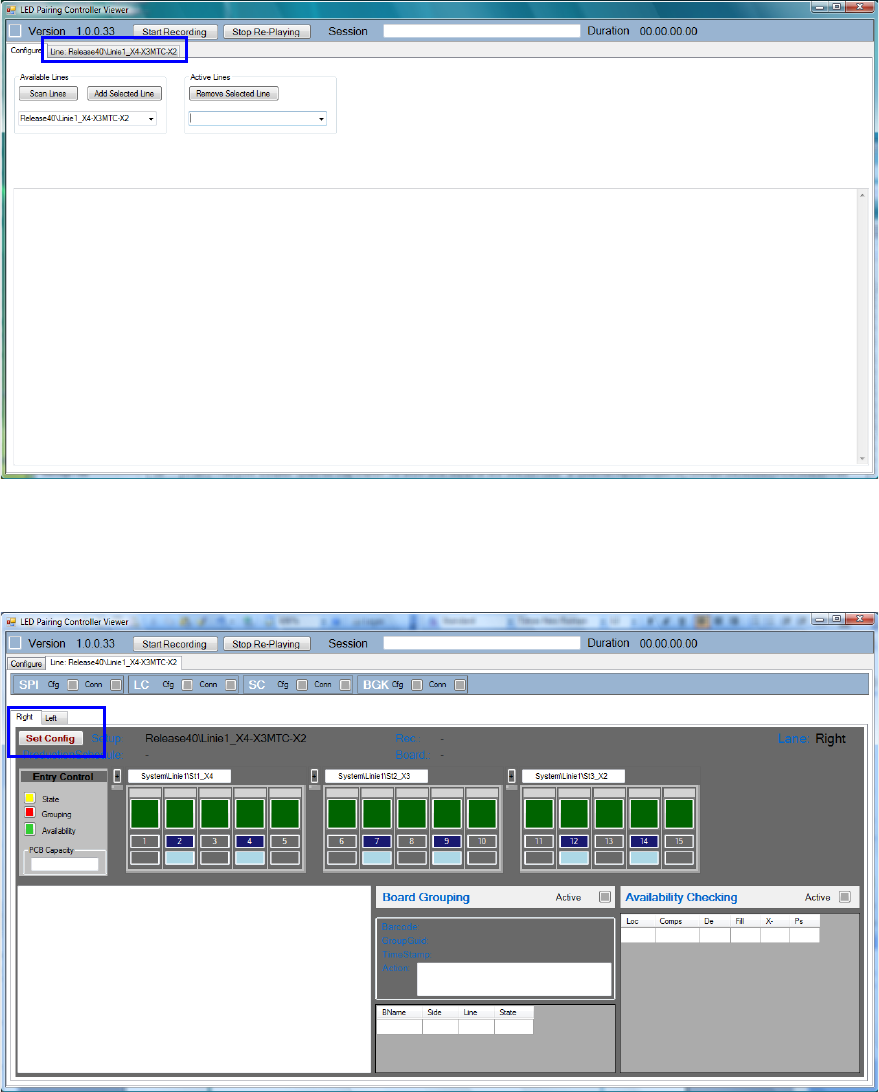
After a while, the selected line appears as a tab.
Figure 5-12: Selected line
► Click the line tab.
The selected line and conveyor are displayed in the following window.
Figure 5-13:Line information
The SIPLACE LED Pairing Controller has not yet received any data from SIPLACE Pro and
SIPLACE Setup Center. For this, the configuration has to be saved.
► In the Right tab, click the Set Config button to save the configuration for the right line lane.
► Switch to the Left tab.
► Click the Set Config button to save the configuration for the left line lane.
LED Pairing / Installation Manual 05/2014 Edition
16
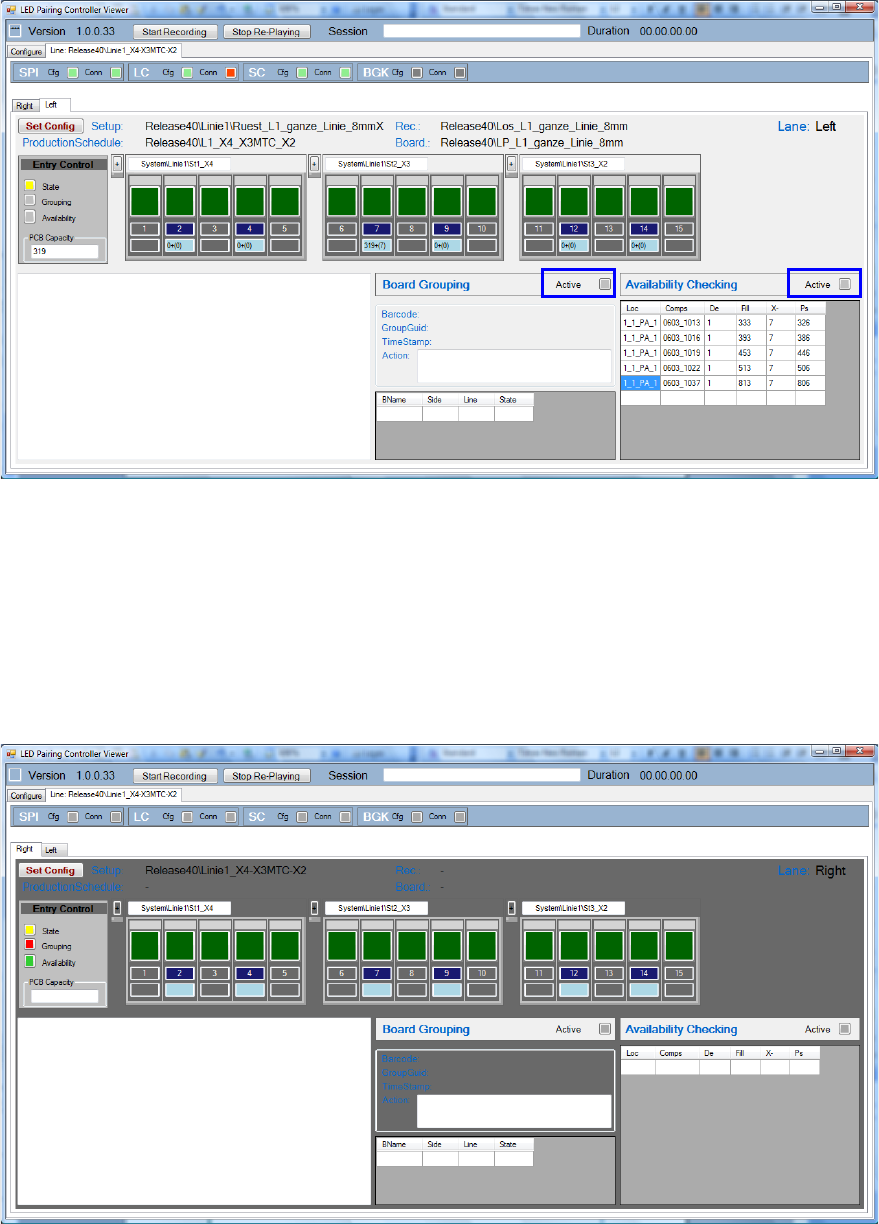
The recipe data of the line lanes will now be loaded to the SIPLACE LED Pairing Controller.
Figure 5-14: Recipe data for the left line lane
Board Grouping and Availability Checking are active for the left line lane.
If necessary, you can add additional sections to the line (conveyor belts, overlapping buffers etc.).
Sample
In the following sample, 3 sections shall be added between St1_X4 and St2_X3 on both line lanes.
Availability Checking is only active for the left line lane.
Figure 5-15: Adding sections
► Click the + sign between St1_X4 und St2_X3 and add 3 sections.
► Click on Set Config to save the configuration for the right lane.
► Repeat these steps for the left lane.