DeltaTherm_IR_REV_B-1.pdf - 第19页
Delt aTherm IR Cure Modul e Revision B / February 2020 Page 19 of 41 • When in Au to Cy cle , the DeltaTh e rm IR Cure Modu le operates the e xhaust fan and th e intake fa n. • The IR pan els wil l star t and i ncrease t…
DeltaTherm IR Cure Module
Revision B / February 2020
Page 18 of 41
Auto Cycle
Auto Cycle is the normal operating mode for the DeltaTherm IR Cure Module. In Auto Cycle,
the cure module can operate as part of a production line. All communication with adjacent
machines is done without operator input. In Auto Cycle, the machine uses the parameters in
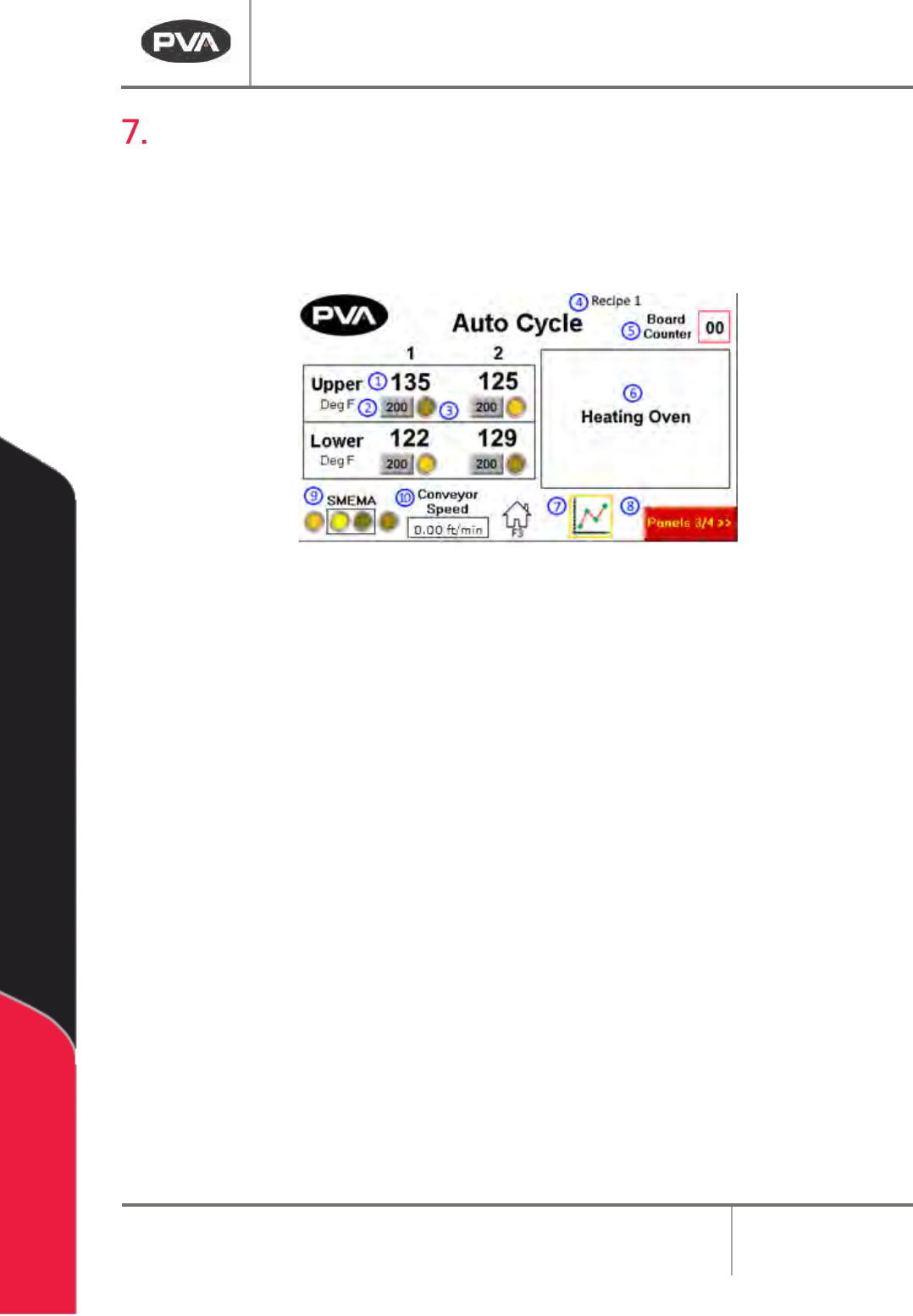
setup mode. The screen below shows Auto Cycle with four zones top and bottom.
Figure 11: Auto Cycle
1. The Panel Temperature shows the current temperature of the heater panel.
2. The Panel Temperature Setpoint shows the current recipe’s temperature setpoint
of the heater panel.
3. The At Temperature indicator will light up when the panel temperature is within
the allowable setpoint deviation value.
4. The Current Recipe Name will display at the top of the screen.
5. The Board Counter displays the number of boards in the oven. In the event of an
incorrect value (PIP flashing), press and hold for 5 seconds to reset this to zero
6. The Autocycle Messages section displays the current Auto Cycle state and status
messages.
7. Press to the Heater Panel Trend icon to view a graph of panel temperature values
over time.
8. To view the next set of panels and zones, press the Next Zone button.
9. The SMEMA Status shows the current status of SMEMA inputs and outputs.
10. The current Conveyor Speed will display at the bottom of the screen.
DeltaTherm IR Cure Module
Revision B / February 2020
Page 19 of 41
• When in Auto Cycle, the DeltaTherm IR Cure Module operates the exhaust fan
and the intake fan.
• The IR panels will start and increase to the set system parameters. It may take a
few minutes to increase to the set values.
• When the machine is in the range of the system parameters, auto cycle will start.
Differences in the parameters may occur to maintain optimum conditions.
Note: With two-sided IR ovens, the upper panels may indicate temperatures higher
than the setpoint due to absorption of energy from the lower panels. This is normal.
• If the DeltaTherm IR Cure Module is the last machine in a line, the alarm will
signal when a board exits. This only occurs if a downstream SMEMA signal is not
present.
• When the conveyors stop for a board to be removed, the cure module will
maintain the parameters. The module will not time-out if a board is not removed.
• In Auto Cycle, the PLC will send a signal through the RS485 cable to the next
machine every 5 seconds to tell the next machine the width of the conveyor.
• Push the Home Button on screen or F3 Key to leave Auto Cycle at any time.
Boards in the system are not removed when you exit.
Note: Make sure all boards have exited the system before you exit Auto Cycle.
DeltaTherm IR Cure Module
Revision B / February 2020
Page 20 of 41
Manual Mode
IR Panels
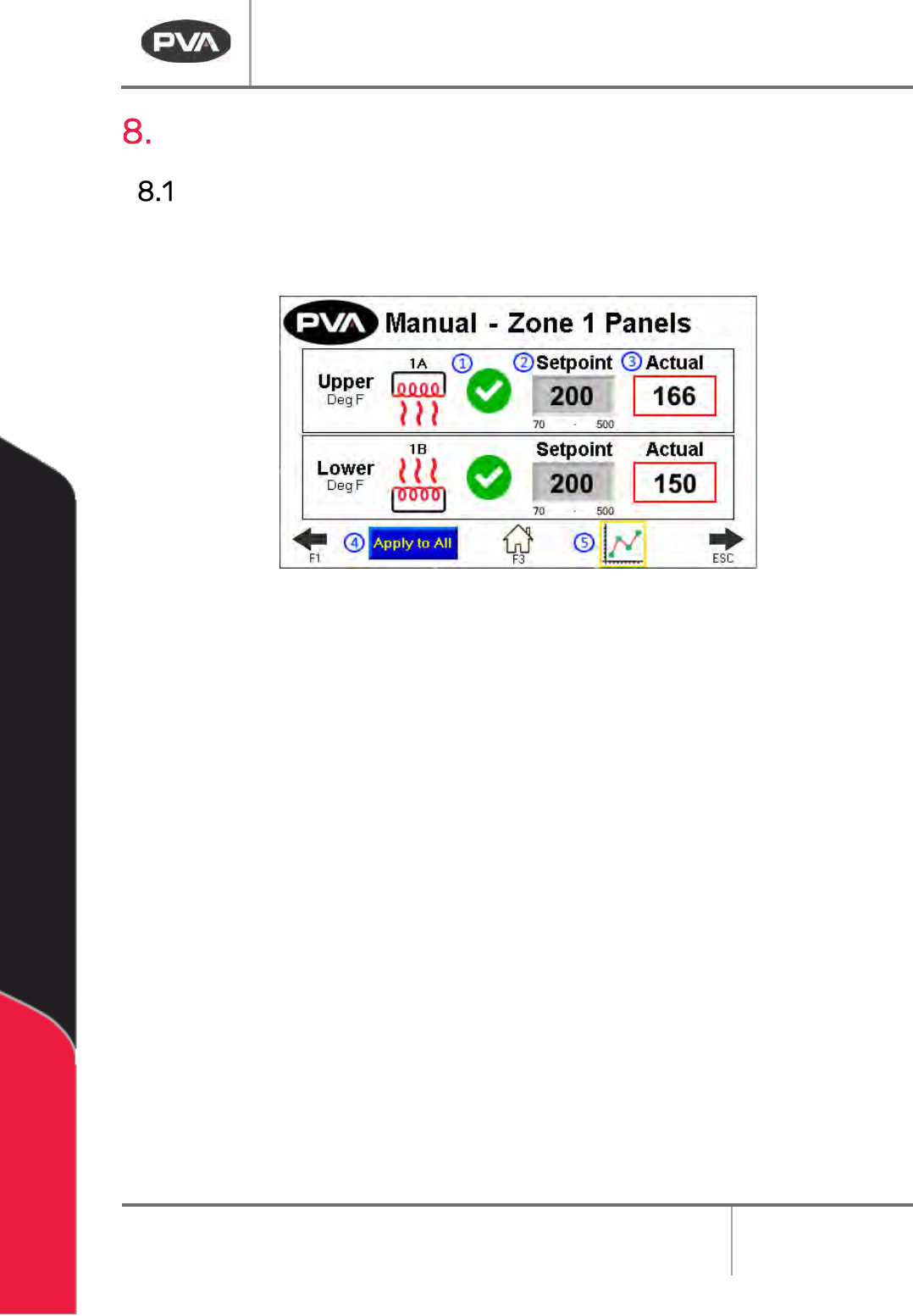
The panel temperature is shown for each zone. A zone is an area in the oven that is
controlled and monitored independent of other areas. Usually an oven has four zones.
Figure 12: Manual IR Panels
1. Select the Heater Panel switch to turn the desired panel on or off. The indicator to
the left of the switch will show the heat output. The heater panel will heat up to the
current setpoint.
2. The Setpoint boxes are the target set points for each zone and heater panel. To
change the target Setpoint, press the designated box. A new screen will be shown.
• The left side box in the Zone Control area is the target temperature (display
temperature is filtered) for each zone and the deviation point for that zone.
• Touch the screen and a keypad will be shown.
• Enter the necessary value.
• Push ENT, and the zone screen will be shown again.
3. The Actual boxes show the actual temperatures (display temperature is filtered) for
each zone.
4. Select Apply to All to copy the setpoints of the Zone 1 upper and lower heater panel
to every zone and panel.
5. Select the View Trend icon to view each panel’s temperature history on a graph.