KE2040 Instruction Manual_ver1.30.pdf - 第418页
5 − 76 5.2.6 Light To change t he light data, use the “ Light Control” dat a-editing screen shown in Section 5.2.5 “Ct rl”. - Split view settings on the “ Light Control” scr een: The available sett ing item s vary depend…
5 − 75
Optional 18.00-mm VCS
- Bottom (reflective) light
Dimensions of applicable components
Division mode Longer side Shorter side
Standard 15.50 – 3.00 mm 15.50 – 3.00 mm
1 × 2
31.00 – 15.51 mm 15.50 – 3.00 mm
1 × 3
46.50 – 31.51 mm 15.50 – 3.00 mm
2 × 2
31.00 – 15.51 mm 31.00 mm – 15.51 mm
- Back (penetrative) light
Dimensions of applicable components
Division mode Longer side Shorter side
Standard 15.50 – 9.00 mm 15.50 – 9.00 mm
5 − 76
5.2.6 Light
To change the light data, use the “Light Control” data-editing screen shown in Section
5.2.5 “Ctrl”.
- Split view settings on the “Light Control” screen: The available setting items vary
depending on the value set in the “Split Recognition” fields displayed on the
“Vision Control” screen.
- Light pattern on the “Light Control” screen: The available setting items vary
depending on selection of the “Light type” and Sub type on the “Vision Control”
screen.
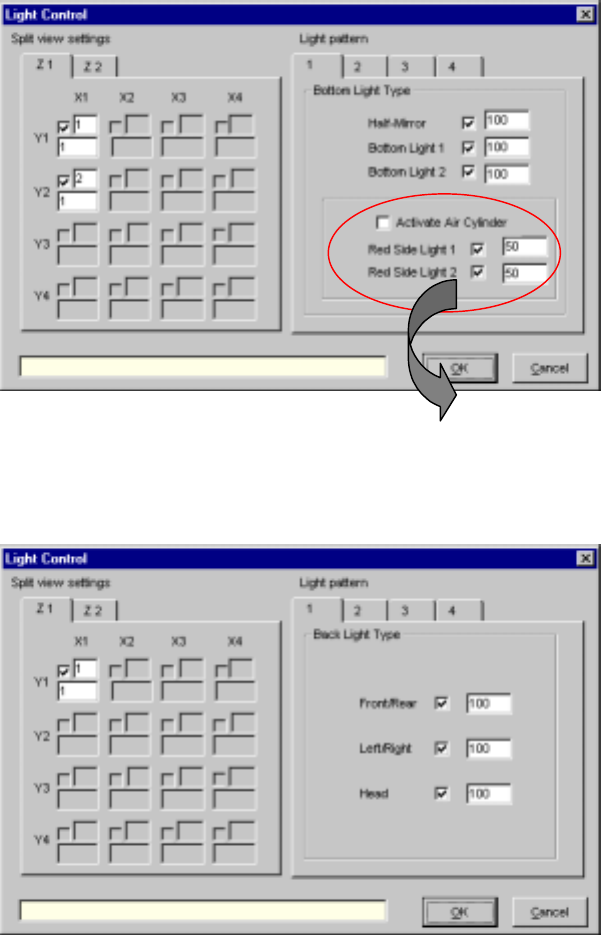
▼ When “Back Lights” is selected from the “Light Type” combo box and
“Standard” is selected as the sub type
▼ When “Bottom Lights” is selected from the “Light Type” combo box
* When “EBGA” or “LGA” is
selected as the sub type, the
“Red Side Light 1 and 2” check
boxes are not checked.
5 − 77
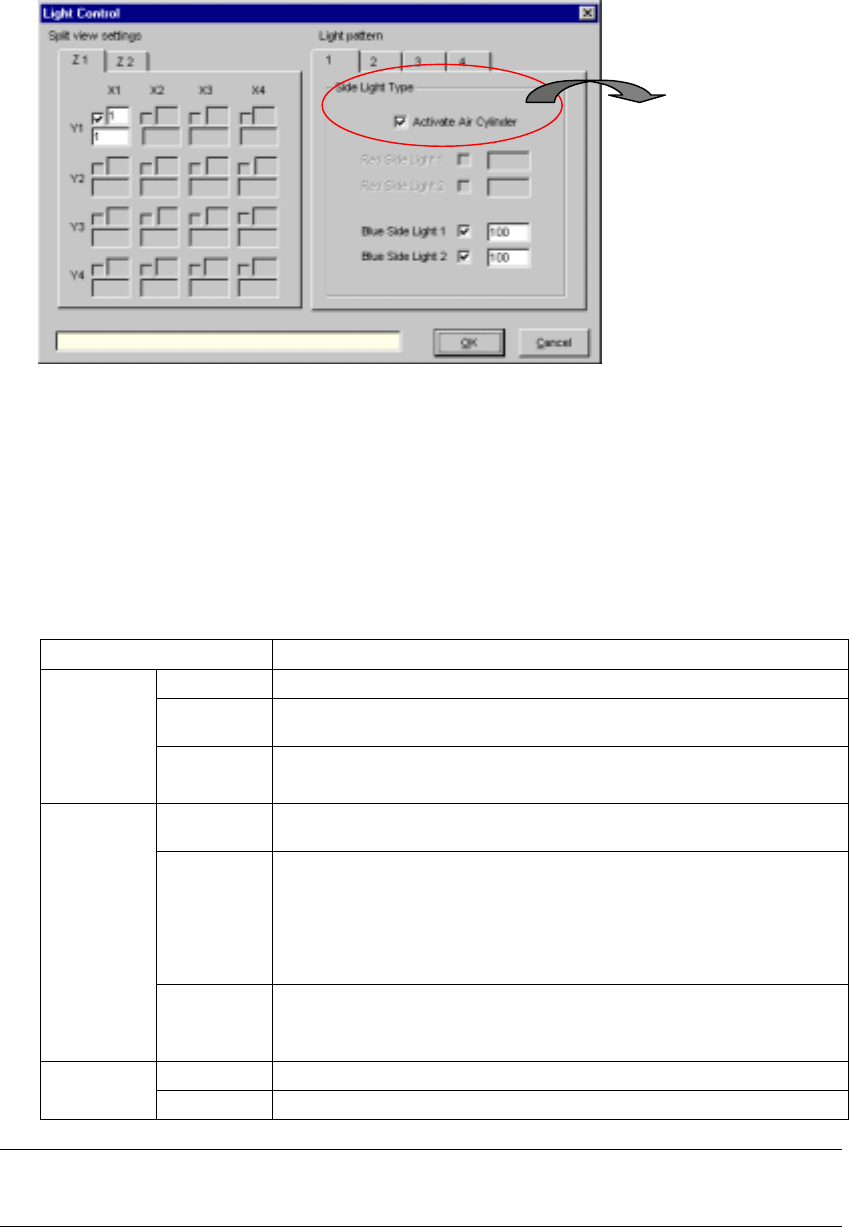
▼ When “Side Lights” is selected from the “Light Type” combo box, and “Blue
side light equipped with a pop-up light” is selected from the sub type combo
box
- When you select “Red side light” as the sub type on the “Vision Control”
screen, the setting items “Red Side Light 1 and 2” become available, and the
setting items “Blue Side Light 1 and 2” become unavailable.
♦ When you click the <OK> button, data is set. When you click the <Cancel>
button, data setting is canceled.
• Detailed description of each item
Item Description
Check box Check this check box to perform a specific division of image.
Pattern
name link
Enter the number of a light pattern to which a specific pattern is linked.
Split view
settings
Index Displays the order the specific division is illuminated with the light.
You cannot change this order.
Activate Air
Cylinder
Check this check box if you use a cylinder with turning it upward.
Light check
boxes
Check the light enabled by settings of the “Light Type” and sub type to use it.
Bottom Light Type: Half-Mirror (coaxial light), Bottom Light 1 and 2, Red
Side Light 1 and 2
Back Light Type: Front/Rear, Left/Right, Red Side Light 1 and 2
Side Light Type: Red Side Light 1 and 2, Blue Side Light 1 and 2
Light
pattern
Control
level
Enter the control level of the light enabled by settings of the “Light Type” and
sub type.
Input range: 10 % to 200 %
OK Sets the entered data.
Cancel Cancels the entered data.
Note:
When a lead or ball is not displayed clearly, change the default value of the light.
* When you do not select the light
equipped with a pop-up light as
the sub type on the “Vision
Control” screen, the “Activate Air
Cylinder” check box is not
checked.