YSI_Prog_E.pdf - 第106页
2-35 2 Creating inspection pr ograms n Deleting multiple views 1 Select the views to be deleted. Select multiple views to be deleted in the view radar . 2 Pr ess the [Delete Vie w] button. Press the [Y es] button at the …
2-34
2
Creating inspection programs
2.6.5 Multiple view operations
Multiple views selected on the view radar display can be copied, deleted, and rotated at the same time.
n
Selecting multiple views
1
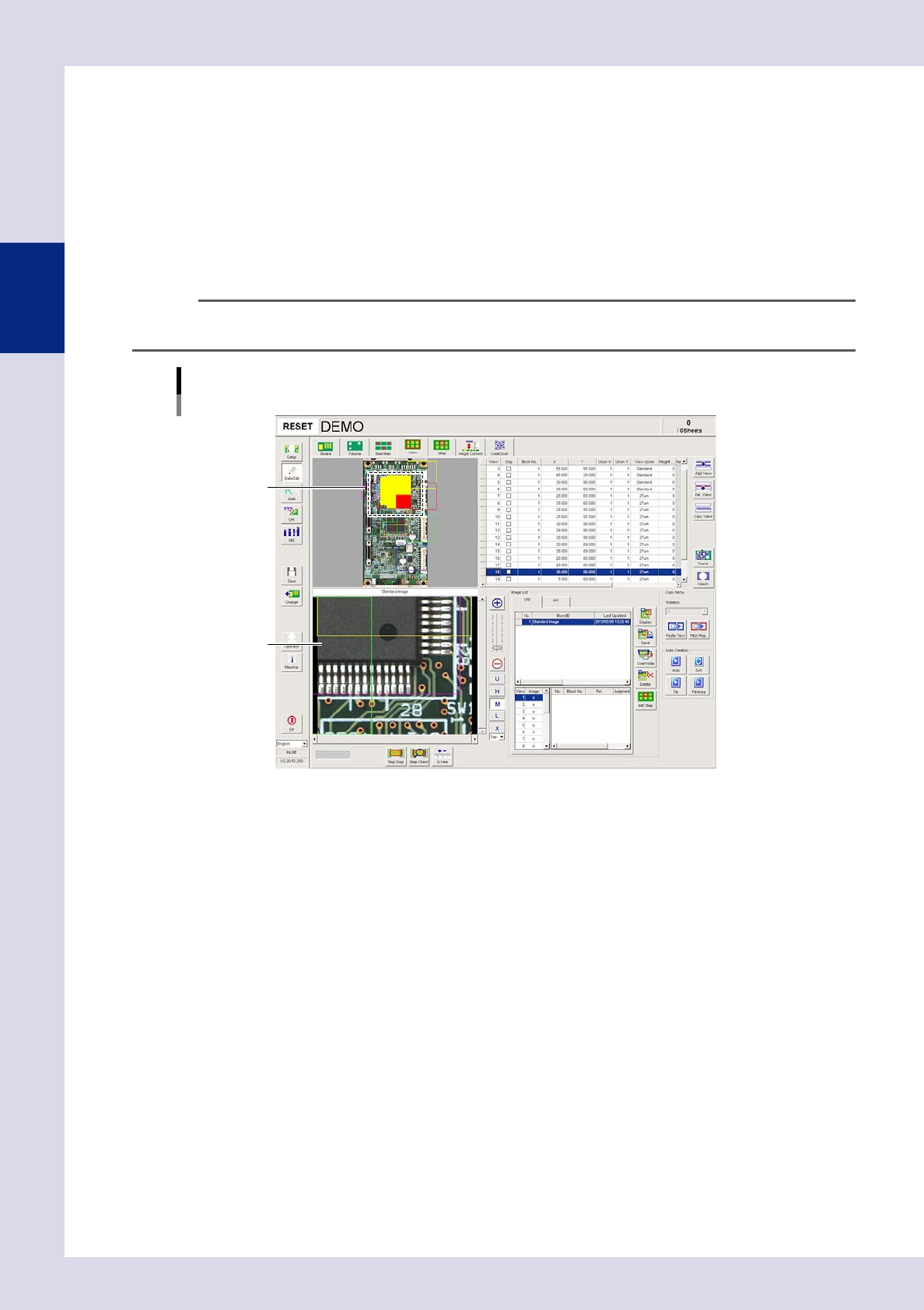
Press the [Data Edit] button and open the "View" tab.
2
Select multiple views.
Enclose the multiple views to be selected in the view radar by dragging the mouse. The selected views
are shaded red and yellow. This time, the red-colored view is displayed in the view screen.
n
NOTE
By clicking the target multiple views in the view radar while holding down the keyboard [Ctrl] button, views can be
selected or deleted. This time, the view selected first is displayed in the view screen.
View image
Selecting multiple views
Selected view
Red view image
24233-P6-00
2-35
2
Creating inspection programs
n
Deleting multiple views
1
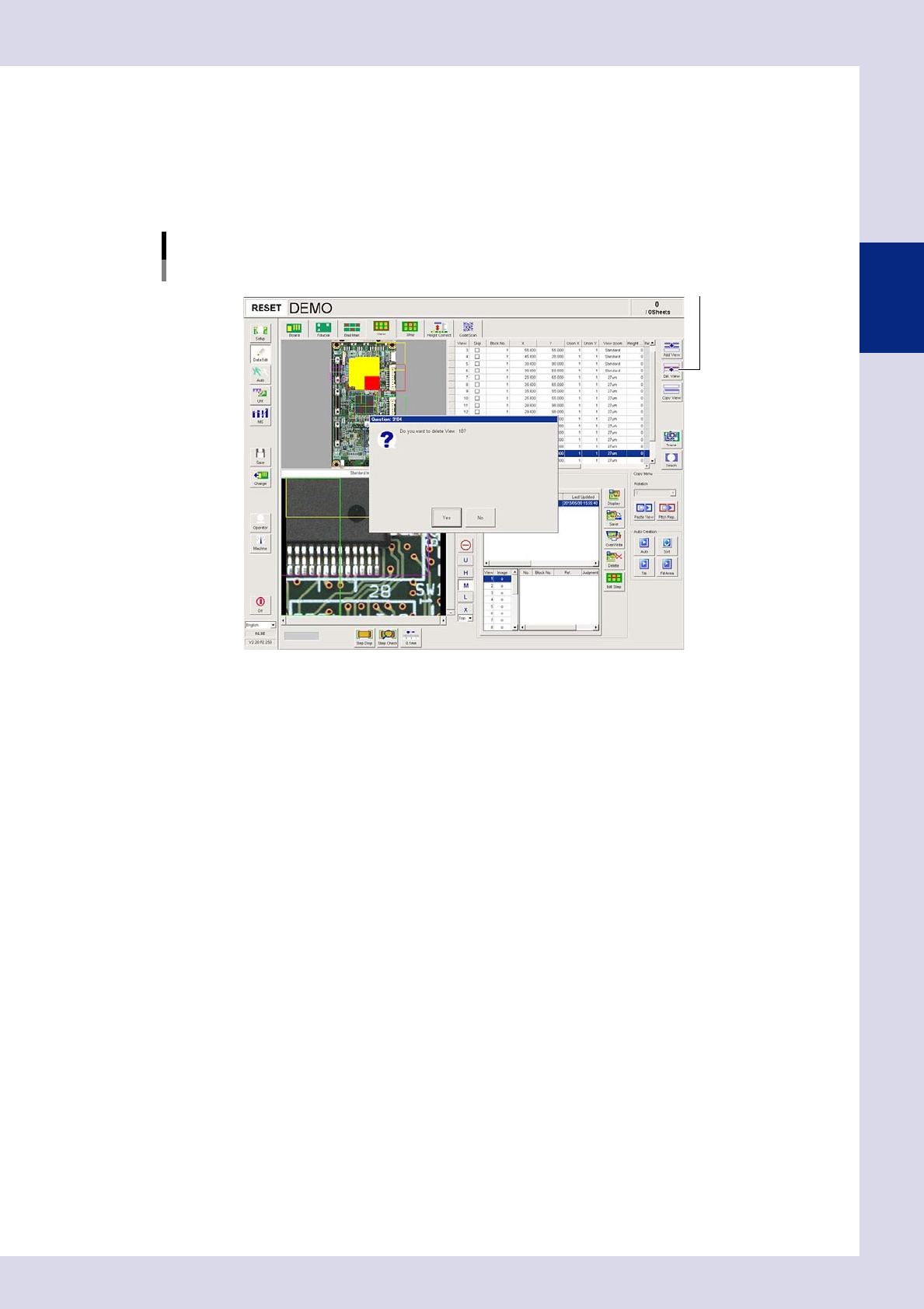
Select the views to be deleted.
Select multiple views to be deleted in the view radar.
2
Press the [Delete View] button.
Press the [Yes] button at the confirmation message that appears. To cancel, press the [No] button.
[Delete View] button
[Delete View] button
24234-P6-00
2-36
2
Creating inspection programs
n
Pitch input and copy of multiple views
Use the [Pitch Deploy] button to copy multiple views such as for creating views on a multi-board panel.
1
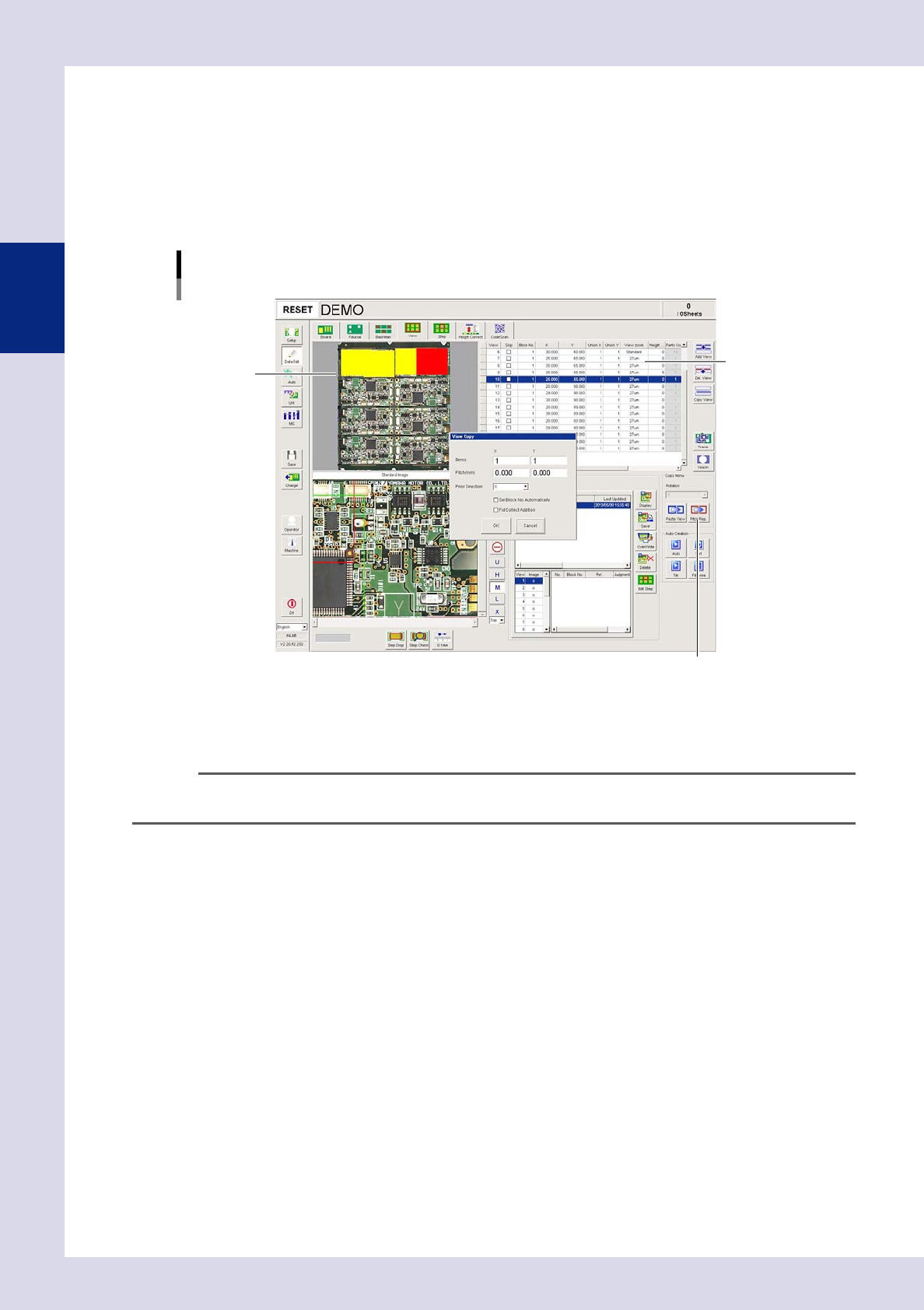
Select the views to be copied.
Select multiple views to be copied in the view radar.
2
Press the [Pitch Deploy] button.
The "View Copy" dialog box appears.
[Pitch Deploy] button
[Pitch Deploy] button
View list
View radar
24235-P6-00
3
Enter the number of copies and the pitch.
Enter the number of copies in the "Number XY" boxes, and enter the pitch in the "Pitch XY" boxes.
n
NOTE
When setting the pitch to create multiple views on a multi-board panel, enter the view pitch data by board design.
(Units: mm)