YSI_Prog_E.pdf - 第138页
3-15 3 Step screen 2.1.4 X-ray (YSi-X) T his is an X-ra y inspection setting parame ter used with the YSi-X. T his par ameter sets the capture direction used for X-ra y laminograph y image capture. 1 Select the direction…
3-14
3
Step screen
2.1.3 Shape
1
Selects the sampling light.
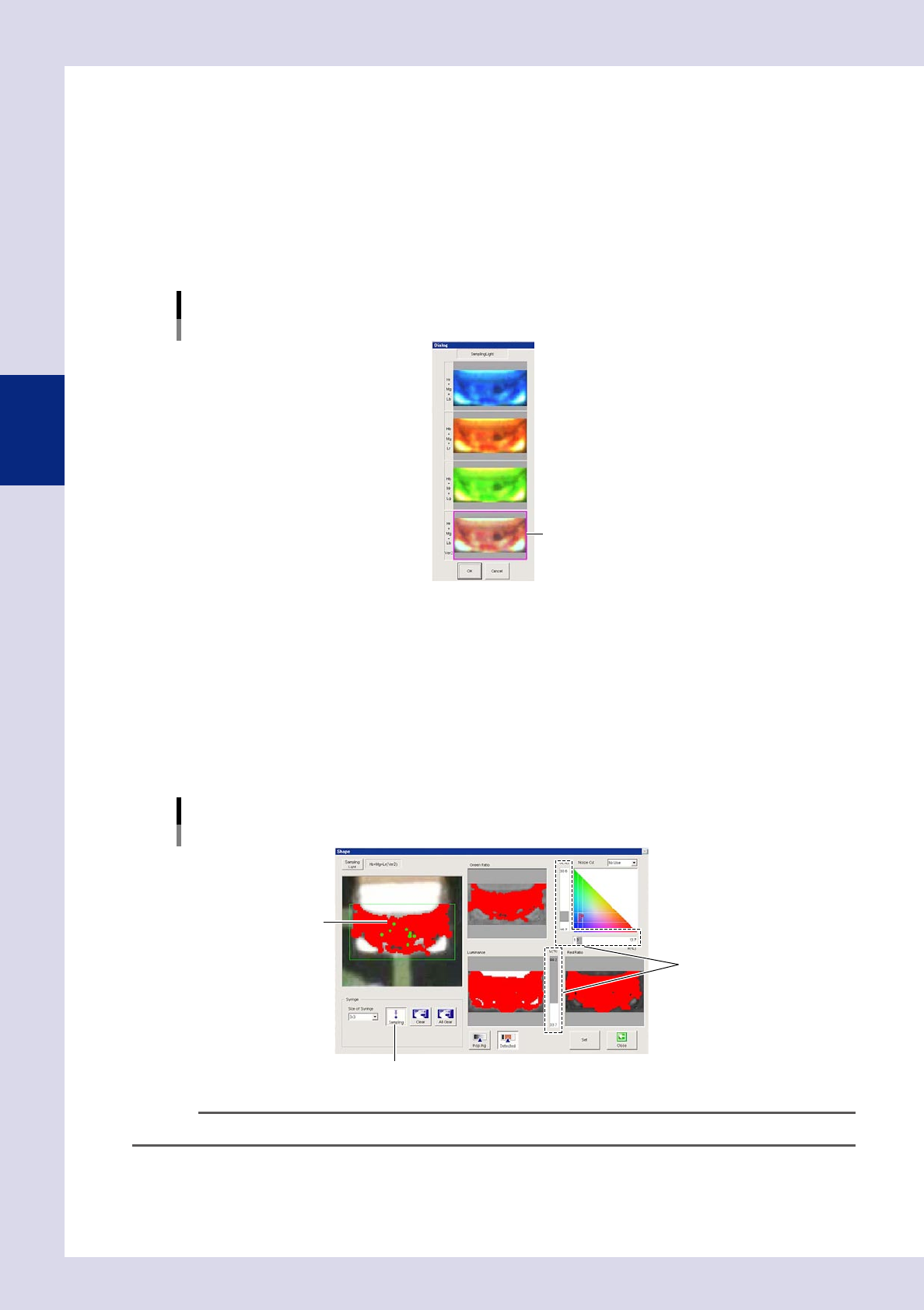
1. Select "Shape" for the sampling light type, and then press the [Light Detail] button.
2. To cancel the existing settings, press the [All Clear] button.
3. Press the [Sampling Light] button at the shape screen, and select one image from the sampling light
list that shows the inspection object with good contrast. (Hr+Mg+Lb Ver2 should normally be
selected.)
4. Press the [OK] button.
Light Sampling Type: Shape
Sampling light.
Select the image.
24312-P6-00
2
Set the threshold value.
1. Press the [Sampling] button.
2. Click the location to be detected in the upper left image. The location with same color as the
clicked location is shown in red.
3. When most of the part being sampled turns red, press the [Sampling] button again to end sampling.
4. Move the three threshold slide bars to adjust the threshold value until only the inspection object is
shown in red. The area shown in red with Green Ratio, Red Ratio, and Luminance images is shown in
red in the upper left of the image.
Light Sampling Type: Shape
Threshold value
[Sampling] button
Threshold slide bar
Click the detection location.
24313-P6-00
TIP
The threshold value and gray area angle can also be adjusted without performing sampling.
3
Press the [Set] button to save the settings.
3-15
3
Step screen
2.1.4 X-ray (YSi-X)
This is an X-ray inspection setting parameter used with the YSi-X. This parameter sets the capture direction used
for X-ray laminography image capture.
1
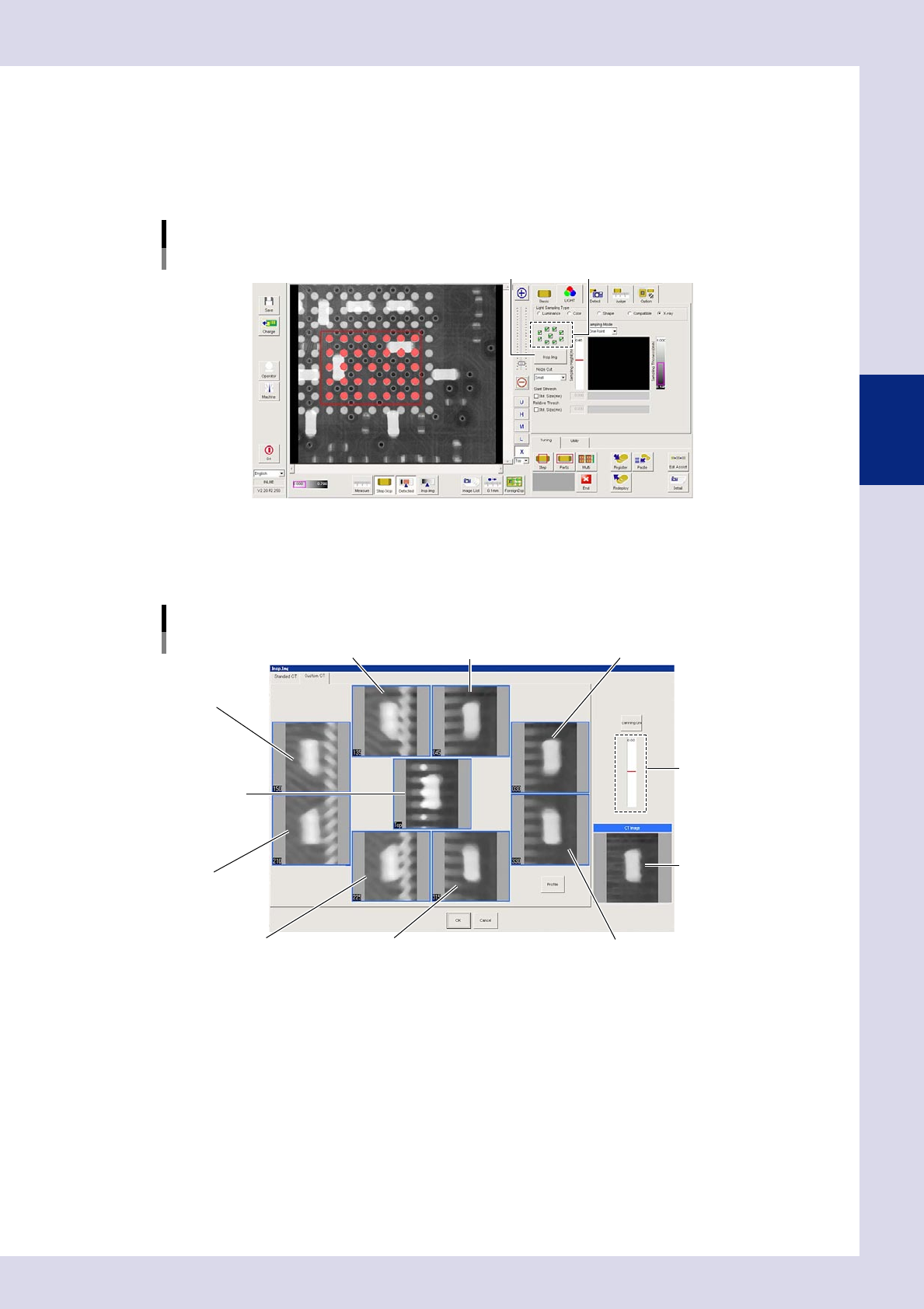
Select the direction to be used for inspection, and press the [Insp. Img] button.
An "Insp. Img" screen is displayed.
Light Sampling Type: X-ray screen
Select the direction used for inspection.[Insp. Img] button
24314-P6-00
2
Open the "Custom CT" tab.
A composite image is formed with the images captured from the direction selected at Step 1. This
image is displayed in the lower right, and is used for inspection.
Inspection image (Custom CT) tab
Image from 135° direction Image from 45° direction Image from 30° direction
Image from 225° direction
Image from 210°
direction
Image from 150°
direction
Image from 315° direction Image from 330° direction
Composite inspection
image
Image from directly
above
Fault plane height
setting bar
24315-P6-00
3
Set the inspection height.
1. Move the fault plane height setting bar up and down to change the inspection height.
2. Check the inspection object with the composite image.
4
Press the [OK] button to save the settings.
3-16
3
Step screen
2.1.5 Light detail settings
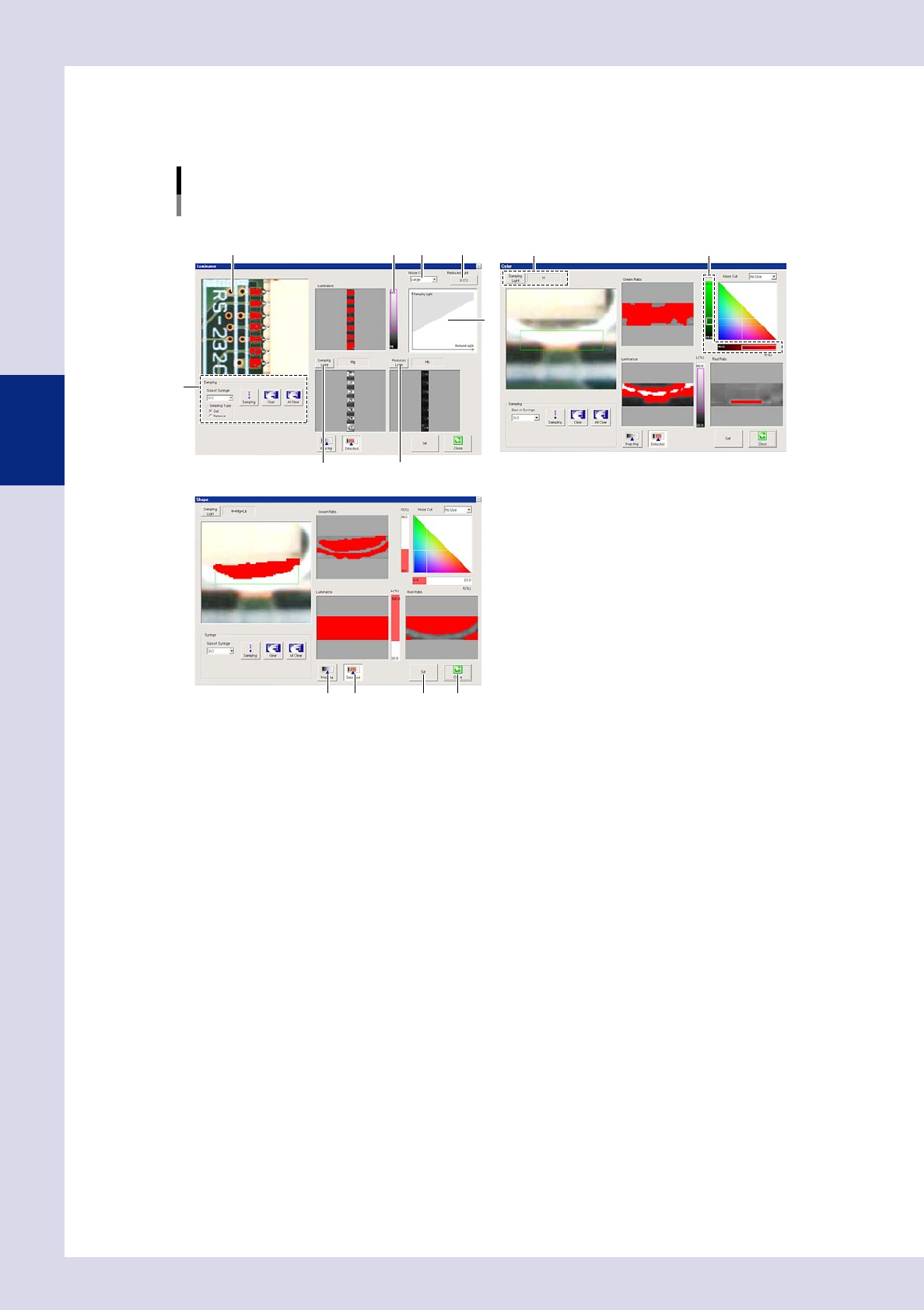
By pressing the [Light Detail] button on the luminance, color, and shape screens, the following light detail
settings screens are displayed. This section describes all items set at these screens.
Lighting parameters
[Light Detail] button - light detail settings screens
Light Sampling Type: Luminance Light Sampling Type: Color
View image
Light Sampling Type: Shape
25
76
3
1
4
8
9
10 11 12 13
24316-P6-00
1. Sampling
Size of Syringe
Select the size of the syringe used for sampling.
Sampling Type
Sets whether to sample a detected point, or excluded point.
[Sampling] button
Press this button and click the screen to display values (luminance, color, shape) for the clicked location in a graph.
[Clear] button
Clears the last sampled data.
[All Clear] button
Clears all sampled data.
2. Noise Cut
Selects the size for cutting the influence of noise.
3. Reduced Light
Sets the reduced light magnification selected when processing image calculations. By pressing this button, a dialog box
appears, allowing an arbitrary value to be entered for the reduced light magnification.
4. Threshold value range
The position for the luminance level displayed in gray is shown in red when the [Detected] button is pressed. If reduced
light is set, the reduced light magnification is adjusted by dragging the gray area.
5. Threshold slide bar
Adjust the threshold by dragging with the mouse.