YSI_Prog_E.pdf - 第199页
4-39 4 Inspection status 1.14 V oid check (YSi-X) T his inspection status is used to inspect solder voids. 1 Make a "step" setting. 1. Create a step frame. 2. Open the "Basic" tab, and set the "S…
4-38
4
Inspection status
4
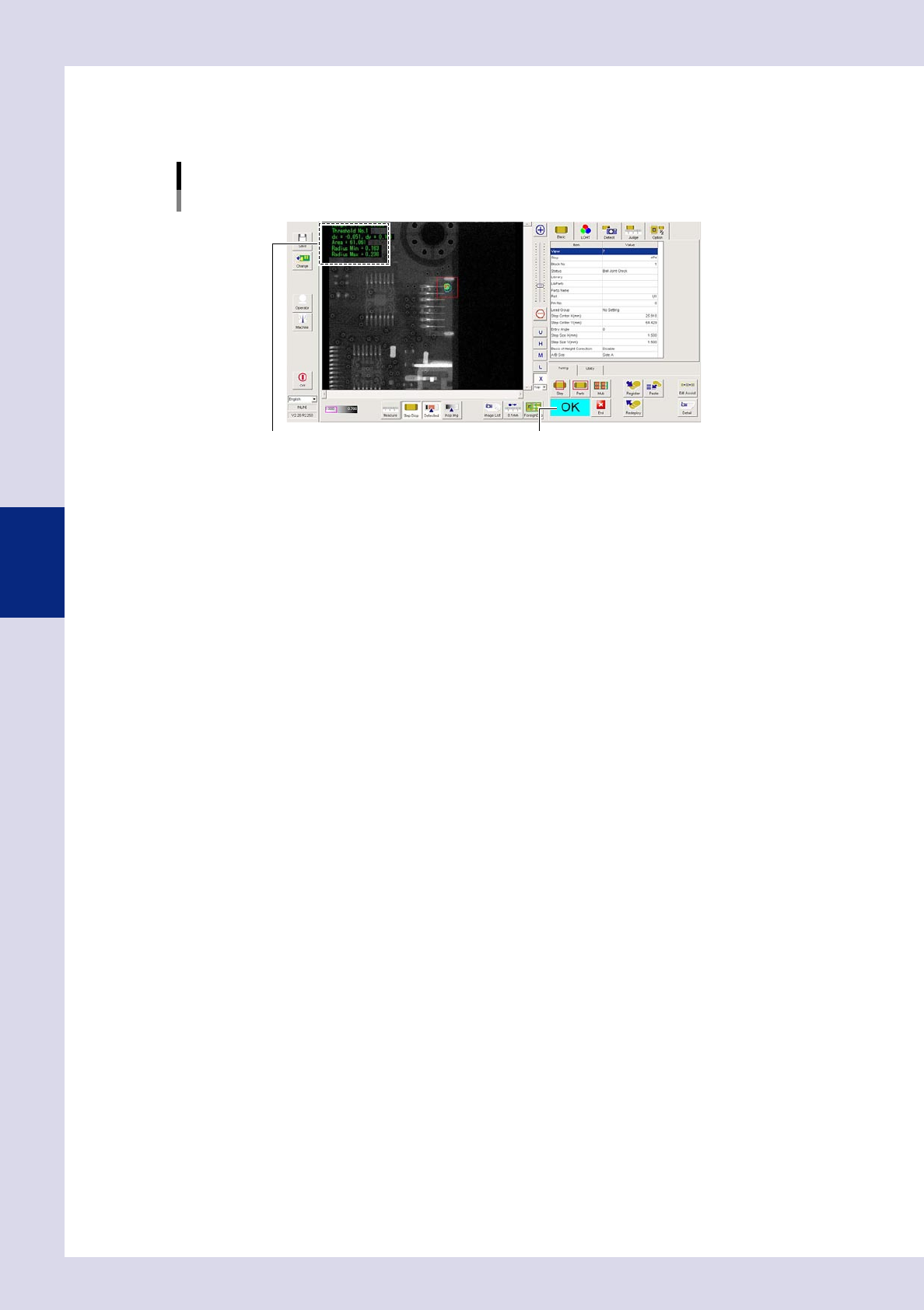
Perform a step test.
1. Press the [Step] button to perform a test for the created step. Test results and detection data are
displayed when testing is complete.
Screen after a step test is finished
Test resultDisplays detected data.
24457-P6-00
Detection data
Height Offset= : This is the height offset value used to correct board warp.
Threshold No. : This is the threshold No. applied to inspection.
Area= : This is the percentage (%) of the recognition area with respect to the standard area.
Radius Min= : This is the detection area minimum radius.
Radius Max= : This is the detection area maximum radius.
2. Take a note of and check the detection data, and then press the [End] button.
6
Review each parameter and perform a step test again.
If the test result is judged incorrectly, review all parameters.
4-39
4
Inspection status
1.14 Void check (YSi-X)
This inspection status is used to inspect solder voids.
1
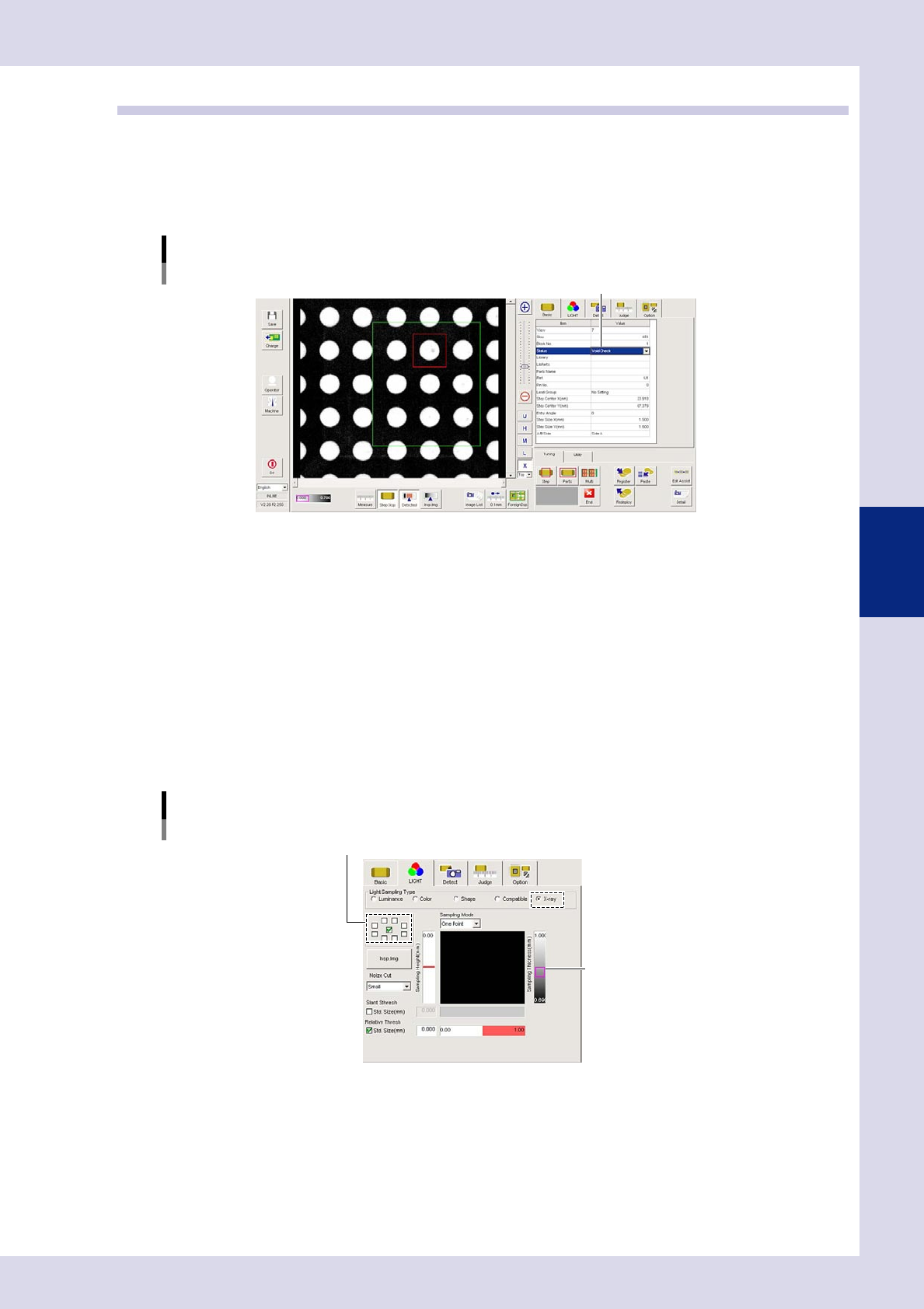
Make a "step" setting.
1. Create a step frame.
2. Open the "Basic" tab, and set the "Status" in the basic parameters to "Void check".
Status (Inspection mode)
Void Check
Set to "Void Check".
24458-P6-00
2
Set the "LIGHT" parameters.
Open the "LIGHT" tab and set the following items.
1. Select "X-ray" at "Light Sampling Type".
2. Select the angle to be used for inspection. Only vertical is used for the X-ray emission angle, and so
only the box indicating an image from directly above should be selected.
3. Press the [Detected] button. Adjust the sampling thickness slide bar to show only voids in red.
4. Set the area shown in red with difference in luminance level between neighboring dots in the "Slant
Thresh" - "Std. Size (mm)" setting. (Set an area which balances the luminance.)
5. Set the area shown in red with difference in luminance level between the source image and
balanced image in the "Relative Thresh" - "Std. Size (mm)" setting. (Set an area which balances the
luminance.)
Lighting parameter settings
Sampling thickness slide bar
Select only the box indicating an image from directly above.
24459-P6-00
4-40
4
Inspection status
3
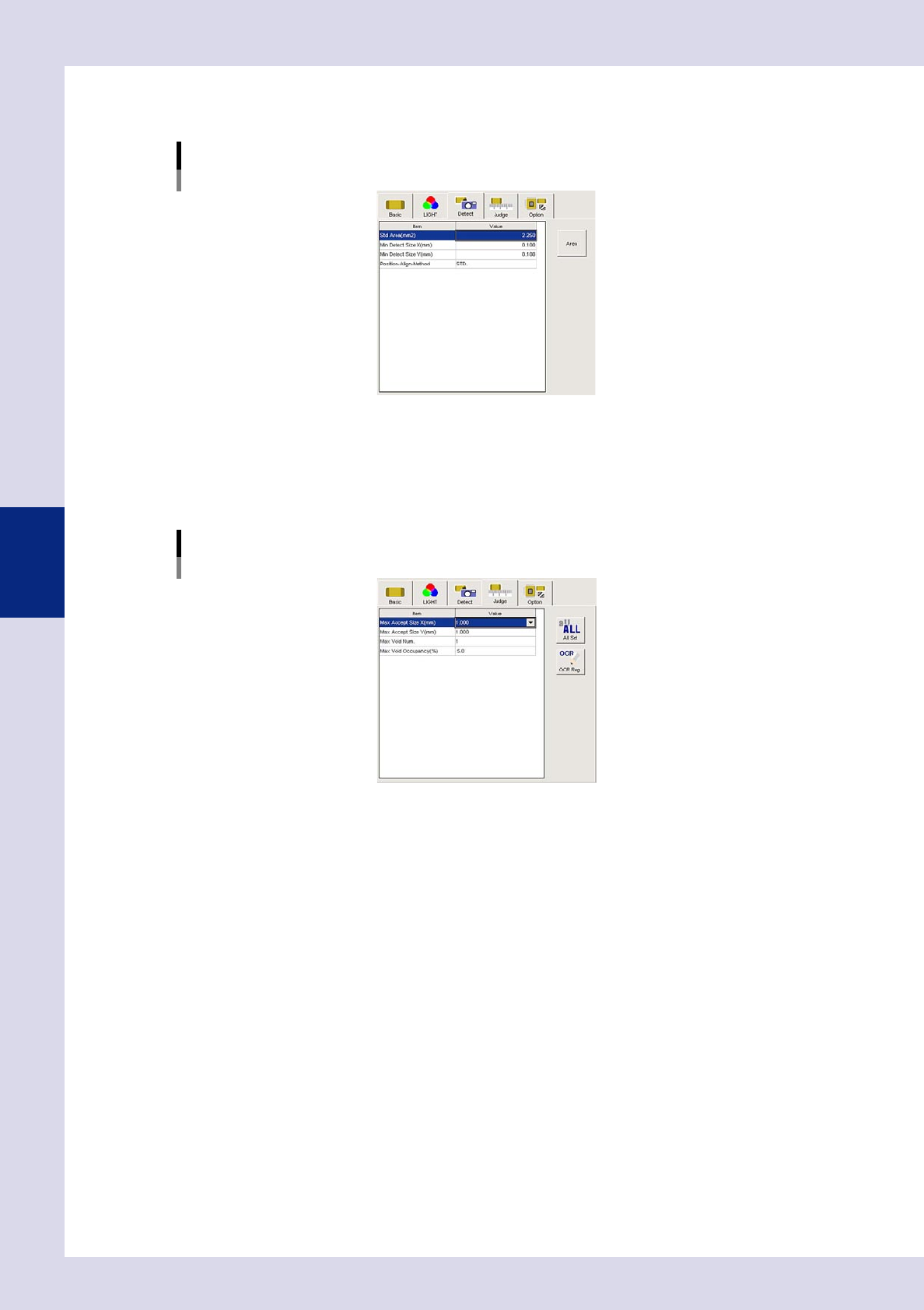
Set the "Detect" parameters.
Open the "Detect" tab and set the following parameters.
"Detect" parameters
Status: Void Check
24460-P6-00
Minimum Detectable Size X, Y (mm)
Set the minimum inspection object size.
4
Set the "Judge" parameters.
Open the "Judge" tab and set the following parameters.
"Judge" parameters
Status: Void Check
24461-P6-00
Max Accept Size X, Y (mm)
An NG result is judged if the detected area X and Y sizes exceed these values.
Max Void Num.
An NG result is judged if the detected number of voids exceeds this value.
Max Void Occupancy (%)
An NG result is judged if the percentage (%) relative to the step area in the detected void area exceeds
this value.