YSI_Prog_E.pdf - 第124页
3-1 3 Step screen 1. Parameters T his section describes all parameters set at the "Step" screen. T he parameters differ depending on the inspection status. F or details on parameter settings for each inspection…
Chapter 3 Step screen
Contents
1. Parameters 3-1
1
1.2 Lighting parameters 3-2
4
6
9
2. All functions 3-10
0
2.1.1 Luminance 3-10
2.1.2 Color 3-13
2.1.3 Shape 3-14
2.1.4 X-ray (YSi-X) 3-15
2.1.5 Light detail settings 3-16
2.2 Registering user characters 3-18
2.2.1 Registering new characters 3-18
2.2.2 Editing registered characters 3-21
3
2.4 Step test 3-24
2.4.1 Multi-test 3-24
2.4.2 Measurement results 3-27
3. Editing Assistance 3-28
8
3.2 Copying steps 3-29
3.3 Editing pin Nos. 3-30
3.3.1 Pin No. line editing 3-30
3.3.2 Batch pin No. reassignment 3-31
2
3.5 Pin position editing 3-33
4
4
4.2 Search 3-36
3-1
3
Step screen
1. Parameters
This section describes all parameters set at the "Step" screen. The parameters differ depending on the inspection
status. For details on parameter settings for each inspection status, see Chapter 4, "Inspection status", in this
manual.
1.1 Basic parameters
Sets and displays step basic information.
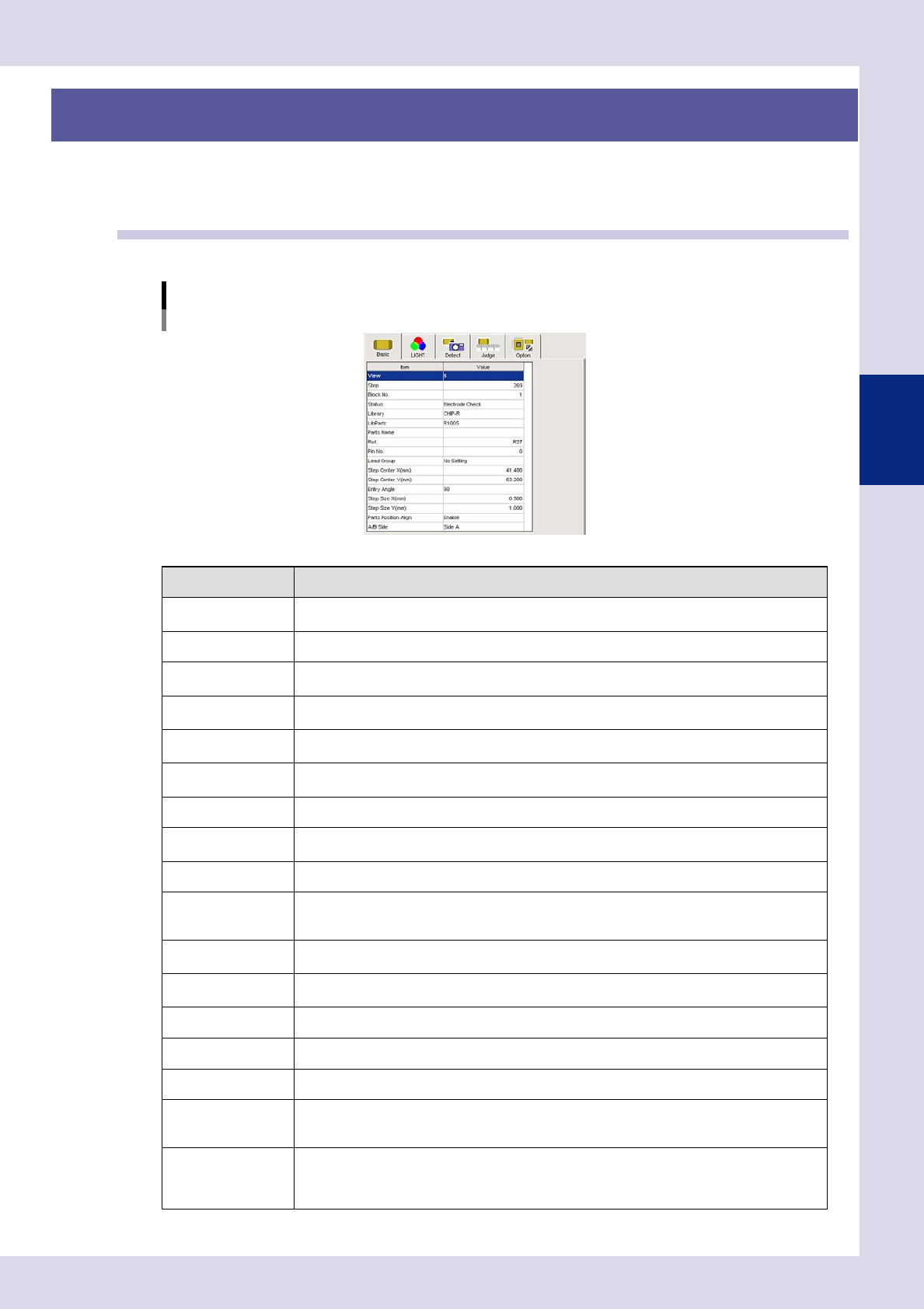
Basic parameters
Inspection status "Electrode Check" example
24301-P6-00
Item Description
View
Displays the view No. for the selected step. Jumps to the first step in the view No. selected in the
drop-down list.
Step Displays the selected step No. Enter the jump destination step No. to jump to the step for that No.
block No.
Displays the block No. (multi-board panel block No.) If changing the block No., enter an arbitrary
number.
Status
Displays the inspection status for the selected step. If changing the inspection status, select from
the drop-down list.
Library
If saved to a library, the registered library name is displayed. If changing the library name, enter
an arbitrary library name.
Lib Parts
If saved to a library, the registered library parts name is displayed. If changing the library parts
name, enter an arbitrary library parts name.
Parts Name Displays the name of the selected parts. If changing, enter a parts name.
Ref.
Displayed the reference No. The reference No. can also be entered.
The reference No. is judged as a part for which a single identical step exists.
Pin No. Displays the lead pin No. The pin No. can also be entered.
Lead Group
Displays which direction of the part the leads are on. The lead direction can also be entered.
If "Change-step-size" is selected for the "Position-Align-Method" in the detection conditions, the
lead direction position is not corrected.
Step Center X (mm)
Displays the center X coordinate for the selected step. The step center X coordinate can also be
entered.
Step Center Y (mm)
Displays the center Y coordinate for the selected step. The step center Y coordinate can also be
entered.
Entry Angle Displays the step entry angle. To change, select from the drop-down list.
Step Size X (mm) Displays the X width for the selected step. The X width can also be entered.
Step Size Y (mm) Displays the Y width for the selected step. The Y width can also be entered.
Parts Position Align
This appears when the inspection status is "Parts Check" or "Electrode Check". If "Enable" is
selected, the position of all steps with the same Ref. No. after the relevant step is corrected based
on the recognized displacement.
A/B Side
Entering the "Board Size Height (mm)" in the board parameters and specifying the board surface
sets the height at which X-ray inspection is performed.
Side A: Performs inspection at the board upper surface height.
Side B: Performs inspection at the board lower surface height.
3-2
3
Step screen
1.2 Lighting parameters
Set the lighting used to perform inspection and threshold value required to show the object being inspected in
red. In order to recognize the object being inspected, select a lighting that offers good contrast between the
object being inspected and the surrounding area.
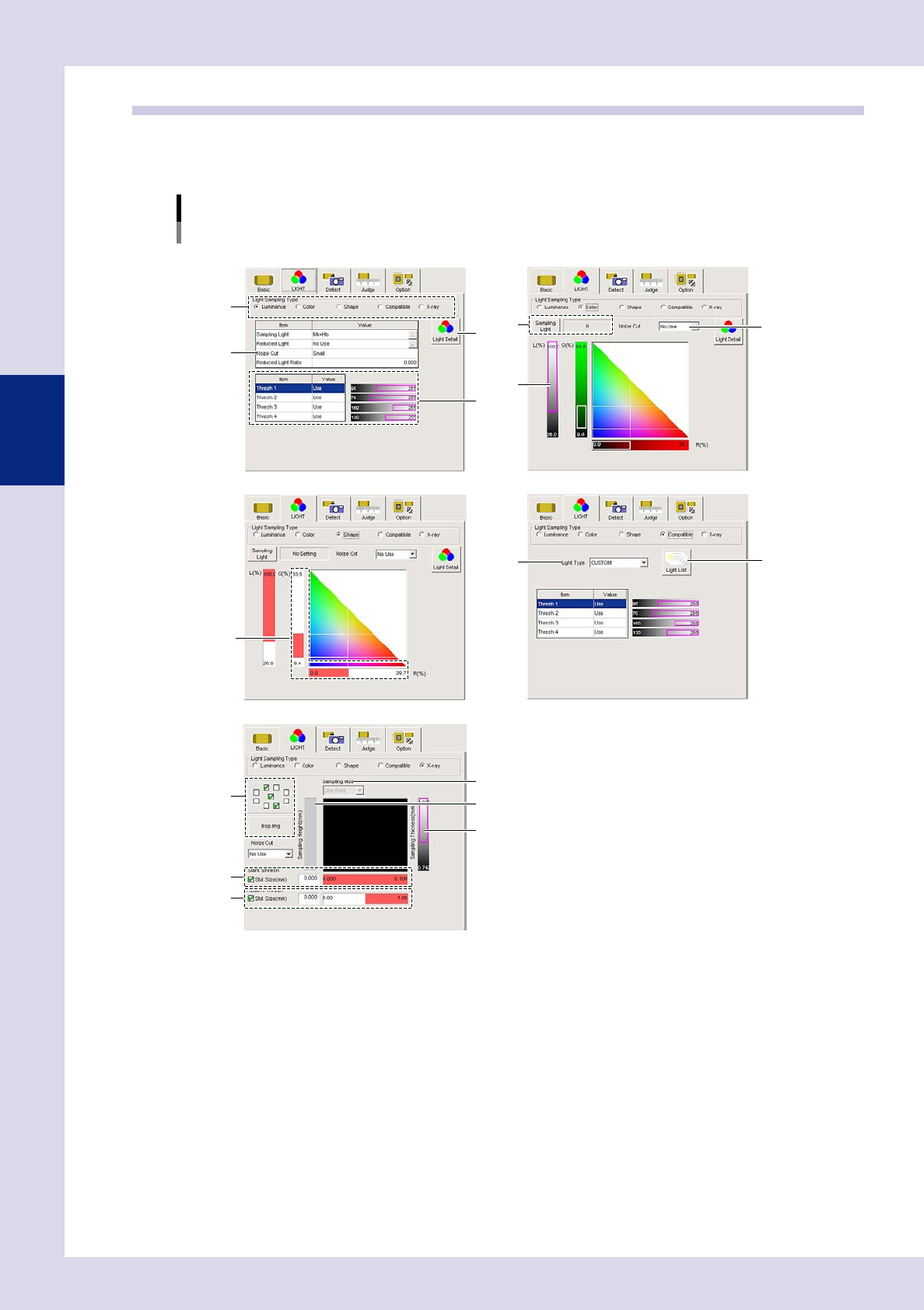
Lighting parameters
Light Sampling Type: Luminance Light Sampling Type: Color
Light Sampling Type: Shape
Light Sampling Type: X-ray
Light Sampling Type: Compatible
1
2
4
5
7
8
6
3
11
14
15
16
12
13
10
9
24302-P6-00
1. Light Sampling Type
Selects the sampling type used when performing inspection.
Luminance: Samples detection objects in the region of specified luminance, and uses them as the object of inspection.
Color: Samples detection objects in the region of specified color, and uses them as the object of inspection.
Example: Parts check of connectors, etc. of different color
Shape: Samples detection objects in the region of specified tilt angle, and uses them as the object of inspection.
Example: Fillet solder quantity inspection
Compatible: Used for tuning of inspection programs created with version V2.1.
X-ray: This is an X-ray inspection setting parameter. Displays and sets the capture direction used for X-ray
laminography image capture.
This also sets the height of the horizontal image being inspected, and uses it as the object of inspection.
2. [Light Detail] button (luminance, color, shape)
This is used when setting the sampling light and reduced light. Press this button to open settings screens and specify all
required settings. For details on these setting screens, see section 2.1.5, "Light detail settings", in this chapter.