YSI_Prog_E.pdf - 第208页
5-3 5 Inspection machine settings 4 Pr ess the [INS] button to register an operator . The "EDIT OPERA TOR" sc reen appears. Set each item as explained below. "EDIT OPERA T OR" screen 1 4 3 5 6 2 24503…
5-2
5
Inspection machine settings
3
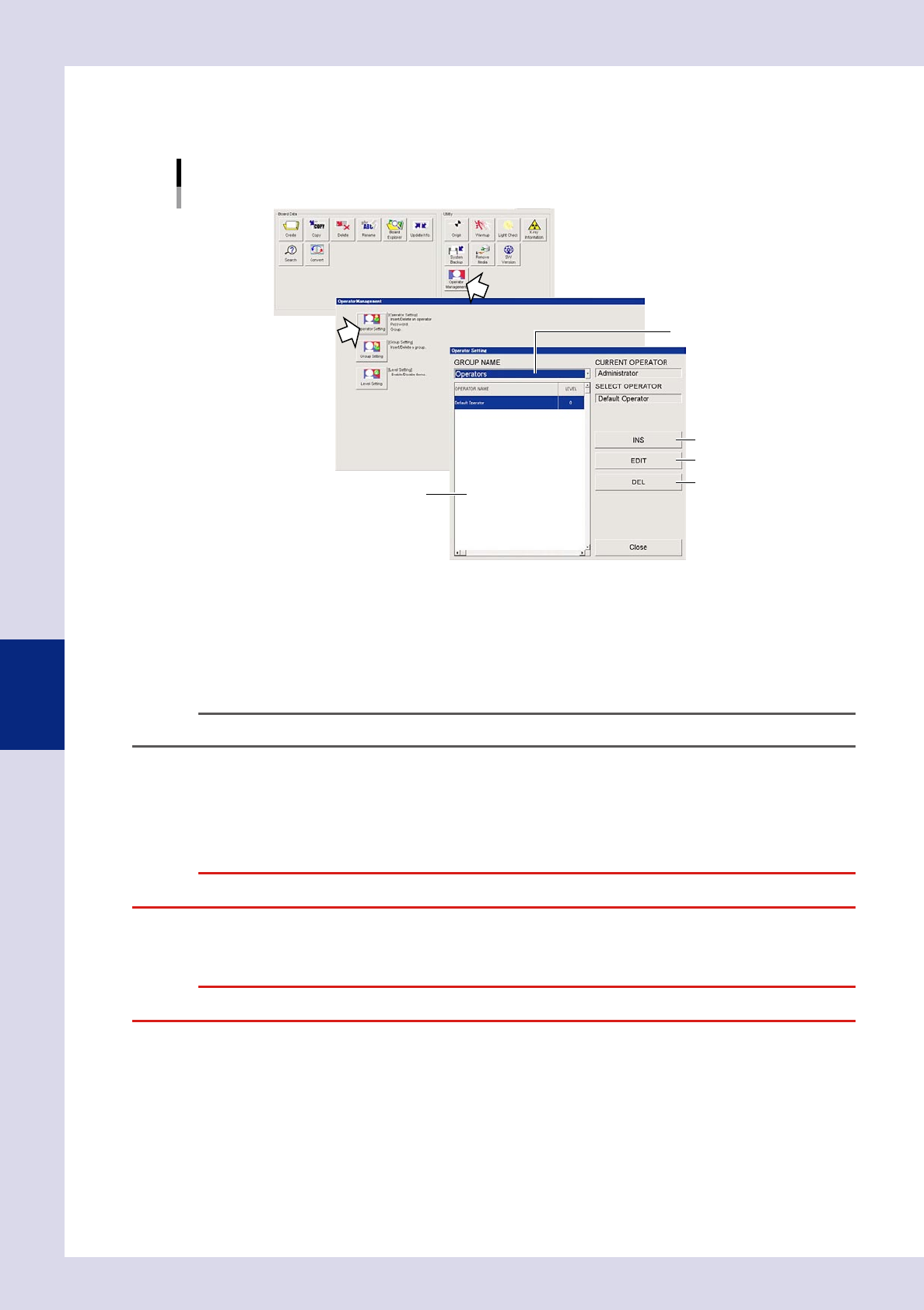
Press the [Operator Management] button on the Setup screen.
When the "Operator Management" screen appears, press the [Operator Setting] button.
The "Operator Setting" screen appears.
Operator setting
1
3
2
4
5
24502-P6-00
1. GROUP NAME
Two group names "Administrators" and "Operators" are registered by default. New groups can be registered as needed by
the administrator or the registered groups can be deleted. Refer to "B.2.2 Editing groups" explained later on.
2. Operator list
This list shows the operator names and their access levels registered in each group.
TIP
In each group, an operator is registered by default, such as "Administrator" or "Default Operator".
3. [INS] button
Pressing this button opens the "EDIT OPERATOR" screen. Register a new operator and set the password and access level.
4. [EDIT] button
Press this button when you want to change a registered operator name, access level, and/or password.
c
5. [DEL] button
Use this button to delete a registered operator. Select the operator you want to delete and then press this button.
c
5-3
5
Inspection machine settings
4
Press the [INS] button to register an operator.
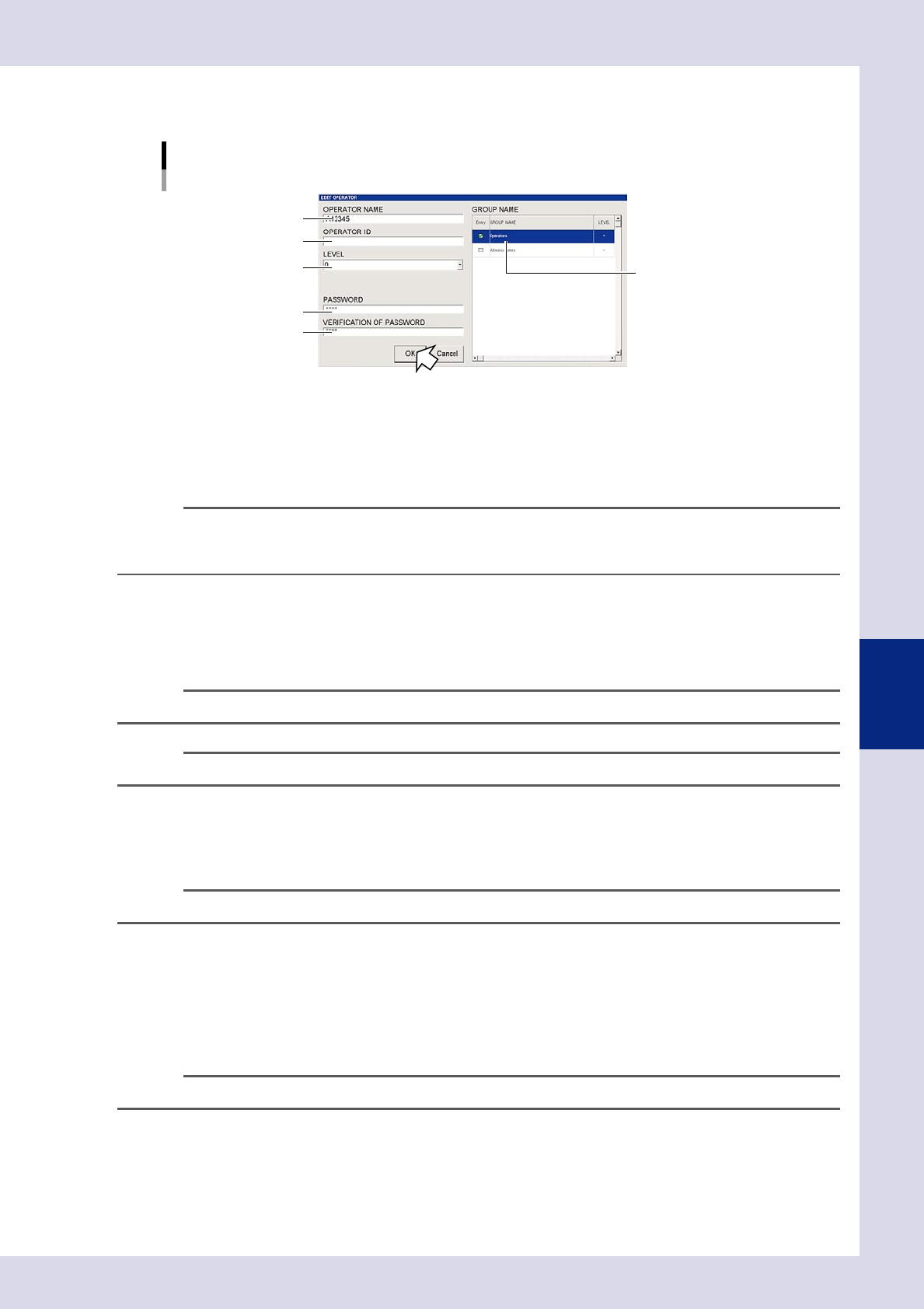
The "EDIT OPERATOR" screen appears. Set each item as explained below.
"EDIT OPERATOR" screen
1
4
3
5
6
2
24503-P6-00
1. OPERATOR NAME
Register the name of an operator who will use this machine. Enter the operator name using alphanumeric characters. The
number of input characters is not limited, but about only 35 characters will appear in the "OPERATOR NAME" box of the
"EDIT OPERATOR" screen.
n
NOTE
The following characters can be used in operator names.
abcdefghijklmnopqrstuvwxyzABCDEFGHIJKLMNOPQRSTUVWXYZ0123456789_
Double quotation marks ( " ) and commas ( , ) cannot be used.
2. OPERATOR ID
Not Use
3. LEVEL (access level)
Machine operating restrictions are classified by level. Select the applicable level from the drop-down list.
TIP
If changing the previously set work level, see section, "1.4 Editing the level", described later.
n
NOTE
The Level 0 operation range is the most restrictive, while the Level 10 operation range allows full access.
4. PASSWORD
Set the password required by the operator being registered to log in to the machine.
Enter a password of up to 31 alphanumeric characters. Only 31 characters will be set even if you enter more than 31
characters.
TIP
No password can be set for pre-registered "Default Operator".
5. VERIFICATION OF PASSWORD
To prevent typing mistakes, again enter the password you have just entered in the "PASSWORD" box.
6. GROUP
Set the operator name in a group.
Select the group where the operator name should be registered. You can select "Administrators" or "Operators" or any
group you have registered, by checking the corresponding check box.
TIP
For details on group registration, see section, "1.3 Editing groups", described later.
5
Press the [OK] button to save the settings.
The display then returns to the "EDIT OPERATOR" screen. Check that the added operator name now
appears in the "OPERATOR NAME" list and then press the [Close] button to finish the operator editing.

5-4
5
Inspection machine settings
1.2 Changing registered operator details
The access level and password of a registered operator can be changed. Also refer to the previous section "1.1
Registering a new operator" for on-screen operation.
1
Press the [Operator Management] button on the Setup screen.
The "Operator Management" screen appears.
2
Press the [Operator Setting] button.
The "Operator Setting" screen appears.
3
Select the group name and then the operator.
After selecting the group, select the operator whose contents you want to change from the "OPERATOR
NAME" list.
4
Press the [EDIT] button.
The "EDIT OPERATOR" screen changes to allow editing the setting. Change the setting of each item.
TIP
The "Administrator" is allowed to change all operators' passwords.