YSI_Prog_E.pdf - 第206页
5-1 5 Inspection machine settings 1. Operator access control All machine operations are restricted by password. This section describes operator registration and editing, password setting, and level setting and editing. n…

Chapter 5 Inspection machine settings
Contents
1
1.1 Registering a new operator 5-1
1.2 Changing registered operator details 5-4
1.3 Editing groups 5-5
1.4 Editing access levels 5-7
8
2.1 Installation settings 5-9
2.2 Conveyor transfer settings 5-11
2
2.4 Server settings 5-13
2.5 Library settings 5-14
2.6 Editing signal tower settings 5-15
6
5-1
5
Inspection machine settings
1. Operator access control
All machine operations are restricted by password. This section describes operator registration and editing,
password setting, and level setting and editing.
n
NOTE
The settings described here can also be specified or edited by administrators with level 10 authority.
It is recommended that operator registration and work level editing be carried out before using the machine.
1.1 Registering a new operator
This section describes how to register a new operator, make group settings, and set an access level and
password.
1
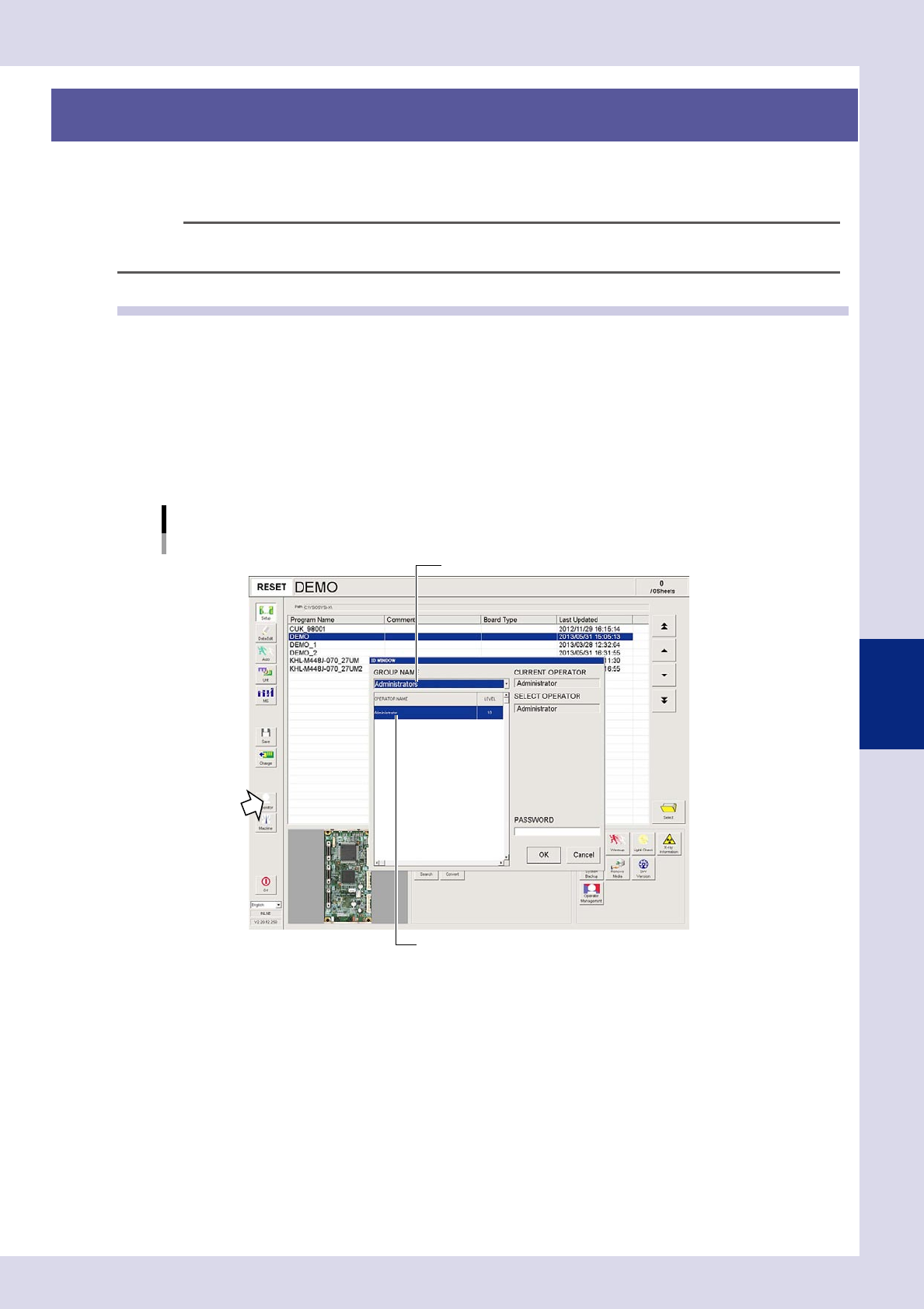
Press the [Operator] button to open the "ID WINDOW" screen.
2
Specify the group name and operator name, and then enter a password.
1. Select "ADMINISTRATORS" from the "GROUP NAME" drop-down list, and select "Administrator" (level
10) from the "OPERATOR NAME" list.
2. Enter a password and press the [OK] button. (If no password is set, press the [OK] button.)
Select "Administrator".
Select "Administrators".
"ID WINDOW" screen
24501-P6-00
5-2
5
Inspection machine settings
3
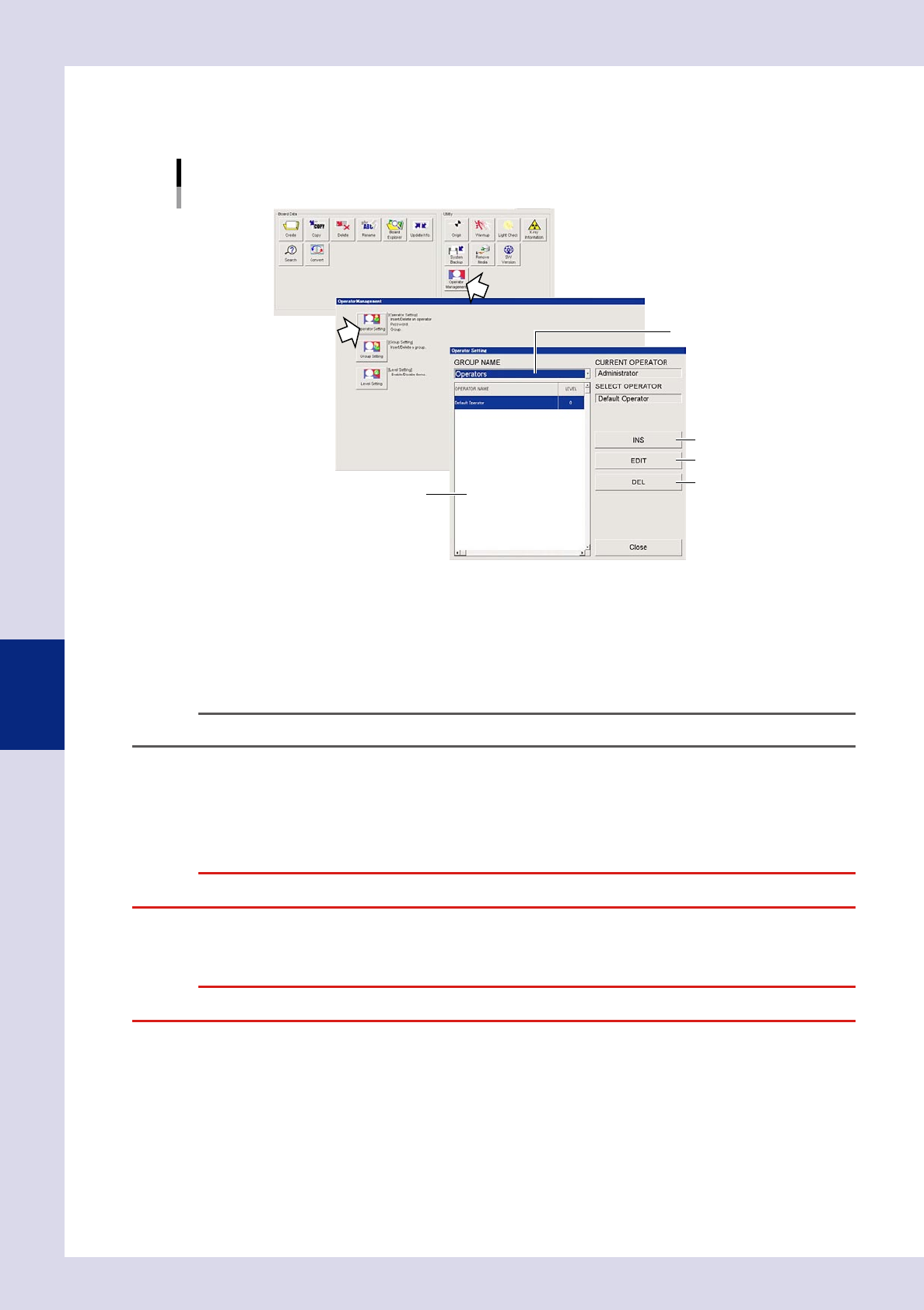
Press the [Operator Management] button on the Setup screen.
When the "Operator Management" screen appears, press the [Operator Setting] button.
The "Operator Setting" screen appears.
Operator setting
1
3
2
4
5
24502-P6-00
1. GROUP NAME
Two group names "Administrators" and "Operators" are registered by default. New groups can be registered as needed by
the administrator or the registered groups can be deleted. Refer to "B.2.2 Editing groups" explained later on.
2. Operator list
This list shows the operator names and their access levels registered in each group.
TIP
In each group, an operator is registered by default, such as "Administrator" or "Default Operator".
3. [INS] button
Pressing this button opens the "EDIT OPERATOR" screen. Register a new operator and set the password and access level.
4. [EDIT] button
Press this button when you want to change a registered operator name, access level, and/or password.
c
5. [DEL] button
Use this button to delete a registered operator. Select the operator you want to delete and then press this button.
c