YSI_Prog_E.pdf - 第115页
2-44 2 Creating inspection pr ograms 2.7.3 Registering libraries T his section describes how to register the created steps in a library . 1 Pr ess the [Data Edit] button and open the "Step" tab. 2 Select all st…

2-43
2
Creating inspection programs
8
Set the detection conditions.
The setting items will differ for each inspection status.
Refer to Chapter 4, "Inspection status", and set the detection conditions.
9
Set the judgment conditions.
The setting items will differ for each inspection status.
Refer to Chapter 4, "Inspection status", and set the judgment conditions.
0
Perform a step test.
Press the [Step] button at the "Tuning" tab, and perform a step test.
If the test result is not judged to be correct, review all parameters.
q
Repeat the above procedure to create steps.
Repeat the procedure described in Step 2 to Step 11 and create steps for all parts to be inspected.
w
Register the created steps in a library and then deploy.
When the creation of all steps for the inspection of a single part is complete, register them as a library,
and then deploy to to the same parts on the board. For details on this procedure, see section 2.7.3,
"Registering libraries", and 2.7.4, "Deploying libraries", described later.
2-44
2
Creating inspection programs
2.7.3 Registering libraries
This section describes how to register the created steps in a library.
1
Press the [Data Edit] button and open the "Step" tab.
2
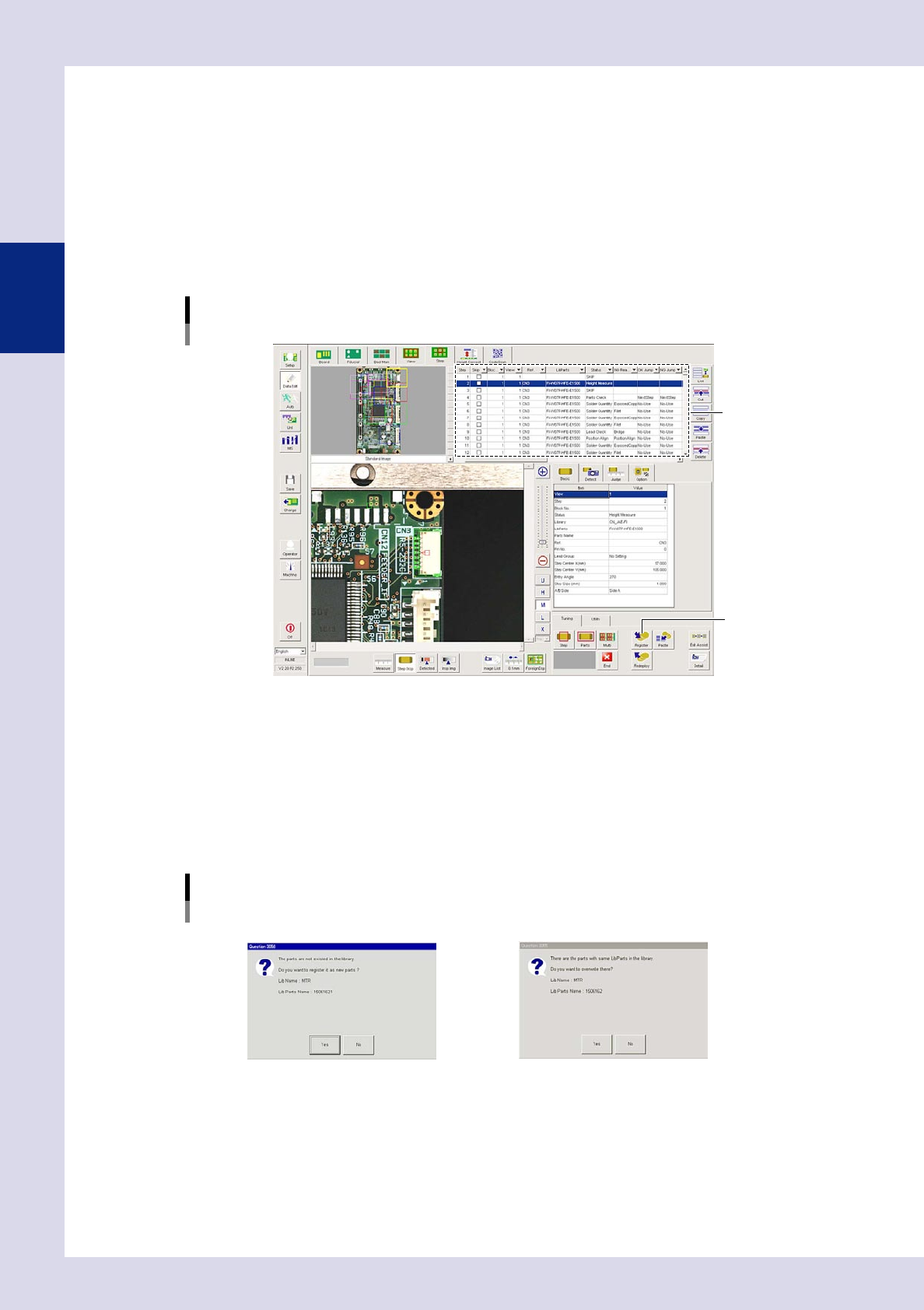
Select all steps to be registered in a library.
Ensure that all steps to be registered have the same "Library", "LibParts", "Ref.", and "Parts Name" in the
step data list. If different, enter the correct information for these items, and then press the [Enter] key on
the keyboard.
Libraries can be registered without entering the parts name.
[Data Edit] - [Step] screen
[Register] button
Step data list
24251-P6-00
3
Click the view image.
Only the first step of the selected steps is selected.
4
Press the [Register] button at the "Tuning" tab.
Register the "LibParts" library in the step "Library", and then register in the library table.
1. By pressing the [Register] button, a registration dialog box appears. Press the [Yes] button. If the
applicable library name does not exist, create a new library name.
"LibParts" registration
If the same "LibParts" has been registered
If the same "LibParts" has not been registered
24252-P6-00
2-45
2
Creating inspection programs
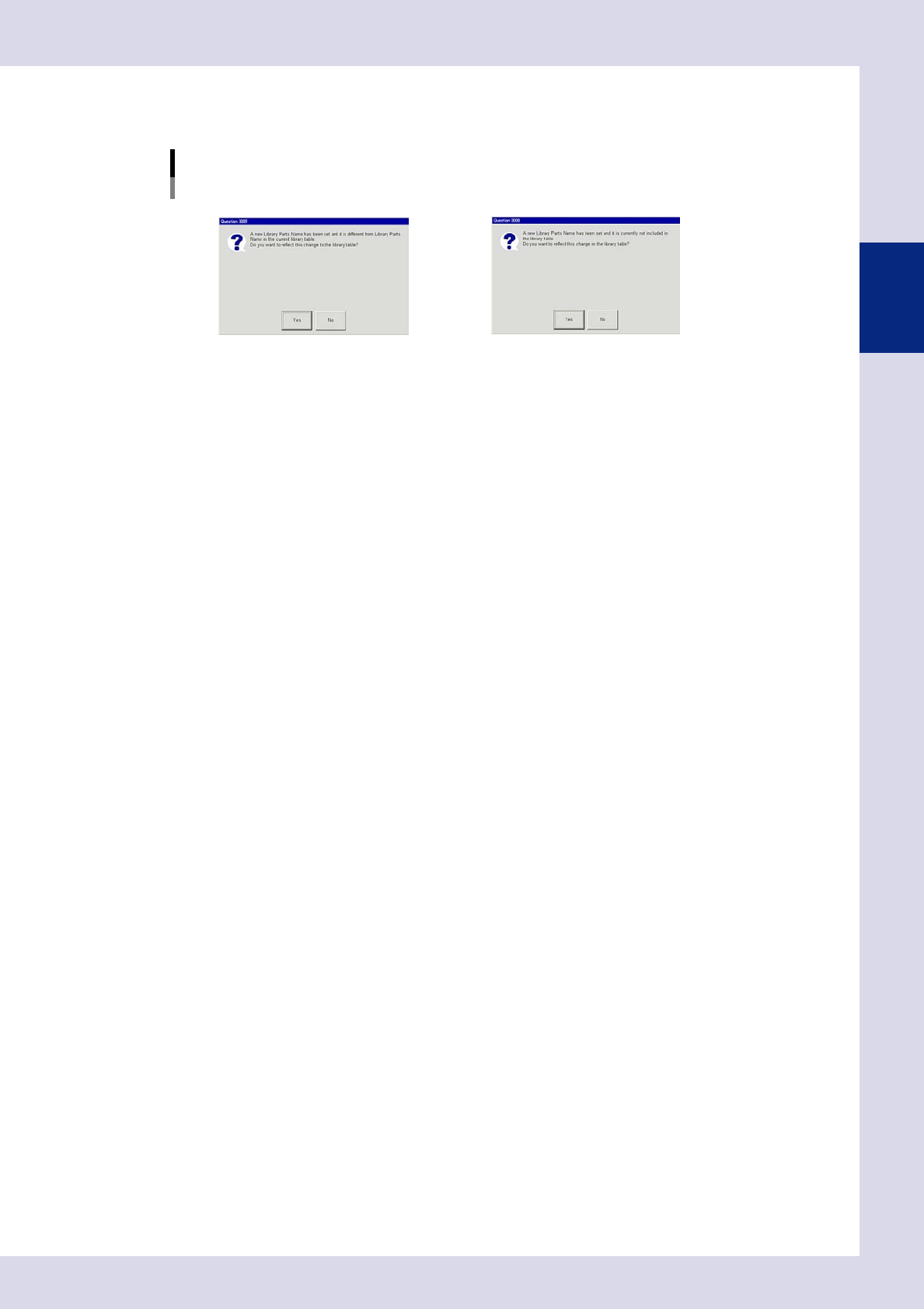
2. 1. By pressing the [Yes] button, the following dialog box appears. Press the [Yes] button. Add the
entered "Parts Name" and "LibParts" set to the library table.
Library table registration
If registered in the library table If not registered in the library table
24253-P6-00