00197714-01_IM_REQUIRED_STEPS_BEFORE_USING_SUPPORT_MEDIA_2.0_EN.pdf - 第11页
Required Steps be fore using Suppor t Media 2.0 12/2014 Edition 11 The follow ing window appears. Figure 3-4 : Com puter Nam e/Doma in Changes windo w ► First, veri fy/change the Compute r name . ► Second, ensure the Wor…
Required Steps before using Support Media 2.0 12/2014 Edition
10
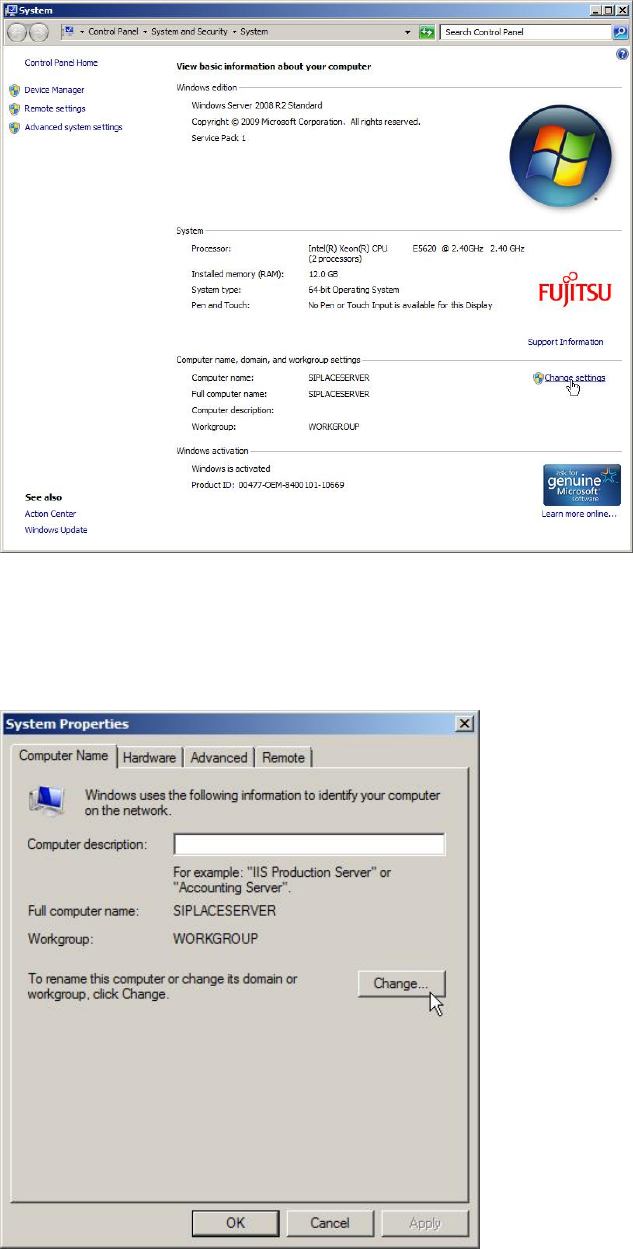
The following window appears.
Figure 3-2: System Settings Window
► Click the Change settings link besides the Computer name.
The following window appears.
Figure 3-3: System Properties – Computer Name
► Ensure the Computer Name tab is selected.
► Click on Change….
Required Steps before using Support Media 2.0 12/2014 Edition
11
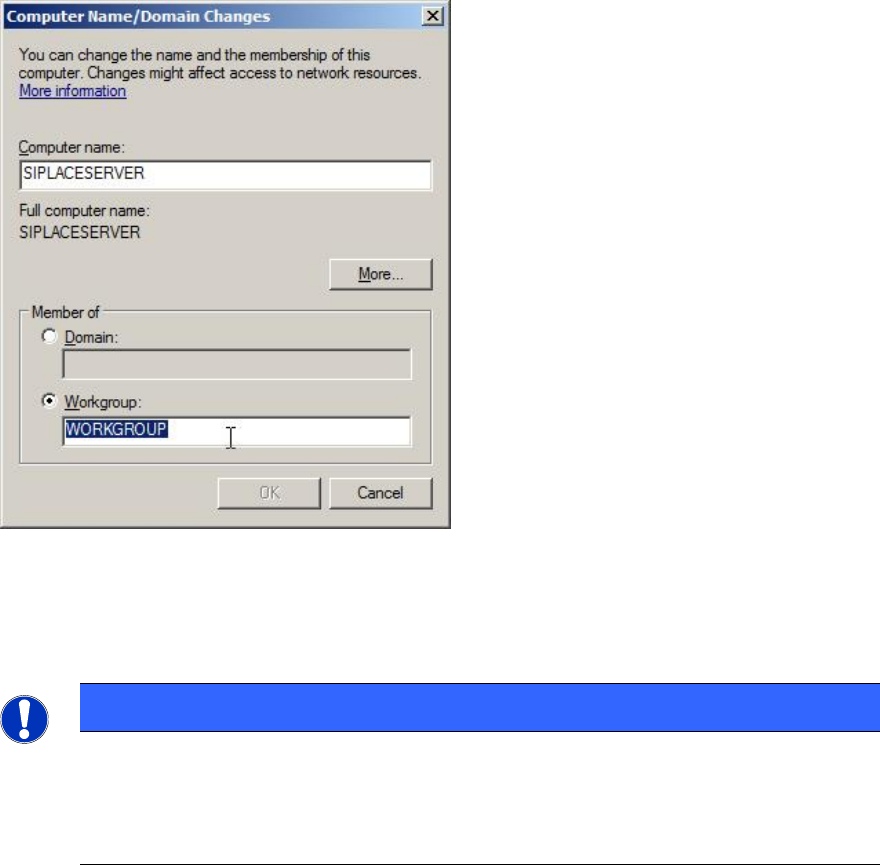
The following window appears.
Figure 3-4: Computer Name/Domain Changes window
► First, verify/change the Computer name.
► Second, ensure the Workgroup radio button is selected and enter the correct
workgroup name. For SIPLACE computers the workgroup is SIPLACE.
NOTICE
Different Workgroup Names complicate Network Browsing
Although it shouldn’t make a functional difference if you choose different
workgroup names for the SIPLACE computers in your network, it complicates
finding your computers in network environment.
Required Steps before using Support Media 2.0 12/2014 Edition
12
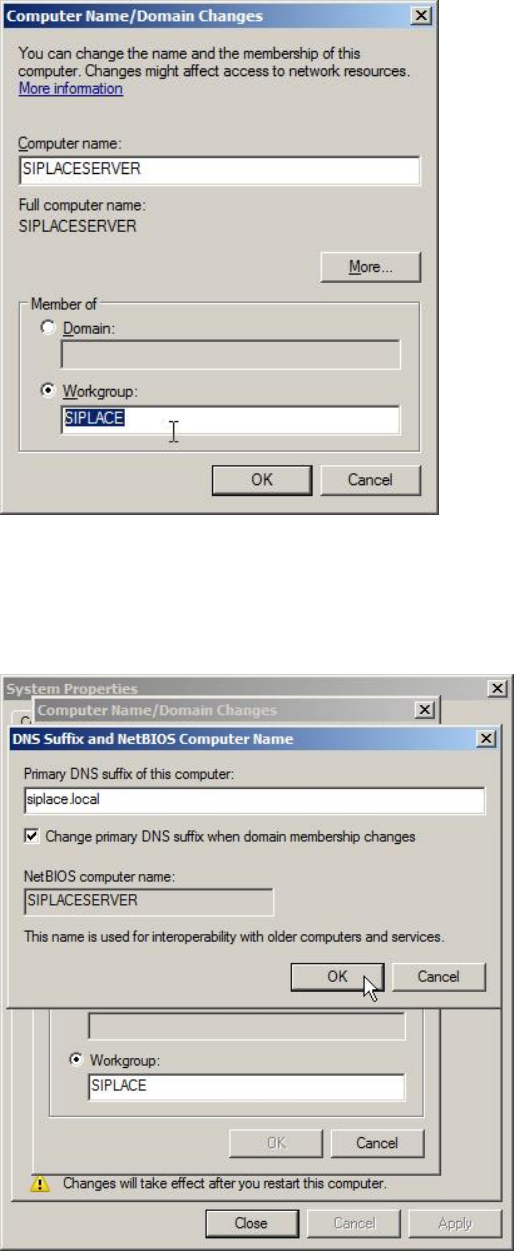
Figure 3-5: Workgroup changed to SIPLACE
► Click the More… button.
Now you have the possibility to verify/change the DNS suffix.
Figure 3-6: Changing the DNS suffix
► Ensure you have the correct DNS suffix. For SIPLACE computers, the suffix is
siplace.local.
► Click the OK button in both open windows to apply the changes.