00197714-01_IM_REQUIRED_STEPS_BEFORE_USING_SUPPORT_MEDIA_2.0_EN.pdf - 第19页
Required Steps be fore using Suppor t Media 2.0 12/2014 Edition 19 6 (Re-)set created A ccounts and Passwords Since operatin g system setups di ffer dependin g on their version and also on the vendor which provi des the …
Required Steps before using Support Media 2.0 12/2014 Edition
18
► Press CTRL + SHIFT + ENTER to execute the command with administrative
permissions.
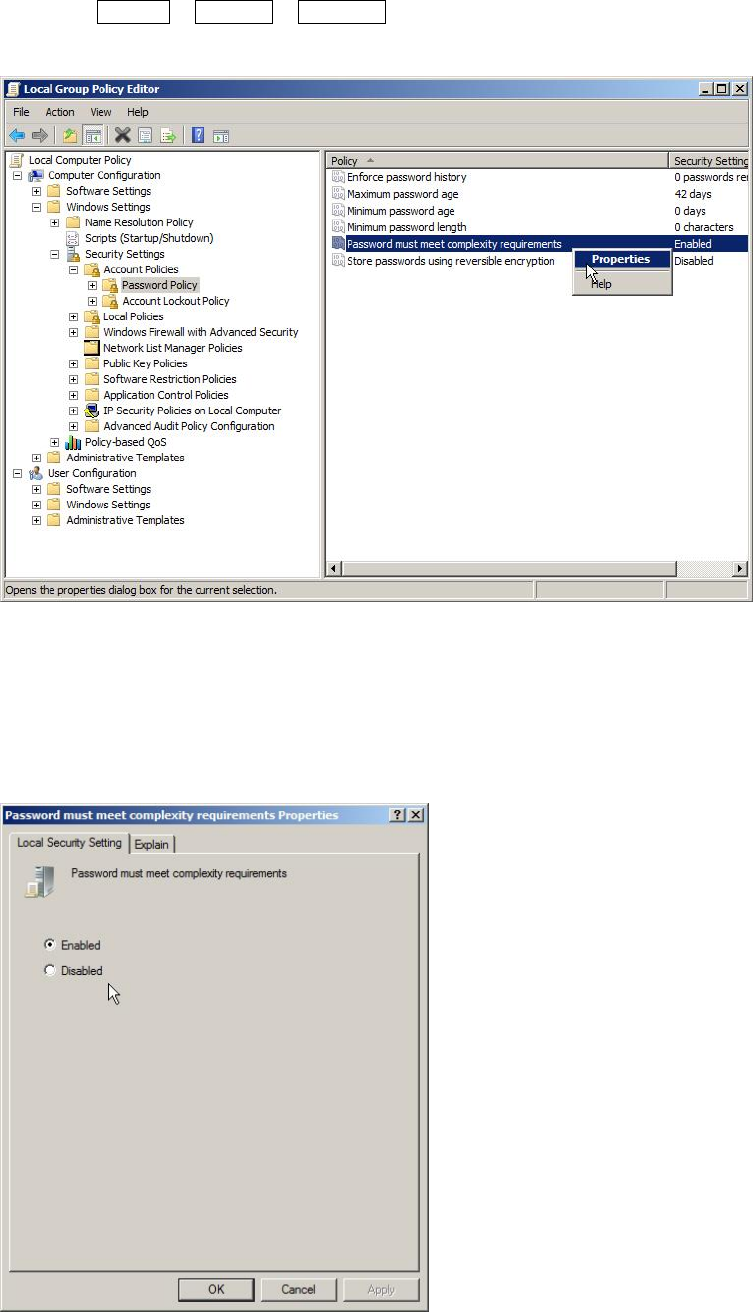
Figure 5-2: Local Group Policy Editor – Password Complexity Policy
► In the Local Group Policy Editor, navigate to
Local Computer Policy – Computer Configuration – Windows Settings – Security
Settings – Account Policies – Password Policy.
► Select the entry Password must meet complexity requirements, right-click on it and
select Properties.
Figure 5-3: Password Complexity Policy setting
► Now, you can verify/change the setting as needed. Enabled means only complex
passwords being allowed, whereas Disabled also allows simple passwords.
► If you are done, click the OK button.
Required Steps before using Support Media 2.0 12/2014 Edition
19
6 (Re-)set created Accounts and Passwords
Since operating system setups differ depending on their version and also on the vendor
which provides the setup, it is not always ensured the passwords for created accounts
being set correctly.
Therefore we strongly recommend to re-set the passwords for created accounts and to
create missing accounts.
The following chapters describe this for the built-in administrator account (which always
exists but may be disabled) and the SIPLACEAdmin account, which is the default
administrative account provided for SIPLACE service technicians.
6.1 Resetting Password of Administrator Account
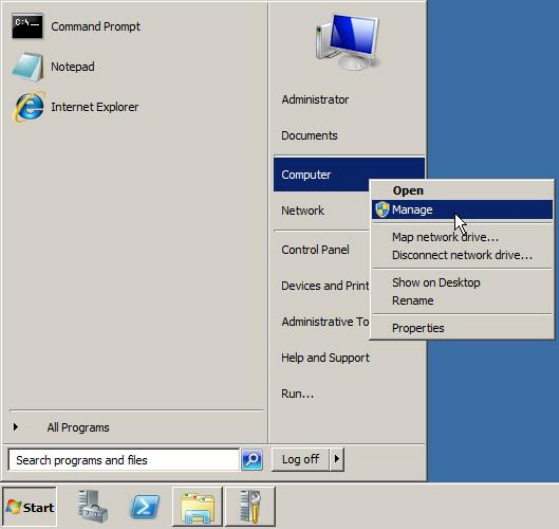
Figure 6-1: Starting Computer Management
► Click on Start.
► Right-click on Computer and select Manage.
Required Steps before using Support Media 2.0 12/2014 Edition
20
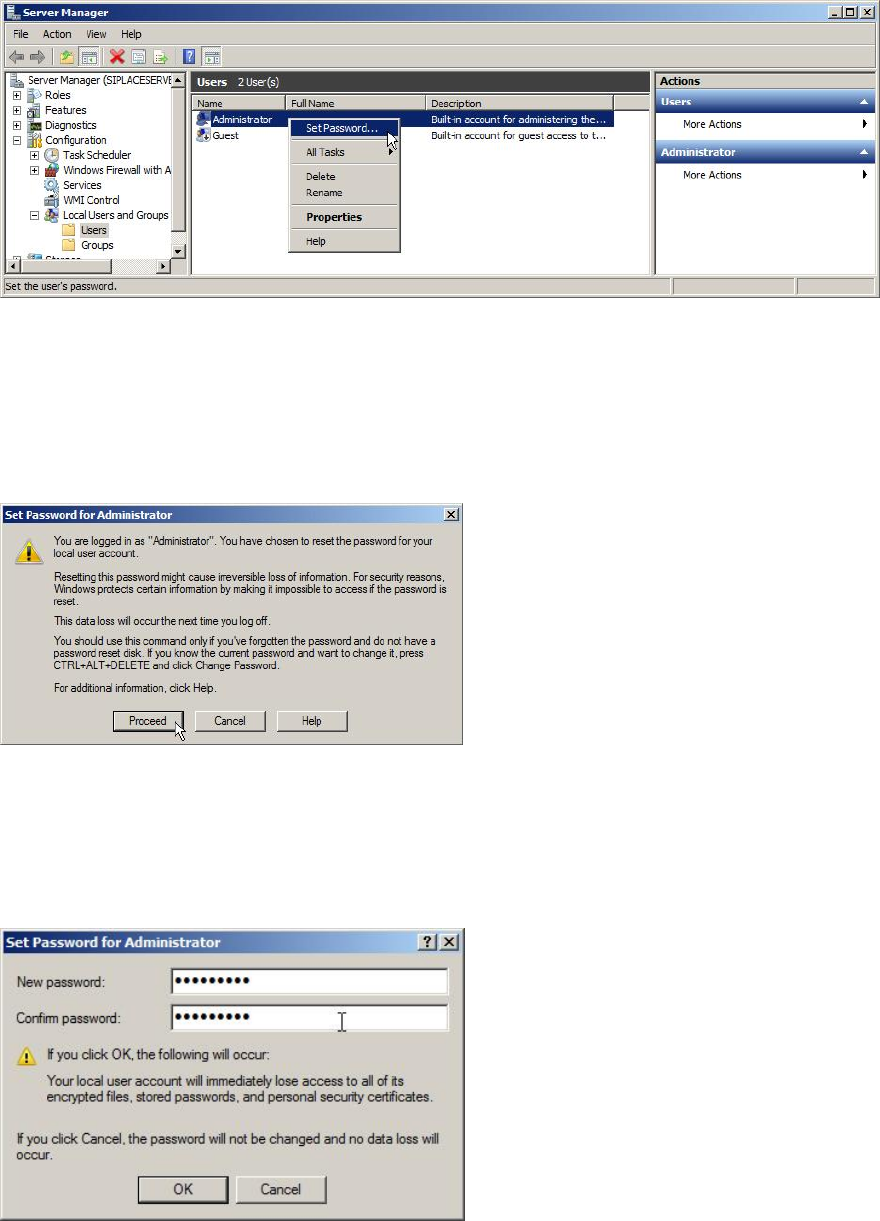
The Computer Management / Server Manager window opens.
Figure 6-2: Server Manager – resetting Administrator password
► Navigate through Configuration (or System) – Local Users and Groups – Users.
► Select the Administrator account.
► Right-click on it and select Set Password….
A warning message will appear.
Figure 6-3: Reset password warning
This message warns you for the case you have files encrypted with that account. These
files won’t be readable anymore if you reset the password.
► Click the Proceed button.
Figure 6-4: Set Password window
► Enter the proper password for the Administrator account. It depends on the password
complexity being set (see the chapter before). Please refer to the technical information
TI2008-04V08 for service technicians to determine the password to be set for the
Administrator account.